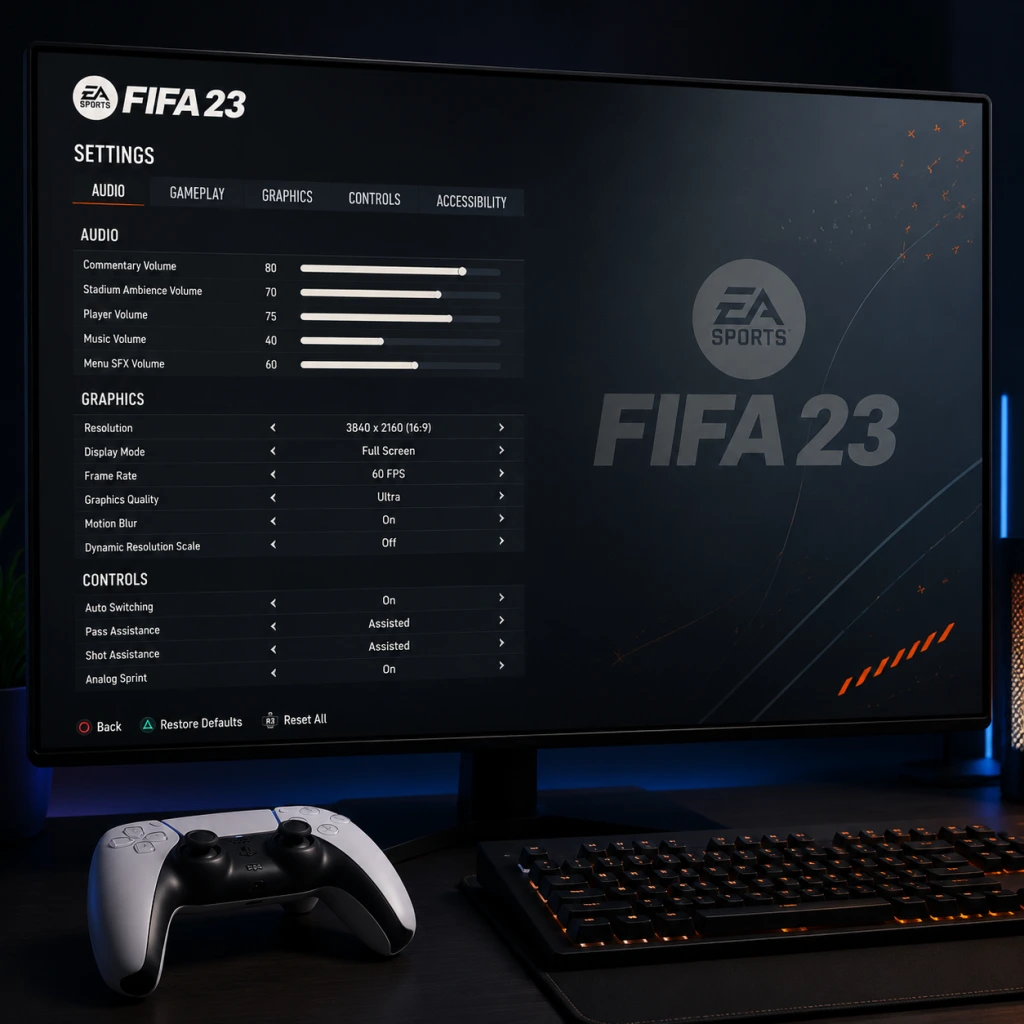
Game Settings
Game Settings
This section provides a complete walkthrough of all major settings in FIFA 23. Whether you are on PC, PlayStation 5, Xbox Series X|S, PS4, Xbox One, or Nintendo Switch, understanding each option will help you tailor the game for performance, visual fidelity, and personal comfort. Special attention is given to settings that are often misconfigured or cause confusion.
---
1. Graphics Settings (PC Only)
FIFA 23 on PC uses the Frostbite engine. Graphics settings directly affect performance and image quality. Below are recommendations for three tiers of hardware.
#### Key Settings to Check
- Display Mode: Fullscreen is recommended over Windowed or Borderless Windowed for best performance and input latency.
- Resolution: Set to your monitor’s native resolution (e.g., 1920x1080, 2560x1440, 3840x2160). Lowering can boost FPS but will look blurry.
- Refresh Rate: Match your monitor’s refresh rate (60Hz, 144Hz, etc.). FIFA 23 supports up to 360Hz.
- V-Sync: Off for lowest input lag (if you can tolerate screen tearing). On can reduce tearing but adds slight lag. Use G-Sync/FreeSync if available.
- Frame Rate Cap: Set to “Unlimited” or match your monitor’s refresh rate. Capping to 60 FPS is recommended for stable gameplay on lower-end systems.
#### Quality Presets & Individual Settings
| Setting | Low (60 FPS) | Medium (60 FPS) | High (60+ FPS) | Ultra (144+ FPS) | Notes |
|---|---|---|---|---|---|
| Overall Quality | Low / Medium | Medium / High | High | Ultra | Start with preset then tweak below |
| Texture Quality | Low | Medium | High | Ultra | VRAM usage: High/Ultra >4GB req. |
| Shading Quality | Low | Medium | High | Ultra | Impacts lighting realism |
| Shadow Quality | Off / Low | Medium | High | Ultra | Shadows on players add realism |
| Anti-Aliasing | Off / FXAA | TAA | TAA | TAA (Temporal) | TAA reduces jaggies but can blur; FXAA less demanding |
| Ambient Occlusion | Off | SSAO | HBAO+ | HBAO+ | Adds depth; SSAO is good balance |
| Post Process Quality | Low | Medium | High | Ultra | Bloom, depth of field, etc. |
| Motion Blur | Off | Off | Off | User preference | Turn off for competitive clarity |
| Grass Quality | Low | Medium | High | Ultra | Affects stadium pitch detail |
| Crowd Quality | Low | Medium | High | Ultra | Crowd animation; heavy on CPU |
| Hair Quality | Low | Medium | High | Ultra | Strand-based hair on next-gen |
- Entry Level (e.g., GTX 1050 Ti, RX 570, 8GB RAM): Use Low preset, disable motion blur, set anti-aliasing to FXAA. Expect 60 FPS at 1080p.
- Mid-Range (e.g., RTX 2060, RX 5600 XT, 16GB RAM): Medium-High preset, TAA, ambient occlusion SSAO, shadows Medium. Target 60 FPS at 1440p or 1080p High.
- High-End (e.g., RTX 3070, RX 6800 XT, 16GB+ RAM): Ultra preset, TAA, HBAO+, hair quality High. Can achieve 144+ FPS at 1440p or 4K 60 FPS.
- Master Volume: Set to a comfortable level (70-90%).
- Commentary Volume: Many players reduce this to 30–50% to avoid repetitive lines. You can turn it off entirely if preferred.
- Stadium Ambience: Keep high (80-100%) to hear crowd reactions and referee whistles.
- On-Pitch Effects: Footsteps, ball kicks, tackles – set to 100%. These provide crucial audio cues for positioning.
- Menu Music: Lower or mute if it distracts; personal preference.
- Control Layout: Choose between FIFA Classic / Alternate / Two Button etc. Most players use FIFA Classic (PlayStation) or FIFA Classic (Xbox). For beginners, Two Button simplifies controls (pass and shoot only).
- Button Mapping: You can remap every action. Common changes:
- Analog Sprint: On = sprint intensity varies with trigger pressure. Off = full sprint always. Recommended On for better control.
- Left Stick Dribbling Sensitivity: Adjusts how quickly your player responds. Higher = twitchy; lower = sluggish. Start at 50, adjust +/-10 based on feel.
- Pass Assistance: Semi or Manual for experienced players; Assisted for beginners. Assisted corrects passes but limits creativity.
- Shot Assistance: Assisted is default for most. Manual for skilled players to place shots precisely.
- Through Pass Assistance: Similar to passing; Semi gives a good balance.
- Cross Assistance: Manual allows more accurate crosses; Assisted tends to over-correct.
- Lob Pass Assistance: Leave Assisted unless you’re pro.
- Save Assistance: Not applicable (for keeper modes only).
- Nintendo Switch: Motion controls are available; you can disable them in Settings > Controls > Motion Control.
- PlayStation 5 / Xbox Series X|S: Adaptive triggers / haptic feedback are supported. Some players find them distracting – you can reduce intensity in Settings > Controller > Trigger Effect Intensity.
- Color Blind Mode: Three options – Protanopia, Deuteranopia, Tritanopia. It changes player indicators, arrow colors, and UI elements. Enable under Settings > Accessibility > Color Blind Mode.
- Subtitle Display: Turn on for cutscenes and pre-match cinematics. Size can be adjusted.
- Camera Shake: Option to reduce motion sickness.
- Visual Cues: A setting that shows a “ping” icon on screen when a whistle blows (foul, offside, etc.). Useful for deaf/hearing-impaired players.
- Menu Narration: Text-to-speech for menu items (PC & console).
- Auto Sprint: If holding sprint is difficult, enable Auto Sprint so your player always sprints when running with the ball (not recommended for manual control).
- Auto Tackling: Automatically attempts tackles when close to opponent; can be toggled on for easier defending.
- Hold to Contain: Instead of pressing a dedicated button, you can set AI to pressurize the ball holder automatically.
- Game Language: Select menu language (affects all text).
- Commentary Language: Separate from menu language. You can have English menus with Spanish commentary, for example.
- Audio Language: For some regions, select between English, French, German, etc.
- Region Server: On PC, you can force a specific server region for online modes (e.g., North America, Europe). Important for Ultimate Team matchmaking to reduce lag: choose the region closest to you.
- Matchmaking Server Selection: Available only on PC. Choose a server with the lowest ping (green indicator). If you’re in a region with multiple servers, lock yours to the best one.
- Cross-Play: Enabled by default. On PC you can play with PS5 and Xbox Series X|S users but not PS4/Xbox One. Disable if you want only same-platform opponents (e.g., PC only).
- Auto-Detect Settings: Let the game choose; you can manually override if you experience issues.
- Use a wired Ethernet connection instead of Wi-Fi for lower latency.
- Port Forwarding (optional): Open UDP ports 3659, 17502, 10000-19999, and TCP 443, 80, 9988, 10000-19999 for better connectivity.
- Packet Loss: If you see the “connection quality” indicator turn red, your internet is unstable. Close background downloads, streaming, or switch to a less congested network.
- Game Speed: Normal is standard for competitive play. Slow gives more time on ball (for beginners or simulation). Fast can feel arcadey and is not recommended for realistic matches.
- Difficulty Level: Choose between Amateur (AI mistakes) to Legendary (AI near-perfect). Ultimate Team uses a separate difficulty (World Class/Legendary for offline matches).
- Sprint Mode: Analog (pressure-sensitive) or Digital (on/off). Analog is more fine-tuned.
- Defensive Tactics: Tactical Defending (default) vs Legacy Defending (old style). Tactical requires holding a button to contain and pressing tackle. Legacy uses the tackle button to auto-tackle. Recommended: Tactical – it offers more control.
- Timed Finishing: If enabled, pressing shoot a second time (just as the player strikes) adds power/accuracy. Many beginners disable it because it’s hard to time. Turn Off if you often mistime.
- Precision Dribbling.: L2/LT + left stick for close control. Works best on higher difficulties.
- Auto Switching (Player Movement):
- Save Assistance (Goalkeeper): Only relevant if you control the keeper (rare). Leave Assisted for your AI keeper.
- Injury Frequency: Set to On (default) for realism, but in Ultimate Team online play, injuries can affect your squad. Many players turn injuries Off for friendly sessions.
- Offside Rule: Rarely changed, but set to On as per standard rules.
- Extra Time: Can be set to Golden Goal for quick matches (e.g., one half of extra time ends when first goal is scored).
- Penalty Kick: Normal or Where I Aim (manual). Manual gives you direct control over direction; hard to master.
#### Common Misconfiguration: Overlooking VRAM Limit
If you set texture quality to Ultra on a GPU with only 4GB VRAM, the game may stutter heavily or crash. Always check VRAM usage in the settings menu (PC only) – stay below 90% usage.
---
2. Audio Settings
Audio settings are similar across all platforms. Properly configuring them can improve your gameplay experience, especially in competitive modes.
#### Key Options
#### Special Attention: Dynamic Range
Choose Headphones or Home Theater based on your output device. Headphones mode enhances directional audio (e.g., hearing an opponent closing in from the side). Home Theater is better for surround sound systems.
#### Misconfigurable Setting: Audio Output
On PC, ensure your default playback device is correct in Windows sound settings. FIFA 23 sometimes defaults to the wrong device if you have multiple audio outputs (e.g., monitor speakers vs headphones). Check in-game under Settings > Audio > Speaker Configuration.
---
3. Controls Settings
FIFA 23 offers extensive control customization. The most critical settings affect responsiveness and button layout.
#### Controller Configuration
- Swap Sprint (R2/RT) and Sprint (L2/LT)? Not recommended.
- Change Finesse Shot to a different button.
#### Advanced Settings
#### Misconfigurable Setting: Controller Vibration
Vibration can provide feedback (e.g., tackle feels heavy) but adds input latency in competitive play. Professional players often turn it Off to reduce lag and distraction.
#### Platform-Specific Notes
---
4. Accessibility Settings
FIFA 23 includes several features to aid players with disabilities.
#### Visual Accessibility
#### Auditory Accessibility
#### Motor Accessibility
#### Misconfigurable Setting: Camera Shake
Some players inadvertently turn off camera shake via accessibility, causing the game to feel unnaturally static during goal celebrations. Ensure it matches your preference.
---
5. Language & Region Settings
Language settings affect commentary, menu text, and subtitle language.
#### Misconfiguration Pitfall: Commentary vs Menu Mismatch
If you change the commentary language but not the menu language, the game may fail to download the audio pack. Ensure both are set to the same language group (e.g., English for both) unless you deliberately want a mix. Also, some languages require an additional download – make sure you have space.
---
6. Network Settings
Optimal network settings reduce lag (latency) and packet loss in online modes.
#### In-Game Network Options
#### Network Diagnostics & Tips
#### Misconfiguration: Matchmaking Server Selection on Console
On console, you cannot manually select a server. Instead, the game picks based on your IP geolocation. If you are matched with high-ping opponents, try restarting the game or your router to force a different connection.
---
7. Gameplay Settings
These settings directly affect how the game plays on the pitch. They are often misconfigured, leading to frustration.
#### Game Speed & Difficulty
#### Match Controls & Assistance
#### Auto Switching & Assistance
- Auto Switching Move Assistance: Controls whether the game automatically switches to the nearest player when ball is loose. Options: Air & Ground, Air Only, None. For manual control, set to Manual (None).
- Auto Switching: Decides how aggressively the game changes your controlled defender. Low is recommended – it still does light switching but not too intrusive. High often switches you away from a good position.
#### Misconfigurable Setting: Auto Switching
Players often leave Auto Switching on High, causing their defender to suddenly switch to a distant player, leaving gaps. Set Auto Switching to Low or Manual (if you are comfortable). Auto Switching Move Assistance should be set to Manual to avoid losing control of your chosen player.
#### Additional Gameplay Options
---
Summary of Critical Settings to Double-Check
1. Graphics (PC): Texture Quality (VRAM), V-Sync, Motion Blur (off).
2. Audio: Dynamic Range (Headphones vs Home Theater), Commentary Volume (lower for focus).
3. Controls: Pass/Shot Assistance (choose based on skill), Vibration (off for competitive).
4. Accessibility: Color Blind Mode (if needed), Auto Sprint (rarely used).
5. Language: Server region (PC), commentary language download.
6. Network: Cross-Play toggle, wired connection preferred.
7. Gameplay: Auto Switching (set to Low or Manual), Timed Finishing (off if struggling), Game Speed (Normal).
By carefully tuning these settings, you’ll get the best balance of performance, visuals, and control comfort for your playstyle and hardware.