Game Settings
Game Settings Guide for Firewatch
This guide covers every setting in Firewatch, with recommendations for performance and quality across different hardware levels. Use this to fine-tune your experience, avoid common misconfigurations, and ensure smooth gameplay. Settings are organized by category.
Graphics Settings
| Setting | Options | Recommendation |
|---|---|---|
| Quality Preset | Low, Medium, High, Ultra | Start with the preset matching your hardware, then fine-tune individual options below. |
| Resolution | Native display resolutions | Always set to your monitor’s native resolution for sharpness. Lower only if performance is poor. |
| Window Mode | Fullscreen, Windowed, Borderless | Use Fullscreen for best performance and lowest input lag. Borderless is useful for alt-tabbing. |
| VSync | On, Off | Off to reduce input lag if your monitor supports adaptive sync (G-Sync / FreeSync). Otherwise, leave On to prevent screen tearing. |
| Anti-Aliasing | None, FXAA, MSAA 2x/4x/8x | Low-end: FXAA or None. Mid: MSAA 2x. High: MSAA 4x. Ultra: MSAA 8x. FXAA is blurrier than MSAA but cheaper. |
| Ambient Occlusion (SSAO) | On, Off | Off for low-end. On for mid/high. Adds depth to shadows. |
| Bloom | On, Off | Off on low-end. Adds a glow effect; minimal performance hit. |
| Depth of Field | On, Off | Off on low-end. Blurs distant objects; can cause eye strain for some. |
| Motion Blur | On, Off | Off for clarity and lower GPU load; many players prefer it off. |
| Film Grain | On, Off | Off for a cleaner image. Subtle effect. |
| Shadow Quality | Low, Medium, High, Ultra | Low/Medium for low-end. High/Ultra for others. Impacts performance noticeably. |
| Texture Quality | Low, Medium, High, Ultra | Low/Medium for 2GB VRAM, High/Ultra for 4GB+. High and Ultra look similar. |
| Vegetation Quality | Low, Medium, High, Ultra | Low/Medium for low-end. Controls grass and bush detail. |
| Render Scale | 50%–200% (PC only) | Leave at 100% unless you have a very powerful GPU (200% for supersampling). Lowering below 100% blurs the image. |
Audio Settings
- Master Volume: 70–100% (adjust to taste).
- SFX Volume: 100% (crackling radio, footsteps, environment).
- Dialogue Volume: 100% (Delilah’s voice is critical for story).
- Music Volume: 50–80% (atmospheric soundtrack; don’t drown dialogue).
- Mute when in background: Off (on by default; turn off if you alt-tab and want audio).
- Mouse Sensitivity: Start at 50% and adjust lower if you overshoot. Fine-tune in-game by moving the cursor.
- Invert Y Axis: Off by default. Toggle on if you prefer inverted mouse look (common for flight sim veterans).
- Controller Sensitivity: Default 50% – increase for quicker camera turns.
- Controller Vibration: On (adds immersion when walking, climbing).
- Auto-walk: Toggle on/off (default On). Easy to misconfigure: if toggled on accidentally, pressing W will lock you into forward movement until you press W again. Keep Off unless you want to walk hands-free.
- Key Bindings: Customizable for keyboard and controller. Defaults are fine for most, but you may want to rebind Use (E), Run (Shift), Crouch (Ctrl), or Map (Tab).
- Subtitle Size: Small, Medium, Large. Choose Medium or Large for readability on smaller screens or if you play at a distance from the TV. Especially important because dialogue is the core of the game.
- Colorblind Mode: On/Off. If enabled, certain environmental cues (e.g., object highlights) change from green to blue or yellow. Special attention: Leave Off unless you have a diagnosed color vision deficiency – otherwise it makes colors look unnatural.
- Show Interface: On/Off. When On, you always see the objective marker and compass. Off for a more immersive experience (but you may get lost). Start with On if you’re new.
- Text Language: English (default) / French / German / Italian / Spanish / Japanese / Korean / Polish / Portuguese (Brazilian) / Russian / Simplified Chinese / Traditional Chinese.
- Audio Language: English only (always English voice acting).
- Subtitle Language: Follows Text Language. If you want English audio with Japanese subtitles, set Text Language to Japanese and keep Audio Language as English.
- Show Objective Markers: On/Off. On helps navigation; Off forces you to use the map and compass (more immersive). Recommend On for first playthrough.
- Hints: On/Off. On shows contextual tooltips (e.g., “Press E to interact”). Keep On for new players; turn off for a clean HUD.
- Auto-walk (also in Controls): As noted, keep Off to avoid accidental locking.
- Camera Shake: On/Off. On adds subtle bounce when walking/running. Off if you are sensitive to motion.
- Show Subtitle Background: On/Off (PC only). On adds a dark box behind subtitles for readability; useful if the text blends into bright environments.
- Quality Preset: Low (or Custom with all above settings set to Low/Off).
- Resolution: 720p (1280×720) or 900p.
- Anti-Aliasing: Off.
- Render Scale: 100% (do not lower – it blurs too much).
- Expected FPS: 30–45 at 720p.
- Quality Preset: High.
- Resolution: 1080p.
- Anti-Aliasing: MSAA 2x.
- VSync: On (if no adaptive sync).
- Expected FPS: 60+ at 1080p with occasional dips.
- Quality Preset: Ultra.
- Resolution: 1440p or 4K (if GPU supports).
- Anti-Aliasing: MSAA 4x.
- Render Scale: 100% (150% only if you have excess GPU headroom).
- VSync: Off (use G-Sync/FreeSync).
- Expected FPS: 60+ at 1440p, 30–60 at 4K.
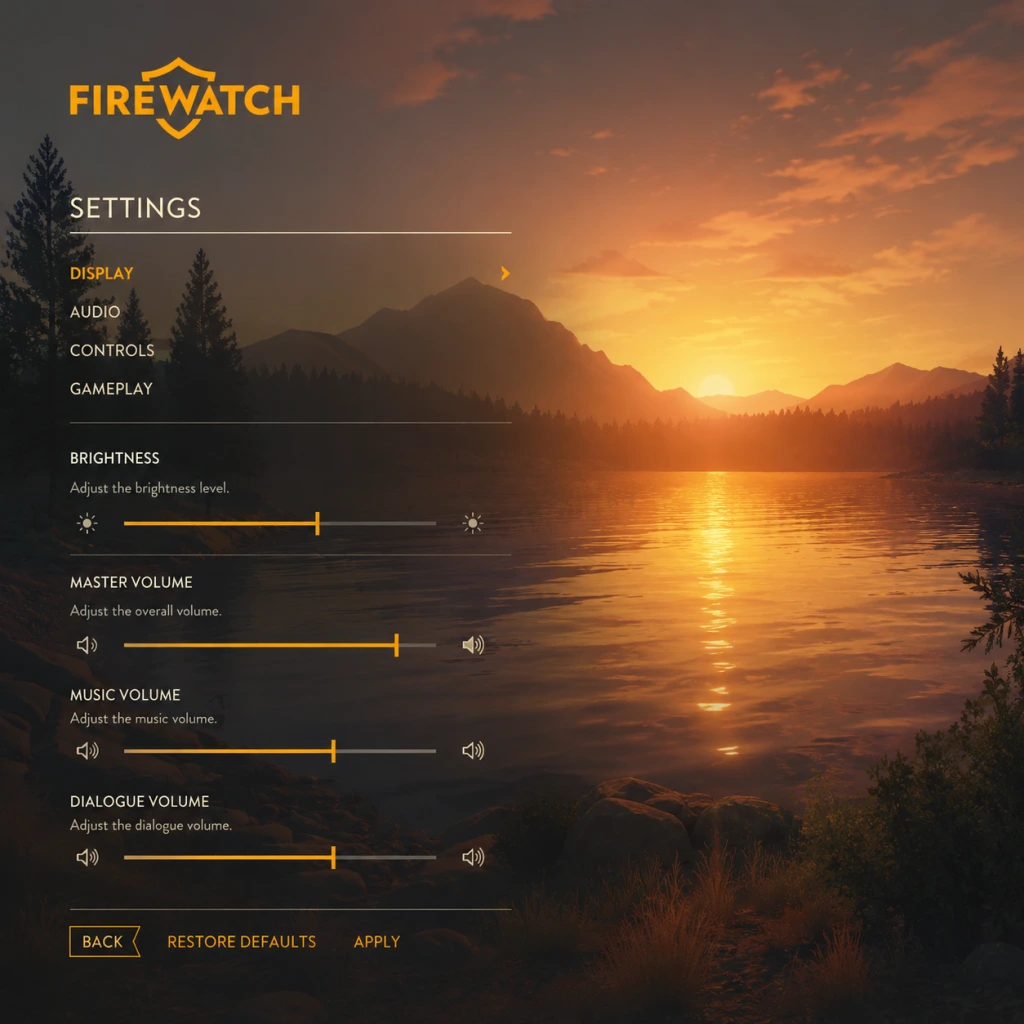
All audio sliders are straightforward. Ensure dialogue is at least as loud as music to avoid missing story cues.
Controls Settings
Accessibility Settings
Language Settings
Special attention: Changing Text Language also changes the in-game map text and journal entries. Ensure you set it before starting a new game, as changing mid-playthrough can break UI consistency (though it’s safe to change later).
Network Settings
Firewatch is a strictly single-player game with no multiplayer or online features. There are no network settings. You can play entirely offline. The only internet requirement is for downloading the game and receiving achievements.
Gameplay Settings
Recommended Presets by Hardware Level
#### Low-End Hardware (e.g., Intel HD 4000, AMD A8, 4GB RAM)
#### Mid-Range Hardware (e.g., GTX 960, RX 470, 8GB RAM)
#### High-End Hardware (e.g., RTX 2060, RX 5700, 16GB RAM)
#### Console Versions (PS4, PS4 Pro, Xbox One, Xbox One X, Switch)
Settings are fixed by the developer. PS4 Pro and Xbox One X target 1440p–4K at 30 fps. Switch runs at 720p undocked / 1080p docked at 30 fps. No customisation available.
Misconfiguration Points & Special Attention
1. Auto-walk toggle – Most common accidental setting. If your character keeps walking after releasing W, you’ve toggled Auto-walk on. Press the same key (default: backslash) or change it in Controls.
2. Colorblind Mode – Do not enable unless needed. It permanently alters the colour palette and can make normal cues confusing.
3. Subtitle Size – Default is Small. If you play on a TV from a distance, switch to Large to avoid squinting.
4. Window Mode – Selecting “Windowed” can reduce performance by 10–20%. Use “Fullscreen” for the best frame rate.
5. VSync – On a 60 Hz monitor without adaptive sync, turning off VSync causes screen tearing. Turn it on or use borderless windowed (which forces VSync via the OS).
6. Invert Y – Check this first if your camera moves in the opposite direction of your mouse or stick.
Conclusion
Firewatch is not demanding, but fine-tuning graphics can make the beautiful Wyoming wilderness run smoothly on any system. Most settings are self-explanatory, but the Auto-walk, Colorblind Mode, and VSync settings are the ones most likely to cause confusion. Use the table above to match your hardware, and remember that the game saves settings to a config file (located in `%USERPROFILE%\Documents\Firewatch\` on Windows) if you ever need to reset them. Enjoy your hike!