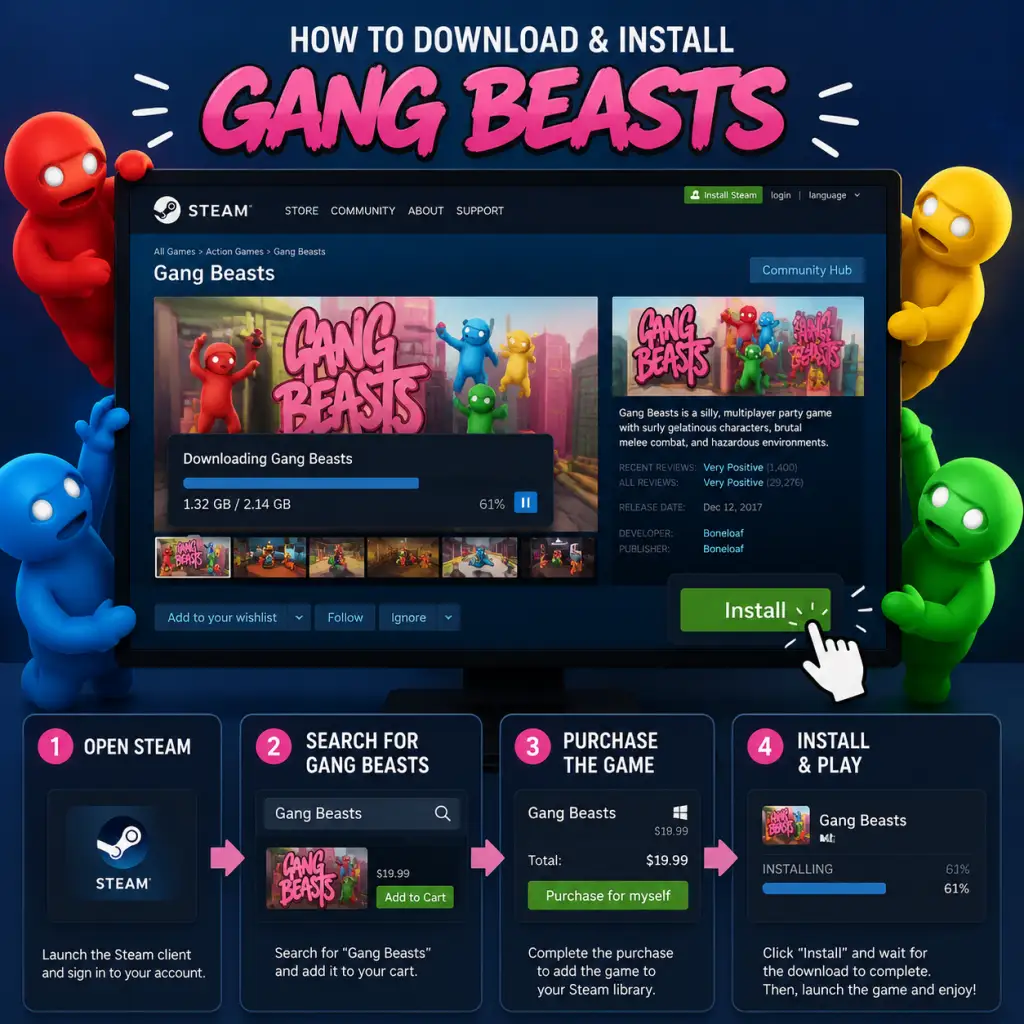
Download & Installation
Download & Installation Guide for Gang Beasts
Gang Beasts is a hilarious physics-based brawler developed by Boneloaf and published by Double Fine. It is available on multiple platforms, but not on mobile. This guide covers official download sources, system requirements, and step-by-step installation for each platform.
---
Supported Platforms
| Platform | Store / Source | Availability |
|---|---|---|
| PC | Steam, Epic Games Store | Digital only |
| PlayStation | PlayStation Store (PS4, PS5) | Digital (PS5 version runs via backward compatibility) |
| Xbox | Microsoft Store (Xbox One, Xbox Series X/S) | Digital (Smart Delivery) |
| Nintendo Switch | Nintendo eShop | Digital |
---
Official Download Sources
Always use the official store for your platform to avoid scams or viruses:
- PC (Steam): [Gang Beasts on Steam](https://store.steampowered.com/app/285900)
- PC (Epic Games Store): [Gang Beasts on Epic](https://store.epicgames.com/en-US/p/gang-beasts)
- PlayStation: PlayStation Store (search “Gang Beasts”)
- Xbox: Microsoft Store (search “Gang Beasts”)
- Nintendo Switch: Nintendo eShop (search “Gang Beasts”)
- OS: Windows 7/8/10 (64-bit)
- Processor: 2.0 GHz dual-core
- Memory: 4 GB RAM
- Graphics: DirectX 10 compatible GPU with 1 GB VRAM (e.g., Intel HD 4000, NVIDIA GeForce GT 630)
- DirectX: Version 10
- Storage: 2 GB available space
- Network: Broadband internet for multiplayer
- OS: Windows 10 (64-bit)
- Processor: 3.0 GHz quad-core
- Memory: 8 GB RAM
- Graphics: DirectX 11 compatible GPU with 2 GB VRAM (e.g., NVIDIA GeForce GTX 960 / AMD Radeon R9 380)
- DirectX: Version 11
- Storage: 2 GB available space (SSD recommended)
- Network: Broadband internet
- PlayStation 4/5: No specific requirements — download from store (requires ~1.5 GB free space for PS4 version; PS5 via backward compatibility needs ~1.5 GB).
- Xbox One / Series X/S: Requires ~1.5 GB free space; Xbox Series X/S runs the Xbox One version via backward compatibility or Smart Delivery.
- Nintendo Switch: Requires ~1.2 GB free space on internal storage or microSD card.
- Note for PS5: There is no native PS5 version; the PS4 version runs via backward compatibility.
- Smart Delivery: If you own on Xbox One, it will automatically download the best version on Series X/S.
- Steam: Valid Steam account and the Steam client installed.
- Epic Games: Epic Games account and launcher.
- PlayStation: PlayStation Network (PSN) account. PS Plus is not required for online play in Gang Beasts; only for cloud saves or other benefits.
- Xbox: Microsoft account (Xbox profile). Xbox Game Pass Core/Ultimate is not required for online multiplayer in this game.
- Nintendo Switch: Nintendo Account. Nintendo Switch Online is not required for online play.
- Language: On first launch, the game will detect your system language. You can change it in Settings > Audio & Language.
- Controller Setup: Supported controllers (Xbox, PlayStation, Switch Pro, Joy-Cons) are plug-and-play. For PC, ensure controllers are connected before launching. Use Options > Controls to remap.
- Online Multiplayer: Select Online from the main menu. You may be prompted to create or join a lobby. (No account linking required beyond the platform.)
- Graphics (PC): Go to Options > Graphics to adjust resolution, fullscreen, and quality presets. The game is lightweight — you can run at max settings on most modern systems.
- Save Data: The game auto-saves progress. No separate save file management needed.
- Fix: Verify game files.
- Fix: Free up space (game requires ~2 GB). On consoles, delete unused games or clear cache. On PC, check drive space and move other files to external storage.
- Fix: Restart the console and try again. If persists, rebuild database: turn off console, then boot into Safe Mode (hold power button until second beep) and select Rebuild Database.
- Fix: Hard reset (hold power button for 10 seconds). Then go to Settings > System > Storage > Clear local saved games (does not delete cloud saves).
- Fix: Check internet connection, restart Switch, ensure free space (archived software if needed). Redownload from eShop > your account > Redownload.
- Fix: Ensure controller is recognized in Windows (Xbox Accessories app or check Device Manager). In Steam, go to Settings > Controller > General Controller Settings and enable support for your controller type. For Epic, launch the game through Steam as a non-Steam game and use Steam Input.
- Fix: Update graphics drivers. Also try launching in windowed mode: in Steam, add launch option `-windowed` (right-click > Properties > General > Launch Options).
- PC: Update DirectX and Visual C++ redistributables (available from Microsoft).
- Console: Check for system updates.
- Switch: Ensure the console is in docked or handheld mode as preferred; some issues occur when switching modes mid-play.
- PC (Steam): Right-click in Library > Manage > Uninstall.
- PC (Epic): In Library, click three dots > Uninstall.
- PlayStation: Highlight game icon > Options > Delete.
- Xbox: My games & apps > Highlight Gang Beasts > Menu > Uninstall.
- Switch: Press + on game icon > Manage Software > Delete Software.
- Mods/Workshop (Steam only): Gang Beasts supports Steam Workshop. Subscribe to mods via game page to add cosmetics or stages.
- Cross-Platform Play: Currently not available. Players on different platforms cannot play together.
- Local Multiplayer: Up to 8 players locally with multiple controllers (e.g., Joy-Cons for Switch, any controllers on PC).
---
System Requirements
#### PC (Minimum)
#### PC (Recommended)
#### PlayStation / Xbox / Switch
---
Step-by-Step Installation
#### 1. PC – Steam
1. Open Steam client and log in.
2. Go to Store tab, search “Gang Beasts”.
3. Click Add to Cart and complete purchase.
4. Go to your Library, find Gang Beasts.
5. Click Install. Choose install location (default is C:\Program Files (x86)\Steam\steamapps\common).
6. Wait for download (~1.5 GB) and installation.
7. Once installed, click Play.
#### 2. PC – Epic Games Store
1. Open Epic Games Launcher and log in.
2. Go to Store, search “Gang Beasts”.
3. Click Get (or purchase if not already owned).
4. Go to Library, find Gang Beasts.
5. Click Install. Select install folder.
6. Wait for installation. Then click Launch.
#### 3. PlayStation (PS4 or PS5)
1. On your console, go to PlayStation Store.
2. Search “Gang Beasts”.
3. Select the game and choose Download (if purchased) or Buy.
4. The download will start automatically. You can monitor progress from Notifications > Downloads.
5. Once finished, the game appears on your home screen. Launch it.
#### 4. Xbox (Xbox One / Series X/S)
1. Press the Xbox button to open the guide.
2. Go to Microsoft Store.
3. Search “Gang Beasts”.
4. Select the game, then Get or Buy.
5. The download begins. Check progress under My games & apps > See all > Manage > Queue.
6. After installation, the game appears in My games & apps. Launch it.
#### 5. Nintendo Switch
1. From the Home menu, select Nintendo eShop.
2. Log in with your Nintendo Account.
3. Search “Gang Beasts”.
4. Select the game, then Proceed to Purchase (or Download if already bought).
5. Confirm payment or redownload from your account.
6. The download will start. You can see progress on the Home screen.
7. Once downloaded, the icon appears; select it to play.
---
Account Requirements
---
First Launch Setup
---
Common Installation Errors & Fixes
#### Error: “Download stopped / corrupt files” (Steam/Epic)
- Steam: Right-click Gang Beasts in Library > Properties > Local Files > Verify integrity of game files.
- Epic: Go to Library, click three dots on Gang Beasts > Manage > Verify Files.
#### Error: “Insufficient disk space”
#### Error: “Failed to install” on PlayStation
#### Error: “Installation stopped” on Xbox
#### Error: “Cannot download on Switch” (error code 2002-…)
#### Error: “Controller not working” (PC only)
#### Error: “Black screen on launch” (PC)
---
Post-Installation Verification
After installation, verify the game runs correctly:
1. Launch the game and check the main menu appears.
2. Go to Options > Graphics (PC) and confirm settings are applied.
3. Start a Local Fight with at least one controller to test gameplay.
4. Try Online mode — create a lobby or join a quick match to confirm network connectivity.
5. Check for any graphical glitches or audio issues. If present, lower graphics settings (PC) or restart the console.
If the game crashes immediately, try the following fixes:
---
Uninstalling (Optional)
---
Additional Tips
---
This guide was last updated in [Current Year]. For troubleshooting, visit the official [Boneloaf support page](http://boneloaf.com) or the [Gang Beasts community forums](https://steamcommunity.com/app/285900/discussions/).