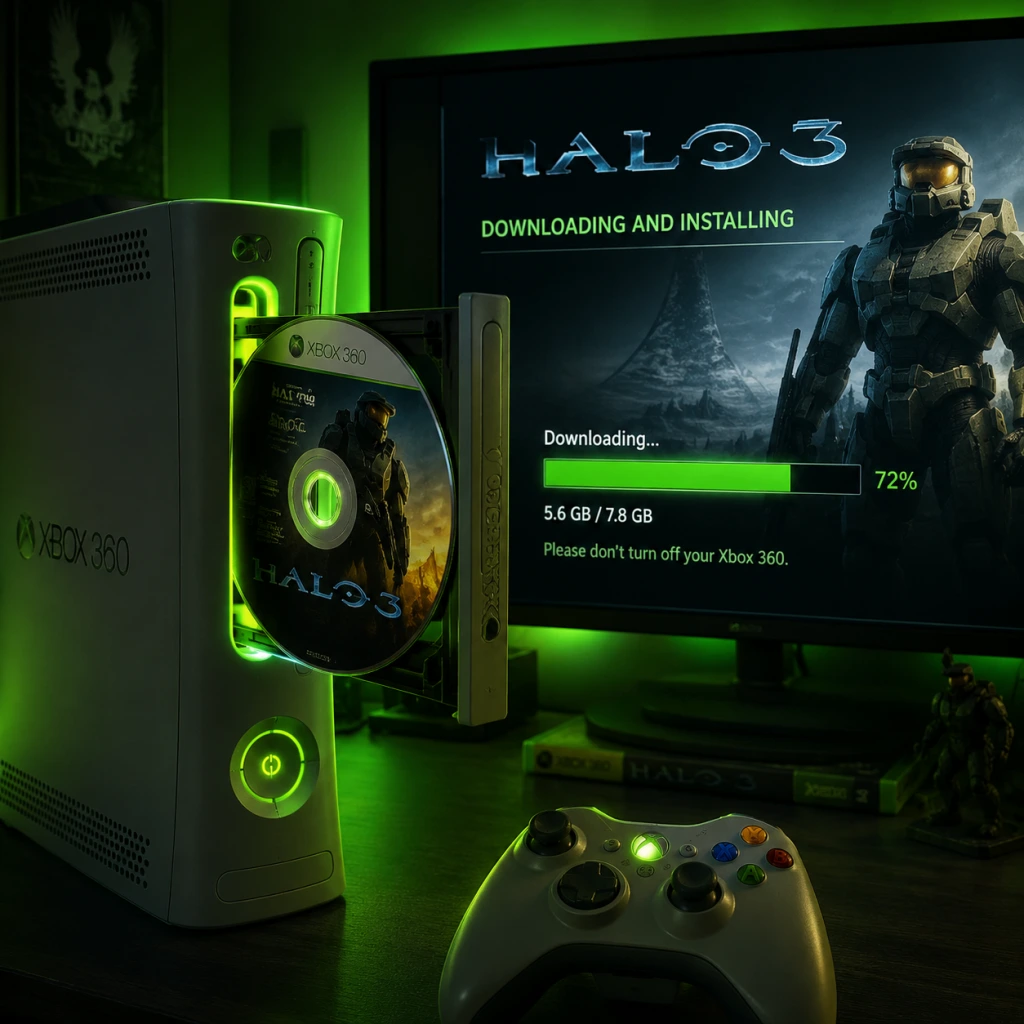
Download & Installation
Overview
Halo 3 is primarily available on:
- Xbox platforms: Original Xbox 360 disc/digital (backward compatible on Xbox One and Xbox Series X|S) and as part of Halo: The Master Chief Collection (MCC) on Xbox One/Series X|S.
- PC: Exclusively through Halo: The Master Chief Collection on Steam and the Microsoft Store (also available via Xbox Game Pass for PC).
It is not officially available on PlayStation, Nintendo Switch, or mobile platforms.
Official Download Sources (Legitimate Only)
| Platform | Source | Notes |
|---|---|---|
| Xbox (360, One, Series) | Microsoft Store (digital) or disc | Disc required for Xbox 360; digital purchase on Xbox Marketplace for backward compatibility. MCC version on Xbox One/Series contains Halo 3. |
| PC (Steam) | Steam Store – Halo: The Master Chief Collection | Requires Steam account. |
| PC (Microsoft Store) | Microsoft Store – Halo: The Master Chief Collection | Requires Microsoft account. Included with Xbox Game Pass for PC (subscription). |
| Subscription | Xbox Game Pass (Console, PC, Ultimate) | Includes MCC with Halo 3 on both Xbox and PC. |
System Requirements (PC – Halo: The Master Chief Collection)
Minimum Requirements (for Halo 3 Campaign and Multiplayer)
- OS: Windows 7 SP1 64-bit or newer
- Processor: AMD FX-4100 / Intel Core i5-2500K
- Memory: 8 GB RAM
- Graphics: AMD Radeon HD 6850 / NVIDIA GeForce GTS 450 (1 GB VRAM)
- DirectX: Version 11
- Network: Broadband internet connection
- Storage: ~80 GB (for full MCC; but you can install only Halo 3 via selective installation) – Actual Halo 3 alone is ~30-40 GB.
- OS: Windows 10 64-bit
- Processor: AMD FX-8350 / Intel Core i5-4690K
- Memory: 16 GB RAM
- Graphics: AMD Radeon R9 380 / NVIDIA GeForce GTX 970 (4 GB VRAM)
- DirectX: Version 12
- Network: Broadband
- Storage: 80 GB SSD (for faster load times)
- Disc: Insert Halo 3 disc console will automatically download a backward compatibility patch (~5-10 GB).
- Digital: Purchase from Microsoft Store on console or via web. The game will appear in your library.
- Alternatively, install Halo: The Master Chief Collection (recommended):
- If you have Game Pass Core, Console, or Ultimate, go to the Game Pass tile on your dashboard.
- Find Halo: The Master Chief Collection and click Install.
- Once installed, launch and select Halo 3 from the playlist.
- Xbox Live / Microsoft Account: Required for any multiplayer, cloud saves, and cross-save across Xbox and PC. For PC via Steam, you will be prompted to link your Microsoft account on first launch.
- Steam Account: Required for Steam version. Linking Microsoft account is optional for single-player but mandatory for multiplayer.
- Xbox Game Pass Subscription: Necessary only if playing via Game Pass (optional otherwise).
- Full Halo: MCC (all games): ~80 GB.
- Halo 3 alone (via selective install in MCC): ~30-40 GB.
- Original Xbox 360 Halo 3 (Backward Compat): ~5 GB (base game) + ~10 GB (compatibility patch).
- MCC on Xbox One/Series: Similar size as PC (approximately 80 GB full). Series X|S can use faster SSD.
- Fix: Pause and resume download in Steam/Xbox app. If persists, restart the client or your PC.
- Fix: Free up space by deleting unnecessary files. Use Disk Cleanup. Ensure at least 80 GB free, more if installing all games.
- Fix:
- Fix: Ensure your console is connected to the internet and Xbox Live is working. Check status at [support.xbox.com](https://support.xbox.com).
- Fix:
- Fix: Set audio sample rate to 48 kHz in Windows sound settings. Update audio drivers. Disable spatial sound (Windows Sonic/Dolby Atmos) temporarily.
- Play with a Controller: Halo was designed for controller. Xbox One/Series controllers are recommended on PC, but mouse/keyboard works too.
- Cross-Play: Halo 3 in MCC supports cross-play across Xbox and PC (Steam & Microsoft Store). Ensure both platforms are on the same update.
- Optimization: On PC, if you experience frame drops, lower shadow quality and disable anti-aliasing. The game runs well on medium settings on modern integrated GPUs.
- Disc vs. Digital: For Xbox, digital versions allow you to play without swapping discs and include all updates.
- Xbox Support: [support.xbox.com](https://support.xbox.com)
- Halo Support: [support.halowaypoint.com](https://support.halowaypoint.com)
- Steam Community Hub: [steamcommunity.com/app/976730](https://steamcommunity.com/app/976730) (MCC)
Recommended Requirements
Step-by-Step Installation by Platform
1. Xbox (Xbox 360 / One / Series X|S)
#### Xbox 360 (Original Disc or Digital)
1. Insert the Halo 3 game disc (or purchase digitally from the Xbox Marketplace on your console).
2. If using disc, the console will prompt you to install the game to the hard drive (recommended for faster loading). Follow on-screen instructions.
3. Wait for installation. For disc, you will still need the disc in the drive to play.
4. Sign in to Xbox Live (required for multiplayer, achievements, and cloud saves).
#### Xbox One / Series X|S – Backward Compatibility (Disc or Digital)
1. Go to Microsoft Store > Search "Halo: The Master Chief Collection".
2. Select Install (if you own it or have Game Pass).
3. Launch MCC, then inside the game you can manage content and download Halo 3 specifically.
#### Xbox Game Pass
2. PC – Steam
1. Create/Log in to your Steam account. Install the Steam client from [store.steampowered.com](https://store.steampowered.com).
2. In Steam client, go to Store > Search "Halo: The Master Chief Collection".
3. Click Add to Cart and complete purchase (or if you already own it, go to Library).
4. In your Library, right-click Halo: The Master Chief Collection > Install.
5. Choose installation directory (ensure at least 80 GB free).
6. Wait for download and installation. Steam will verify files automatically.
7. After install, click Play. The game will launch. On first launch, it may present a Microsoft account sign-in (required for multiplayer and cross-progression).
3. PC – Microsoft Store / Xbox App (Windows 10/11)
1. Ensure you are logged in with a Microsoft account (the same used for Xbox Live).
2. Open Microsoft Store or Xbox App. Search for "Halo: The Master Chief Collection".
3. Click Install (purchase required, or included with Xbox Game Pass for PC).
4. It will download via the Xbox Game Pass app or Microsoft Store. You can monitor progress in the Xbox app.
5. After download, click Play from the Xbox app (or pin to Start).
6. First launch may prompt for baseline settings.
Account Requirements
First Launch Setup
1. Display & Graphics: The game will auto-detect your hardware. You can manually adjust resolution, refresh rate, graphics quality (Low to Ultra), V-Sync, and field of view (FOV) in settings.
2. Audio: Select speaker configuration, volume levels, and language.
3. Control Configuration: Choose between keyboard/mouse or controller. Customize key bindings if desired.
4. Multiplayer Sign-in: On PC, a pop-up will ask you to sign in to Xbox Live. Use your Microsoft credentials. This enables achievements, fireteam, and progression.
5. Content Management: Within MCC, you can select which games to install. To save space, go to Settings > Manage Contents and uncheck games you don't want (e.g., Halo 1, 2, ODST, Reach). Install only Halo 3 to reduce storage.
6. Bindings: Ensure your controller (Xbox/PS4/PS5 via Steam Input) is recognized. For Xbox controllers, they work natively.
Storage Space
Common Installation Errors and Fixes
Error: "Download Stuck/Hanging" (PC)
Error: "Installation Failed – Insufficient Storage"
Error: "Microsoft Account Sign-in Loop" (PC Steam)
1. Close the game.
2. Open Start menu > Search Credential Manager > Windows Credentials.
3. Remove any entries related to "Xbl" or "Xbox".
4. Restart the game and sign in again.
Error: "You Need to be Online" (Xbox)
Error: "Game Crashes on Launch" (PC)
- Update graphics drivers (NVIDIA/AMD).
- Verify game files: On Steam: right-click MCC > Properties > Local Files > Verify Integrity of Game Files. On Microsoft Store: Use Settings > Apps > Halo MCC > Advanced Options > Repair.
- Disable overlays (Discord, Steam overlays).
- Run the game as Administrator.
Error: "No Sound" or "Audio Crackling"
Post-Installation Verification
1. Launch the Game: On PC, the MCC menu should appear. Select Halo 3 from the game list.
2. Check Version: In the main menu, see the build number (usually latest version). Ensure you have the latest update (Steam will auto-update).
3. Play a Quick Mission: Start a new campaign on "Halo" (first mission) to test controls, audio, and visuals.
4. Multiplayer Test: Go to Matchmaking and try a quickplay match (requires Xbox Live/gold membership on Xbox).
5. Validate File Integrity: For Steam, use the verification tool above. For Xbox, use Settings > System > Storage > Clear local saved games (only if experiencing corrupted data).
6. Check Achievements: If you sign into Xbox Live, achievements should unlock properly.
Additional Tips
Troubleshooting Contact
For persistent issues, contact:
This guide covers all legitimate methods to download and install Halo 3. Enjoy the journey through the Ark!