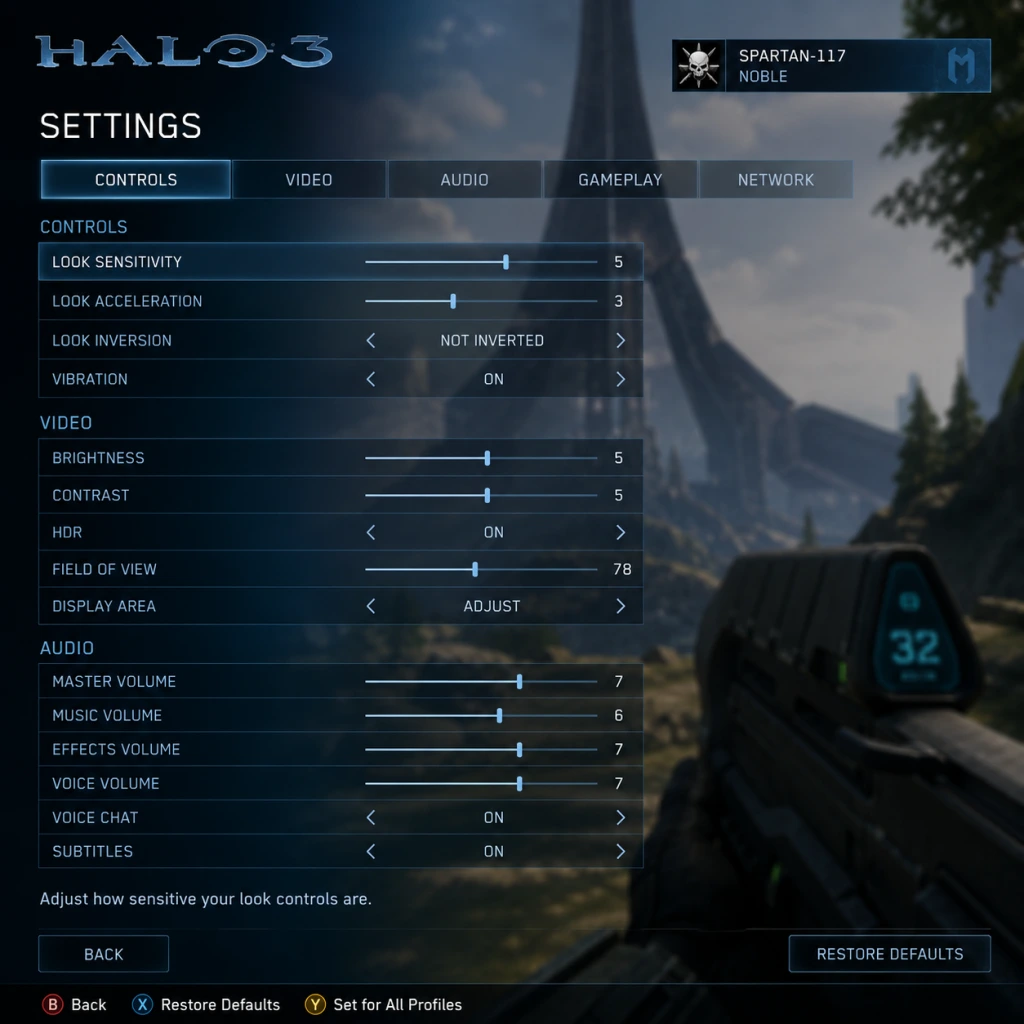
Game Settings
Game Settings Guide for Halo 3
Overview
This guide covers all settings available in Halo 3, whether you're playing the original Xbox 360 version, the backward-compatible version on Xbox One/Series X|S, the Master Chief Collection (MCC) on Xbox or PC, or the standalone Halo 3 for PC (via the MCC or the original Games for Windows Live version, though the latter is obsolete). Every setting is detailed with recommendations for different hardware levels: Low-end PC, Mid-range PC, High-end PC, Xbox One (original/S/X), Xbox Series X|S, and Original Xbox 360. Special attention is given to settings that are easy to misconfigure or that significantly impact performance or visual fidelity.
---
Graphics Settings
Field of View (FOV)
- Available on: PC (MCC only), Xbox Series X|S (MCC only with 120Hz mode), not on Xbox 360 or original backward-compatible.
- Range: 70° - 120° (PC), 70° - 110° (Xbox Series X|S).
- Recommendation: 90°-100° for most players. Higher FOV reduces motion sickness but increases performance cost.
- Misconfiguration trap: Setting FOV too high (>110) can cause fisheye distortion and lower frame rates on weaker hardware.
- PC: Native resolution up to your monitor. Use fullscreen for best performance.
- Xbox Series X|S: Supports 4K with dynamic resolution or 1080p at 120 FPS.
- Xbox One X: 4K (checkerboard) at 30 FPS for MCC; Xbox One S: 1080p.
- Xbox 360: 720p native, outputs up to 1080p via upscaling.
- Recommendation: Match your display’s native resolution. For 120Hz on Xbox Series X|S, enable 120Hz in console settings and select Performance mode in game.
- Available in: MCC for PC.
- Options: Low, Medium, High, Ultra.
- Impact: Controls texture quality, shadow resolution, lighting complexity, post-processing.
- Recommendations:
- Options: Low, Medium, High, Ultra.
- Effect: Controls resolution and draw distance of shadows.
- Note: Ultra shadows significantly impact performance on both CPU and GPU. On Xbox Series X|S, shadows are high by default in quality mode.
- Recommendation: High for most PCs; Medium if CPU-bound.
- Options: Bilinear, Trilinear, Anisotropic 2x-16x.
- Effect: Sharper textures at oblique angles.
- Recommendation: Anisotropic 16x has negligible performance cost on modern GPUs. Always max out.
- Options: Off, FXAA, SMAA, TAA (PC); MCC Xbox uses TAA on One X/Series X|S.
- Recommendation: SMAA for best quality/performance balance; TAA if you prefer motion smoothness. FXAA blurs too much.
- Special note: On Xbox 360, AA is fixed at 2x MSAA (rarely toggles).
- Options: Off, Low, High (PC). On Xbox, toggle only in MCC (off/on).
- Recommendation: Off for clarity in competitive play; Low for cinematic feel.
- Options: Off, On.
- Recommendation: Off for lower input lag (but may cause screen tearing). On if you experience tearing and can tolerate slight lag. Use adaptive V-Sync if available.
- Dynamic Resolution: On Xbox Series X|S, dynamic resolution scaling is automatic. On PC, can be forced via third-party tools but not recommended.
- Texture Streaming: Ensure you have enough VRAM. High texture settings require >4GB VRAM for smooth 1080p.
- Shader Cache: Precompile shaders for smoother gameplay. On first launch, the shader compilation may cause stutter; wait for it to finish.
Resolution & Display Mode
Graphics Quality Presets (PC only)
- Low-end PC (GTX 1050 / RX 560, 8GB RAM): Low or Medium at 1080p to maintain 60 FPS. Disable ambient occlusion and reduce shadow detail.
- Mid-range PC (GTX 1060 / RX 580, 16GB RAM): High at 1080p with 60 FPS; or Medium at 1440p.
- High-end PC (RTX 2070+): Ultra at 1440p or 4K with 60+ FPS.
Shadow Quality
Texture Filtering
Anti-Aliasing (AA)
Motion Blur
V-Sync
Advanced Settings (PC only)
Per-Platform Recommendations Table
| Hardware Level | Resolution | Preset | FOV | Shadows | AA | Motion Blur | V-Sync |
|---|---|---|---|---|---|---|---|
| Low-end PC | 1080p | Low | 90 | Low | Off | Off | Off |
| Mid-range PC | 1080p/1440p | High | 100 | High | SMAA | Off | Off |
| High-end PC | 1440p/4K | Ultra | 110 | Ultra | TAA | Off | Off |
| Xbox One S | 1080p | Auto | 78 | Auto | TAA | Off | On |
| Xbox One X | 4K (CB) | Auto | 78 | High | TAA | Off | On |
| Xbox Series S | 1080p/1440p | Auto | 100 | High | TAA | Off | On (120Hz off) |
| Xbox Series X (Quality) | 4K | Auto | 100 | Ultra | TAA | Off | On |
| Xbox Series X (Performance) | 1080p | Auto | 100 | High | TAA | Off | Off (120Hz) |
| Xbox 360 | 720p | Fixed | 70 | Fixed | 2xMSAA | On | On |
Audio Settings
Master Volume
- Range: 0-100.
- Recommendation: Start at 70 and adjust based on environment (headset vs speakers). Ensure it’s not too high to avoid distortion.
- Recommendation: Keep at 80-100 for campaign; lower to 50 for multiplayer to hear footsteps clearly.
- Misconfiguration: Muting music entirely can reduce emotional impact in campaign.
- Important for gameplay: Footsteps, weapon sounds, explosions. Set to 100.
- Special note: Halo 3’s audio engine uses positional audio. On PC, ensure your output device is set to Stereo or surround as appropriate.
- Range: 0-100.
- Recommendation: 100 for team communication. Misconfiguration: Setting too low can make callouts inaudible.
- Options (PC): Stereo, 5.1, 7.1, Headphones.
- Recommendation: Headphones for best spatial awareness (even with stereo virtual surround). 5.1/7.1 for home theater.
- Xbox: Auto-detects your audio setup. Use Dolby Atmos for Headphones if available (requires app and subscription).
- Affects: Character voices, announcer, weapon chatter.
- Options: English, French, German, Italian, Spanish, Japanese, etc. (depends on game version).
- Recommendation: Set to your preferred language; note that some languages may have different voice actors and emotional tone.
- Available presets: Default, Southpaw, Boxer, Green Thumb, etc.
- Recommendation: Standard settings (Default) work for most. Southpaw for left-handed people. Boxer or Bumper Jumper (popular for competitive) allow jumping without removing thumb from right stick.
- Special note: Bumper Jumper sets jump to LB, melee to RB, grenade to B, and crouch to right stick click. This is highly recommended for advanced movement (e.g., crouch-jumping, grenade throws while aiming).
- Misconfiguration: Accidentally selecting Southpaw can cause disorientation.
- Range: 1-10 (Xbox), 1-20 (PC).
- Recommendation: Start at 3-4 on Xbox, 6-8 on PC. Increase gradually. High sensitivity helps in twitch shooting but can hurt precision.
- Special attention: If you have a high DPI mouse on PC, lower in-game sensitivity to compensate.
- Off by default. Turn on if you prefer flight-sim style (pushing joystick down looks up). Rarely used in FPS.
- Options: On/Off.
- Recommendation: Off for competitive play (saves controller battery, reduces noise). On for immersion in campaign.
- Xbox (MCC): Full remapping via Controller > Button Layout. PC: Steam Input or Xbox Accessories app.
- Recommendation: No need to change generally, but you can assign specific actions like “crouch” to a paddle if using Elite controller.
- Sensitivity: Adjust per weapon type? Unavailable natively; use DPI switch.
- Raw Input: Enable to bypass OS acceleration. Crucial for consistent aim.
- Mouse Smoothing: Disable. Introduces latency.
- Mouse Acceleration: Disable. Halo 3 does not benefit from acceleration.
- Recommendation: Set DPI to 400-800, in-game sens to 2.0-5.0 depending on your mouse space.
- Options: Off, On with audio descriptions, On without descriptions.
- Recommendation: On for campaign, especially if you have hearing difficulties or play in noisy environments. Subtitles include Covenant language translations.
- Misconfiguration: Subtitles off can cause missing story details.
- Available in: MCC only.
- Types: Protanopia, Deutanopia, Tritanopia.
- Effect: Adjusts UI colors (health, shields, ammo, enemy/ally indicators).
- Recommendation: Enable if you have color vision deficiency. Test on a multiplayer HUD.
- Available in: MCC (PC/Xbox One/Series).
- Options: Small, Medium, Large.
- Recommendation: Large for easier reading on 4K displays or if you sit far from screen.
- Available: On Xbox, some accessibility features are system-level (e.g., high-contrast, narrator).
- Game-specific: Halo 3 does not have a dedicated “accessibility” menu beyond subtitles and color blind. Use platform settings.
- Set via: Platform settings (Xbox: System > Language & Region; PC: Steam/Microsoft Store region).
- In-game override (MCC only): Settings > Language. Allows separate UI, voice, subtitle languages.
- Recommendation: Choose a language you understand for voice and UI; subtitles can be in a different language for practice.
- Special note: Changing language may affect matchmaking server region due to mismatch; always keep consistent.
- Separate from voice. For example, you can have English voice but Spanish subtitles.
- Options: Automatic, or manually selected regions (e.g., North America, Europe, Asia).
- Recommendation: Automatic usually best. If you experience high ping, lock to nearest region. Misconfiguration: Selecting a region far away adds latency.
- Recommendation: Use wired Ethernet for lowest latency and packet loss. Wi-Fi can introduce jitter.
- Xbox: Ensure NAT is Open (not Moderate or Strict). Go to Settings > Network > Test NAT type.
- PC: Check firewall/antivirus settings; allow Halo 3 through.
- Not adjustable in-game. The game uses UDP ports 3074 (Xbox) or custom ports (PC). Port forwarding may be required for strict NAT.
- Options: Push-to-talk (PC) or Open mic (Xbox/PC).
- Recommendation: Push-to-talk to avoid background noise. Open mic only if you have a quiet environment.
- Misconfiguration: Leaving push-to-talk bound to an unused key; unbind it to avoid accidental silence.
- Options: On/Off. Affects matchmaking pool.
- Recommendation: On for faster matchmaking and larger community. Off if you want to play only with same-platform users (e.g., console players to avoid PC m+k advantage).
- Special note: Input-based matchmaking is not available; crossplay merges controllers and keyboard/mouse in same lobbies.
- Options: Easy, Normal, Heroic, Legendary.
- Recommendation: Normal for first playthrough; Heroic for challenge; Legendary for achievements and ironman runs.
- Misconfiguration: Starting on Legendary can be extremely punishing for new players; adjust down at any time via in-game menu.
- Unlocked by: Collecting them in campaign.
- Affect: Gameplay difficulty and scoring. Some give double damage, some disable HUD, etc.
- Recommendation: Enable Iron (checkpoint deletion) and Black Eye (melee for shields) only for dedicated challenge.
- Available in: Matchmaking playlist filters.
- Recommendation: Experiment with Warzone (MCC version) or classic Slayer/Objective. Use “Search Preference” in MCC: Balanced or Light for quicker matches.
- Settings: Lives, round timings, skulls.
- Recommendation: 3 lives, no skulls for casual; 1 life + Mythic skull for hardcore.
- Available in: MCC only. Options: Show enemy indicators, motion tracker type (classic vs modern), weapon reticle detail.
- Recommendation: Keep motion tracker on (classic radar). Some competitive players turn off radar for higher difficulty.
- Misconfiguration: Turning off HUD elements accidentally via controls.
- PC First Launch: The shader compilation process may cause stuttering for the first few minutes. Let the game cache shaders (visit the campaign menu or play a quick match) before adjusting settings.
- Xbox Backward Compatibility (original disc): No settings menu for graphics; only resolution and audio are system-level. Use the Xbox guide to turn on FPS boost and Auto HDR for better visuals (if available on Series X|S).
- MCC Cross-Profile Sync: Settings are saved per platform; switching between PC and Xbox may require reconfiguring controls.
- 4K vs Performance Mode (Xbox Series X|S): If you prioritize frame rate over resolution, set the game to Performance mode in the MCC settings (or system-level if using FPS boost). For Halo 3 original via backward compatibility, FPS boost is available on Series X|S – enable it in the game’s manage game menu.
- Audio Delay: If using Bluetooth headphones on PC, audio lag can be significant; use wired or low-latency wireless headsets.
- Controller Dead Zones (Xbox/PC): Not directly adjustable in Halo 3; use Xbox Accessories app or Steam Controller configuration to adjust stick deadzones for finer control.
- Always test new settings in a private match or the training zone (if available) before jumping into ranked multiplayer.
- Use the MCC version for the most granular settings and performance options. The original Halo 3 on Xbox 360 is very limited.
- For competitive play, aim for a stable 60 FPS (or 120 on Series X|S) with minimal input lag: disable V-Sync, motion blur, and use low FOV with high sensitivity.
- For single-player immersion, max out graphics and enable all accessibility features.
Music Volume
Sound Effects Volume
Voice Chat Volume
Speaker Configuration
Language Setting (Voice Language)
---
Control Settings
Controller Layout (Xbox/PC with controller)
Look Sensitivity (Horizontal/Vertical)
Invert Look
Vibration
Button Remapping (Xbox/PC)
Mouse Settings (PC only)
---
Accessibility Settings
Subtitles
Color Blind Mode
Text Size
Controller Vibration for Alerts
---
Language Settings
Game Language
Text & Subtitle Language
---
Network Settings
Matchmaking Region (MCC)
Network Adapter / Connection Type
Bandwidth Settings
Voice Chat
Crossplay (MCC only)
---
Gameplay Settings
Campaign: Difficulty Selection
Skulls (Campaign Modifiers)
Multiplayer: Game Mode Preferences
Firefight (if available – ODST standalone or MCC Firefight)
HUD & Display Options
Invert Movement (already covered in controls)
---
Summary of Easy-to-Misconfigure Settings
1. FOV: Setting too high can cause performance issues and visual distortion. Stick to 90-100.
2. Sensitivity: Too high can make aiming erratic; too low leaves you slow. Tune incrementally.
3. Controller Layout: Accidentally switching to Southpaw or Boxer mid-game can break muscle memory.
4. Audio Balance: Lowering sound effects for music reduces positional awareness.
5. Network Region: Setting a region far from you adds latency; use automatic.
6. Crossplay: Turning off crossplay significantly reduces matchmaking pools, especially on less populated regions.
7. V-Sync (PC): Enabling V-Sync adds input lag; disable for competitive play.
8. Motion Blur: Reduces clarity in fast motion; disable for competitive, enable for cinematic.
9. Subtitles: May be turned off by default; enable for full story comprehension.
10. Difficulty: Starting on Legendary without prior knowledge of the game is not recommended.
---
Special Attention Points During Setup
---
Final Tips
Configure wisely, adjust gradually, and enjoy the legendary campaign and multiplayer of Halo 3!