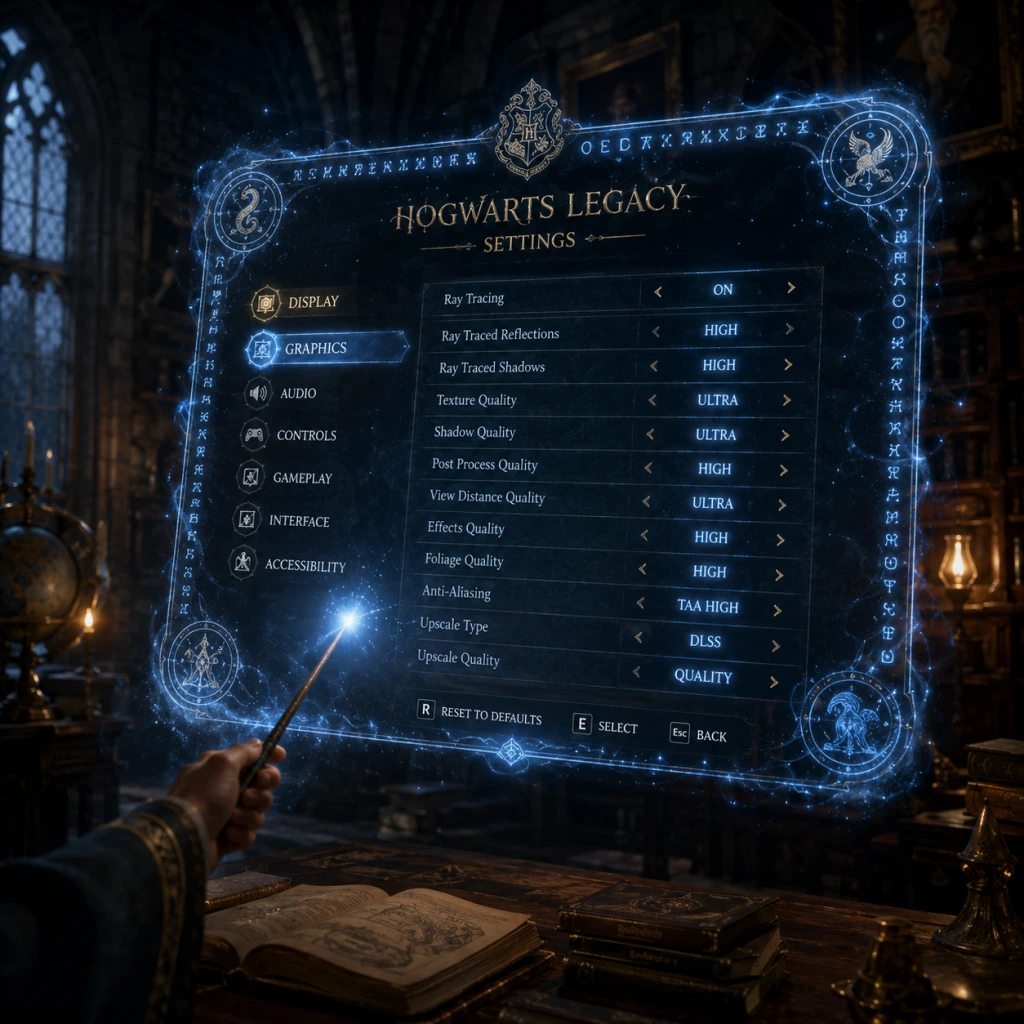
Game Settings
Game Settings Guide for Hogwarts Legacy
This guide covers all major settings categories in Hogwarts Legacy: Graphics, Audio, Controls, Accessibility, Language, Network, and Gameplay. We provide optimal recommendations for different hardware tiers (PC) and note console-specific quirks. Key settings that are easy to misconfigure or require special attention are highlighted.
---
Graphics Settings
Graphics have the biggest impact on performance and visual fidelity. The game uses Unreal Engine 4 and offers a wide range of options.
#### Presets Overview
- Low: Minimal shadows, low textures, no ray tracing. Targets 30-60 FPS on low-end hardware.
- Medium: Balanced quality with moderate shadows and effects. Good for mid-range GPUs.
- High: High textures, better shadows, ambient occlusion. Requires a strong GPU (e.g., RTX 2060 or better).
- Ultra: Max detail with ray tracing. For top-tier GPUs (RTX 3080+).
- PC Ultra: Beyond console ultra – adds ultra-quality vegetation and draw distance.
#### Key Individual Settings
| Setting | Recommendation | Misconfiguration Risk |
|---|---|---|
| Ray Tracing (Reflections, Shadows, Ambient Occlusion) | Turn OFF for performance; ON for high-end only (RTX 3070+). | Very heavy – can halve FPS. Always check effect vs. cost. |
| Upscale Type (DLSS, FSR, XeSS, TAAU) | Use DLSS Quality (NVIDIA) or FSR Quality (AMD) for best FPS with minimal quality loss. | Setting to Performance mode may cause blur. TAAU can be soft. |
| Texture Quality | High or Ultra if VRAM ≥ 6GB. Low if ≤ 4GB. | Ultra on low VRAM causes stuttering and texture pop-in. |
| View Distance | High on mid+ GPUs; Medium on low-end. | Low can make distant objects pop in abruptly. |
| Shadow Quality | Medium or High; Ultra is costly. | Low shadows cause flickering on foliage. |
| Post-Processing (Motion Blur, Film Grain, Chromatic Aberration) | Turn OFF all for clarity. | These are subjective but can cause motion sickness or make image muddy. Many players disable. |
| Vsync | OFF unless screen tearing bothers you. Use G-Sync/FreeSync instead. | Enabling Vsync adds input lag. |
| Frame Rate Cap | Set to monitor refresh rate (e.g., 60, 120, 144). | Uncapped can cause overheating on laptops. |
| Field of View (FOV) | PC: 90-100. Console: not adjustable. | Too low causes claustrophobia; too high can warp edges. |
Low-End (e.g., GTX 1060 6GB, RX 580, 8GB RAM)
- Preset: Low
- Textures: Medium (if VRAM >4GB)
- Upscale: FSR / DLSS Performance
- Ray Tracing: Off
- Target: 1080p, 30-40 FPS
- Preset: Medium
- Custom: Textures High, Shadows Medium, View Distance High
- Upscale: FSR/DLSS Quality or Balanced
- Ray Tracing: Off
- Target: 1080p/1440p, 60 FPS
- Preset: High
- Custom: Textures Ultra, Shadows High, Ray Tracing Off (or on for reflections only)
- Upscale: DLSS Quality
- Target: 1440p, 60-90 FPS
- Preset: PC Ultra
- Custom: Ray Tracing on High (All), DLSS Quality/FSR Quality
- Target: 4K, 60+ FPS with DLSS
- PS5/Xbox Series X: Favor Quality mode (30fps, ray tracing) or Performance mode (60fps, lower settings). HDR is automatic – calibrate in TV settings if needed.
- Xbox Series S: 1440p/30fps Quality, 1080p/60fps Performance. No ray tracing.
- Last-Gen (PS4/Xbox One): Locked at 30fps, minimal settings. No FOV adjustment.
- Nintendo Switch: 720p handheld, 900p docked, target 30fps with dynamic resolution. Use performance-focused presets.
- Master Volume, SFX, Voice, Music: Default 100%, but reduce Music slightly (70-80%) if you want clearer dialogue during exploration.
- Audio Output Mode: Choose Stereo (headphones), Surround (5.1/7.1), or Auto. For TV, set to Surround if supported; for headset, Stereo often gives better spatial awareness.
- Subtitles: ON recommended for story clarity. Options: Full subtitles (all speech), or only for foreign languages.
- Narrator Audio: Available for accessibility – reads UI elements and quest objectives.
- 3D Audio Support: PS5 and Xbox Series X|S support Tempest 3D and Dolby Atmos. Enable in console settings, not in-game.
- Haptic Feedback / Controller Speaker: On PS5 you can toggle controller speaker for spell sounds. Can be distracting; many turn off.
- Key Bindings: Fully customizable. Consider rebinding:
- Mouse Sensitivity: Start at 50%; adjust based on mouse DPI. Lower for precision aiming (e.g., 30-40% with 800 DPI).
- Invert Y-Axis: Off unless you prefer flight-sim style.
- Controller Vibration: Available for PC if using controller.
- Layout: Several presets (Standard, Classic, etc.). Standard is fine. You can also customize each button.
- Spell Wheel: Tap R1 (PlayStation) / RB (Xbox) to open wheel; while holding, move right stick to select. Some players remap to L1/LB to keep thumbs on sticks.
- Target Lock: Default R3 (press right stick). Very useful – keep it.
- Aim Assist: Can be set to Low, Medium, High, or Off. Recommended Medium for beginners; Off for precise aiming.
- Difficulty Level: Story, Easy, Normal, Hard. Can be changed anytime.
- Combat Assistance:
- Camera:
- Visual Cues:
- Game Speed: Not adjustable, but pause accessible.
- Navigation:
- Controller Remapping: Full button remapping on all platforms (PS5, Xbox, PC). Take advantage to reduce reach.
- Voice Language: Choose between English, French, German, Spanish, Italian, Japanese, and more (full list in system settings). Voiceovers are fully localized.
- Text Language: Separate from voice. Can mix English voice with local text.
- Subtitles: Choose language for subtitles. Set to same as voice or different if learning.
- Lip Sync: Only available for English voice. For other languages, speech may be out of sync.
- Connection Type: Wired (LAN) recommended for best stability. Wi-Fi works but may cause lag in online features (none required for single-player).
- Online Features:
- Data Collection / Telemetry: You can opt out in system settings. Doesn't affect gameplay.
- Multiplayer: There is none. All settings are for single-player only.
- Tutorial Prompts: ON for first playthrough; can be turned off after introduction.
- Auto-Save Frequency: Every 30 seconds (default). Adjustable: every 5, 10, 15, 30 seconds. Frequent saves reduce progress loss but may cause micro-stutters on slower HDDs (use SSD).
- Quick Select (Spell Slots): Always active. You can toggle spell slots with D-Pad (controller) or number keys (PC).
- Denoui (UI) Options:
- Controls Customization: Saving control profiles is supported (PC only).
- Automatic Pickup: On by default – collect items by walking over them. Off requires manual press. Keep ON.
- Broom Controls: Invert Y for flight can be set separately from land controls.
- Photo Mode: Accessible via pause menu. Not a traditional setting but useful for screenshots.
- First Boot: Always enter the settings menu before starting the game. Adjust FOV, disable motion blur, and set performance preset.
- Console Players: The performance mode (60fps) is strongly recommended over quality (30fps) for smoother gameplay, unless you have a 120Hz display.
- PC Players: Use the in-game benchmark to test settings. Adjust slowly – Ray Tracing is the biggest FPS killer.
- Accessibility: Enable subtitles and adjust camera shake immediately for best comfort.
Mid-Range (e.g., RTX 2060 Super, RX 6600, 16GB RAM)
High-End (e.g., RTX 3070, RX 6800, 16GB RAM)
Ultra (e.g., RTX 4090, RX 7900 XTX, 32GB RAM)
Console-Specific
---
Audio Settings
Misconfiguration Alert: Turning Master Volume very low while leaving SFX high can cause combat sounds to be deafening. Balance all sliders equally.
---
Controls Settings
#### Keyboard & Mouse (PC)
- Spell Slot 1-4 to mouse side buttons (if available).
- Dodge (default: Space) – rebind to a thumb button if you prefer.
- Protego (Parry) default: Q. Consider moving to mouse button for faster reaction.
#### Controller (All Platforms)
Action Mapping for Accessibility – see Accessibility section.
---
Accessibility Settings
Hogwarts Legacy includes robust accessibility options.
- Auto-Target: ON reduces manual aiming; good for accessibility.
- Aim Snap (Magnetism): Helps lock onto enemies.
- Spell Cooldown Reduction: If enabled, cooldowns are halved (Story mode default).
- Camera Shake: OFF to prevent motion sickness.
- Head Bobbing: OFF recommended for comfort.
- HUD Size: Options for Small, Normal, Large. Larger is better for TV viewing.
- Color Blind Modes: Protanopia, Deuteranopia, Tritanopia filters for UI elements.
- Subtitle Background: Darken or solid to improve readability.
- Mini-Map Rotation: Set to North-Locked (preferred) or Player-Oriented.
- Quest Marker Visibility: Always show or only on compass.
Special Attention: The Auto-Target setting can make combat too easy for some – turn off if you want manual aim. Camera Shake and Head Bobbing are ON by default; many players disable immediately for comfort.
---
Language Settings
Misconfiguration: If you set a language for voice that does not match your region, DLC or future updates may cause mismatches. Stick to one consistent language to avoid conflicts.
---
Network Settings
- Merlin Trials & Challenges: No online required.
- Vivarium Sharing: Photo mode pictures can be shared but not necessary.
- Automatic Cloud Save: Enabled by default (check platform settings).
Note: The game does not require an internet connection to play after initial download (except for updates). Disable background downloads to save bandwidth.
---
Gameplay Settings
These settings affect how the game behaves during play.
- Compass: Always show, Auto-hide, or Off.
- Health Bar: Always show or on damage.
- Enemy Health Bars: Show always, on damage, or off.
Easy-to-Misconfigure: Auto-Save Frequency – setting it to 5 seconds may cause constant brief freezing on older systems. Stick to 30 seconds unless you have a fast SSD.
---
Final Recommendations
For more help, see the Hogwarts Legacy Performance Guide (separate resource).
---
Last updated: [date]. Settings may change with patches.