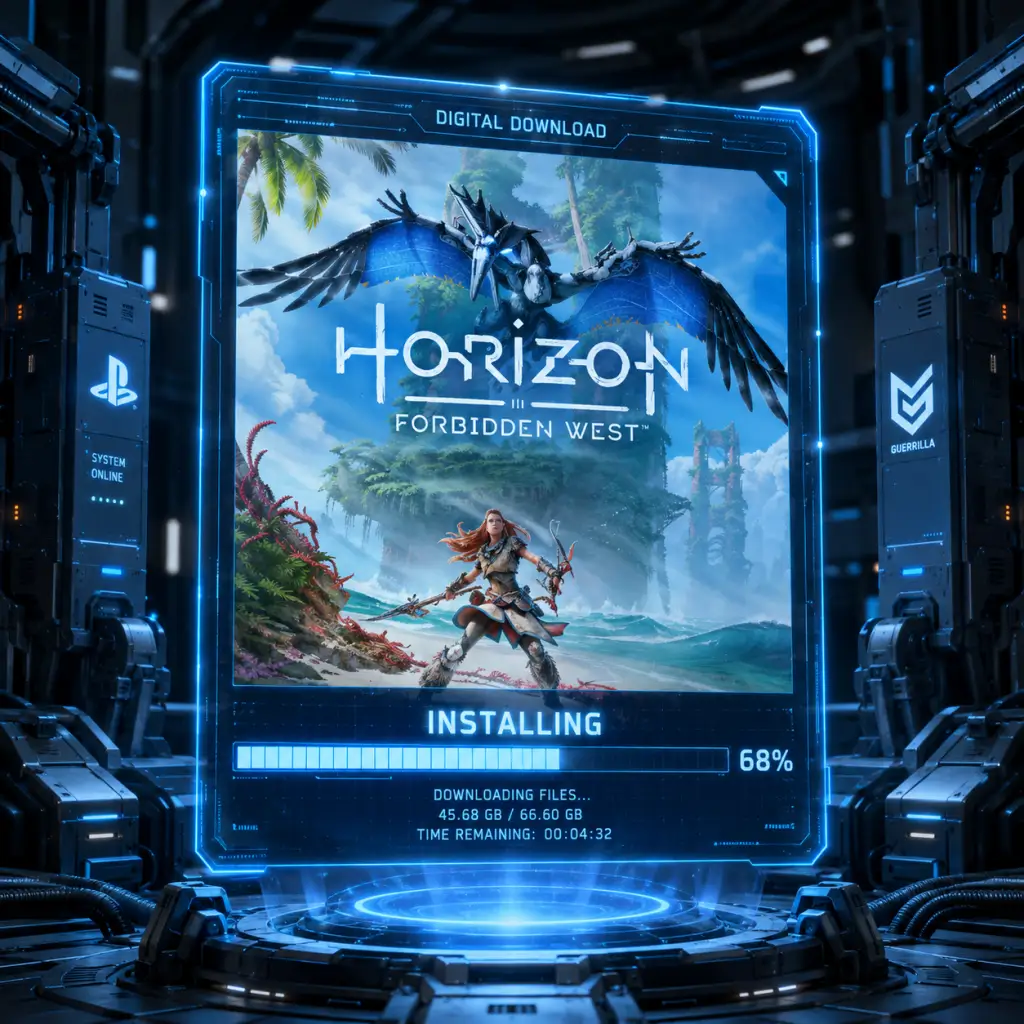
Download & Installation
Horizon Forbidden West – Download & Installation Guide
This guide covers the official methods to download and install Horizon Forbidden West on PlayStation 4, PlayStation 5, and PC (Steam / Epic Games Store). The game is not available on Xbox, Nintendo Switch, or mobile platforms.
---
1. Supported Platforms & Legitimate Sources
| Platform | Official Stores | Notes |
|---|---|---|
| PlayStation 4 (PS4) | PlayStation Store (digital) or physical disc | PS4 disc works on PS5 via backward compatibility (requires disc drive). |
| PlayStation 5 (PS5) | PlayStation Store (digital) or physical disc | Native PS5 version includes DualSense features, faster loading, and enhanced graphics. |
| PC (Windows) | Steam, Epic Games Store | Released March 21, 2024. Available as standard and digital deluxe editions. |
---
2. System Requirements (PC Version)
#### Minimum Requirements (720p / low settings, 30 FPS)
- OS: Windows 10 64-bit (version 1909 or newer)
- CPU: Intel Core i5-8600 or AMD Ryzen 5 3600
- GPU: NVIDIA GeForce GTX 1060 (6GB) or AMD Radeon RX 590 (8GB)
- RAM: 16 GB
- Storage: 150 GB SSD (NVMe recommended)
- DirectX: Version 12
- Other: Broadband internet, keyboard & mouse or controller
- OS: Windows 11 64-bit
- CPU: Intel Core i7-9700 or AMD Ryzen 7 3700X
- GPU: NVIDIA GeForce RTX 3060 (8GB) or AMD Radeon RX 5700 XT (8GB)
- RAM: 16 GB
- Storage: 150 GB SSD (NVMe required for optimal streaming)
- DirectX: Version 12
- Other: Broadband internet, controller recommended
- PlayStation: A free or active PlayStation Network (PSN) account is needed to download digital copies. Physical discs require no account for single‑player, but updates and patches require PSN.
- PC (Steam / Epic): A Steam or Epic Games Store account is required. Both are free to create. The game activates via the respective store client.
- Language selection: Choose subtitle and audio languages (supports multiple languages – English, French, German, Spanish, etc.).
- Graphics presets (PC only): The first launch will calibrate graphics settings automatically based on your hardware. You can later adjust in the Options menu.
- Controller support: The game natively supports DualSense, Xbox, and generic controllers on PC. PlayStation versions default to DualShock 4 or DualSense.
- Performance mode (PS5/PC): On PS5 you can choose between Favor Resolution (30 FPS, 4K) or Favor Performance (60 FPS, dynamic 4K). On PC, options are extensive.
- Save sync: If you have a previous save (e.g., Horizon Zero Dawn import for some bonuses, or cloud saves), the game will prompt you.
- Online features: No online multiplayer, but you may need to sign in to receive pre‑order bonuses or complete the DLC (Burning Shores). Updates are mandatory.
- PS5: ~95 GB (with high‑resolution texture pack included).
- PS4: ~85 GB (lower‑resolution textures, no 4K assets).
- PC: ~137 GB (base game) – expands to ~150 GB with the Burning Shores DLC and high‑quality textures.
#### Recommended Requirements (1080p / high settings, 60 FPS)
> Note: The game requires a high-end SSD and 150 GB free space. An HDD will cause severe texture pop‑in and stuttering.
---
3. Account Requirements
---
4. Step-by-Step Installation
#### 4.1 PlayStation 4 / PlayStation 5 (Digital)
1. Turn on your console and connect to the internet.
2. Go to the PlayStation Store from the main menu.
3. Search for “Horizon Forbidden West” (or find it under “New Releases”).
4. Select your edition (Standard, Digital Deluxe, or Complete Edition).
5. Click “Download” (PS4 version) or “Download PS5 version” if on PS5 (you can also choose to download both if you own the Cross‑Gen bundle).
6. Wait for the download to finish. On PS5, the game will install automatically. On PS4, you may need to confirm installation.
7. Play – the game will appear on your home screen.
#### 4.2 PlayStation 5 (Physical Disc)
1. Insert the disc into the PS5 disc drive.
2. The console will prompt installation—follow on‑screen instructions.
3. Wait for the full install (copy from disc, then download any mandatory update).
4. Launch from the home screen.
> Note: To play the PS5 native version, you must insert the PS5 disc. A PS4 disc will install the PS4 version (playable via backward compatibility).
#### 4.3 PC – Steam
1. Download and install the Steam client from [store.steampowered.com](https://store.steampowered.com).
2. Log in to your Steam account (create one if needed).
3. Open the Store and search for “Horizon Forbidden West”.
4. Click “Add to Cart” (or “Buy for myself”) and complete the purchase.
5. After purchase, go to your Library → find “Horizon Forbidden West”.
6. Click “Install” → choose your install location (ensure at least 150 GB free on an SSD).
7. Wait for the download – Steam will download and unpack the game.
8. Optional: Pre‑load if available (usually 1–2 days before release) to play immediately at launch.
#### 4.4 PC – Epic Games Store
1. Download and install the Epic Games Launcher from [store.epicgames.com](https://store.epicgames.com).
2. Log in to your Epic account.
3. Go to the Store and search for “Horizon Forbidden West”.
4. Purchase the game (you may need to add payment method).
5. After purchase, go to your Library → find the title.
6. Click “Install” → select installation directory (SSD required).
7. Wait for the download to complete.
---
5. First Launch Setup (All Platforms)
---
6. Storage Space & Download Size
> Always ensure you have at least 15 GB of additional free space for patches, temp files, and operating system overhead.
---
7. Common Installation Errors & Fixes
| Error / Issue | Platform(s) | Solution |
|---|---|---|
| “Not enough storage” | All | Free up space by deleting unwanted games/files. Ensure you have the required free space before installing. |
| “Download stuck at 0%” | PC (Steam/Epic) | Restart the launcher. Check antivirus/firewall – add Steam/Epic to exceptions. Verify internet connection. |
| “File corruption” / CRC errors | PC | Run file verification: Steam: right‑click game → Properties → Local Files → “Verify integrity of game files”. Epic: click the three dots → Manage → Verify. |
| “Application has stopped working” / crash on launch | PC / PS4/PS5 | Update graphics drivers (PC). On console, restart the system and check for system software updates. |
| “Failed to initialize renderer” | PC | Your GPU does not support DirectX 12 Ultimate features (e.g., RTX 20 series or newer required for ray tracing). Lower graphics settings or upgrade GPU. |
| Black screen on launch | PC | Disable overlays (Steam, Discord). Run the game as administrator. Temporarily disable antivirus. |
| PS5 disc install error | PS5 | Clean the disc. Restart in Safe Mode → Rebuild Database. If issue persists, contact Sony support. |
| Slow download speed | All | Pause other network activity. Use a wired connection. On Steam/Epic, change download region to a less congested server. |
8. Post-Installation Verification
- Launch the game: If it opens to the main menu without errors, installation is successful.
- Check for updates: On console, the game will automatically check for patches. On PC, Steam/Epic will prompt to update if a newer version is available.
- Graphics test (PC): Run the built‑in benchmark (Options → Graphics → Benchmark). Compare results with expected performance.
- Save game: Start a new game or load a previous save. Ensure quick‑save works.
- DLC: If you purchased the Burning Shores DLC, verify it is installed. On PS5, go to game icon → Options → Manage Game Content. On PC, check DLC tab in library.
- Controller: On PC, ensure the controller is recognized (check in Options → Controls → Controller). DualSense features (haptic triggers) work only via wired USB on PC.
- Pre‑loading (PC): Purchase before release and pre‑load the game to play instantly on launch day. Decryption happens automatically.
- Cloud saves: PlayStation Plus and Steam/Epic cloud saves are supported. Sync your progress across devices if you play on multiple PCs or consoles.
- Cross‑gen progression: If you own both PS4 and PS5 versions, saves are not transferable between generations (except via PlayStation Plus cloud save upload/download).
- Mod support: Not officially supported on PC, but community mods are available (use Nexus Mods, install at your own risk).
---
9. Additional Tips
---
Final note: Always keep your graphics drivers, operating system, and store clients up to date for the best experience. Enjoy the wilds of the Forbidden West!