Game Settings
Game Settings – Horizon Forbidden West
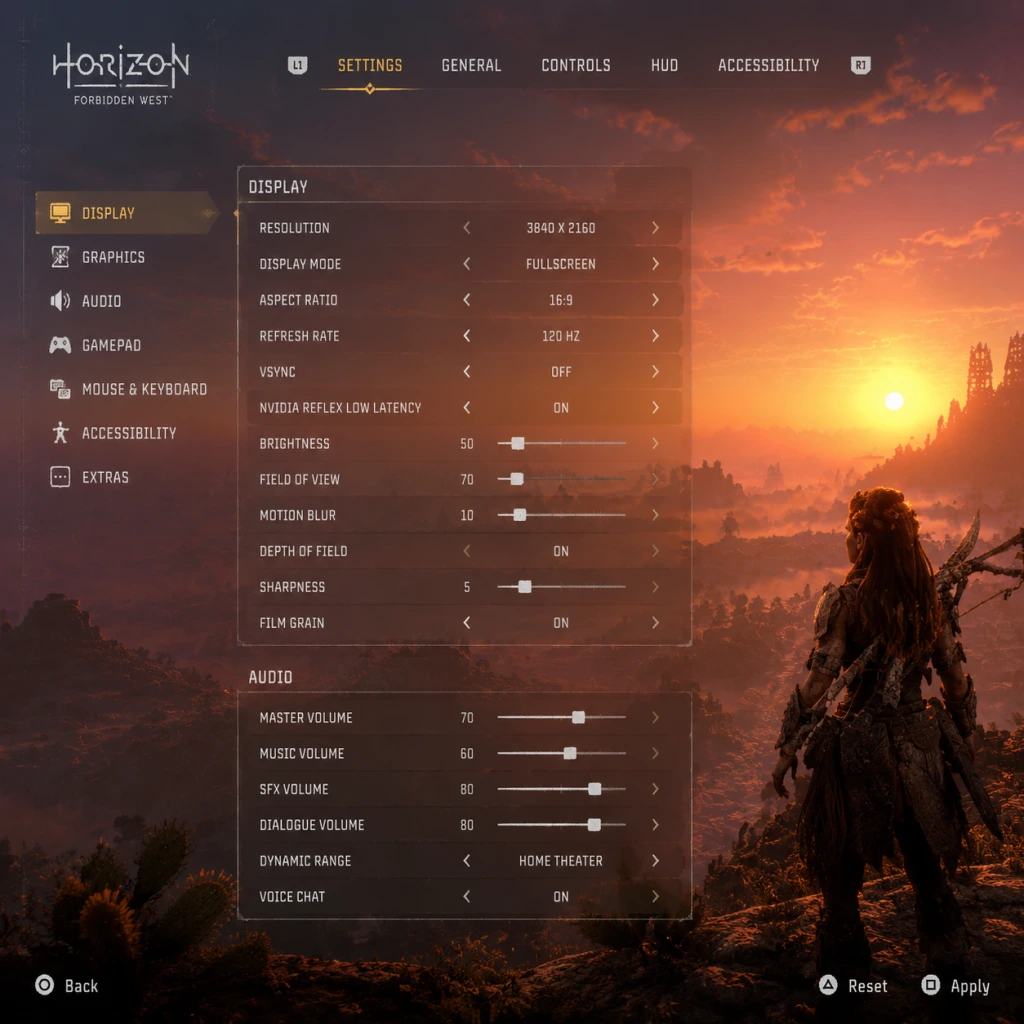
This guide covers every settings category in Horizon Forbidden West, explaining each option and providing recommended configurations for PlayStation 4, PlayStation 5, and PC. Whether you're chasing high frame rates, maximum visual fidelity, or an accessibility‑friendly experience, you'll find platform‑specific presets and explanations of easily overlooked options.
---
1. Graphics Settings
1.1 PlayStation 4 & PlayStation 5
The game offers pre‑set display modes on console. On PS5, you can switch between Performance and Fidelity modes at any time via the in‑game Settings menu.
| Platform | Mode | Resolution | Frame Rate | Details |
|---|---|---|---|---|
| PS4 Base | – | 1920×1080 | 30 FPS (locked) | Medium textures, standard shadows, no HDR. |
| PS4 Pro | – | 3200×1800 (checkerboard) → 1080p output | 30 FPS (locked) | High textures, improved shadows, optional HDR. |
| PS5 | Fidelity | 3840×2160 (native) | 30 FPS (locked) | Ultra textures, ray‑traced reflections, best LOD. |
| PS5 | Performance | 3840×2160 (dynamic, ~1800p average) | 60 FPS (target) | High textures, standard reflections, minor LOD reduction. |
- PS5: Use Fidelity if you have a 4K display and prefer visuals; use Performance for smooth 60 FPS gameplay, especially during combat.
- PS4 Pro: Stick with the default mode (30 FPS) – the visual uplift is worth the frame rate cap.
- PS4 Base: No choice; enjoy the solid 30 FPS experience.
1.2 PC Graphics Options
PC offers extensive scalers and quality presets. Access via Settings > Graphics.
Key Options & How They Affect Performance:
| Setting | Impact | Low | Medium | High | Ultra |
|---|---|---|---|---|---|
| Display Resolution | High. Native 1440p/4K is demanding. | – | – | – | – |
| Upscaling | Medium. Use DLSS (Nvidia), FSR (AMD), or XeSS (Intel). | Performance | Balanced | Quality | Native |
| Texture Quality | VRAM usage. Low uses ~4GB, Ultra uses ~8GB+. | Low | Medium | High | Ultra |
| Shadow Quality | CPU/GPU. Shadows from many sources. | Low (flickery) | Medium | High | Ultra (contact shadows) |
| Ambient Occlusion | Medium. SSAO vs HBAO+ vs RT AO (very heavy). | Off | SSAO | HBAO+ | RT AO |
| Reflections | High. Screen Space vs RT Reflections. | Off | SSA | SSR | RT Reflections |
| Anti‑Aliasing | Medium. TAA is default. DLAA uses extra power. | FXAA | TAA low | TAA high | DLAA |
| Depth of Field | Low. Blurs distant objects. | Off | On (low) | On (high) | – |
| Motion Blur | Low. Blurs during camera movement. | Off | Per‑object | Per‑object high | – |
| Field of View | Negligible. Wider FoV reduces performance slightly. | 70° | 80° | 90° | 100°+ |
| Hardware Tier | Graphics Preset | Resolution | Upscaling | Target FPS | Notes |
|---|---|---|---|---|---|
| Low (GTX 1060 / RX 580) | Low | 1920×1080 | FSR 1.0 Ultra Performance | 30‑40+ | Reduce shadow quality to “Low”, disable RT features. |
| Mid (RTX 3060 / RX 6600 XT) | High | 2560×1440 | DLSS/FSR Quality | 50‑60 | Enable RT reflections? Only if FPS stays above 50. |
| High (RTX 3080 / RX 6800 XT) | Ultra | 3840×2160 (4K) | DLSS Quality or FSR Quality | 60 | Enable RT reflections, RT AO at medium. |
| Ultra (RTX 4090 / RX 7900 XTX) | Ultra + RT | 3840×2160 | DLSS Balanced or Native with DLAA | 60+ | Full ray tracing, ultra shadows. |
---
2. Audio Settings
- Master Volume: Fine‑tune game, music, SFX, and dialogue volumes separately.
- Dynamic Range: Choose Headphones (small range), TV (medium), or Home Theater (wide). Home Theater can cause quiet whispers to be lost – use TV if unclear dialogue.
- 3D Audio (PS5 / PC): Enable for binaural sound with headphones. On PC, ensure your device is set to spatial sound (Windows Sonic, Dolby Atmos, or DTS Headphone:X).
- Subtitles: Recommended to ON for story clarity. Choose Large font size if playing at 4K distance.
- Subtitle Background: Set to Dark to improve readability against bright scenes.
- Audio Language: See Language section.
- Vibration (PS5/PS4/PC): Enable for immersion, but may cause fatigue. Turn off if aiming precisely.
- Trigger Effect (PS5 DualSense): Adaptive triggers add tension for bows and mounted weapons. Can be disabled if too heavy.
- Aim Assist (Controller):
- Invert Y‑Axis: Toggle for flight/camera controls.
- Camera Sensitivity: Start at 50% (default), adjust upward if you need faster turns.
- Aiming Sensitivity: Separate slider – set lower (30‑40%) for precision shooting.
- Button Mapping: All actions can be remapped per platform. Common changes:
- Quick Slot Wheels: Assign potions, traps, and tools to the D‑pad (up/down/left/right). Default is fine.
- Mouse Sensitivity: Match your desktop mouse speed. 800 DPI with 5‑10 in‑game works for most.
- Mouse Acceleration: Disable in both Windows and game settings for consistent aim.
- Key Bindings: Aloy’s Focus (temporary scan) is default R. You may prefer Middle Mouse or Side Button.
- Secondary Bindings: You can bind two keys per action. Handy for “Use” (E + Space).
- Aim Sensitivity (Controller/PC): Separate from camera sensitivity – many players leave it high and wonder why they overshoot. Lower it.
- Trigger Deadzones: Don’t touch unless you have stick drift. The default is fine.
- Difficulty Options:
- Custom Difficulty: Fine‑tune Aloy’s damage taken, enemy health, stealth detection, and tear/component damage independently.
- Subtitles: As mentioned, but also Subtitle Speaker Names – ON helps identify who speaks.
- Colorblind Modes: Choose from Protanopia, Deuteranopia, Tritanopia, and custom color filters for UI elements.
- Audio Cues: Enable Sound Cues for Interactions (e.g., a tone when a puzzle element is ready).
- Menus: Options for Menu Background Opacity (e.g., make menus translucent to see behind).
- Auto Pickup: Instantly collect resources without pressing a button. Recommended.
- Simplified Controls (Quick Mode): Streamlines combat inputs. Not recommended for advanced players.
- High Contrast Mode: Outlines enemies, loot, and important objects in bright colors.
- Difficulty settings are not locked – you can change them at any time from the pause menu. However, the game tracks “Hardest Difficulty” for trophies. If you switch to a lower difficulty, you cannot unlock the “Ultra Hard” trophy on that save.
- Custom difficulty allows you to keep story‑mode damage while retaining normal stealth mechanics – useful for a relaxed but not trivial experience.
- Interface Language: Controls all menu text.
- Audio Language: Voice‑over language (e.g., English, French, German, Japanese). Note: Lip sync is only correct for English. Other languages use pre‑rendered cutscenes with mismatched mouth movements.
- Subtitles Language: Independent of audio. You can play with Japanese voices and English subtitles.
- Online Features: Required for sharing photos in Photo Mode, uploading/downvoting machine strike boards, and leaderboards. Can be disabled for offline play.
- Share Play (PS5/PS4): Allows friends to take control. Disable if not needed (and to avoid accidental invites).
- Update Data: The game will prompt to check for updates. Stay connected for patches and New Game+ fixes.
- Auto Aim (Controller): Strongly recommended Off unless you have accessibility needs. It pulls the reticle toward enemies even when you don’t want it.
- Auto Sprint: Set to On to start running automatically after a short walk – saves button presses.
- Quick Turn (Controller): Double‑tap down to turn 180°. Very useful in combat – On by default.
- Hold vs Toggle:
- Reticle Options: Change crosshair color (white, red, green) and style (dot, cross, ring). Red is easier to see against foliage.
- Damage Numbers: Show/hide enemy damage. Helpful for learning weapon effectiveness.
- Focus Holding: Default is Hold to keep Focus active. Switch to Toggle if you scan frequently.
- Mount Controls: Set Mount Follows Road to On – your mount will automatically stay on paths, letting you focus on the world.
- Machine Attack Alerts: Visual cue + sound when a machine is about to strike. On for beginners, Off for immersion challenges.
- Reset to Defaults: Every settings page has a Reset option. Use this if you experiment too much.
- Save Before Tweaking: Graphics changes apply immediately. Save your game before messing with resolution to avoid crashes.
- Performance vs Quality (PC): If you have variable refresh rate (VRR) monitor, aim for 30‑60 FPS with VRR enabled – it will feel smooth even at lower frame rates.
- The “Easy” Mistake: New players often leave Auto Aim on and wonder why they miss shots – it imposes a slight magnetism that can fight against manual adjustments. Turn it off to develop skill.
- Accessibility is Not Cheating: Use whichever settings make the game enjoyable. The story and world are worth experiencing, regardless of difficulty.
---
3. Controls Settings
3.1 Controller & Keyboard/Mouse
- Standard: Mild magnetism. Recommended for all players.
- Heavy: Strong magnetism – use if you struggle with aiming.
- Off: No assistance – for experienced players.
- Swap R1 (light attack) and R2 (heavy attack) for quicker combos.
- Set Dodge (O) to L1 for easier evasion while aiming.
3.2 PC Keyboard & Mouse
Easy to Misconfigure:
---
4. Accessibility Settings
Guerrilla Games has included extensive accessibility options. Access via Settings > Accessibility.
- Story: Enemies are very weak; combat is forgiving. Good for narrative focus.
- Easy: Standard easy mode.
- Normal: Balanced.
- Hard: Enemies have more health and deal more damage.
- Very Hard: For veterans of the genre.
- Ultra Hard: Unlocked after completing the game once. No manual saves, higher resource costs.
Special Attention:
---
5. Language Settings
Important: Language settings are separate per platform license. On PC (Steam/EGS), you may need to download additional language packs in the store client before they appear in‑game.
---
6. Network Settings
---
7. Gameplay Settings
- Crouch: Toggle recommended (press O to toggle crouch).
- Aim: Hold L2 (default) is more precise; some prefer toggle.
- Sprint: Toggle (click L3 once) vs hold (hold L3). Most prefer toggle to avoid fatigue.
---
8. Important Notes & Final Tips
---
Adjust these settings to your preference and hardware. The goal is to immerse yourself in the Forbidden West without technical frustrations. Happy hunting!