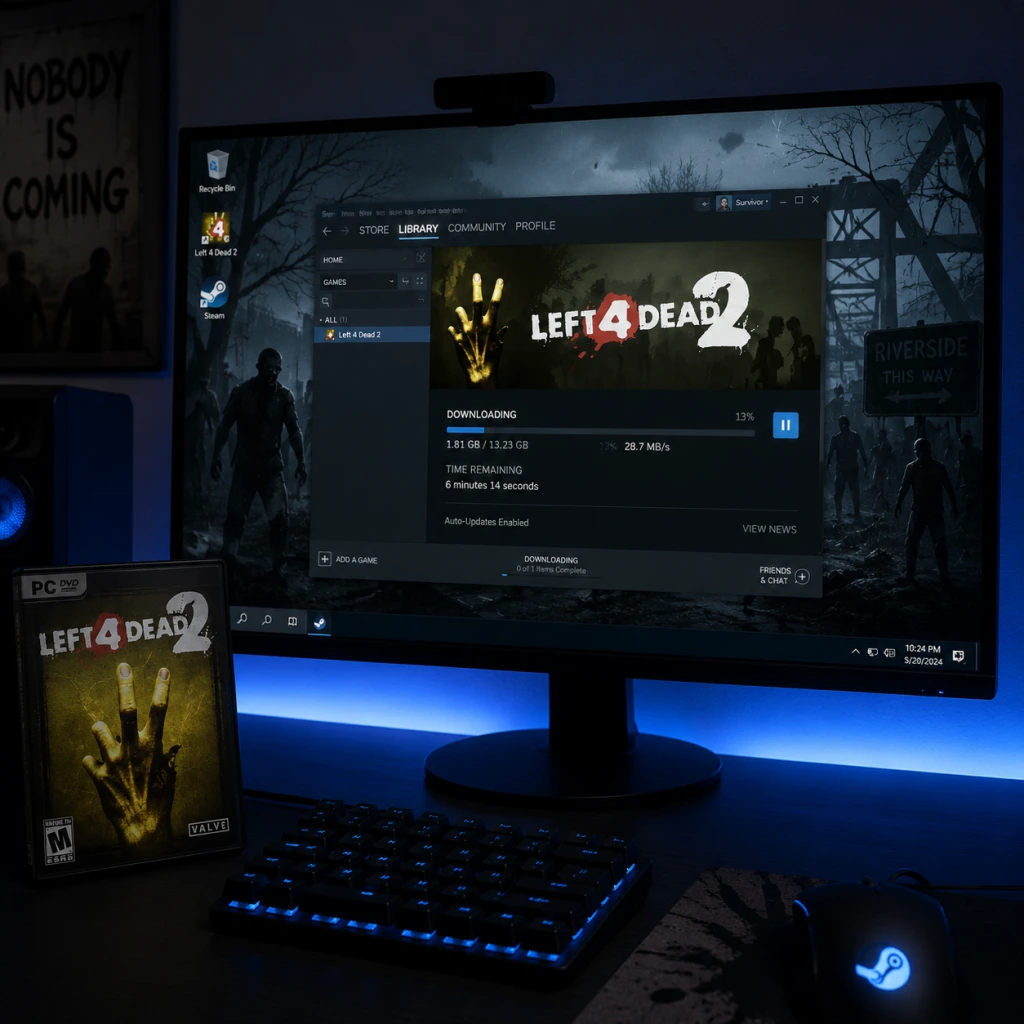
Download & Installation
Download & Installation Guide for Left 4 Dead 2
This guide covers all official sources to download and install Left 4 Dead 2 on PC, Xbox, and other platforms. The game is not available on PlayStation 4/5, Nintendo Switch, or mobile devices (no official version exists).
---
Platform Availability
| Platform | Store / Method | Online Requirements |
|---|---|---|
| PC (Windows) | Steam (digital), Xbox Game Pass for PC (digital) | Steam account (free); no subscription needed for online play |
| **Xbox (360 / One / Series X\ | S)** | Xbox Store (digital) or retail disc (backward compatible) |
| PlayStation 3 | PlayStation Network (digital) or retail disc | PlayStation Plus only required for online on PS3 (rarely used now) |
---
System Requirements (PC)
Minimum Requirements
- OS: Windows 7 (32/64-bit) / Vista / XP
- Processor: Pentium 4 3.0 GHz or dual-core 2.0 GHz
- Memory: 2 GB RAM
- Graphics: DirectX 9 compatible, 128 MB VRAM (e.g., NVIDIA GeForce 6600 / ATI Radeon X800)
- DirectX: Version 9.0c
- Storage: 13 GB available space
- Sound: DirectX 9.0c compatible
- OS: Windows 7 (64-bit) or newer (Windows 10/11)
- Processor: Intel Core 2 Duo 2.4 GHz or AMD Athlon X2 2.8 GHz
- Memory: 4 GB RAM
- Graphics: NVIDIA GeForce GTX 260 / ATI Radeon HD 4850 (512 MB VRAM or more)
- DirectX: Version 9.0c
- Storage: 13 GB available space (SSD recommended)
- Sound: DirectX 9.0c compatible
- Digital: Purchase from the Xbox Store (requires Xbox Live account and payment method).
- Physical: Insert the Xbox 360 disc into your Xbox One or Series X|S (must be online for backward compatibility download).
- PC (Steam): Free Steam account necessary. No extra subscription for online play.
- PC (Xbox Game Pass): Active Game Pass for PC or Ultimate subscription + Microsoft account.
- Xbox: Xbox Live account (free for single-player, Gold/Game Pass Core required for online multiplayer).
- PS3: PlayStation Network account (free for single-player, Plus for online).
Recommended Requirements
> Tip: The game runs well even on modern integrated graphics (Intel HD 4000+ or AMD Vega). For 4K or high refresh rates, a dedicated GPU is recommended.
---
Step-by-Step Installation
1. PC - Steam
1. Create a Steam Account (if you don’t have one): Go to [store.steampowered.com](https://store.steampowered.com) → Login → Join Steam and follow the prompts.
2. Install Steam Client: Download the installer from [steampowered.com/download](https://store.steampowered.com/about/) → Run it and follow the installation wizard.
3. Log in to Steam with your account credentials.
4. Purchase Left 4 Dead 2 (if not owned):
- Search for “Left 4 Dead 2” in the Steam Store.
- Click Add to Cart → Purchase for myself → Complete payment (credit card, PayPal, Steam Wallet).
- Alternatively, you can activate a retail key via Games > Activate a Product on Steam.
5. Install the Game:
- Go to your Library.
- Find Left 4 Dead 2 in the list → Click Install.
- Choose installation directory (default: `C:\Program Files (x86)\Steam\steamapps\common\Left 4 Dead 2`).
- Select Next → Wait for download (approx. 13 GB) → Installation will complete automatically.
6. Launch: Click Play in your Library.
2. PC - Xbox Game Pass for PC
1. Subscribe to Xbox Game Pass for PC (or Ultimate) via [xbox.com/games/pc-game-pass](https://www.xbox.com/games/pc-game-pass) or the Xbox app on Windows.
2. Install the Xbox app (if not already):
- Download from [xbox.com/en-US/apps/xbox-app-for-pc](https://www.xbox.com/en-US/apps/xbox-app-for-pc).
- Run installer and sign in with your Microsoft account.
3. Find Left 4 Dead 2:
- Open the Xbox app → Search for “Left 4 Dead 2”.
- Click Install (the game is part of the subscription; no extra purchase needed).
4. Installation: The app will download to your chosen drive (default: `C:\XboxGames\`). Allow the process to finish—it may require Windows updates and Xbox services.
5. Launch: Click Play in the Xbox app. The game will start via the Xbox Game Pass overlay.
> Note: The Game Pass version is identical to the Steam version in gameplay but may have different file structure and mod compatibility (many mods from the Steam Workshop are not available).
3. Xbox (Xbox One / Series X|S)
1. Sign in to your Xbox profile.
2. Go to Store → Search Left 4 Dead 2.
3. Buy or Install (if you own it via Games with Gold or Game Pass).
4. Download: The game will download the backward compatible version (~7 GB).
5. Launch: The game appears in your library/games list.
4. PlayStation 3
1. Sign in to PlayStation Network on your PS3.
2. Go to PlayStation Store → Search “Left 4 Dead 2”.
3. Purchase (digital version, ~10 GB).
4. Download to the PS3 hard drive.
5. Launch from the XMB menu.
> Important: Online multiplayer on PS3 requires PlayStation Plus (if you wish to play with others). The servers are still up but player population is very low.
---
Account Requirements
---
First Launch Setup
1. Graphics Configuration: On first launch, the game will ask for display mode (Fullscreen, Windowed, Borderless), resolution, and graphics quality (Low/Medium/High).
- Recommended: Set to your monitor’s native resolution, choose Fullscreen, and start at Medium settings.
2. Language Selection: The game will ask to select your preferred language (English, French, German, Spanish, etc.). This can be changed later in Options.
3. Controller Calibration (if using a controller): The game will prompt you to calibrate analog sticks and triggers.
4. Main Menu: You will see Campaign, Survival, Scavenge, etc.
- You may need to accept the EULA (press Agree).
5. Online Settings:
- Steam: Ensure Steam is online; the game will automatically connect to Steam matchmaking.
- Xbox: Make sure you are signed into Xbox Live.
6. Mods (Steam only): You can subscribe to mods via the Steam Workshop before launching (optional).
---
Common Installation Errors & Fixes
| Error | Cause | Solution |
|---|---|---|
| Missing MSVCR100.dll / VCRUNTIME140.dll | Missing Microsoft Visual C++ Redistributables | Install the latest [Visual C++ Redistributable for Visual Studio 2015-2022 (x86 and x64)](https://aka.ms/vs/17/release/vc_redist.x64.exe). |
| Steam Error “Missing file privileges” | Folder permissions issue | Right-click the game folder → Properties → Security → Ensure your user has Full Control. Or run Steam as Administrator. |
| DirectX Error | Missing DirectX 9 components | Download and run the [DirectX End-User Runtime Web Installer](https://www.microsoft.com/en-us/download/details.aspx?id=35). |
| Game crashes on launch | Antivirus blocking or corrupted install | Add Steam and Left4Dead2.exe to your antivirus whitelist. Verify integrity of game files (Steam → Right-click game → Properties → Local Files → Verify integrity of game files). |
| No audio | Sound driver or audio device issue | Update audio drivers (Realtek, etc.). Go to Options → Audio → Select default device. |
| Xbox Game Pass version won’t install | Windows Store cache issue | Run `wsreset.exe` (Windows key + R → type `wsreset` → Enter). Then restart the Xbox app. |
| “Failed to create D3D device” | GPU not supporting required DirectX feature level | Update GPU drivers. Lower resolution and graphics settings. If still failing, the GPU may be too old (need Shader Model 3.0). |
| Online connection issues (Xbox) | NAT type or Xbox Live service | Check Xbox Live status. Set your console to open NAT (port forwarding: UDP 88, 3074, TCP 3074). |
| Can’t find multiplayer games | Low player population on some platforms | On PC, switch to Steam version (highest player count). Check that you are not using VPN or firewall blocking. On Xbox, ensure you have Gold subscription. |
Post-Installation Verification
1. Check Game Version:
- Steam: Right-click game in Library → Properties → Local Files → Browse… → In the folder, right-click `left4dead2.exe` → Properties → Details tab to see product version (should be at least 2.2.1.0 or newer).
- Xbox: Profile & system → Settings → System → Console info → Update history (the game will auto-update).
2. Launch the Game:
- From your platform’s library. The main menu should load without errors.
- Start a Local Game (e.g., Campaign → The Parish) to test performance and controls.
3. Test Online:
- Go to Campaign → Quick Play. If you find a match within 30 seconds, connection is working. If not, check firewall and NAT settings.
4. Mod Functionality (PC): If you subscribed to Workshop items, verify they appear in the Add-ons menu. Disable conflicting mods if game crashes.
5. Performance Check: Use a campaign with plenty of infected to ensure stable framerate. Lower settings if stuttering.
---
Additional Notes
- Storage Space: The game requires exactly ~13 GB after installation. If using mods, plan for extra space (workshop content can add several GB).
- Steam Cloud: The game saves your progress and settings to Steam Cloud. Ensure it is enabled in Steam → Settings → Cloud.
- Multiplayer: Cross-platform play is not supported. PC players can only play with other PC players (Steam/Game Pass are separate player pools? Actually Steam and Game Pass for PC versions are not cross-play – they are separate communities. Xbox players can only play with Xbox players (including those on Xbox One/Series via backward compatibility). PS3 players are isolated.)
- Mod Support: Only the Steam version supports Steam Workshop mods. Xbox and PS3 have no official mod support.
---
Conclusion
Left 4 Dead 2 remains a classic co-op shooter, easiest to install and maintain via Steam on PC. Console players can enjoy backward compatibility on Xbox One/Series. Use this guide to ensure a smooth download, avoid common pitfalls, and verify your installation is healthy. If you encounter any issues not listed, consult the [Steam Community Hub](https://steamcommunity.com/app/550) or the official [Valve Support](https://help.steampowered.com/).