Game Settings
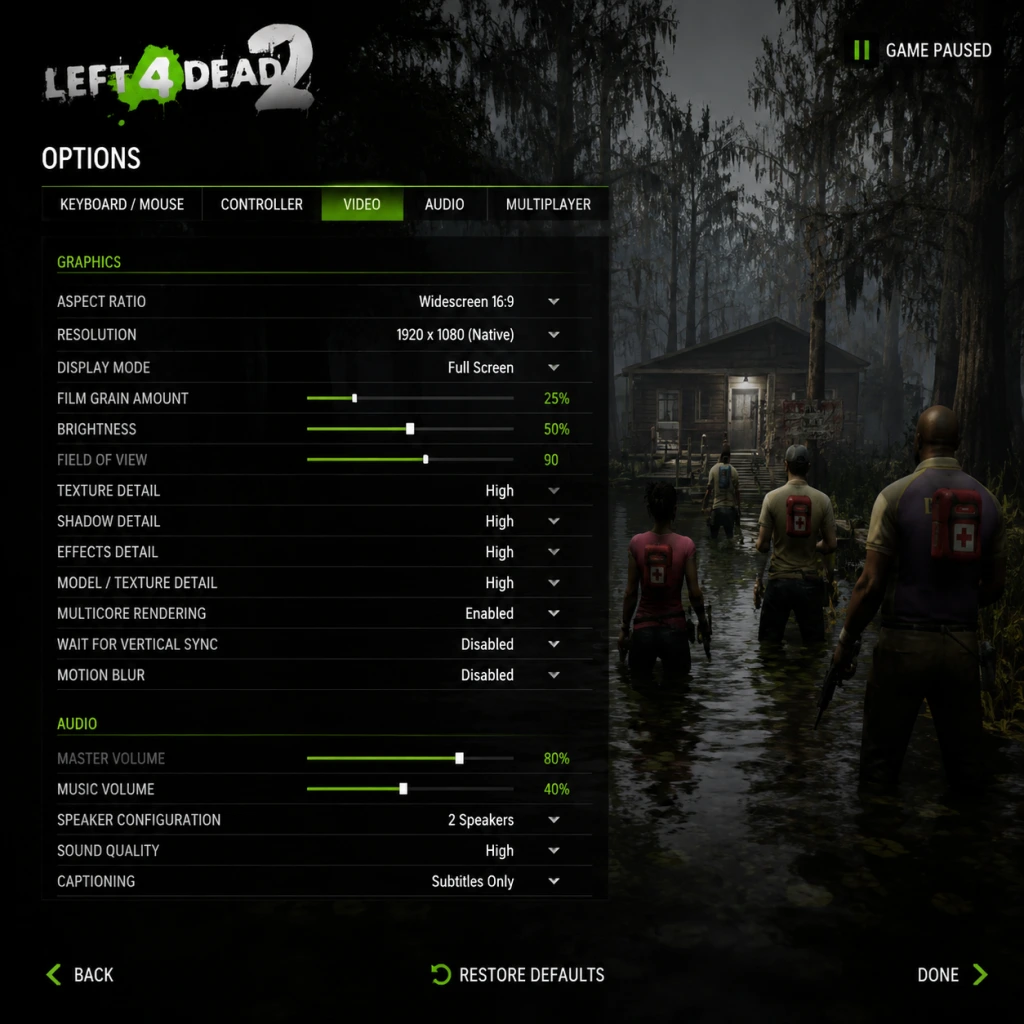
Game Settings Guide for Left 4 Dead 2
This guide covers every in-game setting category, with recommended configurations for various hardware tiers (low-end, mid-range, high-end) and platform-specific notes. Pay special attention to sections marked with ⚠️—these settings are commonly misconfigured and can severely impact performance, visuals, or fairness in multiplayer.
---
1. Graphics Settings
Navigate to Options > Video. Left 4 Dead 2 uses the Source engine, so many settings directly affect framerate and clarity.
| Setting | Low-End (e.g., Intel HD, older GPU) | Mid-Range (e.g., GTX 1060, RX 580) | High-End (e.g., RTX 3060+) | Notes |
|---|---|---|---|---|
| Resolution | 1280x720 or 1366x768 | 1920x1080 | 2560x1440 or 4K | Use native monitor resolution for sharpness. Lower if under 30 FPS. |
| Display Mode | Fullscreen | Fullscreen | Fullscreen | Windowed/Fullscreen Windowed adds input lag. Always use Fullscreen for best performance. |
| Aspect Ratio | Auto | Auto | Auto | Keep on Auto; manual mismatch can stretch image. |
| Color Correction | Disabled | Enabled | Enabled | Affects tuning of filters. Disabling can make dark areas slightly brighter but removes subtle visual cues. |
| Shader Detail | Low | High | Very High | Controls lighting complexity. Low removes some specular highlights; medium is often fine. |
| Effect Detail | Low | High | Very High | Particle counts (fire, explosions, gore). Low reduces blood splatter but helps FPS during hordes. |
| Model/Texture Detail | Low | High | Very High | Textures use VRAM. If you have <1GB VRAM, keep Low. High on 2GB+ cards. |
| Multicore Rendering | Enabled | Enabled | Enabled | ⚠️ CRITICAL: Must be ON for modern CPUs. Off cripples performance (single-thread only). Always enable. |
| Filtering Mode | Bilinear | Trilinear | Anisotropic 4x–16x | Bilinear blurs far textures. Anisotropic improves distance but costs VRAM. |
| Anti-Aliasing | None | 2x MSAA | 4x MSAA+FXAA | MSAA is expensive; FXAA (in config) cheaper. Use CSMAA (in driver) if possible. |
| Vertical Sync (VSync) | Disabled | Disabled | Disabled | ⚠️ VSync adds input lag. If screen tearing bothers you, use NVIDIA Fast Sync or AMD Enhanced Sync instead. |
| FOV (Field of View) | 70–90 (default 70) | 75–90 | 90–110 | Higher FOV reveals more but adds slight performance cost. Set via console: `fov_cs_debug 90`. |
| Chromatic Aberration | Off | Off | Off | Introduces blur; no competitive benefit. Disable. |
- `mat_queue_mode 2` – forces multithreaded material system (improves GPU utilization).
- `r_drawparticles 0` – disables all particles (drastic FPS boost, but makes fires/invisible hordes invisible? Actually they become flat models – use with caution).
- `cl_showfps 1` – display FPS counter.
- `fps_max "0"` – uncap framerate (default 300). Set to monitor refresh rate if you want smoother motion.
---
2. Audio Settings
Options > Audio
| Setting | Recommended | Notes |
|---|---|---|
| Master Volume | 70–100% | Keep high to hear subtle audio cues. |
| SFX Volume | 100% | Gunfire, infected sounds. Crucial for situational awareness. |
| Music Volume | 30–50% | Music muffles footsteps and special infected cues. Lower it to stay alert. |
| Voice Volume | 80–100% | Communication is key. |
| Sound Quality | High | Low uses mono? Actually Source engine: High is stereo. Use High for directional audio. |
| Speaker Configuration | Headphones | 5.1/7.1 works but headphones give best positional audio. ⚠️ If using headphones, NEVER select \"5.1\"—it will cause phase issues. Use \"Headphones\" if available or stereo. |
| Microphone | Push-to-Talk | Open mic causes background noise. Bind a key (e.g., `C` or `V`) for voice. |
3. Controls Settings
Options > Keyboard/Mouse (PC) or Options > Controller (Xbox).
Keyboard & Mouse (PC)
- Mouse Sensitivity: Start at 2.5–3.0 at 800 DPI. Adjust based on your ability to do a 180° turn in one swipe. Lower sensitivity for precision aiming.
- Mouse Acceleration: Disable (off). ⚠️ Mouse accel hurts muscle memory. If you prefer it, enable in Windows mouse settings, not in-game—game setting may be buggy.
- Raw Input: Enable. Bypasses Windows mouse settings for consistent response.
- Invert Mouse: Off (unless you come from flight sims).
- Controller (Xbox): Stick sensitivity 3–5; vibration off for competitive play.
- Push-to-Talk: Unbound by default? Bind to `C` or `V`.
- Zoom (Second Sight): Default `R`? Actually zoom is on mouse3 (middle click). Keep it.
- Drop Weapon: Unbound (use `G` if needed).
- Quick melee: Not needed (melee is default mouse2).
- Switch to secondary: Unbound; use `Q` for quick switch.
- Spray: Unbound (you can spray via game menu).
- `bind \"F\" \"say !votekick\"` – example for admin commands (if server allows).
- `bind \"MWHEELUP\" \"slot1\"` – fast weapon switching.
- Subtitles: Options > Audio > Captions. Enable for dialogue and special infected cues (e.g., Hunter growl subtitles).
- Colorblind Modes: None native. Use third-party tools like ReShade with colorblind filters (e.g., Daltonize).
- Text Size: Cannot change. Increase UI scale via console: `cl_hud_cammera_offset 0.5`? Not directly.
- Controller Vibration: Can be disabled in Options > Controller. Helps those with sensory sensitivity.
- Visual Clarity: Enable `cl_showpos 1` to see coordinates (not useful). Use hud scaling mods (Steam Workshop).
- Hearing: Enable visual indicators by checking ``cl_playback_screenshots 0``? Not. Use third-party mods for special infected visual alerts.
Key Bindings (Essential adjustments)
Console commands for controls
---
4. Accessibility Settings
Left 4 Dead 2 has minimal built-in accessibility, but you can adjust:
---
5. Language Settings
Game language follows Steam client language. To change:
1. Right-click L4D2 in Steam Library > Properties > Language.
2. Select English, French, German, etc.
Note: Audio language locks to chosen language. Multiplayer voice chat language is player-dependent.
Console command (if you want mix): `engine_no_focus_sleep 0` (not language). For subtitles in different language, no simple option.
---
6. Network Settings
Options > Multiplayer (or via console).
| Setting | Recommended | Notes |
|---|---|---|
| Rate | 30000 (default) | For 100+ tick servers, raise to 50000 via `rate 50000`. |
| Cl_cmdrate | 30 (default) | Match updaterate. `cl_cmdrate 60`. |
| Interp | 0.01 (or default .1) | Lower for less interpolation lag. Set via `cl_interp_ratio 1` and `cl_interp 0.01`. ⚠️ Too low causes jitter. Start at 0.033.
| Max Players (listen server) | 8 | Uset `maxplayers 8` for local server (can cause lag if low bandwidth).
| Network Mode | Internet | Only change to LAN for local play.
| Enable Steam Cloud | On | Save settings/custom configs.
| Enable Downloading Custom Content | Enabled | Required for modded servers.
Advanced Networking (autoexec.cfg)
```
cl_cmdrate 60
cl_updaterate 60
rate 50000
cl_interp_ratio 1
cl_interp 0.033
cl_lagcompensation 1
```
Port Forwarding (if hosting): TCP 27015, UDP 27015.
---
7. Gameplay Settings
Options > Gameplay
| Setting | Recommended | Notes |
|---|---|---|
| Crosshair | Default (small circle) or custom (via console: `crosshair 1; cl_crosshair_scale 5`). | Use bright color (green/cyan). Avoid large crosshairs that obscure targets. |
| Auto-Aim (Controller) | Off | Aim assist on PC is not present. On Xbox, disable for challenge. |
| Tutorial Hints | On for new players; off experienced. | Must watch intro once? Actually can disable in options. |
| Teammate Glow | Enabled | See survivors through walls. Color: green or team-colored. |
| Friendly Fire Flash | Enabled | White flash when shooting teammates. Helps avoid accidental damage. |
| Special Infected Voiceover | Enabled | Narrator calls out Tank, Witch, etc. Very helpful. |
| Game Notifications | On | Show capture points, objectives. |
| Health Counter | On | See teammate health numbers. |
| Show Teammate Names | On | Overhead names for quick callouts. |
| Shake Effects | Reduced (via console: `shake_radius 0`)? Game doesn't have slider. To reduce screen shake: `cl_bobcycle 0` but that may be cheating? Only use in singleplayer. |
- `thirdpersonshoulder` – third-person view (some servers block).
- `cl_showbackpack 1` – show health/ammo of teammates.
- `survivor_limbs 1` – show limb health? Not standard.
- `steamapps\\common\\Left 4 Dead 2\\left4dead2\\cfg\\config.cfg`
- Also user-specific: `Steam\\userdata\\<SteamID>\\550\\local\\cfg\\config.cfg`
- Enable Developer Console (`~` key) – go to Options > Keyboard/Mouse > Allow Developer Console > Yes.
- Launch options: Right-click game > Properties > General > Launch Options. Common: `-novid` (skip intro), `-high` (high CPU priority), `-threads X` (set core count).
- Cannot modify config; graphic options are locked. Only adjust in-game brightness and audio.
- Controller sensitivity from game menu only.
- No mouse/keyboard support.
- Same as PC, but some drivers may cause graphical issues. Use Proton Experimental.
- Launch command: `PROTON_USE_WINED3D=0 %command%` for native Vulkan.
---
8. Setting Up Save / Config Backup
Left 4 Dead 2 stores settings in:
To backup: Copy these files. After resetting settings, paste them back (while game is closed).
Autoexec.cfg location: `...cfg\\autoexec.cfg` (create if missing). Place all console commands there.
---
9. Platform-Specific Notes
PC (Steam)
Xbox 360
Linux (Proton/SteamOS)
---
10. Common Misconfigurations & Pitfalls
⚠️ Setting Multicore Rendering to OFF: The #1 performance killer. Always ON.
⚠️ Leaving VSync ON: Adds input delay. Use fast sync or G-Sync/FreeSync instead.
⚠️ Setting Rate too Low (default 30000): On high-tick servers (e.g., 100 tick), you'll experience lag and packet loss. Raise to 50000+ via console.
⚠️ Not disabling Mouse Acceleration: Inconsistent aim. Both Windows and in-game setting must be off.
⚠️ Playing on High Graphics with <1GB VRAM: Crashes and stutter. Lower texture/model detail.
⚠️ Using 5.1 Sound with Headphones: Sounds become muddy; use Headphones option if available.
⚠️ Default FOV (70): Tunnel vision. Increase to at least 85 via `fov_cs_debug`.
---
Final Check: After adjusting settings, run a quick private match (use `map c1m1_hotel` command in console) to test performance. Monitor FPS with `net_graph 1`. Aim for stable 60+ FPS on your hardware.
Settings are saved automatically on quit. If something breaks, delete `config.cfg` and let the game recreate defaults.