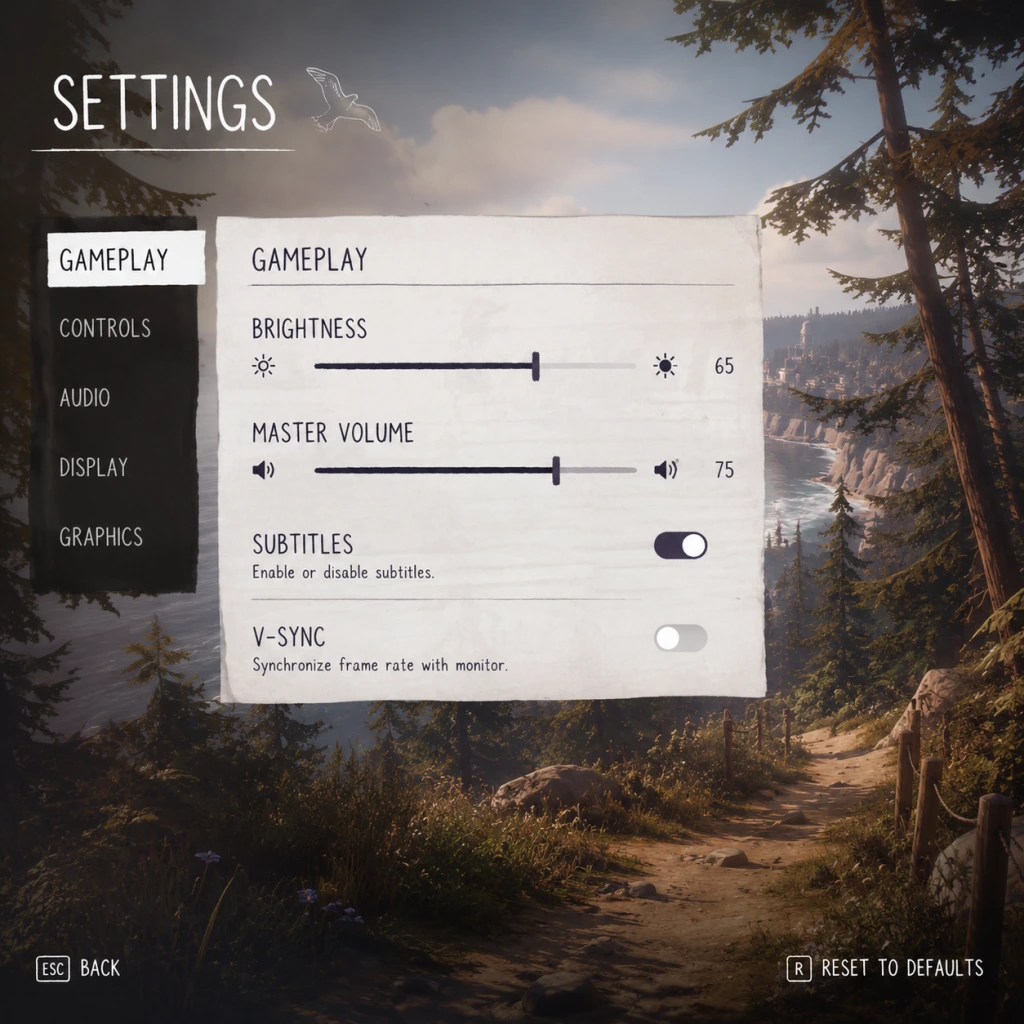
Game Settings
Game Settings Guide for Life is Strange (Original 2015)
Overview
Properly configuring your settings ensures you get the best experience in Life is Strange—whether you're aiming for smooth performance, maximum visual fidelity, or comfortable accessibility. This guide covers every settings category: Graphics, Audio, Controls, Accessibility, Language, Network, and Gameplay. We'll also recommend optimal settings for different hardware levels and highlight easy-to-misconfigure options.
---
Graphics Settings
Life is Strange uses Unreal Engine 3, so graphics options are relatively simple but impact performance significantly. Available from the Options > Graphics menu.
#### Key Settings
| Setting | Options | Recommendation | Notes |
|---|---|---|---|
| Resolution | List of display modes | Native monitor resolution (e.g., 1920x1080) | Setting lower than native improves performance but reduces clarity. |
| Fullscreen Mode | Fullscreen, Windowed, Borderless Windowed | Fullscreen for best performance; Borderless for alt-tabbing | Borderless may introduce slight input lag on some systems. |
| Vsync | On/Off | Off (if you can tolerate screen tearing) or On (if tearing bothers you) | Vsync caps FPS to monitor refresh rate and can cause input lag. |
| Anti-aliasing | None, FXAA (Fast Approximate), MSAA (2x/4x/8x) | Use FXAA for minimal performance hit; MSAA 2x for balance; avoid 8x on low-end GPUs | MSAA is very demanding. FXAA blurs edges but performs well. |
| Texture Quality | Low, Medium, High, Very High | Set to match your GPU VRAM: 2GB+ = High, 4GB+ = Very High | Low causes blurry surfaces. Texture quality has moderate performance impact. |
| Shadow Quality | Low, Medium, High | Medium is a good compromise; High drops frames on older GPUs | Shadows are CPU/GPU heavy. Low makes shadows look blocky. |
| Post-Processing | Low, Medium, High, Very High | High for richness; Low disables bloom, DOF, and color grading | Post-processing adds atmosphere but costs FPS. Very High is only for top-tier GPUs. |
| Motion Blur | On/Off | Off (subjective) | Motion blur can cause dizziness for some players; turn off for clearer motion. |
| Ambient Occlusion | On/Off | On for depth; Off for +5-10 FPS | Slight but noticeable visual improvement. |
- Low-End (e.g., Intel HD Graphics 520, 2GB RAM, no dedicated GPU):
- Mid-Range (e.g., GTX 960, i5-4460, 8GB RAM):
- High-End (e.g., RTX 3060, Ryzen 5, 16GB RAM):
- Fullscreen vs. Borderless Windowed: If you accidentally set Windowed mode, you'll get lower performance and a small window. Always choose Fullscreen or Borderless (if you frequently alt-tab).
- Vsync: Turning Vsync On can introduce noticeable input lag when rewinding. For precise rewind timing, keep Vsync Off and accept minor tearing, or use a frame limiter outside the game (e.g., RivaTuner).
- Anti-aliasing: Many players leave it on MSAA 8x without realizing it halves their FPS. If your game stutters heavily, reducing AA is the first step.
- Resolution: 1366x768 or lower (720p)
- Fullscreen: On
- Vsync: Off
- Anti-aliasing: None (or FXAA if you can spare 2-3 FPS)
- Texture Quality: Low
- Shadow Quality: Low
- Post-Processing: Low
- Motion Blur: Off
- Ambient Occlusion: Off
- Expected FPS: 25-35 (playable but choppy)
- Resolution: 1920x1080
- Fullscreen: On
- Vsync: Off
- Anti-aliasing: FXAA or MSAA 2x
- Texture Quality: High
- Shadow Quality: Medium
- Post-Processing: High
- Motion Blur: Off
- Ambient Occlusion: On
- Expected FPS: 50-60 (smooth with occasional dips)
- Resolution: 1920x1080 or 2560x1440 (if monitor supports)
- Fullscreen: On
- Vsync: Off (or On if you want tear-free)
- Anti-aliasing: MSAA 4x
- Texture Quality: Very High
- Shadow Quality: High
- Post-Processing: Very High
- Motion Blur: Off (or On if you like it)
- Ambient Occlusion: On
- Expected FPS: 60+ (locked at 60 on most setups; the game engine caps at 62 FPS)
#### Easy-to-Misconfigure Graphics Settings
---
Audio Settings
Found under Options > Audio.
| Setting | Range | Recommendation | Notes |
|---|---|---|---|
| Master Volume | 0-100 | 70-80 (adjust to your preference) | Affects all sounds simultaneously. |
| Music Volume | 0-100 | 80 (the soundtrack is excellent) | You can lower if voice gets drowned out. |
| SFX Volume | 0-100 | 70 | Effects like footsteps and rewind sounds. |
| Dialogue Volume | 0-100 | 90 (keep high—story is key) | Subtitles can compensate for low volume. |
| Subtitles | On/Off | On (especially if dialogue is unclear) | Recommended for non-native speakers or noisy environments. |
| Subtitle Background | None, Dark, Light | Dark (readability) | Light may blend with bright scenes. |
- Dialogue Volume: In some scenes, voice acting may be quieter than music. Set Dialogue to 90-100 and Music to 70-80 to avoid missing story beats.
- Subtitle Background: If you have difficulty reading white text on light backgrounds, choose "Dark" to improve contrast.
---
Controls Settings
Accessed via Options > Controls. Life is Strange supports both keyboard/mouse and controllers (Xbox, PlayStation, Steam Controller).
#### Key Bindings (Keyboard Defaults)
| Action | Default Key | Recommended Alternative | Notes |
|---|---|---|---|
| Move Forward/Back/Left/Right | W/A/S/D | — | Standard WASD. |
| Look | Mouse (move) | — | Mouse sensitivity adjustable. |
| Interact | E | F (some prefer closer to WASD) | Use for examining objects, initiating dialogue. |
| Rewind (manual) | Left Shift | Space (if Shift is awkward) | Manual rewind returns to a checkpoint. |
| Rewind (hold to slow time) | Tab | Q (easier to hold while moving) | Slows down time for fewer control hangups. |
| Jump | Space | — | Rarely used; don't remap if you don't need to. |
| Pause | Esc | — | — |
- Controller Type: Auto-detected (XInput or DirectInput). If your controller isn't recognized, try wired mode or install generic drivers.
- Invert Y-Axis: Off (subjective). Don't accidentally toggle this if you're not used to inverted look.
- Vibration: On/Off. On adds immersion for rewind and heavy impact scenes. Turn off to save battery.
- Rewind Buttons: The default manual rewind (`Left Shift`) is easy to press accidentally during dialogue, causing a time skip. Consider rebinding it to a less frequently used key.
- Mouse Sensitivity: If set too high, navigating dialogue wheel becomes jittery. Start at 5/10 and adjust.
- Subtitles (Audio menu): Turn On and set subtitle background to Dark for readability.
- Hard of Hearing: No separate closed captioning for sound effects, but dialogue subtitles cover speech.
- Visual Impairment: The game doesn't have a UI scaling slider. You can increase resolution temporarily to make UI elements smaller (counterintuitive—larger resolution shrinks UI). To make UI bigger, lower the resolution (e.g., 1280x720) but expect blurriness.
- Controller Remapping: Not available for controllers; only keyboard can rebind keys.
- Difficulty: No difficulty settings. The game is purely narrative—you can't "lose". Time rewind removes failure consequences.
#### Easy-to-Misconfigure Controls
---
Accessibility Settings
Life is Strange has limited native accessibility options (no colorblind modes, no large text). However, these built-in features help:
Special Attention: If you rely on subtitles, ensure Dialogue Volume is high (90+) and Music Volume is moderate (70) so speech doesn't get masked. Also, consider using headphones for audio cues during rewind puzzles.
---
Language Settings
Available at Options > Language or before starting the game (via launcher/platform).
| Option | Details |
|---|---|
| Interface Language | Text for menus, UI, subtitles. Choose your preferred language. Switching requires restart. |
| Audio Language | Voice-over language. The original is English. Localized dubs exist for French, German, Spanish, etc. Changing audio does not affect subtitles separately. |
| Subtitles Language | If audio is set to English but you want subtitles in another language, set Interface Language to that language and enable subtitles. |
---
Network Settings
Life is Strange has no multiplayer or significant online features. However:
- Achievements/Trophies: Online connectivity is required to sync achievements with Steam (PC), Xbox Live, or PSN. If you play offline, they'll sync when you reconnect.
- Steam Cloud: Saves are stored locally unless you enable Steam Cloud in Steam's game properties. Enable it to avoid losing progress.
- No Online-Only DRM: The game can be played fully offline after installation.
- No In-Game Network Settings: There are no network menus within the game.
- Cloud Save Conflicts: If you play on multiple PCs, make sure Steam Cloud syncs fully before starting the game. A common error is overwriting a later save with an earlier one. Exit Steam and relaunch to force sync.
#### Special Attention Points
---
Gameplay Settings
Found under Options > Gameplay (or Controls/GUI depending on version).
| Setting | Options | Recommendation | Notes |
|---|---|---|---|
| Rewind Mode | Free, Snap | Free (for flexibility) | Snap locks rewind to a fixed grid; Free gives pixel-perfect control. |
| Hint System | Off, Contextual, Always | Contextual (subtle) | \"Always\" may spoil puzzle solutions. \"Off\" for hardcore challenge. |
| Camera Shake | On/Off | Off (if you get motion sick) | Camera shake during rewind and intense scenes. |
| Automatic Dialogue Selection | On/Off | Off (to keep control) | If On, the game selects a response when time runs out, potentially ruining your choice. |
| Invert Aim (Controller) | On/Off | Off | Only affects controller look controls. |
- Rewind Mode: New players often leave it on "Snap" and wonder why rewind jumps oddly. Switch to Free for smooth control.
- Automatic Dialogue Selection: Always turn this OFF. If you hesitate during a timed choice (rare but present), the game picks a default answer that might be opposite to your intent.
- Hint System: If you want an unobtrusive experience, set to Contextual—it only shows hints when you're stuck for a certain time. Avoid \"Always\" unless you want constant arrows.
---
Final Optimization Checklist
1. First Launch: Set graphics to Medium preset and adjust from there.
2. Performance: If you experience stuttering when entering new areas, reduce Shadow Quality to Low.
3. Audio: Test dialogue volume in the first scene with Max's voice. Adjust if it's too quiet.
4. Controls: Spend 2 minutes rebinding the rewind key to something comfortable (e.g., `Q` for slow-motion, `E` for interact).
5. Accessibility: Enable subtitles with dark background before starting Episode 1.
6. Cloud Saves: Verify Steam Cloud is enabled via Steam > right-click Life is Strange > Properties > General > Keep game saves in the Steam Cloud.
By following this guide, you'll have a stable, visually pleasing, and comfortable setup for your journey through Arcadia Bay.