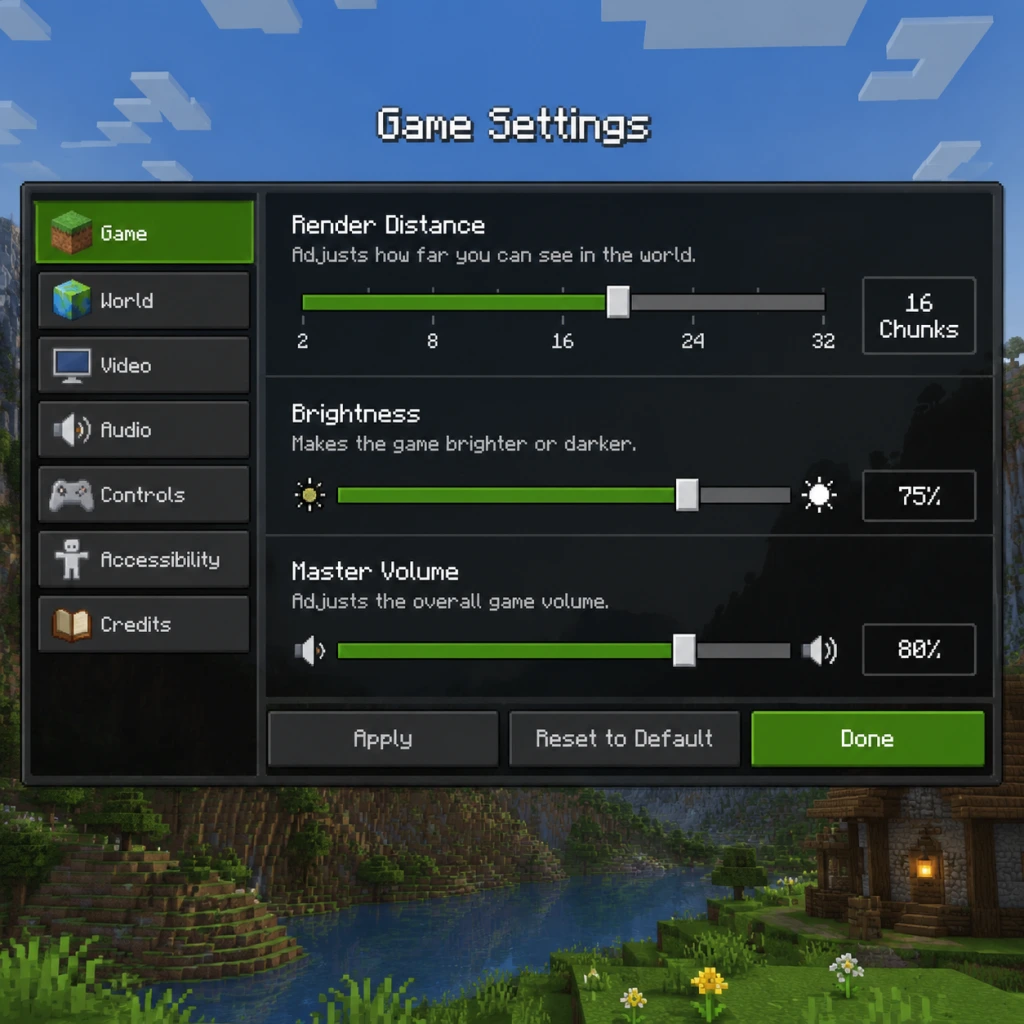
Game Settings
Game Settings: Minecraft
This guide covers every settings category in Minecraft (Java and Bedrock Editions), with recommendations for performance, quality, and accessibility. Pay special attention to settings marked ⚠️ Misconfiguration Risk.
1. Graphics Settings (Java & Bedrock)
#### Java Edition – Video Settings
| Setting | Option | Recommended (Low-End) | Medium-End | High-End | Notes |
|---|---|---|---|---|---|
| Graphics | Fancy / Fast | Fast | Fancy | Fancy | Fast disables transparency and smooth lighting. |
| Render Distance | 2–32 chunks | 4–8 chunks | 12–16 chunks | 20–32 chunks | ⚠️ Largest performance hit. Reduce if FPS drops. |
| Smooth Lighting | Off / Minimum / Maximum | Minimum | Maximum | Maximum | Affects lighting quality, minor performance cost. |
| Smooth FPS | Off / VSync / Adaptive | Off | Off | Off | Adaptive may help screen tearing. VSync locks to monitor refresh. |
| Brightness | Dark / Moody / Bright | Bright (best visibility) | Bright | Bright | Personal preference; does not affect performance. |
| GUI Scale | Auto / Small / Normal / Large | Auto | Auto | Normal | If UI is tiny, increase manually. |
| Fullscreen | On/Off | Off (windowed) | On | On | Fullscreen may improve FPS. |
| Advanced OpenGL | On/Off | ⚠️ Keep ON | ON | ON | Disabling can cause flickering with mods. |
| Mipmaps | 0–4 | 0–1 | 2 | 4 | Higher = sharper distant textures; low memory cost. |
| Entity Distance | 50%–500% | 100% | 200% | 300%+ | Controls entity render distance independent of chunks. |
| Clouds | Off / Fast / Fancy | Off | Fast | Fancy | Minimal impact. |
| Particles | Minimal / Decreased / All | Minimal | All | All | Setting to All can clutter screen in combat. |
- Graphics (Simple / Fancy / Ray Tracing) – Simple is best for low-end. Ray Tracing requires RTX GPU.
- Render Distance (4–24 chunks) – Similar scale to Java.
- UI Profile (Legacy / Classic / Pocket) – Adjusts button layout.
- Fancy Leaves – Off for performance.
- Beautiful Skies – On/Off. Off gives performance boost.
- Smooth Lighting (Off / On) – On for nicer shadows.
- Master Volume – 100% default. Adjust to taste.
- Music & Jukebox – Separate sliders. Music can be distracting; reduce to 50%.
- Sound Effects – Keep at 100% for critical game audio (monsters, blocks).
- Voice/Speech – Only in Bedrock (text-to-speech for chat).
- Directional Audio – Minecraft uses stereo. Headphones improve spatial awareness.
- Sprint – Change from Left Ctrl to Left Shift (toggle) to avoid finger strain.
- Sneak – Toggle Sneak is under Accessibility Settings or mods. ⚠️ Default hold sneaks – many players miss the toggle.
- Inventory – E key; change to Tab if you prefer inventory in shooters.
- Pick Block – Middle mouse button; useful for building.
- Mouse Sensitivity – Start at 50–70% (default 50%). Adjust until you can turn 180° with a single wrist flick.
- Invert Y-Axis – Personal preference for flying/boats.
- Touchscreen users: adjust button size and opacity.
- Controller: swap A/B for jump interact if desired.
- Auto-Jump – ⚠️ Many players disable this to avoid accidental jumps.
- Narrator (Ctrl+B) – Speaks UI text, useful for blind players.
- Menu Background Blur – Off reduces visual noise.
- Chat Background – Can set opacity to 0% for clear view.
- Lightning Flash – Can be disabled for photosensitivity.
- Subtitles – On shows text for all sounds (footsteps, mobs). Highly recommended for deaf/HOH.
- Toggle Sprint / Sneak – Enable to hold state instead of pressing.
- Text-to-Speech for chat and menus.
- Screen Reader (Narrator) – Reads on-screen items.
- Controller Cursor Speed – For navigating emote wheel.
- Vibration – Toggle for controller feedback.
- Colorblind Mode – Change chat/damage colors (e.g., red-green).
- Interface Opacity – Reduce for transparent HUD.
- Change language in Options > Language (Java) or Settings > General > Language (Bedrock).
- ⚠️ Resource Packs – Not technically a language setting, but often used for language patches. Ensure pack order: language packs above default.
- Font – Java defaults to a pixel font. Resource packs can replace with Unicode fonts for non-English characters.
- Multiplayer Settings – Allow / Deny server resource packs. ⚠️ Set to Prompt to avoid forced downloads.
- Server Ping – Affects multiplayer list refresh rate.
- Online Mode – Must stay ON for official authentication (unless running a cracked server).
- Chat Settings – Chat can be filtered (Hide / Hidden / Full). Colors and Links – On allows clickable URLs.
- Multiplayer – Toggle on/off. Requires Xbox Live account.
- Spawn Protection – Only for hosts of LAN worlds.
- Allow Cheats – Toggle for creative/fly in survival.
- Peaceful – No mobs, no hunger. Good for builders.
- Easy – Low damage, minor skeleton aim, zombies don't break doors.
- Normal – Standard AI, mobs can open doors.
- Hard – High damage, zombies break doors, starvation possible.
- ⚠️ Hardcore – One life, world deletes on death. Enable only if prepared.
- Game Mode – Survival, Creative, Adventure, Spectator (Java only). Change with /gamemode.
- Difficulty Lock – Java only. Locks difficulty so it cannot be changed even with commands. ⚠️ Once locked, permanent.
- Allow Flight – In creative mode, double-tap jump.
- Keep Inventory – Gamerule (`/gamerule keepInventory true`) – Not a settings menu option, but essential for casual play.
- Auto-Jump (Bedrock) – Off to prevent accidental leaps.
2. Audio Settings
3. Controls Settings
#### Java Edition – Key Bindings
#### Bedrock Edition – Controls
4. Accessibility Settings
#### Java Edition (Menu > Accessibility Settings)
#### Bedrock Edition (Settings > Accessibility)
5. Language Settings
6. Network Settings
#### Java Edition
#### Bedrock Edition
7. Gameplay Settings
#### Difficulty (Java: /difficulty command or Options > Difficulty)
#### Other Gameplay Settings
Performance & Quality Recommendations by Hardware Level
| Hardware Tier | Java Edition | Bedrock Edition |
|---|---|---|
| Low-End (Intel HD Graphics, 4GB RAM, old CPU) | Graphics: Fast, Render Distance: 6-8, Particles: Minimal, Mipmaps: 0, Smooth Lighting: Off, leave Advanced OpenGL ON. Allocate only 2GB RAM in launcher. | Graphics: Simple, Render Distance: 6, Fancy Leaves: Off, Beautiful Skies: Off, Smooth Lighting: Off. |
| Medium-End (GTX 1060/RX 580, 8-16GB RAM, modern CPU) | Graphics: Fancy, Render Distance: 12-16, Particles: All, Mipmaps: 2, Smooth Lighting: Maximum. Assign 4GB RAM. | Graphics: Fancy, Render Distance: 16, Fancy Leaves: On, Beautiful Skies: On, Smooth Lighting: On. |
| High-End (RTX 3070+, 32GB RAM, high-end CPU) | Graphics: Fancy, Render Distance: 24-32, Particles: All, Mipmaps: 4, Smooth Lighting: Maximum. Assign 8GB RAM for mods. | Graphics: Fancy (or Ray Tracing if RTX), Render Distance: 24, all visual effects max. |
| Ultra / Ray Tracing | Java does not support RT. Use Bedrock with RTX: Graphics: Ray Tracing, Render Distance: 16 (RT halves distance), enable DLSS if available. |
Common Misconfigurations & Special Attention Points
- ⚠️ Java RAM Allocation – Default is 2GB. If you have a modern pack/mod, increase to 4-8GB in the launcher (Installations > Edit > JVM Arguments: `-Xmx8G -Xms2G`). Too much (>12GB) can cause garbage collection stutters.
- ⚠️ Fullscreen vs Windowed – On some systems, fullscreen causes input lag. Test both.
- ⚠️ VSync – Can double input delay. Use Adaptive VSync or cap FPS with external tools.
- ⚠️ Resource Packs – High-res packs (>32x) will tank FPS on low-end. Match pack resolution to your GPU.
- ⚠️ Render Distance on Servers – Servers may cap render distance; setting it higher won't help FPS.
- ⚠️ Narrator Toggle Shortcut – Ctrl+B in Java accidentally enables narrator; many players panic thinking their game is broken. Just press Ctrl+B again.
- ⚠️ Bedrock Auto-Jump – On by default. Off in Settings > Game > Auto-Jump.
- ⚠️ Java vs Bedrock Differences – Java has more granular video options; Bedrock has better optimization and Ray Tracing. Use Java for modability, Bedrock for multiplayer with friends on console.
---
Always test settings in a singleplayer world before joining a server. Use F3 (Java) to monitor FPS and chunk updates. For Bedrock, use the coordinates debug screen.