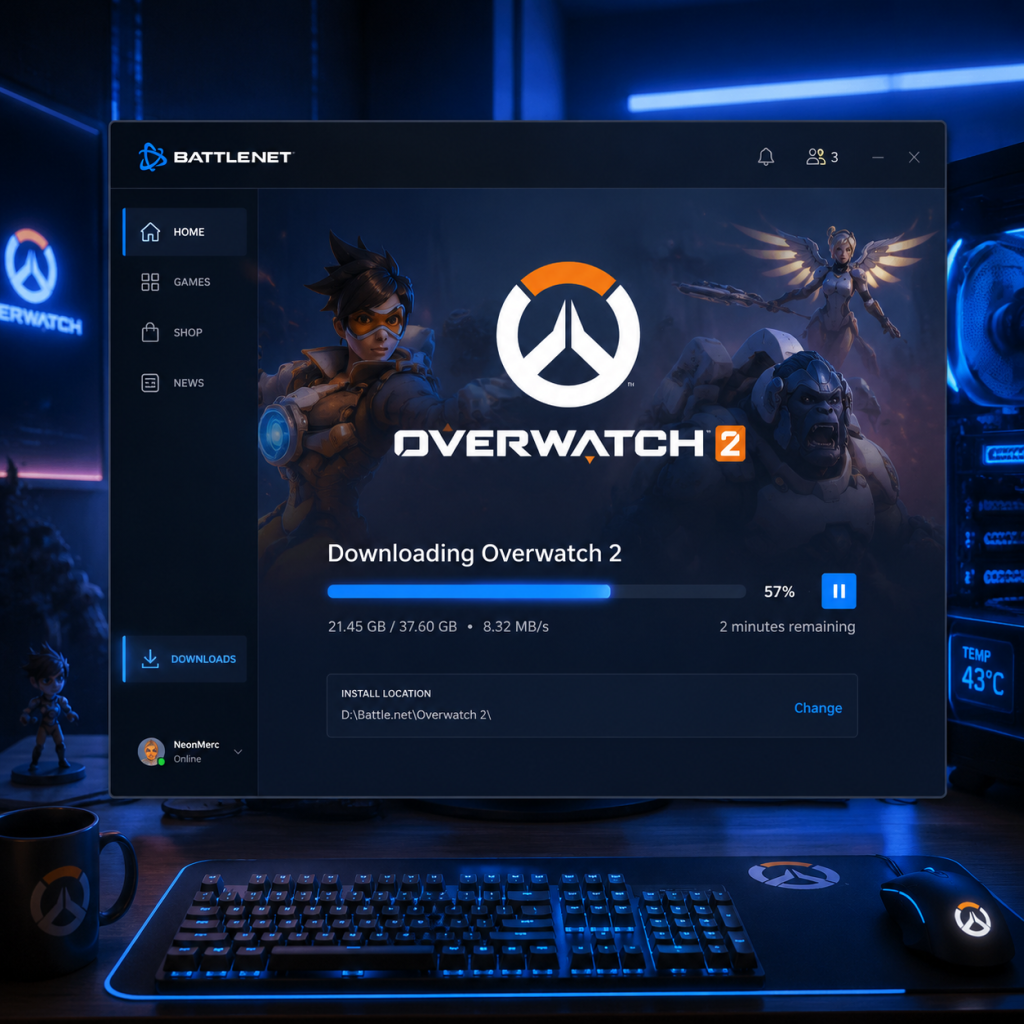
Download & Installation
Download & Installation Guide for Overwatch (Overwatch 2)
This guide covers everything you need to download, install, and start playing Overwatch 2 on all major platforms. Overwatch 2 is a free-to-play team-based shooter released by Blizzard Entertainment. It is available on PC (Battle.net, Steam, Epic Games Store), PlayStation 4 & 5, Xbox One & Series X|S, and Nintendo Switch. There is no mobile version.
---
Platform Overview & Legitimate Download Sources
| Platform | Official Sources | Notes |
|---|---|---|
| PC (Windows) | [Battle.net](https://www.blizzard.com/download) (Blizzard's official client), [Steam](https://store.steampowered.com/app/2357570/Overwatch_2/), [Epic Games Store](https://store.epicgames.com/en-US/p/overwatch-2) | Cross-progression via Battle.net account. Steam & Epic versions still require a linked Battle.net account. |
| PlayStation 4 & 5 | PlayStation Store (search "Overwatch 2") | Requires PlayStation Plus for online multiplayer (optional for free-to-play in some regions, but recommended). |
| **Xbox One & Series X | S** | Microsoft Store (search "Overwatch 2") |
| Nintendo Switch | Nintendo eShop (search "Overwatch 2") | Online play requires Nintendo Switch Online subscription. |
System Requirements (PC)
#### Minimum Requirements
- OS: Windows 10 64-bit (latest update)
- CPU: Intel Core i3-560 / AMD FX-4350
- GPU: NVIDIA GeForce GTX 600 series / AMD Radeon HD 7000 series (or better)
- RAM: 6 GB
- Storage: 75 GB available space (SSD recommended)
- Internet: Broadband connection
- Resolution: 1024x768 minimum
- OS: Windows 10 64-bit (latest update) or Windows 11
- CPU: Intel Core i7-6700K / AMD Ryzen 5 1600X
- GPU: NVIDIA GeForce GTX 1060 / AMD Radeon R9 380 (or better, e.g., RTX 2060)
- RAM: 8 GB or more
- Storage: 75 GB SSD (NVMe preferred)
- Internet: Broadband connection
- Resolution: 1920x1080 or higher
- A Battle.net account (free registration at [battle.net](https://www.battle.net/)) is mandatory for all platforms to play Overwatch 2.
- For Steam: Link your Steam account to your Battle.net account during first launch.
- For Epic Games Store: Similar linking process required.
- For Console: You must log into your Battle.net account within the game on first launch. If you don't have one, create it via the game menu or website.
- Cross-Progression: All progress (unlocks, skins, currency) is tied to your Battle.net account, not the platform account.
- Account Linking: If you haven't already, you must link your platform account to Battle.net. This is a one-time process.
- Controller/Mouse & Keyboard: PC supports both. Console uses controller (keyboard/mouse support on PS5/Xbox Series X is limited).
- Graphics Settings: On PC, the game will auto-detect optimal settings. You can adjust in Options > Video.
- Sound & Language: Default language matches your system locale. Change in Options > Sound/Language.
- Tutorial: After logging in, you'll be placed in the Practice Range. Complete the tutorial or skip.
- Battle Pass & Shop: Access the main menu after tutorial to see current season and shop.
#### Recommended Requirements
> Note: Overwatch 2 uses up to ~70 GB of disk space after installation. The original download size can be around 50-60 GB compressed. Ensure you have at least 75 GB free before starting.
---
Account Requirements
---
Step-by-Step Installation by Platform
#### PC - Battle.net (Recommended)
1. Download the Battle.net desktop app from [Blizzard's official download page](https://www.blizzard.com/download/).
2. Install the Battle.net app by running the downloaded installer. Choose a location (default is fine).
3. Launch the app and log in with your Battle.net account (or create one).
4. Navigate to the "Overwatch 2" tab in the left sidebar or search.
5. Click "Install" (labeled "Install" or "Installer" depending on version).
6. Select installation location: By default it goes to `C:\Program Files (x86)\Overwatch`. You can change it.
7. Wait for download & install. The app will first download a small launcher, then the full game (approx. 50-70 GB). Progress is shown.
8. Click "Play" when finished.
#### PC - Steam
1. Open Steam (download from [store.steampowered.com](https://store.steampowered.com/) if not installed).
2. Log into your Steam account.
3. Search for "Overwatch 2" in the Store tab.
4. Click "Free to Play" (or "Play Game" if already owned).
5. Select a directory for installation (e.g., `C:\Program Files (x86)\Steam\steamapps\common\Overwatch 2`).
6. Click "Next" and then "Install".
7. Wait for download (Steam displays progress).
8. Launch the game from Library. On first launch, you'll be prompted to link your Steam account to your Battle.net account – follow the on-screen instructions (opens a browser to log into Battle.net).
9. Complete linking and the game will start.
#### PC - Epic Games Store
1. Launch the Epic Games Launcher (download from [epicgames.com](https://store.epicgames.com/en-US/download) if needed). Log in.
2. Go to the Store tab, search "Overwatch 2".
3. Click "Get" to add the game to your library.
4. Go to Library, find Overwatch 2, click the [...] icon.
5. Select "Install", choose installation path, click "Install".
6. Wait for download.
7. Launch the game from Library. You'll be asked to sign in with your Battle.net account (pop-up browser).
8. After linking, the game will proceed to main menu.
#### PlayStation (4 & 5)
1. Turn on your console and ensure you're connected to the internet.
2. Go to PlayStation Store.
3. Search for "Overwatch 2".
4. Select the game (it should be free – if you see a price, you might be looking at a bundle; the base game is free).
5. Click "Download" (or "Add to Library" then download).
6. The system will begin downloading; you can monitor progress from the notifications or library.
7. Once installed (game icon appears on home screen), launch it.
8. On first launch, you'll be prompted to log into your Battle.net account (or create one). Use the on-screen keyboard or scan QR code on your phone.
9. After logging in, you can play immediately.
#### Xbox (One & Series X|S)
1. Turn on your console with internet connection.
2. Open Microsoft Store (or search using the guide button).
3. Search for "Overwatch 2".
4. Select the free game (confirm it's not a bundle).
5. Click "Install" (or "Get" then "Install").
6. The download begins – check progress in "My games & apps" > "Queue".
7. After installation, launch from Home or Games library.
8. First launch: Sign into your Battle.net account when prompted. Use on-screen keyboard or scan QR code.
9. Play!
#### Nintendo Switch
1. Connect your Switch to the internet.
2. Open Nintendo eShop from the home menu.
3. Search for "Overwatch 2".
4. Select the free version (if listings show "Overwatch 2" and "Overwatch 2: Legendary Edition", pick the free one).
5. Click "Free Download" (or "Proceed to Download").
6. The download starts – you can see progress on the home screen under the game icon.
7. Once installed (game icon no longer shows downloading), launch it.
8. First launch: Connect to your Battle.net account via the in-game prompt (log in with email/password or scan QR).
9. Play after account linking. Note: The Switch version runs at 30 FPS and has reduced graphics.
---
First Launch Setup (All Platforms)
---
Common Installation Errors & Fixes
| Error | Platform | Cause & Fix |
|---|---|---|
| "Disk write error" | PC | Antivirus blocking writes. Temporarily disable antivirus or add exceptions for Battle.net/Steam/Epic. Also check disk space and run as admin. |
| "Installation failed" | PC | Corrupt download cache. In Battle.net: Settings > Downloads > Clear Cache. In Steam: Library > Right-click game > Properties > Local Files > Verify Integrity. In Epic: Settings > Verify Game Files. |
| "Unable to install - missing files" | PC | Re-run the installer. On Battle.net, try "Scan and Repair". On Steam, verify files. |
| "Please restart client" | PC/Console | Close and relaunch the launcher or game. Update your client software (Battle.net, Steam, console system). |
| "Connection lost during download" | All | Check internet stability. Pause/resume download. On PC, switching between WiFi and Ethernet may help. |
| "Insufficient storage" | PC/Console | Free up space: delete old games or files. Overwatch 2 requires ~75 GB free. On PS5, you may need to manage console storage. |
| "Account linking failed" | All | Make sure you are using the correct Battle.net credentials. Temporarily disable browser extensions that block pop-ups. Try again. |
| "Game crashes on launch" | PC | Update graphics drivers (NVIDIA, AMD, Intel). Verify game files. Disable overlays (Discord, Steam overlay). Run the game as administrator. |
| "Black screen on startup" | PC | Try windowed mode: in Battle.net settings, add launch parameter `-windowed`. Update GPU drivers. |
| "Controller not working" | PC/Console | On PC, ensure controller is recognized in Windows. On console, reconnect controller. In-game, check options > controls. |
| "Nintendo Switch download taking forever" | Switch | Connect via wired LAN if possible. Put Switch in sleep mode to continue downloads faster. |
| "PlayStation Store says 'Not available'" | PS | Check your region; Overwatch 2 is available globally. Restore licenses: Settings > Account Management > Restore Licenses. |
Post-Installation Verification
After the download completes, perform these steps to ensure a smooth experience:
1. Launch the game and wait for the initial loading screen. If it hangs, force close and restart.
2. Check for updates: The game may download a small patch after installation. Allow it.
3. Verify language and region: In Options > Gameplay, confirm your server region (Americas, Europe, Asia). Important for matching.
4. Test sound – play a round in Practice Range. If no sound, check audio device settings in OS and in-game.
5. Graphics benchmark: On PC, go to Options > Video > Advanced, and run the built-in benchmark to test stability.
6. Check storage used: On PC, the Overwatch 2 installation folder should be ~65-70 GB. On console, check storage management.
7. Optional: Adjust controls – remap keys/buttons to your preference.
If everything works, you're ready to play! For ongoing issues, Blizzard support articles are available at [support.blizzard.com](https://support.blizzard.com/).
---
> Tip: Keep your Battle.net account secure with 2FA (Authenticator app) to protect your progress across all platforms.