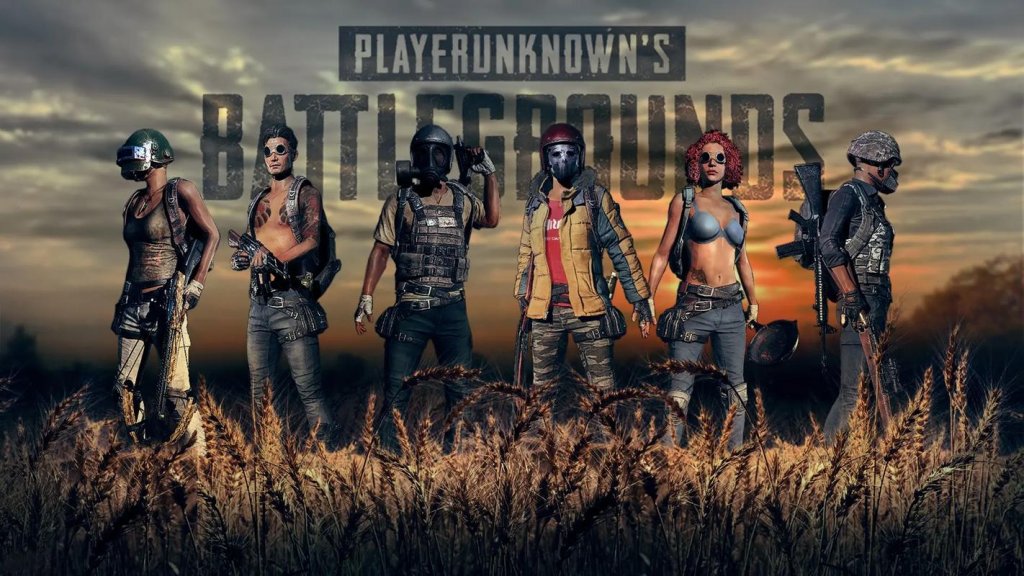
Game Settings
PlayerUnknown's Battlegrounds (PUBG) – Game Settings Guide
This guide covers every major settings category in PUBG: Graphics, Audio, Controls, Accessibility, Language, Network, and Gameplay. You will find optimal recommendations for different hardware tiers, explanations of tricky settings, and key misconfiguration pitfalls.
---
1. Graphics Settings
Graphics have the biggest impact on both performance and competitive visibility. PUBG is notoriously demanding; even high-end PCs may struggle on max settings due to poor optimization.
Key Graphics Options
| Setting | Effect | Recommendation |
|---|---|---|
| Resolution | Native resolution (e.g., 1920×1080, 2560×1440). Matches your monitor native. | Always native for clarity. Lower internal resolution via Screen Scale if needed. |
| Screen Scale | Renders the game at a percentage of your resolution. Below 100 increases performance; above 100 uses supersampling (sharpens but kills FPS). | For low-end: 70–80. Mid-end: 100. High-end: 100–120. Do not exceed 100 unless you have a very powerful GPU (RTX 4080+). |
| Display Mode | Fullscreen (best performance), Windowed Fullscreen (alt-tab friendly), Windowed. | Fullscreen for lowest input lag. |
| FOV (Field of View) | Affects how much you see horizontally. Higher = more awareness but smaller targets on screen. | 90–100 for third-person (TPP). 90–95 for first-person (FPP). Higher FOV reduces FPS slightly. |
| Anti-Aliasing | Smooths edges. Options: Very Low, Low, Medium, High, Ultra, FXAA, TAA. | Low or Medium (TAA) — blurs less than Ultra, still reduces jaggies. Very Low is too aliased. |
| Post-Processing | Bloom, lens flare, etc. High settings create visual noise. | Very Low — improves visibility and FPS significantly. |
| Shadows | Dynamic shadows from objects and players. | Very Low — shadows become static blobs, making enemies easier to spot. High shadows cause FPS dips. |
| Textures | Quality of surfaces (ground, walls, items). | Medium for a balance of clarity and performance. Low makes distant objects blurry. |
| Effects | Muzzle flash, explosions, smoke. | Very Low — reduces distracting particle effects and improves FPS. |
| Foliage | Grass, bushes, trees. | Very Low — grass renders farther away as less dense, giving you a major advantage spotting prone enemies. |
| View Distance | How far objects and players are rendered. | Ultra (or High) — you need to see far away players. However, foliage distance is capped regardless; view distance mainly affects buildings, terrain, and vehicles. On low-end, set to Medium. |
| Motion Blur | Blurs screen when moving. | Off — reduces visual clutter and input delay. |
| V-Sync | Synchronizes FPS to monitor refresh rate. | Off — adds significant input lag. Only enable if you suffer from screen tearing and can tolerate lag. |
| Sharpen | Applies an extra sharpening filter. | On (or use Nvidia Freestyle/Reshade for better control). Built-in sharpen is mild but helpful. |
Recommended Presets by Hardware Tier
Low-End PC (e.g., GTX 1050 Ti, 8GB RAM, i5-7400)
- Target: 60 FPS at 1080p
- Screen Scale: 80
- Anti-Aliasing: Low
- Post-Processing: Very Low
- Shadows: Very Low
- Textures: Low
- Effects: Very Low
- Foliage: Very Low
- View Distance: Medium
- Motion Blur: Off
- V-Sync: Off
- Sharpen: On
- Target: 120–144 FPS at 1080p
- Screen Scale: 100
- Anti-Aliasing: Medium (TAA)
- Post-Processing: Very Low
- Shadows: Very Low
- Textures: Medium
- Effects: Very Low
- Foliage: Very Low
- View Distance: Ultra
- Motion Blur: Off
- V-Sync: Off
- Sharpen: On
- Target: 144+ FPS at 1440p (or 4K 60)
- Screen Scale: 100 (120 for 1440p if extra headroom)
- Anti-Aliasing: High (TAA)
- Post-Processing: Very Low (still keep Low for FPS; visual improvement minimal)
- Shadows: Medium (Very Low still competitive, but Medium looks nicer)
- Textures: Ultra
- Effects: Very Low
- Foliage: Very Low (do not increase; competitive disadvantage)
- View Distance: Ultra
- Motion Blur: Off
- V-Sync: Off
- Sharpen: On
Mid-Range PC (e.g., RTX 2060, 16GB RAM, Ryzen 5 3600)
High-End PC (e.g., RTX 4070 Ti, 32GB RAM, Ryzen 7 7800X3D)
Important: PUBG’s Foliage setting is the single most important competitive slider. Always keep it on Very Low to see enemies prone in grass. Shadows on Very Low also help because players cast a clearer, darker blob.
---
2. Audio Settings
Good audio is crucial for directional awareness, hearing footsteps, vehicles, and gunshots.
| Setting | Explanation | Recommendation |
|---|---|---|
| Master Volume | Overall game volume. | 100 (adjust system volume instead) |
| SFX (Sound Effects) | Gunshots, footsteps, explosions, vehicles. | 100 — never lower this. |
| Music | Lobby music, plane, etc. | 0 — music adds no combat advantage and can mask important sounds. |
| Voice Chat | In-game voice with teammates. | Push-to-Talk (recommended) or Voice Activation with threshold. Set push-to-talk key to something accessible (e.g., V). |
| HRTF (Head-Related Transfer Function) | Simulates 3D audio for stereo headphones. Makes sounds come from proper directions (front/back, up/down). | On — required for accurate directional audio. Works best with stereo headphones (not virtual surround). |
| Audio Output Device | Select your headphones/speakers. | Choose the correct device. If using headphones with surround sound, set to stereo in Windows to avoid double-processing. |
---
3. Controls Settings
PUBG offers extensive keybinding customization. Defaults are fine, but small tweaks can improve reaction time.
Important Control Preferences
- ADS Mode: Toggle (press once to aim down sight, press again to release) vs Hold (must hold right mouse to ADS). Most pros use Hold for quicker exit and smoother transitions, but Toggle is easier for beginners.
- Leaning: Set to Hold (Q and E). Toggle leaning is slower.
- Crouch: Set to Toggle (C) — easier to hold positions. For jump-crouching (e.g., through windows), use Toggle.
- Prone: Toggle (Z).
- Peek & Free Look: Free Look is hold Alt — useful for looking around while running in a straight line.
- Sprint: Set to Toggle (Shift) or Hold. Most use Hold to have instant deceleration.
- DPI: Use your mouse’s native DPI (e.g., 800 or 1600). Avoid interpolation.
- In-Game Sensitivity: Start around 30–50 for general look, then adjust per scope.
- Per‑Scope Sensitivity: Does not exist in PUBG; instead, use the Vertical Sensitivity Multiplier (recommend 1.0 for consistency).
- Use a large mousepad (450×400mm) and arm aim for lower sensitivity = better accuracy.
- Stick deadzone: Adjust to remove drift but maintain responsiveness (usually 10–15).
- Aim assist: PUBG has very slight aim assist; keep On but be aware it can pull your aim toward downed players.
- Sensitivity curves: Linear vs Exponential. Linear offers direct 1:1 stick movement; Exponential is more predictable for beginners. Most competitive console players use Linear.
- Set seat switching keys (Ctrl+1/2/3/4) or scroll wheel. Change to comfortable keys to quickly switch driver/gunner.
- Parking brake (Spacebar) – handbrake-turns.
Mouse Sensitivity
Sensitivity is personal, but use these guidelines:
Controller Settings (Consoles & PC)
Vehicle Controls
Misconfiguration Warning: Inverted Mouse
i) Check “Invert Vertical Look” is Off unless you intentionally use inverted.
ii) If your character looks up when you move mouse down, toggle that setting.
---
4. Accessibility Settings
PUBG includes basic accessibility features to help players with visual or hearing impairments.
| Setting | Function | Recommendation |
|---|---|---|
| Colorblind Mode | Changes UI colors (e.g., teammate markers, enemy damage indicators). | Protanopia, Deuteranopia, Tritanopia options. Set according to your needs. Note: This does not change enemy highlight colors. |
| Subtitles | NPC dialogue? PUBG has minimal NPC talk. Not critical. | Off (or On if you want to hear cooking grenade warnings in text). |
| Screen Shake Intensity | Reduces camera shake from explosions or vehicles. | 0% for clarity and reduced motion sickness. |
| Crosshair Color | Customize crosshair color (green, red, yellow, etc.). | Pick a color that contrasts with the environment (often bright green or cyan). |
| UI Scale | Enlarges HUD elements. | 100% is standard. Increase if you have difficulty reading minimap or health bar. |
5. Language Settings
- In the main menu, go to Settings > Language.
- PUBG supports many languages (English, Korean, Chinese, Russian, etc.).
- Changing language requires a restart.
- Voice chat language is separate; you can set preferred voice language in Matchmaking region settings (PC only).
- Ping / Packet Loss Display: Turn On (Settings > Gameplay > Network Debug Statistics). Shows current ping and packet loss in the top-left UI. Essential to monitor connection quality.
- Matchmaking Region: Auto selects lowest ping region. You can manually override (e.g., play NA servers from EU), but expect high ping (150+).
- Use a wired Ethernet connection over Wi-Fi.
- Close bandwidth-heavy applications (streaming, downloads) while playing.
- Configure your router’s QoS to prioritize PUBG traffic.
- For PC, disable Nagle’s algorithm via registry (advanced) or use “-high” launch option to set CPU priority.
---
6. Network Settings
PUBG uses dedicated servers (region based). You cannot change many network settings in-game, but you can adjust system-level settings.
In-Game Network Options
System-Level Recommendations
Misconfiguration Warning: Do not change “Network Smoothing” in GameUserSettings.ini (it does not exist); instead, rely on the debug display and stable internet.
---
7. Gameplay Settings
These affect how you interact with items, the map, and your character.
| Setting | Explanation | Recommendation |
|---|---|---|
| Auto-Equip | Automatically equips weapons/attachments you pick up when you have a free slot. | On — saves time. Be careful not to replace a better attachment accidentally. |
| Auto-Replace Attachments | Replaces current attachments if a better one is picked up (e.g., red dot over iron sights). | On — convenient. Turn off if you prefer manual control. |
| Quick Pickup Menu | When looting, hold a key (default F) to bring up a radial menu of items near you. | On — useful for fast looting. Bind to comfortable key (e.g., F for pickup, the menu appears automatically). |
| Hold/Toggle Crouch | Already covered in Controls. Set to Toggle for easier movement. | Toggle |
| Hold/Toggle Prone | Toggle for staying prone. | Toggle |
| Minimap Rotation | Choose Fixed (north always up) or Rotating (camera direction oriented up). | Rotating — easier to navigate when moving quickly. |
| Minimap Size | Small (default) or Large (press M). Large obstructs view; use small and zoom on M. | Small |
| Crosshair Type | Four presets (Default, Circle, Open Cross, Chevron). | Try each; most prefer Default (crosshair with 4 lines) for precise aiming. |
| Show Blood | For impact feedback. | On — helps confirm hits. |
| Killfeed | Show killfeed in top right. | On — essential for information. |
Special Attention: Vehicle seat switching
- Some players accidentally press `Ctrl+1` when trying to crouch (C). To avoid this, rebind seat keys to something like `F1–F4` or `Ctrl+Q/E`.
- First Launch Configuration: PUBG will prompt you to choose a control type (Type A, B, C). Type A is recommended for most (hold to ADS, toggle for other). Type B uses toggle for all, Type C is hold for all.
- Graphics Preset vs. Custom: Using the Preset slider (Very Low–Ultra) is not recommended because it forces certain combinations (e.g., Ultra preset turns on motion blur and high foliage). Always manually set each option.
- Resolution Change: If you change resolution to non-native, set Screen Scale to 100 again — it resets.
- Console Settings: On PS5/Xbox Series X, you can choose between Performance (target 60 FPS) and Quality (target 30 FPS with better visuals). Always choose Performance for smoother gameplay.
- Mobile Settings: In BGMI/PUBG Mobile, set “Smooth” graphics for maximum FPS and “Extreme” frame rate. Disable “Shadows” and “Anti-aliasing” for visibility.
---
8. Settings That Are Easy to Misconfigure
1. Screen Scale — Accidentally set to 50 results in blurry mess. Keep at 100 for clarity.
2. V-Sync — On adds massive input lag. Always off for competitive.
3. Motion Blur — On reduces ability to track enemies. Off.
4. Inverted Mouse — If your mouse movement feels reversed, check this setting.
5. HRTF Off — Many players don’t know about this; setting it to off makes audio flat and directionless. Ensure it’s ON.
6. Foliage on High — A common mistake. High foliage makes grass opaque and hides enemies. Set to Very Low.
7. Anti-Aliasing on Very Low ++ (FXAA) — FXAA can cause blurriness. Better to use Low or Medium TAA.
8. Network Debug Display — Not enabled by default; you can’t see your ping. Turn it on.
---
9. Special Attention Points During Setup
---
Apply the settings above, then test in a Training Mode or casual match. Fine-tune mouse sensitivity and volume levels to your preference. Once set, lock your `GameUserSettings.ini` to avoid accidental changes.
---
Next Steps: If you haven’t already, check the Getting Started and Core Gameplay guides for maps, loot priorities, and combat mechanics.