Download & Installation
Overview
Splatoon 3 is exclusively available on the Nintendo Switch family of systems (Switch, Switch Lite, Switch OLED). It is not released on PC, PlayStation, Xbox, or mobile devices. This guide covers both digital and physical installation methods, system requirements, storage, account setup, common issues, and post-install verification.
---
Platform Availability & Purchase Sources
| Platform | Availability | Official Sources |
|---|---|---|
| Nintendo Switch | ✅ Native release | Nintendo eShop (digital), Nintendo.com, retail stores (physical cartridge) |
| PC / Steam / Epic | ❌ Not available | N/A |
| PlayStation / Xbox | ❌ Not available | N/A |
| Mobile (iOS/Android) | ❌ Not available | N/A |
System Requirements
Since Splatoon 3 is a Switch exclusive, the “system” is the Nintendo Switch hardware itself.
- Minimum: Any Nintendo Switch model (Switch, Switch Lite, Switch OLED) with at least 6.0 GB of free internal storage or a compatible microSD card.
- Recommended: Nintendo Switch with a stable internet connection for online play; Switch Online subscription for online multiplayer (optional for single-player).
- Storage Space: The game’s download size is approximately 6.0 GB. With updates, plan for 7.0 GB.
- Account Requirement: A Nintendo Account (free) is required to access the eShop and download the game. For online multiplayer, a Nintendo Switch Online subscription is needed (paid).
---
Step-by-Step Installation
Digital Download from Nintendo eShop
1. Create or log in to a Nintendo Account on your Switch:
- From the HOME menu, select System Settings → User → Add User (or select an existing user).
- Link your Nintendo Account via email or social login.
2. Connect to the internet:
- Go to System Settings → Internet → Internet Settings and connect to a Wi‑Fi network.
3. Open Nintendo eShop:
- From the HOME menu, select the eShop icon.
- Choose the user you want to use.
4. Search for Splatoon 3:
- Use the search bar or browse latest releases.
- Select the Splatoon 3 product page.
5. Purchase / Download:
- If you haven’t purchased, select Proceed to Purchase and complete payment (credit card, eShop card, etc.).
- If already purchased, select Redownload (appears in your account’s “Redownloadable Software” list).
- Choose Download.
6. Monitor download progress:
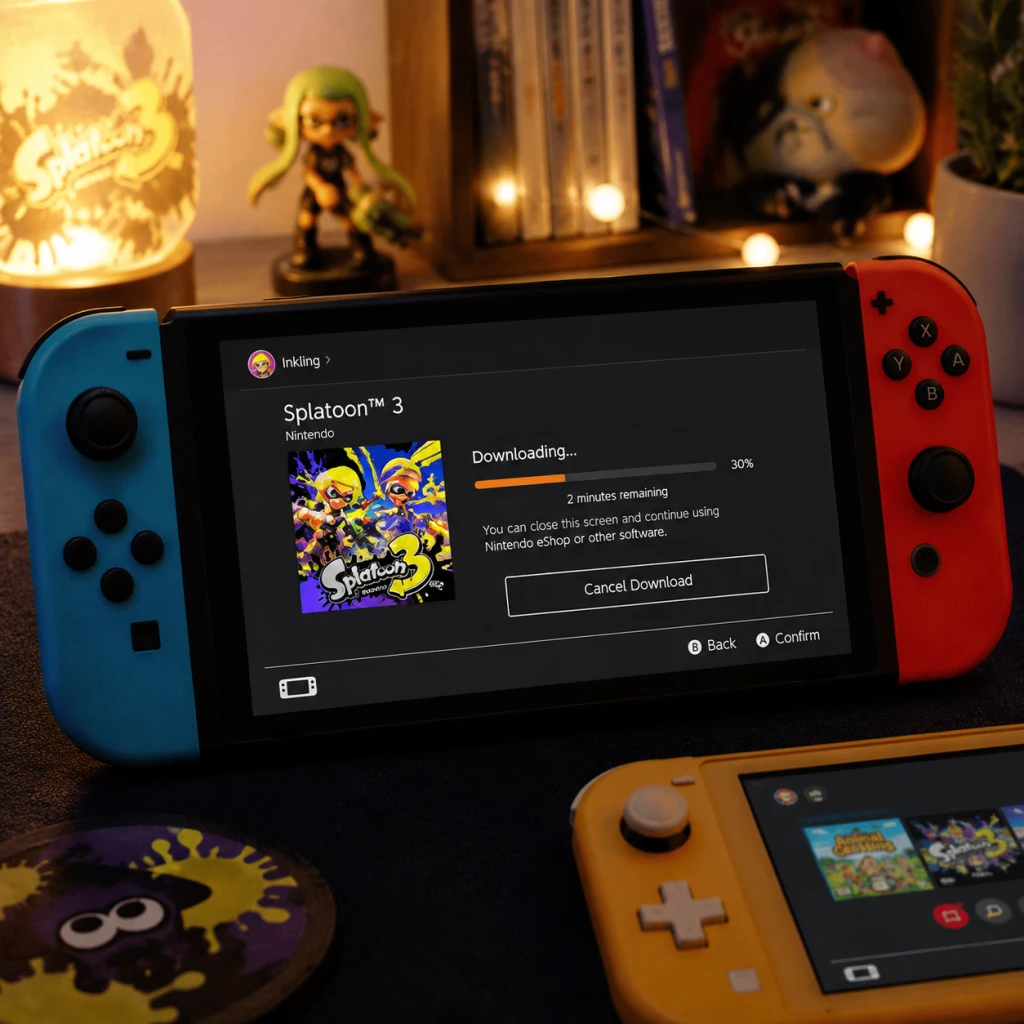
- The download will start automatically. You can check progress on the HOME menu (a progress bar appears under the game icon).
- Ensure you have at least 7.0 GB free (internal or microSD). If space is low, you’ll be prompted to archive other games or use a microSD card.
7. Installation completes automatically once the download is finished.
Physical Cartridge Installation
1. Insert the game cartridge:
- Locate the game card slot on the top of the Switch (right side when in handheld mode).
- Gently push the cartridge (label side facing the back of the console) until it clicks.
2. Start the game:
- The game icon appears on the HOME menu. Select it to begin.
3. Mandatory update download (if internet is connected):
- Splatoon 3 often requires a day-one patch. If you connect to the internet, the system will prompt you to download and install updates before playing. Accept and allow the download (requires free storage space).
- If you do not connect to the internet, you can play the base version offline, but online features and many modes will be unavailable.
4. Final installation:
- The cartridge contains most data, but updates are saved to system storage. The process is fully automatic.
---
First Launch Setup
1. Launch the game by selecting its icon on the HOME menu.
2. Initial patch: If an update is needed, the game will download and apply it before the title screen appears.
3. Create/select an in-game save file:
- You’ll be asked to choose a user profile linked to your Nintendo Account.
- The game will create a save data slot for that user.
4. Internet connection check:
- For online features, the game will verify internet connectivity. If you skip, you can play the single-player “Return of the Mammalians” mode offline.
5. Nintendo Switch Online prompt:
- To enter online multiplayer lobbies (Turf War, Anarchy Battles, etc.), you must have an active Nintendo Switch Online subscription. The game will guide you to sign up or start a free trial if eligible.
6. Set game preferences:
- Adjust controls (motion or stick), audio settings, and language. These can be changed later from the Options menu.
---
Common Installation Errors & Fixes
| Error Message / Symptom | Cause | Fix |
|---|---|---|
| “Not enough space” | Storage full (internal or microSD) | Free space by archiving other games (System Settings → Data Management → Quick Archive). Insert a microSD card (up to 2TB). |
| “Software cannot be started. Please try again later.” | Corrupted download data or partial install | From HOME menu, highlight Splatoon 3, press + button → Manage Software → Check for Corrupt Data. If found, reinstall. |
| “Download failed” or “Error code 2124‑…“ | Network issues (Wi‑Fi instability, Nintendo server downtime) | Check Nintendo’s server status (status.nintendo.com). Restart your Switch and router. Go to System Settings → Internet → Test Connection. |
| Cartridge not recognized | Dirty contacts or incorrect insertion | Remove cartridge, blow gently on the contacts, reinsert fully. Try a different game to confirm the slot works. |
| “You must update the software” but update fails | Insufficient storage or corrupted update | Free up space and try again. If fails, delete update data: System Settings → Data Management → Manage Software → Splatoon 3 → Delete Update Data → redownload. |
| Online play requires Nintendo Switch Online | No active subscription | Subscribe via eShop or redeem a free trial. Note: the free trial is limited to one per account. |
Post-Installation Verification
After installation, verify the game is ready:
1. Check game version:
- From HOME menu, highlight Splatoon 3, press + → Manage Software → Version Info. The latest version should be displayed (e.g., 5.0.0+). If not, manually check for updates: select Update Via Internet.
2. Confirm save data:
- Launch the game and ensure your profile’s save file loads. You should see the title screen with your Inkling/Octoling.
3. Test online connectivity:
- Go to the menu and select Lobby → Start. If you have Nintendo Switch Online, you can queue for a Turf War. A successful connection indicates network setup is correct.
4. Run a data repair scan (optional):
- From HOME menu, highlight Splatoon 3, press + → Manage Software → Check for Corrupt Data. If no errors, the installation is healthy.
5. Storage usage check:
- System Settings → Data Management → Manage Software → select Splatoon 3. It should show around 6.0–7.0 GB used, depending on updates.
---
Additional Tips
- Redownload without re-purchasing: If you’ve bought Splatoon 3 digitally, you can redownload it anytime from the eShop under your account’s “Redownloadable Software” section.
- Use a microSD card: The internal storage of most Switch models is limited (32GB for standard, 64GB for OLED). A microSD card (UHS-I, speed class U1 minimum) is highly recommended for digital games.
- Archiving vs. Deleting: Archiving removes the game data but keeps the icon and save data. Deleting removes everything. To free space quickly, archive games you don’t play often.
- Region restrictions: Splatoon 3 is not region-locked on Switch, but some DLC or in-game events may be region-specific. Use an account matching your eShop region for consistent access.
---
Final Notes
Splatoon 3 is a Switch exclusive, so no other platforms are supported. Follow the steps above to install either digitally or via cartridge. After installation, enjoy the single-player story and chaotic 4v4 Turf Wars. If you encounter persistent errors, visit [Nintendo Support](https://support.nintendo.com) or the official [Splatoon 3 FAQ](https://splatoon.nintendo.com/en/faq).