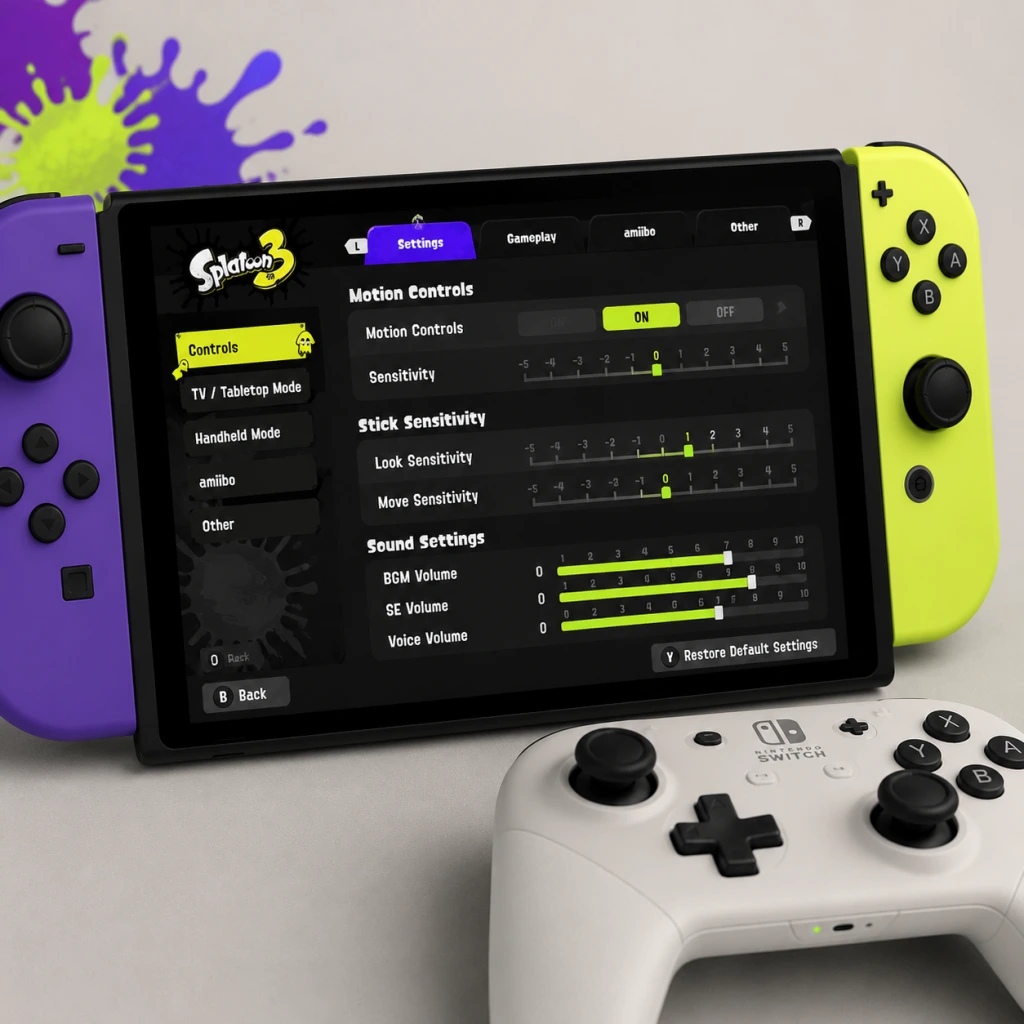
Game Settings
Overview
Splatoon 3 is a Nintendo Switch exclusive. The game has a limited but essential settings menu, accessible from the lobby by pressing X and selecting Options. There are no user-adjustable graphics settings (such as resolution or frame rate targets); the game runs with dynamic resolution scaling targeting 60 FPS on all Switch models. This guide covers every available setting, explains optimal configurations for performance and quality across hardware (original Switch, Switch Lite, Switch OLED), and highlights pitfalls to avoid during setup.
---
Graphics (Console & Display Settings)
Splatoon 3 does not contain in-game graphics sliders. Visual performance depends solely on your Switch model and whether it is docked or in handheld mode.
Performance by Hardware
| Hardware | TV Mode Resolution | Handheld Resolution | Frame Rate | Notes |
|---|---|---|---|---|
| Switch (original) | 900p (dynamic) | 720p (dynamic) | 60 FPS (stable) | Slightly softer image on TV. |
| Switch OLED | 900p (dynamic) | 720p (dynamic) | 60 FPS (stable) | OLED screen offers better contrast and colors. |
| Switch Lite | N/A (no dock) | 720p (dynamic) | 60 FPS (stable) | Smaller screen makes some UI elements harder to read. |
Recommendations for Best Visual Quality
- Dock your Switch whenever possible – TV mode delivers higher resolution (900p) and larger display, improving visibility of distant enemies and ink coverage.
- Use a gaming monitor or TV with low input lag and enable Game Mode.
- Ensure your Switch System Settings (System Settings → TV Settings) have Match TV Power State ON and RGB Range set to Full (Automatic) for proper color reproduction.
- The game does not have an in-game brightness slider. Adjust your TV/display brightness and contrast for comfortable viewing without washing out colors.
Brightness & Calibration
---
Audio
Audio settings are located under Options → Audio. They include volume sliders for game sounds and voice chat configuration.
| Setting | Description | Recommended Value |
|---|---|---|
| Sound Effects Volume | Volume for splats, shots, and ability sounds. | 90% – keeps effects audible without drowning out music. |
| Music Volume | BGM volume during battles and in lobby. | 70% – set lower to hear footsteps and ink audio cues better. |
| Voice Chat Volume | Volume of voice chat received from teammates (Nintendo Switch Online app). | 80% – adjust based on headset and team communication. |
| Output Device | Choose between TV/Headphones, Headphones Only, or Headphones + TV. | Headphones Only for competitive focus; use a wired or low-latency wireless headset. |
Special Attention Points
- Voice chat requires the Nintendo Switch Online (NSO) app on a smartphone. In-game voice chat is not built-in. To use it, open the NSO app, join a lobby, then pair via the game’s Lobby → Voice Chat setting.
- If you enable Headphones Only, game sound will not play through TV speakers even when docked – useful for late-night play.
- No audio mix presets exist; you must manually balance sliders.
- Right Stick Sensitivity: Adjusts camera look speed (horizontal and vertical). Range: -5 (slow) to +5 (fast).
- Recommended: Start at 0 and adjust ±2 based on comfort. Too high causes overshoot, too low makes turning slow.
- Motion Sensitivity: Affects how much physical movements move the camera. Range: -5 to +5.
- Recommended: Start at +2 for fine aim while keeping large turns via stick.
- Invert Y (Stick & Motion): Separate toggles for stick and motion control inversion.
- Motion Controls On/Off: CRITICAL – If turned off, you lose gyro aiming entirely. Most top players use motion controls.
- Splatoon 3 does not offer custom button remapping. You can only swap the Jump and Sub Weapon buttons? Actually, no – button layout is fixed. However, you can use the Switch’s System Settings → Controllers and Sensors → Change Button Mapping to remap physical buttons globally. This is not recommended for Splatoon 3 due to per-game conflicts.
---
Controls
Control settings are the most impactful for gameplay. They are found under Options → Play Control. Two main categories: Stick Controls and Motion Controls.
Stick Sensitivity
Motion Controls (Gyro Aiming)
- Default: No inverted. Many players prefer Invert Y for stick but not for motion. Test in the Testing Area (accessible from the lobby).
Button Mapping
Recommended Control Setup (Competitive)
| Setting | Value |
|---|---|
| Motion Controls | ON |
| Motion Sensitivity | +2 |
| Stick Sensitivity | 0 (fine-tune later) |
| Invert Y (Stick) | OFF (or ON if you prefer) |
| Invert Y (Motion) | OFF |
| Rumble | ON (provides ink feedback) |
Special Attention Points
- Motion Controls can feel disorienting at first. Spend at least 30 minutes in the Testing Area with stationary targets before PvP.
- If you use a Pro Controller, motion controls work identically. Ensure the controller is updated via System Settings.
- Switch Lite has fixed controls (no detachable Joy‑Con) – motion controls still work but require tilting the whole unit.
---
Accessibility
Accessibility options are primarily located under Options → Other (some are in Play Control).
| Setting | Description | Recommendation |
|---|---|---|
| Color Lock | Changes ink colors (blue vs. orange, purple vs. green, etc.) for colorblind players. Four preset palettes. | Disabled unless needed. Enable one that gives clearest ink distinction. |
| Rumble | Controller vibration for hits, ink splats, etc. | ON for immersion; OFF to reduce battery drain or distraction. |
| Motion Controls (toggle) | Already covered – also an accessibility feature. | Keep ON for competitive play. |
| Camera Shake | Not directly settable – tied to motion. | If you are sensitive, reduce motion sensitivity to minimize shake. |
| Text Size | No adjustable text size. UI is fixed. Switch Lite users may find text small; consider using TV mode. |
Special Attention Points
- Color Lock drastically changes ink appearance. If you accidentally enable it, you may confuse teammates’ ink color with enemy ink. Always check before entering a match.
- There is no subtitle option for voice lines; important audio cues (like “booyah!”) are not captioned.
---
Language
Splatoon 3 supports multiple languages for text and voice (audio). Settings are under Options → Language.
| Option | Description |
|---|---|
| Text Language | Language for menus, weapon names, stage names, dialogue. |
| Voice Language | Language for announcer, news, and Squid Sisters/NEMO dialogue. |
- You can mix and match (e.g., English text with Japanese voice).
- Recommended: Set both to your native language for full comprehension. Competitive players often keep English to instantly recognize terms like “Splat Zones” or “Tower Control”.
- This setting does not affect matchmaking region; it only changes presentation.
---
Network
Network settings are critical for online play quality. Found under Options → Network.
| Setting | Description | Recommended Value |
|---|---|---|
| Matchmaking Region | Choose Any, Nearby, or a specific continent. | Nearby for lowest ping; Any if you get long queue times. |
| Connection Type | Wired LAN (via adapter) or Wi-Fi (2.4/5 GHz). | Wired LAN always if possible. Use 5 GHz Wi-Fi if wired unavailable. |
| NAT Type | Displayed in network status; not configurable. | Aim for NAT A or NAT B. Open ports required. |
| Test Connection | Runs a speed test and checks NAT. | Run periodically to diagnose lag. |
Connection Best Practices
- Use a wired LAN adapter (Nintendo Switch LAN adapter or third-party). This dramatically reduces latency and disconnections.
- If using Wi‑Fi, ensure your Switch is within line-of-sight of the router and on 5 GHz band.
- Minimum internet speed: 5 Mbps down / 1 Mbps up – Splatoon 3 uses very little bandwidth but is sensitive to jitter.
- Port forwarding for Switch (UDP 1024-65535) may help avoid NAT issues.
- Matchmaking Region set to Any can match you with players across the globe, causing noticeable lag. Only use if local queues are very slow (e.g., off-peak hours).
- The game does not show ping numbers. Pay attention to latency cues (ink splats delay, players teleporting).
Special Attention Points
---
Gameplay (Other Settings)
Under Options → Other, you’ll find miscellaneous gameplay settings.
| Setting | Description | Recommendation |
|---|---|---|
| Battle Replay | Automatically save replays of certain battles (e.g., Ranked, X Battles). | ON – helpful for reviewing mistakes. |
| Show Battle Results | Display match summary after each game. | ON. |
| Leave Lobby Automatically | When the lobby leader quits, you automatically exit. | OFF – prevents accidental lobby exit. |
| Auto-Start | in Salmon Run lobbies, auto-start after a short delay. | ON for faster starts; OFF if you need time to change weapons. |
| Motion Controls (duplicate) | Already covered in Controls. |
Special Attention Points
- Battle Replay consumes storage space. Periodically delete old replays from the Replay menu in the lobby.
- Auto-Start can be frustrating if you are customizing gear. Turn it OFF if you frequently switch weapons/abilities before Salmon Run.
---
Optimal Settings Summary by Hardware
For All Switch Models (Competitive Priority)
| Category | Setting | Value |
|---|---|---|
| Controls | Motion | ON |
| Controls | Motion Sensitivity | +2 |
| Controls | Stick Sensitivity | 0 (adjust after 10 hours) |
| Audio | Output | Headphones Only (for sound cues) |
| Network | Connection Type | Wired |
| Network | Matchmaking Region | Nearby |
| Gameplay | Battle Replay | ON |
For Handheld (Switch / OLED)
- Use lower stick sensitivity (-1 or -2) because smaller screen makes fine movements harder.
- Ensure motion controls are calibrated: go to System Settings → Controllers and Sensors → Calibrate Motion Controllers.
- No TV mode – acceptable for casual play, but consider a Pro Controller for better ergonomics.
- Motion controls require tilting the whole unit; sensitivity -1 recommended to avoid excessive shake.
- Text is small; if reading is difficult, use a magnifier attachment or play on a TV using another Switch?
- First-time calibration: The game will not prompt you to calibrate motion controls. Do it manually from System Settings → Controllers and Sensors → Calibrate Motion Controllers.
- Controller grip: If you play on a TV, sit at a comfortable distance and hold the controller loosely – tensing up reduces aim precision.
- Test before ranked: Always play a few Turf War matches after changing any control or audio setting to ensure muscle memory adjusts.
- Save slot: Splatoon 3 does not have a separate settings save file – all settings are stored on your Nintendo Account cloud save. If you delete local save data, settings will reset.
For Switch Lite
---
Settings That Are Easy to Misconfigure
1. Motion Controls switched OFF – This is the most common mistake. Many new players accidentally toggle it off while exploring settings. Solution: Always check Play Control → Motion Controls is ON before entering a match.
2. Color Lock enabled – You might select a color palette thinking it’s cosmetic, then wonder why inks look weird. Solution: In Other → Color Lock, ensure it is OFF unless you are colorblind.
3. Matchmaking Region set to Any – Leads to laggy games. Solution: Set to Nearby and only change if queue times exceed 3 minutes.
4. Inverted Y on Motion – If you invert motion, tilting the controller forward moves the camera up instead of down – this feels extremely counterintuitive. Solution: Keep Invert Y (Motion) set to OFF unless you are familiar with aircraft-style controls.
5. Voice Chat volume too low/high – You may miss callouts or be deafened. Solution: Test with a friend before playing ranked.
---
Special Attention Points During Setup
---
Conclusion
Splatoon 3’s settings are limited but each one matters. The two most important are Motion Controls ON and Network wired connection. Spend time tuning sensitivity in the Testing Area (accessible from the Lobby → Y → Testing Area). Regularly verify your settings haven’t been accidentally changed, especially after system updates. With the optimal configuration above, you will minimize latency, maximize aim accuracy, and enjoy the best visual experience the Switch can offer.