Game Settings
Game Settings Guide for Stardew Valley
Introduction
Adjusting your settings in Stardew Valley can greatly enhance your experience, whether you're playing on a low-end laptop or a high-end PC, or on consoles and mobile. This guide covers every setting category: Graphics, Audio, Controls, Accessibility, Language, Network, and Gameplay. We'll recommend optimal settings for different hardware levels, highlight common misconfigurations, and explain special attention points during setup.
Graphics Settings
Stardew Valley uses a pixel art style, so it's not graphically intensive. However, some settings affect performance and visual clarity.
#### Key Graphics Settings:
- Window Mode: Fullscreen, Windowed, or Borderless Windowed. Borderless is recommended for quick alt-tabbing.
- Resolution: Set to your monitor's native resolution. Lower resolutions can improve performance on very weak hardware.
- Fullscreen Mode: Choose between Exclusive Fullscreen and Windowed Fullscreen. Exclusive may reduce input lag but can cause issues on some multi-monitor setups.
- Enable VSync: Synchronizes frame rate with monitor refresh. Recommended to prevent screen tearing. Can cause input lag; disable if you experience it.
- Frame Rate Cap: Options include 30, 60, 120, or Unlimited. 60 is standard; 120 or unlimited for high-refresh monitors.
- Lighting Quality: Low, Medium, High. Affects lighting effects like torches and sunset. Medium is a good balance.
- Screen Shake: On/Off. Can be turned off for accessibility or if it causes discomfort.
- Zoom Levels: You can zoom in/out with mouse wheel or keys. Not a setting per se, but important.
- UI Scale: Adjusts size of UI elements. Important for readability on different resolutions, especially 4K.
- Low-end (Intel HD Graphics, 4GB RAM): Windowed mode, 720p resolution, VSync off or 30 FPS cap, Low lighting quality, Screen Shake off. Set UI Scale to 100%.
- Mid-range (GTX 1050, 8GB RAM): Borderless Windowed, 1080p, VSync on, 60 FPS cap, Medium lighting quality. UI Scale 100-120%.
- High-end (RTX 2060+, 16GB RAM): Borderless Windowed, max resolution (4K if supported), VSync on, 60/120 FPS cap, High lighting quality. UI Scale 120-150% for 4K.
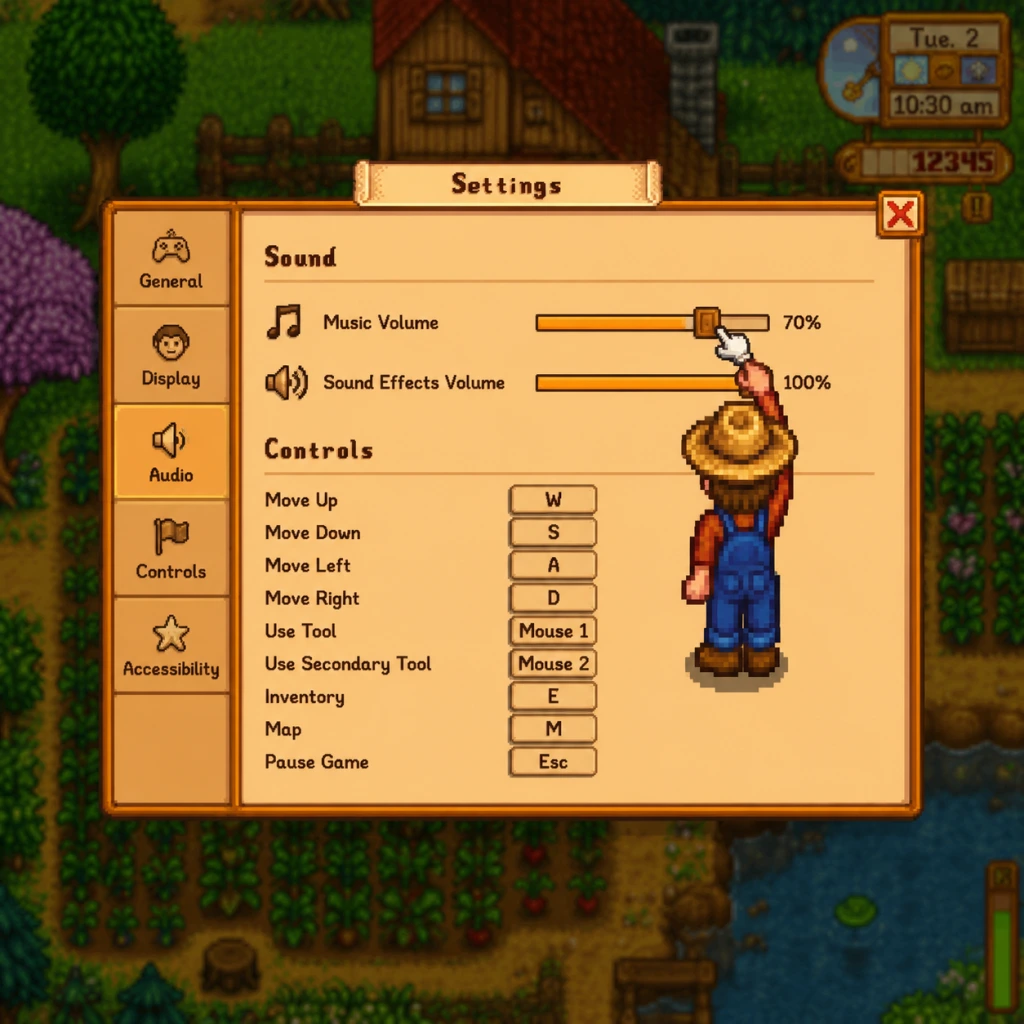
- Master Volume, Music Volume, Sound Effects Volume, Ambient Volume. All sliders 0-100.
- Mute when not active: Automatically mutes game when window loses focus. Helpful for multitasking.
- Audio Device: Select output device. Rarely needed.
- Keyboard/Mouse Bindings: A large list of actions (moving, using tools, menus, etc.). Defaults are standard WASD. You can set alternative keys for left/right click actions (e.g., tool use, interact).
- Controller Bindings: Customizable on PC. On consoles, they are fixed but you can swap buttons in system settings.
- Auto-Run: Toggle. When off, you walk; when on, you run by default (hold shift to walk). Recommended to enable for faster travel.
- Controller Style: Choose between "Normal" (button inputs) or "Toggle" (hold to repeat) – actually there's a "Use Tool Button" setting: if controller type is set to "Auto", the game detects. But specific: In Settings > Controller: "Use Tool Button" can be "Left Trigger", "Right Trigger", or "A Button" etc. Default is left trigger for tool, right trigger for action. That can be confusing.
- Colorblind Friendly Modes: There are three options: Normal, Protanopia, Deuteranopia, Tritanopia. Also a "Greyscale" mode for some UI.
- Screen Shake: Off as mentioned.
- Reduce Nausea/Vertigo: Some settings like zoom and screen shake can affect. Also you can set "Camera Sway" (not a standard setting, but mods exist).
- UI Scale: Affects readability.
- Text Speed: For dialogue boxes: Slow, Normal, Fast. Set to Fast if you read quickly.
- Chat Text Size: In multiplayer, adjust chat font size.
- Auto-Advance Dialogue: When on, dialogue automatically progresses without pressing a key. Useful for reading faster but can skip accidentally.
- Language: Choose from many languages (English, French, German, Spanish, Portuguese, Russian, Japanese, Korean, Chinese, etc.). This affects all text, menus, and item names.
- Interface Language: Some platforms allow separate language for UI and voice? Stardew Valley has no voice, so just one setting.
- Host Option: On PC, you can choose to host over LAN or Internet. For internet, you need to set up port forwarding (default port 24642) or use a VPN like Hamachi.
- IP Address: For direct connection, you need the host's IP.
- Invite Code: On some platforms (Steam, etc.), you can invite via friends list without port forwarding.
- Server Mode: You can run a dedicated server (Stardew Valley Dedicated Server tool).
- Show Advanced Crafting Information: When enabled, shows the output and time for machines like furnaces, kegs, etc. HIGHLY RECOMMENDED to turn on.
- Auto-Organize Inventory: When you interact with a chest, items automatically sort. Useful but can be turned off if you prefer manual arrangement.
- Always Show Tool Hit Location: Shows a glowing square where your tool will hit. Very helpful for hoeing and watering. Recommended on.
- Tool Action Button vs. Interact Button: On PC, these can be set to left/right mouse button. Many players get confused: default is left-click for tools, right-click for interact (talk, open chests). If you swap, you might accidentally pick up items.
- Crafting from Chests: When enabled, you can craft using materials from nearby chests without taking them out. Massive quality of life improvement. Recommended on.
- Auto-Collect from Animals: When you pet and collect from animals, the game does it automatically. Off by default, but can save time.
- Animal Behaviour: "All Animals Love You" (trivially true) but actually "Animals are happy" is passive. No direct setting but there are mods.
- Farm Type: Chosen at start but not a setting per se.
- Green Rain Effects: Not a setting but an event.
- Mobile (iOS/Android): Touch controls, auto-attack, auto-move. Can be adjusted. Also battery saving options.
- Console: Controller vibration, screen settings, etc. Use console system settings for overall display.
- Switch: In handheld vs docked mode, UI scale may need adjustment.
#### Performance Recommendations:
Misconfiguration Alert: Setting resolution too low can cause blurry text. Also, turning off VSync on a 60Hz monitor may cause tearing. If you get stuttering, try disabling VSync and capping FPS externally via GPU driver.
Audio Settings
Recommendation: Set Music to 50-70, SFX to 80-100, Ambient to 30-50. Adjust to preference.
Special Attention: The game doesn't have separate voice chat settings, but for multiplayer, voice is usually handled externally.
Controls Settings
Stardew Valley supports keyboard/mouse, controller (Xbox, PS4, Switch Pro, etc.), and touch (mobile). On PC, you can rebind almost all keys.
Misconfiguration Alert: Many players accidentally change the "Use Tool Button" on controller, making tools not work correctly. Default: Left Trigger = use tool, Right Trigger = action (talk/collect). If you have issues, reset to default.
Special Attention for Multiplayer: In multiplayer, the game locks some controls during events or other players' cutscenes. Not a setting but good to know.
Accessibility Settings
Stardew Valley has several accessibility options:
Recommendation: Enable colorblind mode if needed. Set UI Scale to at least 100%. Turn off screen shake if sensitive.
Special Attention: The "Auto-Advance Dialogue" can be annoying if you want to read at your own pace. Many players prefer it off.
Language Settings
Important: Changing language changes character names, crop names, etc. If you play with friends, ensure everyone uses the same language for consistency in communication about items.
Misconfiguration Alert: If you accidentally set a language you don't know, it can be hard to find the settings menu again. The settings icon is a gear in the main menu. Do not change language unless you know where "Settings" is in that language.
Network Settings (Multiplayer)
Only relevant when hosting or joining a multiplayer game.
Recommendation: Use Steam or GOG's invite system for easiest setup. For LAN, just ensure all players on same network.
Misconfiguration Alert: Port forwarding misconfiguration can prevent friends from joining. Check your router settings. Also, ensure that no firewall is blocking the game.
Gameplay Settings
These settings affect how the game plays and are unique to Stardew Valley:
Misconfiguration Alert: Show Advanced Crafting Information is off by default and many players miss it for hundreds of hours. Turn it on immediately. Also, Crafting from Chests is a game-changer; enable it as soon as possible.
Special Attention: Tool Action Button vs Interact Button - if you accidentally switch them, you'll have trouble. Default is left click = use tool, right click = interact. If you change it, remember to revert if it feels wrong.
Additional Platform-Specific Settings
Final Recommendations
1. Before starting a new game, go into Settings and enable: Show Advanced Crafting Information, Crafting from Chests, Always Show Tool Hit Location, Auto-Run. Set UI Scale to your preference.
2. Adjust audio levels to your liking.
3. If using a controller, ensure the action/tool buttons match your expectations (check in Controls).
4. For multiplayer, test network connection before inviting.
5. If you experience performance issues, lower lighting quality and resolution, turn off VSync, and cap FPS to 30.
Use these settings to tailor Stardew Valley to your perfect experience.