Download & Installation
Introduction
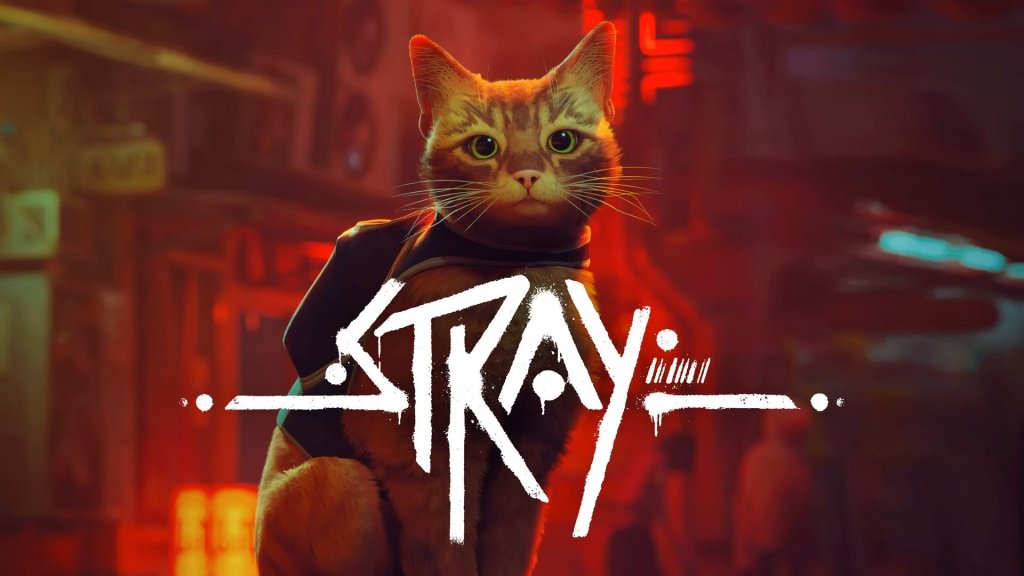
Stray is a third-person action-adventure game developed by BlueTwelve Studio and published by Annapurna Interactive. You play as a stray cat navigating a cyberpunk city. The official versions are available on PC (Steam, Epic Games Store), PlayStation 4/5, Xbox One/Series X|S, and Nintendo Switch. This guide covers all legitimate download and installation methods, system requirements, common errors, and post-install verification.
---
Official Download Sources
| Platform | Source(s) | Subscription/Store |
|---|---|---|
| PC | [Steam](https://store.steampowered.com/app/1502850/) | Steam client, purchase |
| PC | [Epic Games Store](https://store.epicgames.com/en-US/p/stray) | Epic client, purchase |
| PlayStation | PlayStation Store (PS4/PS5) | PSN account, purchase or PS Plus Extra/Premium |
| Xbox | Microsoft Store (Xbox One, Series X\ | S) |
| Nintendo Switch | Nintendo eShop | Nintendo Account, purchase |
---
System Requirements (PC)
Minimum (30 FPS, 1080p, Low Settings)
| Component | Requirement |
|---|---|
| OS | Windows 10 64-bit |
| Processor | Intel Core i5-2300 / AMD FX-6300 |
| Memory | 8 GB RAM |
| Graphics | NVIDIA GeForce GTX 650 (2GB) / AMD Radeon HD 7870 (2GB) |
| DirectX | Version 11 |
| Storage | 10 GB available space |
Recommended (60 FPS, 1080p, High Settings)
| Component | Requirement |
|---|---|
| OS | Windows 10 64-bit |
| Processor | Intel Core i5-8400 / AMD Ryzen 5 2600 |
| Memory | 8 GB RAM |
| Graphics | NVIDIA GeForce GTX 1060 (6GB) / AMD Radeon RX 580 (8GB) |
| DirectX | Version 11 |
| Storage | 10 GB available space |
Console Storage Requirements
| Console | Storage Space Needed |
|---|---|
| PlayStation 4 | ~10 GB |
| PlayStation 5 | ~8 GB (SSD) |
| Xbox One | ~9 GB |
| Xbox Series X\ | S |
| Nintendo Switch | ~8 GB |
Account Requirements
- PC (Steam): Free Steam account. Purchase required.
- PC (Epic): Free Epic Games account. Purchase required.
- PlayStation: Free PSN account. Purchase or active PS Plus Extra/Premium subscription.
- Xbox: Free Xbox Live account. Purchase or active Game Pass Ultimate Standard subscription.
- Nintendo Switch: Free Nintendo Account. Purchase required.
- Language Selection: Choose from available languages (English, French, German, Spanish, Japanese, Chinese, etc.). This can be changed later in Options.
- Graphics Settings (PC only): A prompt may ask to select a quality preset (Low, Medium, High, or Ultra). You can also adjust individually (Resolution, V-Sync, Anti-aliasing, Shadows, Textures, etc.).
- Audio Settings: In-game, you can modify volume levels for Master, Music, SFX, and Voices.
- Controller Configuration: The game supports keyboard/mouse and most controllers. On PC, you may be prompted to choose a controller layout (Xbox, PlayStation, Custom).
- Accessibility Options: Subtitles can be toggled, and colorblind modes are available.
No additional online subscription is needed for the single-player campaign, but cloud saves and updates require internet connectivity.
---
Step-by-Step Installation by Platform
PC (Steam)
1. Download and install the Steam client from [store.steampowered.com](https://store.steampowered.com). Create or log into your Steam account.
2. On the Steam store, search for "Stray" or navigate directly to [Steam store page](https://store.steampowered.com/app/1502850/).
3. Click Add to Cart (or Buy for Myself) and complete purchase.
4. After purchase, the game appears in your Library. Click Install. Choose an installation directory (default is `C:\Program Files (x86)\Steam\steamapps\common\Stray`). Ensure at least 10 GB free.
5. Steam will download and install the game automatically. Do not close Steam during installation.
6. Once complete, click Play to launch. A splash screen will display the game’s default language (English). Subsequent launches allow language selection in settings.
PC (Epic Games Store)
1. Install the Epic Games Launcher from [store.epicgames.com](https://store.epicgames.com). Log in or create an Epic account.
2. Search for "Stray" in the store.
3. Click Buy Now (or Get if it’s on a free promotion). Complete purchase.
4. The game appears in your Library. Click Install. Select drive and preferred installation folder.
5. Let Epic install. After installation, click Launch.
PlayStation (PS4/PS5)
1. Turn on your console, ensure it’s connected to the internet.
2. From the home screen, go to PlayStation Store.
3. Search for "Stray".
4. Select the game, choose Add to Cart (or Download if already purchased via PS Plus).
5. If purchasing, complete payment. The game will automatically start downloading.
6. Monitor download progress via Notifications > Downloads.
7. Once downloaded, the game appears on your home screen. Launch it to play.
Note: PS Plus Extra/Premium subscribers can download directly without purchase. Ensure your subscription is active.
Xbox (Xbox One / Series X\|S)
1. Power on console, sign in to your Xbox Live account.
2. Open Microsoft Store or Game Pass app.
3. Search for "Stray".
4. If you own Game Pass Ultimate or Standard, click Install (you may need to claim it first). Otherwise, click Buy and complete purchase.
5. The download begins automatically. You can check progress under My games & apps > Manage > Queue.
6. Once downloaded, launch from your game library.
Nintendo Switch
1. Connect your Nintendo Switch to the internet and sign in to your Nintendo Account.
2. Open Nintendo eShop from the Home Menu.
3. Search for "Stray".
4. Select the game, then choose Proceed to Purchase (or Download if already purchased).
5. Complete the transaction. The download starts immediately (Switch downloads in docked or handheld mode).
6. While downloading, you can check progress via the Home Menu (highlight the game icon).
7. Once fully downloaded, the icon’s “Downloading” status disappears. Launch the game.
---
First Launch Setup
Upon starting Stray for the first time on any platform, you will typically encounter:
Note: On consoles, graphic settings are fixed but resolution and performance modes may exist (e.g., PS5 has a Performance mode targeting 60 FPS).
---
Common Installation Errors and Fixes
PC Errors
| Error Message / Symptom | Cause | Solution |
|---|---|---|
| Disk Write Error | Insufficient privileges or corrupted file | Run Steam/Epic as Administrator. Check disk integrity and free space. |
| Download Stuck at X% | Internet instability or server issue | Pause and resume download. Restart client. Clear download cache. |
| Missing File Privileges (e.g., access denied) | Antivirus or permissions blocking installation | Disable real-time antivirus temporarily (if safe). Run installer as Admin. |
| Corrupt Game Files on launch | File corruption during download | Verify game files: Steam – Right-click Stray > Properties > Installed Files > Verify integrity of game files. Epic – Library > three dots next to Stray > Verify. |
| Outdated Driver (black screen/crash) | Graphics driver not updated | Update GPU driver to latest version (NVIDIA, AMD, Intel). |
| Not enough storage | Disk space under 10 GB | Free up space via Disk Cleanup or remove unused applications. |
Console Errors
- PS4/PS5 – Error CE-30005-8: Corrupted data. Rebuild database: Boot in Safe Mode (hold power button until second beep) > Option 5. Or reinstall the game.
- Xbox – Insufficient space: Manage storage by deleting older games or moving to external drive.
- Switch – Error 2124-5000: Purchase/account region mismatch. Ensure eShop region matches your Nintendo Account country.
- All consoles – Network download fails: Restart console and router. Check connection speed. If using Wi-Fi, try wired connection.
---
Post-Installation Verification
After installation, verify the game is ready to play.
| Platform | Verification Steps |
|---|---|
| Steam | In Library, Stray icon shows “Play” button. Right-click > Properties > Installed Files > Verify Integrity of Game Files. If all files OK, launch game. |
| Epic Games | In Library, Stray icon shows “Launch”. Click the three dots and select “Verify”. After verification, launch. |
| PlayStation | On Home Screen, game tile appears without a progress bar. Go to Settings > Storage > Console Storage > Games and Apps to confirm size matches ~10 GB. Launch. |
| Xbox | Under My games & apps, Stray appears with no “Downloading” status. Highlight the tile, press Menu > Manage game and add-ons > See if all items are installed. Launch. |
| Switch | On Home Menu, game icon shows a solid color (no spinning download icon). Select the game and press A to start. If you see “Checking if software can be played” or a red screen, check internet connection and account. |
- Frame rate/pacing: In-game, test basic movement and camera. If stutter occurs, update drivers or lower settings.
- Audio: Ensure sound plays correctly. If missing, check default audio device in OS settings.
- Saves: The game auto-saves at checkpoints. Create a manual save (in Options) to confirm save system works.
- Achievements/Trophies: On console, check if first achievement/trophy pops after the opening scene.
- BlueTwelve Studio: [support@bluetwelve.com](mailto:support@bluetwelve.com) or Annapurna Interactive support.
---
Final Troubleshooting
If the game crashes on launch after a successful installation:
1. Disable overlays (Steam, Discord, GeForce Experience) – they can cause conflicts.
2. Run as Administrator (PC) – right-click the game’s .exe file (usually in `Stray\Binaries\Win64`) and select Properties > Compatibility > Run this program as administrator.
3. Remove mods if any were installed – clean reinstall may be needed.
4. Check for Windows updates – especially if using Windows 11 version 22H2 or newer.
5. Close background apps – heavy antivirus scans or streaming software can starve resources.
For console, perform a hard reset (hold power button for 10 seconds). If persistent, contact official support:
---
This guide reflects the official distribution channels as of early 2025. Always download from authorized stores to avoid malware and support the developers.