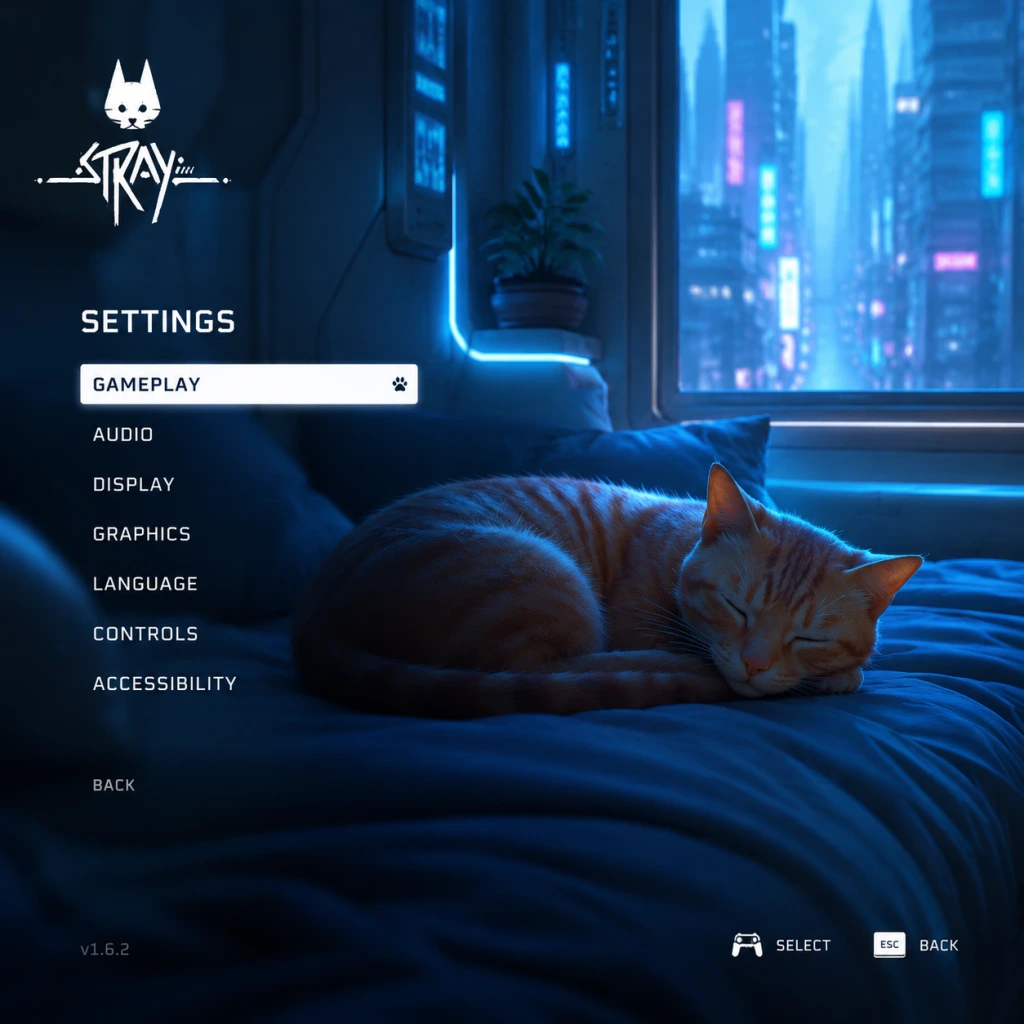
Game Settings
Game Settings Guide for Stray
This section covers every setting available in Stray (PC version via Steam/Epic/GOG; console settings are simplified). Proper configuration ensures the best visual fidelity, performance, and comfort. Recommended presets for different hardware tiers are provided at the end.
Graphics Settings
Access: Main Menu → Options → Graphics (PC) or Settings → Display (console).
#### Display Mode
- Fullscreen: Exclusive fullscreen best for performance. Recommended.
- Borderless Windowed: Useful for alt-tabbing; minor performance penalty. Avoid on low-end hardware.
- Windowed: Not recommended.
- Off: Eliminates input delay; may cause screen tearing. Good for high-refresh-rate monitors.
- On: Prevents tearing; adds slight input lag. Recommended for 60 Hz displays.
- Triple Buffering: Only available in fullscreen; reduces stutter at cost of VRAM.
- Options: 30, 60, 120, Unlimited. Set to your monitor’s refresh rate for smoothness. Unlimited (if VSync off) maximizes frames but can cause overheating on low-end GPUs.
- Low: Minimal detail, good for 4GB VRAM GPUs or integrated graphics.
- Medium: Balanced across most mid-range cards (GTX 1060 / RX 580).
- High: Detailed textures, shadows, lighting. Needs 6GB+ VRAM.
- Ultra: Max settings, recommended for RTX 3060+ / RX 6600+.
#### Resolution
Set to your monitor’s native resolution. Lower resolutions can improve performance but will look blurry.
#### VSync
#### Frame Rate Cap
#### Graphics Quality Presets
#### Individual Sub-Settings
| Setting | Effect | Performance Impact | Notes |
|---|---|---|---|
| Texture Quality | Sharpness of surfaces | Medium | Use High if VRAM ≥ 4GB; Ultra >6GB |
| Shadow Quality | Shadow resolution and draw distance | High | Low to Medium for FPS boost |
| Anti-Aliasing | Smooths edges (FXAA, SMAA, TAA) | Low | TAA best quality, FXAA lightest |
| Post-Processing | Bloom, motion blur, depth of field | Medium | Motion blur can be disabled separately |
| Ambient Occlusion | Contact shadows (SSAO) | Medium | Off or Low on weak GPUs |
| Reflections | Screen space reflections | High | Off on low-end; Ultra for beauty |
| Volumetric Fog | Atmospheric depth | High | Disable for big gains on older cards |
- Field of View (FOV): Default 90° (slider 70–110). Wider FOV helps navigation but can distort edges. Misconfiguration risk: Too wide causes fisheye; too narrow feels claustrophobic. Start at 90.
- Motion Blur: On/Off. Easy to misconfigure: Many players prefer it off for clarity during fast movement. Off recommended.
- Chromatic Aberration: On/Off. Adds color fringing; off for cleaner image.
- Film Grain: On/Off. Off for clear visuals.
- Master Volume: 100% recommended; adjust system volume instead.
- Music Volume: 80% gives immersive soundtrack without masking footsteps.
- SFX Volume: 100% to hear environmental cues (e.g., drones, enemies).
- Voice Volume: 100% – cat meows and dialogue are important.
- Audio Output Mode: Stereo (headphones), 5.1, 7.1. Set to your setup. Headphones often benefit from Headphone mode (if available) for spatial awareness.
- Subtitles: On/Off. Turn on for narrative clarity.
- Subtitle Background: On/Off – makes text readable.
- Keyboard & Mouse (default): WASD move, mouse look.
- Controller: Full native support (Xbox, PlayStation, Nintendo Switch Pro). Recommended for this game due to analog movement and quick platforming.
- Meow (default C): Used frequently for interaction. Bind to an easily reachable key (e.g., side mouse button).
- Jump (Space): Keep default.
- Action/Interact (E): Standard.
- Dodge (Left Shift): Often used; avoid conflicting with sprint.
- Zzz (sleep): Hold to nap; no critical binding conflict.
- Standard: Face buttons for jump, attack, etc. Triggers for sprint and look.
- Alternate: Offers swapping of jump and action. Choose based on habit.
- On: Adds immersion (rumble when landing, meowing).
- Off: Saves battery and reduces distraction.
- Colorblind Modes: Protanopia, Deuteranopia, Tritanopia. Adjust enemy outlines and UI colors.
- Text Size: Small / Medium / Large. Choose Large for readability on small screens.
- High Contrast Mode: Toggle for UI elements. Improves visibility.
- Screen Shake: On/Off. Off if you experience motion sickness.
- Camera Auto-Adjust: On – camera repositions behind cat after cutscenes; off for manual control.
- Aim Assist: Only relevant if there were combat sections (limited in Stray). Keep On.
- Text Language: Choose from subtitles and menu languages.
- Voice Language: Only English audio is available (cat sounds are universal). Subtitles translate environment text.
- Subtitle Language: Separate from text – set to your preference.
- No network settings exist in the game itself.
- DRM: The Steam version uses Steam DRM (no always-online requirement). GOG version is DRM-free.
- Save File: Cloud saves supported (Steam/Epic). Enable cloud sync in the platform client.
- Hints & Tutorials: On/Off. Recommended On for first playthrough to learn mechanics like scratching and diving.
- Auto-Equip Items: On/Off. Off gives manual control; On is convenient.
- Quick Meow: On/Off. If you want to spam meow quickly (attention from robots), keep On.
- Difficulty Level: Stray has no difficulty setting – it’s a fixed experience with no combat difficulty slider. All enemies are avoidable.
- Invert Y-Axis: On/Off. Choose based on preference (common for flight/controller users).
- Camera Sensitivity: Slider (1–10). Start at 5; adjust if turning feels sluggish or too fast.
- Preset: Low
- Resolution: 720p or 900p
- VSync: Off
- Anti-Aliasing: FXAA
- Ambient Occlusion: Off
- Volumetric Fog: Off
- Motion Blur: Off
- Preset: Medium
- Resolution: 1080p
- VSync: On (if 60 Hz monitor)
- Anti-Aliasing: TAA
- Shadows: Medium
- Reflections: Low (off if needed)
- Preset: High
- Resolution: 1440p or 1080p high refresh
- VSync: Off (use frame cap at 72/120)
- Anti-Aliasing: TAA
- Texture Quality: High
- Volumetric Fog: Medium
- Preset: Ultra
- Resolution: 4K or 1440p high refresh
- VSync: Off (cap at 120)
- Anti-Aliasing: TAA
- All settings maxed: Shadows, reflections, volumetric fog
- Motion Blur: Off (personal preference)
- First Launch: The game auto-detects your system and sets a graphics preset. Always override with your chosen preset from above before starting.
- Console Users: PlayStation 5 offers a Performance Mode (60 FPS) vs Fidelity Mode (30 FPS with ray tracing). Choose Performance for smoother gameplay; ray tracing is minimal on cat fur and puddles.
- Save Settings: Game saves automatically, but if you change graphics mid-game, you may need to restart the game for some changes to take effect (e.g., resolution, fullscreen toggle).
- Controller recalibration: If your controller’s analog sticks drift, increase deadzone in the OS or use Steam Input settings (deadzone slider).
Audio Settings
Access: Options → Audio.
Special attention: SFX volume should not be reduced too much – you rely on audio for stealth sections. Also, headphone users should enable virtual surround sound in OS (e.g., Windows Sonic) to improve directionality.
Controls Settings
Access: Options → Controls.
#### Input Method
#### Key Bindings (PC)
Customizable. Important to rebind:
#### Controller Layouts
#### Vibration
Misconfiguration pitfall: If using keyboard, ensure your `Meow` key is not set to something that conflicts with movement (e.g., don’t use Shift for both sprint and meow). Test in the first area.
Accessibility Settings
Access: Options → Accessibility.
Special attention: Motion sickness sufferers should turn off motion blur, screen shake, and consider lowering camera sensitivity.
Language Settings
Access: Options → Language.
No serious misconfiguration risk; ensure subtitles are on if playing in non-native language.
Network Settings
Stray is a single‑player offline game. No online multiplayer, co-op, or leaderboards. Therefore:
Tip: If cloud saves are disabled, manually back up save files (located in `%AppData%/Local/Hk_project` on Windows).
Gameplay Settings
Access: Options → Gameplay (some settings may be under other menus).
Misconfiguration tip: Turning off hints can make puzzle solutions less obvious. If you get stuck, re-enable hints temporarily.
Recommended Presets by Hardware Tier
These presets aim for 60 FPS stable gameplay. For 30 FPS (console), lower one tier.
#### Low-End (e.g., Intel UHD 620, GTX 750 Ti, 4GB RAM)
#### Medium (e.g., GTX 1060 6GB, RX 580, 8GB RAM)
#### High (e.g., RTX 2060, RX 5700, 16GB RAM)
#### Ultra (e.g., RTX 3080, RX 6800 XT, 16GB+ RAM)
Easy-to-Misconfigure Settings – Watch List
1. VSync + Frame Cap – Enabling both can cause input lag and inconsistent frame pacing. Use one only.
2. FOV – Too wide causes distortion; too narrow limits awareness. Stick to 90–100.
3. Motion Blur – Many players think it improves smoothness, but it actually adds blurriness during fast camera movement. Turn off for clarity.
4. Controller vs Keyboard – Stray is designed with controller in mind. If using keyboard, rebind `Meow` to a comfortable key (e.g., mouse button) – default `C` is awkward mid‑platforming.
5. Volumetric Fog – High quality kills FPS on mid‑range cards. Disable if you notice stutter in outdoor areas.
6. Chromatic Aberration – Adds a fake lens effect; turn off for a sharper image.
Special Attention Points During Setup
With these settings optimized, you can enjoy the neon dystopia of Stray without technical hiccups. Adjust individually if you prioritize visuals over performance or vice versa.