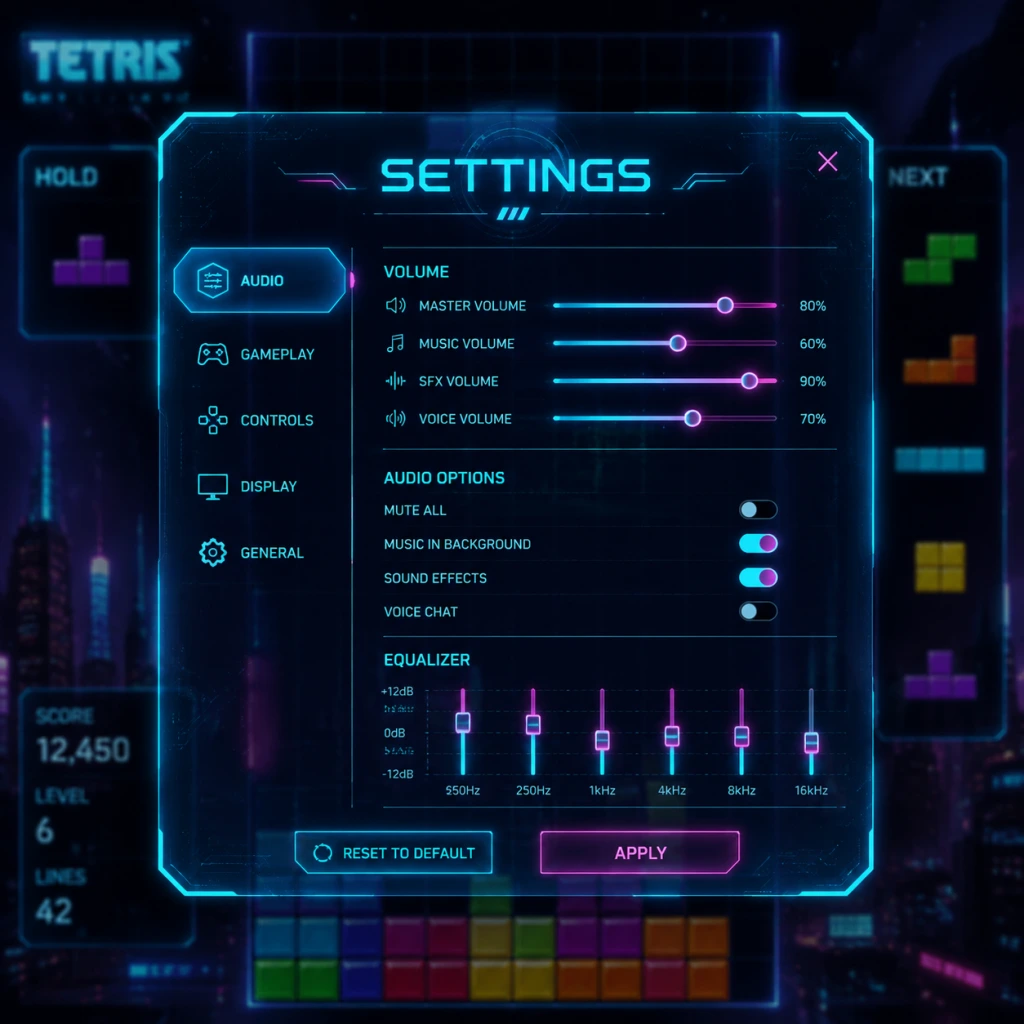
Game Settings
Game Settings Guide: Tetris
This guide covers all major settings categories found in modern Tetris games, with particular attention to Tetris Effect: Connected (PC, PlayStation, Xbox, Nintendo Switch, Meta Quest) and Tetris (2019) by EA (mobile). Settings may vary slightly between versions, but the principles apply broadly.
---
Graphics Settings
| Setting | Description | Recommendation (Low-End) | Recommendation (Mid-End) | Recommendation (High-End) |
|---|---|---|---|---|
| Resolution | Pixel dimensions of the game window/screen. | 720p (1280x720) | 1080p (1920x1080) | 1440p or 4K (3840x2160) if your monitor supports it |
| Display Mode | Fullscreen, Windowed, Borderless Windowed. | Fullscreen (best performance) | Borderless (alt-tab convenience) | Borderless (multi-monitor setups) |
| VSync | Synchronizes frame rate with monitor refresh rate to reduce tearing. | Off (prioritize FPS) | On (smooth visuals) | On (or Adaptive/GSync/FreeSync) |
| Anti-Aliasing | Smooths jagged edges on blocks and backgrounds. | Off or FXAA | TAA or MSAA x2 | TAA or MSAA x4 |
| Texture Quality | Detail of block surfaces, backgrounds, and effects. | Low (or equivalent) | Medium | High/Ultra |
| Shadow Quality | Detail and resolution of shadows. | Off | Low | Medium |
| Particle Effects | Visual effects from line clears, combos, etc. | Minimal | Standard | Full |
| Background Complexity | 3D scene detail behind the playfield (especially in Tetris Effect). | Static/Stylized | Dynamic (simple) | Full dynamic (reactive) |
| Post-Processing | Bloom, motion blur, depth of field. | Off | Bloom only | All enabled |
- VSync is often misconfigured: In fast-paced Tetris, input lag is critical. VSync adds an extra frame of delay. If you have a high-refresh-rate monitor (120Hz+), you can keep VSync on; otherwise, consider disabling it or using GSync/FreeSync.
- Background Complexity in Tetris Effect: The reactive 3D backgrounds are beautiful but can be distracting. Many competitive players set background to `Static` or `Minimal` to reduce visual noise.
- Motion Blur: Always disable motion blur – it serves no purpose in a tile-based game and only increases latency.
---
Audio Settings
| Setting | Description | Recommendation |
|---|---|---|
| Master Volume | Overall game volume. | 80-100% (adjust based on system) |
| Music Volume | Background track volume. | 70-100% (Tetris music is iconic) |
| SFX Volume | Sound effects: line clears, piece lock, level up. | 100% (important for auditory cues) |
| Voice Volume | Voice lines from announcer (if present). | 50% (announcer can be helpful for combo callouts) |
| Audio Output | Device selection (speakers/headphones). | Headphones for immersive experience |
| Audio Sync | Hardware-accelerated audio or standard. | Hardware if available for lower latency |
- Music vs. SFX balance: In many versions, the music tempo changes with your level. Some players prefer to lower music volume to focus on the dropping sound and line-clear cues. Experiment to find a balance that helps your timing.
- 3D Audio (HRTF): Some Tetris games (e.g., Tetris Effect on PS5/PC) support 3D audio. Enable it if you have capable headphones – it adds a subtle spatial element to block drops.
---
Controls Settings
This is the most critical category for performance. Customization varies by platform.
PC (Keyboard)
| Action | Default | Recommended Alternative |
|---|---|---|
| Move Left | Left Arrow | A |
| Move Right | Right Arrow | D |
| Soft Drop | Down Arrow | S |
| Hard Drop | Space | W or Up Arrow |
| Rotate Clockwise | Up Arrow | K or E |
| Rotate Counter-clockwise | Z | J or Q |
| Hold | C | Shift |
| 180° Rotation | A | F or Tab |
| Action | Default (Xbox) | Default (PlayStation) |
|---|---|---|
| Move Left | Left Stick Left | Left Stick Left |
| Move Right | Left Stick Right | Left Stick Right |
| Soft Drop | D-Pad Down | D-Pad Down |
| Hard Drop | D-Pad Up | D-Pad Up |
| Rotate Clockwise | A | Cross |
| Rotate Counter-clockwise | B | Circle |
| Hold | X | Square |
| 180° Rotation | Y | Triangle |
- Swipe left/right to move
- Tap hard drop zone (usually bottom right)
- Tap rotate button
- Swipe down for soft drop
- Tap hold button
- Hard Drop vs Soft Drop: Hard drop (instant placement) is essential for high-level play. Ensure it’s mapped to a comfortable key that you can press rapidly without accidental presses.
- Rotate Mapping: The classic Tetris mechanic uses clockwise/counterclockwise rotation. Some players prefer to have both on separate buttons (e.g., Up for clockwise, Z for counterclockwise). Avoid placing rotation on the same hand as hard drop – it leads to mis-inputs.
- DAS (Delayed Auto Shift) & ARR (Auto Repeat Rate): Not always exposed in menus, but some PC versions (e.g., Tetris: The Grand Master series) allow DAS/ARR tuning. DAS is the delay before holding a direction starts auto-repeating. Lower DAS (50-80ms) is better for fast play. ARR is the repeat speed – lower values (10-30ms) give quicker moves. If adjustable, set ARR to 0 (instant) if your version supports “ARR = 0” for T-spins and fast adjustments.
- Controller Deadzone: For analog sticks, set a moderate deadzone to avoid accidental movement while rotating.
Special Attention Points:
---
Accessibility Settings
| Setting | Description | Recommendation |
|---|---|---|
| Colorblind Modes | Adjust block colors to be distinguishable for different types of color vision deficiency. | Enable if needed; many games offer Protanopia, Deuteranopia, Tritanopia palettes |
| High Contrast Mode | Inverts or strengthens colors for better visibility. | On if you struggle with block outlines |
| Block Outline | Adds a bold outline to each block. | Always ON – dramatically increases readability, especially on vibrant backgrounds. This is one of the most important accessibility options. |
| Ghost Piece | Shows where the current piece will land (a transparent version). | ON for beginners; some competitive players turn it off to reduce clutter |
| Grid Lines | Displays lines between cells. | ON for alignment |
| Large Text | Increases font size for menus and HUD. | On if needed |
| Camera Shake | Screen shake on line clears. | Off (reduces motion sickness) |
| Subtitle/Caption | Subtitles for voice/narration. | On if hearing impaired |
| Controller Vibration | Rumble on hard drop and line clears. | Off (may interfere with timing) or weak |
- Ghost Piece: Extremely helpful for understanding placement, but can become a crutch. If you want to improve your visualization skills, try turning it off after you’re comfortable with stacking.
- Block Outline: Even if you have perfect vision, this reduces eye strain during long sessions. Keep it ON.
- Colorblind Mode: Test different palettes – some also improve contrast for non-colorblind players (e.g., the “Tetris Effect” colorblind modes use pastels that are easier on the eyes).
- Display Language: Choose from available languages. Typically English, Japanese, Chinese, Korean, French, German, Spanish, Italian, Portuguese, Russian. Special note: The Japanese version of Tetris games often has no English option in menu – if you import, verify language support.
- Voice Language: Some versions (e.g., Tetris Effect) allow separate announcer language. Choose what you prefer for clarity.
- Text-to-Speech: Some mobile versions offer TTS for menu options. Enable if needed.
---
Language Settings
---
Network Settings (Multiplayer)
| Setting | Description | Recommendation |
|---|---|---|
| Matchmaking Region | Locks you to servers in a geographic region. | Auto or closest region to minimize latency |
| Ranked/Unranked | Choose playlists. | Ranked for competitive; unranked for practice |
| Connection Type | Wired or Wi-Fi. | Wired Ethernet for lowest ping and stability |
| Bandwidth Usage | Limits data sent/received. | Unlimited (default) |
| Crossplay | Allows playing with other platforms. | ON for larger player pool |
| Voice Chat | In-game voice communication. | OFF (distracting in Tetris) |
| Spectator Mode | Watch other matches. | Optional, no performance impact |
| QoS / Network Throttle | Some systems let you reduce packet size for slow connections. | Leave default unless experiencing lag spikes |
- Region Lock: If you’re in a remote area, manually select a region with lower ping even if it’s not geographically closest (e.g., West US vs East US). Check ping in-game if available.
- Lag Compensation: Games like Tetris 99 and Tetris Effect: Connected use rollback netcode. If you see stuttering, try lowering your game’s visual settings to maintain a consistent 60 FPS – frame drops cause worse lag in rollback.
- Packet Loss: Use tools like `ping -t` to check connection stability. Even 1% loss can cause teleporting pieces. Contact your ISP if persistent.
---
Gameplay Settings
| Setting | Description | Recommendation |
|---|---|---|
| Starting Level | The level at which blocks begin falling. Higher = faster. | Beginner: Level 0-5; Intermediate: 10-15; Advanced: 18+ |
| Level Speed Curve | How quickly speed increases per 10 lines. | Standard (Classic Tetris curve) or Custom (modern games allow modification) |
| Rotation System | SRS (Super Rotation System) vs. Classic / ARS. | SRS is the global standard for modern Tetris (wall kicks, t-spins). Classic is for nostalgia. |
| Lock Delay | Time before a piece locks after touching the ground. | 500ms default – shorter increases difficulty; longer allows more time to slide. Competitive lock delay is typically 500ms with infinite or limited lock delay (e.g., 13 resets in Tetris Effect). |
| Handicap | Gives opponent a disadvantage (e.g., more garbage lines). | Not needed for fair play. |
| Garbage Type | In multiplayer, lines are sent as “garbage” (random holes). | Standard (2-cell hole, 25% chance) or Classic (1-cell hole). |
| Line Clear Style | How lines disappear (animation). | Smooth or Instant; Instant improves visual clarity at high speeds. |
| Auto-Hard Drop | Whether holding down drops instantly (usually disabled). | OFF – use a dedicated button for hard drop. |
| Advanced Guidelines | Enable T-spin detection, perfect clear animations, etc. | ON – helps learn modern mechanics. |
- Lock Delay Settings: This is the most common misconfiguration. If the lock delay is too long, pieces take forever to lock, ruining the rhythm. If too short, you accidentally lock pieces early. The standard 500ms is good for learning. Never set lock delay above 1000ms – it makes the game boring. In competitive modes, lock delay is fixed (e.g., 500ms with limit of 15 moves).
- Rotation System: SRS is the default in all modern Tetris games (since Tetris DS). If you play Tetris Effect: Connected, keep SRS. For Tetris (1984) or The Grand Master, use Classic. Confusing these will break muscle memory when switching games.
- Starting Level: Many beginners set Level 10 and wonder why they lose instantly. Start at Level 0-5 to learn piece orientation and stacking. Increase gradually.
- For Competitive Play (Fast/Low Latency):
- For Visual Experience (Single-player/Casual):
- For Performance on Low-End PC (e.g., Intel HD Graphics):
---
Summary: Optimal Settings Cheat Sheet
- Graphics: Low details, VSync Off, Background Static, Anti-Aliasing Off (or FXAA)
- Controls: Custom keyboard with DAS 60ms, ARR 0 (if supported), Hard Drop on Space, Rotate on Up & Z
- Accessibility: Block Outline ON, Ghost Piece ON (most competitive players keep it on for consistency), Grid ON,
- Network: Wired connection, closest region
- Gameplay: SRS, Lock Delay 500ms, Instant line clears
- Graphics: High/Ultra, VSync On, Full Background Complexity, TAA
- Controls: Standard controller layout, Ghost Piece ON, Auto-Hard Drop OFF
- Audio: Music & SFX at 100%, 3D Audio if available
- Accessibility: Large Text ON, Camera Shake OFF
- Display Mode: Fullscreen
- VSync: Off
- Texture Quality: Low
- Shadows: Off
- Particles: Off
- Background Complexity: Static/Stylized
- Anti-Aliasing: Off
- Post-Processing: Off
- Run 60 FPS target
Remember: Tetris is a game of muscle memory. Once you find a control scheme you like, never change it – consistency is key to improving. Happy stacking!