Game Settings
Total War: Warhammer III – Game Settings Guide
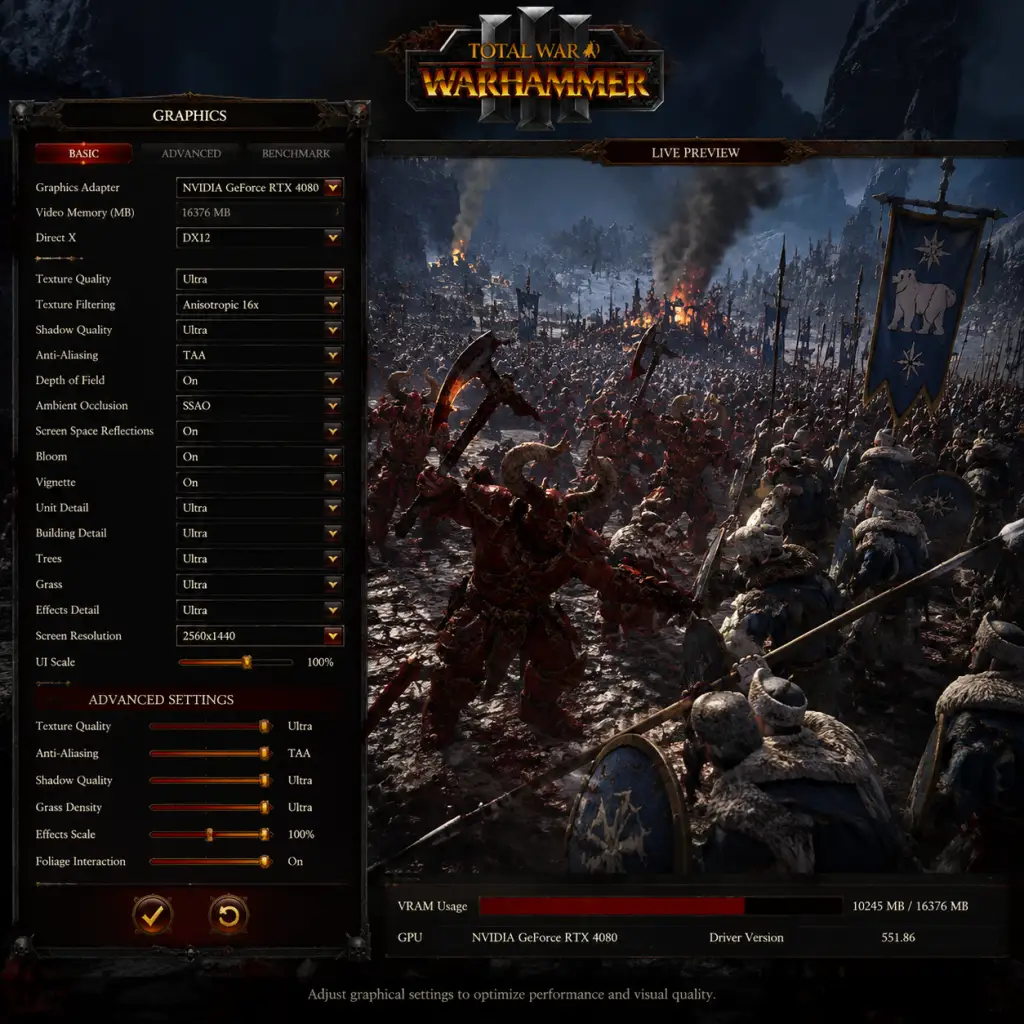
This guide covers every setting in Total War: Warhammer III, from graphics to gameplay, with optimal recommendations for various hardware levels. Pay special attention to the highlighted settings – these are commonly misconfigured and can significantly impact performance or visual quality.
---
Graphics Settings
Graphics settings are split between the Campaign Map and Battle scenes. You can adjust them independently from the main menu or in-game pause menu.
#### Key Graphics Options
| Setting | Description | Impact | Recommendation |
|---|---|---|---|
| Resolution | Native monitor resolution. | High | Match your monitor’s native resolution. |
| VSync | Synchronises frame rate with monitor refresh. | Medium | Turn off for maximum FPS; turn on to eliminate screen tearing. |
| Anti-Aliasing (AA) | Smooths jagged edges. Options: Off, FXAA, TAA, SMAA. | High | TAA looks best; SMAA is a good balance. FXAA blurs slightly. |
| Texture Quality | Detail level of surfaces. | Medium | Ultra on high-VRAM cards (6GB+); Medium on low-VRAM (4GB). |
| Shadow Quality | Shadows detail. | High | High or Medium for performance; Ultra for visuals. |
| Screen Space Reflections | Real-time reflections on water/metal. | Very High | Turn OFF on mid-range or lower hardware. |
| Volumetric Effects | Fog, smoke, magic particles. | High | Medium on low-end; Ultra for spectacle. |
| Unit Size | Number of soldiers per unit. | Very High | Small improves performance; Large recommended for balanced play. |
| Terrain Quality | Landscape detail. | Medium | High/Ultra on strong GPUs. |
| Grass Quality | Grass density and draw distance. | Medium | Low on low-end; Ultra for immersion. |
| Depth of Field | Blurs distant objects. | Low | Off for clarity; ON for cinematic feel. |
| Vignette & Chromatic Aberration | Post-processing effects. | Low | Off for sharper image; ON for style. |
| Hardware Tier | Example GPU | Campaign Graphics | Battle Graphics | Notes |
|---|---|---|---|---|
| Ultra (4K 60+) | RTX 4090 / RX 7900 XTX | All Ultra, TAA, VSync Off | All Ultra, TAA, VSync Off | Use DLSS/FSR only if needed. |
| High (1440p 60+) | RTX 3080 / RX 6800 XT | High with Ultra textures & shadows | High with Ultra textures, shadows High | Set Volumetrics to High, SSReflections OFF. |
| Medium (1080p 60) | RTX 2070 / RX 5700 XT | High (textures Ultra), shadows Medium, SSReflections OFF | High (textures Ultra), shadows Medium, Volumetrics Low | Unit Size: Large. TAA recommended. |
| Low (1080p 30-60) | GTX 1060 / RX 580 | Medium textures, shadows Low, SSReflections OFF | Medium textures, shadows Low, Volumetrics Low | Unit Size: Medium. FXAA for performance. |
| Entry (720p 30) | GTX 1050 / Vega 8 | Low with minimum | Low with minimum | Force DirectX 11 (DX11) via launch options: `-dx11`. Unit Size: Small. |
- Screen Space Reflections: One of the most demanding settings. Disable it on all but the highest-end PCs.
- Unit Size: Changing this affects both performance and balance. For multiplayer, use the agreed size (Large/Ultra). Campaign battles can be set independently from campaign map.
- DirectX 12 vs 11: DX12 can improve CPU performance but may cause instability on some systems. If you encounter crashes, switch to DX11 via launch option `-dx11`.
- Unlimited Memory: In the launcher toggle “Unlimited Video Memory”. Enabling this can improve texture streaming but risks crashes if VRAM is insufficient. If you have 6GB+ VRAM, enable it.
- Campaign Map vs Battle: You can set both separately. For example, campaign map can be lower to speed up turn times while battles look great.
---
Audio Settings
| Setting | Description | Recommendation |
|---|---|---|
| Master Volume | Overall volume. | 80-100% |
| SFX Volume | Sound effects (weapons, spells). | 100% |
| Music Volume | Battle & campaign music. | 70-100% |
| Voice Volume | Voice lines (characters, advisors). | 100% |
| Speech Volume | Narration & cinematics. | 100% |
| Enable Advanced Audio | HRTF for headphones. | Enable if using headphones for spatial sound. |
| Sound Output | Stereo / Surround / Headphones. | Select your device type. |
- Enable Advanced Audio: This enables HRTF (head-related transfer function) audio, making battles sound spatial. Enable this only with stereo headphones – it can distort sound on speakers or surround headsets. Misconfiguring this reduces positional clarity.
- Camera Movement: WASD (free camera) or Arrow Keys (alt).
- Select All Units: Ctrl + A
- Group Units: Ctrl + (1-9)
- Pause: P or Space (depending on battle realism mode)
- Toggle UI: Backspace (useful for screenshots)
- Edge Scrolling: Enable/disable – recommend turning OFF if using keyboard camera control.
- Invert Y Axis: For mouse or joystick camera – many players prefer inverted vertical movement.
- Camera Rotation Speed: Adjust to comfortable level. Lower values for precise control.
- Scroll Speed: Campaign map scroll pace.
- Zoom Speed: How fast you zoom in/out.
- Edge Scrolling: If you frequently pan the camera with the keyboard, disable edge scrolling to prevent accidental camera movements when the mouse reaches the screen edge.
- Invert Y: This setting is often overlooked. If your camera moves “down” when you push the mouse “up”, enable Invert Y.
- Camera Sensitivity: Set to a level where you can comfortably rotate from one end of the battlefield to the other without lifting the mouse.
---
Controls Settings
#### Key Bindings (Partial List)
Default controls can be fully customised in the Controls menu.
#### Mouse Sensitivity
#### ⚠️ Special Attention Points for Controls
---
Accessibility Settings
| Setting | Description | Recommendation |
|---|---|---|
| Colourblind Modes | Protanopia, Deuteranopia, Tritanopia. | Enable if applicable; otherwise leave OFF. |
| UI Scaling | Adjust size of interface elements. | 100% default; increase if on 4K or small screens. |
| Tooltip Delay | Time before tooltips appear. | 0.5s default; increase if tooltips are distracting. |
| Show Unit ID | Display unit names above models. | Enable for clarity in large battles. |
| Highlight Enemy Units | Outline enemies in a colour. | Enable – makes spotting enemies much easier, especially in sieges or dark maps. |
| Auto-Advance on Battle Victory | Automatically proceed after winning. | Recommend OFF to review post-battle results. |
- Highlight Enemy Units: This is one of the most helpful settings for new and veteran players alike. It’s off by default. Turn it on – it vastly improves target identification, especially in cluttered sieges or when using artillery.
- Text Language: Language for UI and subtitles.
- Audio Language: Voiceover language (English, French, German, etc. depending on version).
- Subtitles: Enable for cutscenes and dialogue.
- Audio Language: Changing voiceover can affect the atmosphere (e.g., English voice acting is standard; French or German dubs are available for some regions). If you switch mid-campaign, the voice lines for previously recorded characters may remain in the original language until restarted.
---
Language Settings
Available from the launcher (pre-game) and in-game Options menu.
#### ⚠️ Special Attention Point for Language
---
Network Settings
Affects multiplayer and online features.
| Setting | Description | Recommendation |
|---|---|---|
| Online Privacy | Choose who can invite you. | Public for open play; Private for friends only. |
| Cross-Play | Enable to play with players on other storefronts (Steam, Epic, etc.). | Enable – required to find matches quickly. |
| Voice Chat | In-game voice communication. | Enable if using; otherwise disable to avoid distractions. |
| Multiplayer Game Browser | List of active hosted games. | Default enabled. |
- Cross-Play: By default it may be off. Turn it on to access the full player base. Without it, matchmaking times increase significantly. This setting does not affect campaign co-op as long as both players are on the same storefront.
---
Gameplay Settings
These settings change game mechanics and UI behaviour.
#### Battle Settings
| Setting | Description | Recommendation |
|---|---|---|
| Battle Realism Mode | Disables pause, limited camera, no unit markers. | For hardcore players; beginners should keep OFF. |
| Skirmish Mode | Ranged units automatically flee when charged. | Default ON; turn OFF for better control. |
| Fire-at-Will | Units automatically engage. | Default ON; use OFF for ambushes. |
| Guard Mode | Units hold position and don’t pursue. | Default OFF; enable for defensive lines. |
| Auto-Resolve | AI resolves battles with calculated results. | Adjust balance towards favouring player if desired. |
| Setting | Description | Recommendation |
|---|---|---|
| Campaign Difficulty | Affects AI aggression, economy, and enemy stats. | Normal for first campaign; Hard for veterans. |
| Battle Difficulty | Affects enemy morale and combat stats. | Normal (balanced); Hard (enemies stronger). |
| End Turn Timer | Shows time for AI turns. | Enable to track long turns. |
| Camera Follow AI | Camera moves to enemy locations during their turn. | Disable to save time. |
| Automatic Save | Frequency of auto-saves. | Recommend every turn. |
- Unit Size: Already covered in Graphics. This also affects gameplay balance. For the most balanced experience, use Large or Ultra sizes.
- Show AI Movement Range: In campaign, toggle this to see where enemy armies can reach. Enable to avoid getting caught off-guard.
- Auto-Resolve Balance: In Total War: Warhammer III, auto-resolve often undervalues certain units (e.g., cavalry, monsters). If you want a more forgiving auto-resolve, you can adjust the slider in Campaign Settings toward “Player Favour”. But note: this makes AR much easier.
- Battle Realism Mode: This is easy to enable mistakenly. It removes the pause and locks the camera – do not enable during a multiplayer battle unless you intend to play with those restrictions.
- Unit Size: Changing this mid-campaign is allowed, but be aware that save files will not be compatible with multiplayer games using different unit sizes. For consistency, keep it the same throughout.
#### ⚠️ Special Attention Points for Gameplay
---
First-Time Setup Checklist
1. Launch Options: If you have frequent crashes, add `-dx11` in Steam launch options (Right-click game > Properties > General > Launch Options).
2. Unlimited Video Memory: Enable in launcher if VRAM ≥ 6GB.
3. Graphics Preset: Choose one based on your hardware from the table above, then fine-tune.
4. Audio: Set “Enable Advanced Audio” to ON if using headphones.
5. Controls: Set camera sensitivity and edge scrolling preference. Enable Invert Y if needed.
6. Accessibility: Enable “Highlight Enemy Units”.
7. Network: Enable Cross-Play.
8. Play a test battle (Skirmish) to check performance and adjust settings.
---
Remember: The optimal settings are the ones that give you a steady 30-60 FPS in the most intense battles. Lower settings on the campaign map can help with turn times. If you experience stuttering, reduce Shadow Quality, Volumetric Effects, or Unit Size among the first adjustments. Enjoy the game!