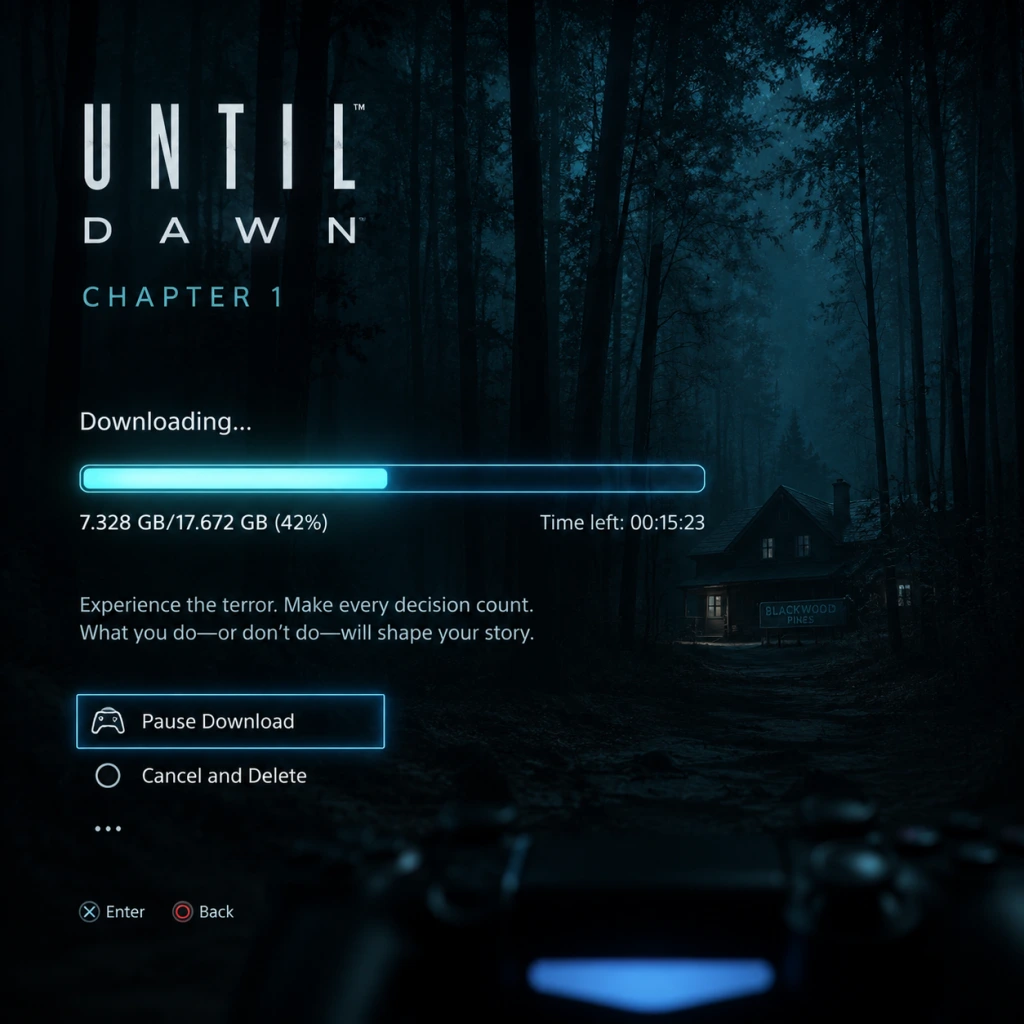
Download & Installation
Download & Installation Guide for Until Dawn
This guide covers all major platforms on which Until Dawn is available: PlayStation 4 (original release), PlayStation 5 (backward compatibility or via the 2024 remake), and PC (Steam and Epic Games Store). The game is not available on Xbox, Nintendo Switch, or mobile devices. Only legitimate, official sources are described. Follow the steps for your platform.
---
Platform Overview
| Platform | Version(s) | Official Source(s) |
|---|---|---|
| PlayStation 4 | Original release | PlayStation Store (digital) or retail disc |
| PlayStation 5 | Backward compatible with PS4 version; dedicated PS5 remake (2024) | PlayStation Store |
| PC (Windows) | 2024 remake | Steam, Epic Games Store |
System Requirements (PC – 2024 Remake)
These are the official minimum and recommended specifications for the PC version. Requirements may change with updates.
#### Minimum Requirements
- OS: Windows 10 64-bit (version 20H2 or newer)
- CPU: Intel Core i5-8600 / AMD Ryzen 5 3600
- RAM: 12 GB
- GPU: NVIDIA GeForce GTX 1080 (8GB) / AMD Radeon RX 5700 (8GB)
- Storage: 70 GB available space (SSD recommended)
- DirectX: Version 12
- Additional: Internet connection required for initial activation and updates
- OS: Windows 11 64-bit
- CPU: Intel Core i7-10700K / AMD Ryzen 7 5700X
- RAM: 16 GB
- GPU: NVIDIA GeForce RTX 2080 (8GB) / AMD Radeon RX 6800 XT (16GB)
- Storage: 70 GB SSD
- DirectX: Version 12
- Additional: High-speed internet for download and online features (e.g., photo sharing)
- PlayStation (PS4/PS5): A PlayStation Network (PSN) account is required to purchase, download, and play the game from the PlayStation Store. The game is tied to your PSN account.
- PC (Steam): A Steam account is needed.
- PC (Epic Games Store): An Epic Games account is required.
- Language Selection: On first run, you may be prompted to choose text and audio languages. These can often be changed later from the in-game settings menu.
- Graphics Settings (PC only): The game will detect your hardware and may recommend a preset (e.g., Low, Medium, High, Ultra). You can adjust resolution, frame rate cap, V-Sync, ray tracing (if supported), and more.
- License Agreements: Accept any EULA or terms of service if presented.
- Cloud Saves (PC): Steam and Epic Cloud Saves are automatically enabled. You may be asked to sync saved data.
- Controller Configuration: The game natively supports DualSense, DualShock 4, Xbox controllers, and keyboard/mouse. You can remap controls in settings.
- Online Features: Some features (like photo sharing or leaderboards) may require internet connection.
- Shader Compilation: On PC, the first launch may compile shaders, which can take several minutes. Do not interrupt this process.
#### Recommended Requirements
---
Account Requirements
---
Step-by-Step Installation
PlayStation 4 (Original)
#### Digital Purchase & Download
1. Turn on your PS4 and ensure it is connected to the internet.
2. Sign in to your PSN account.
3. Go to the PlayStation Store from the home screen.
4. Search for “Until Dawn” (not “Rush of Blood” or “The Inpatient”).
5. Select the game and choose “Add to Cart” (or “Download” if you already own it).
6. Complete purchase using your PSN wallet or a payment method.
7. The download will begin automatically. You can check progress from the Notifications menu > Downloads.
8. Once downloaded, the game will appear on your home screen. Insert a retail disc if you have the physical version – the game will install automatically.
#### Installing from Disc
1. Insert the Until Dawn disc into the PS4.
2. An installation prompt will appear; select “Install”.
3. Wait for the installation to complete (progress bar on screen).
4. Keep the disc in the drive to play.
---
PlayStation 5 (Backward Compatibility or Remake)
#### Playing the PS4 Version on PS5
1. Insert your PS4 disc (or use digital license if previously purchased on PSN).
2. The PS5 will automatically download the PS4 version via backward compatibility.
3. If digital, go to your Game Library, find Until Dawn (PS4 version), and start the download.
4. Installation is automatic; the game will appear with a PS4 badge.
5. Launch directly from the PS5 home screen.
#### Downloading the PS5 Remake (2024)
1. On your PS5, navigate to the PlayStation Store.
2. Search for “Until Dawn” – the PS5 version will be listed separately from the PS4 one.
3. Select the PS5 remake and purchase/download.
4. The game will install automatically. You can monitor progress from Control Center > Downloads/Uploads.
5. Once installed, start the game. It will run natively on PS5 with enhanced graphics and DualSense features.
---
PC (Steam)
#### Installation via Steam
1. Install Steam Client from [store.steampowered.com](https://store.steampowered.com) if not already installed.
2. Launch Steam and log in to your account.
3. Go to the Store tab and search for “Until Dawn”.
4. Add the game to your library (purchase if needed).
5. Go to your Library and find Until Dawn in the list.
6. Click “Install” and choose installation location (ensure at least 70 GB free).
7. Select desired options (e.g., create desktop shortcut).
8. Download will begin. You can pause/resume as needed.
9. After download completes, the “Play” button becomes active.
10. First launch may prompt for additional setup (see below).
#### Installation via Epic Games Store
1. Download and install Epic Games Launcher from [epicgames.com](https://www.epicgames.com).
2. Log in to your Epic Games account.
3. Go to the Store and find “Until Dawn”.
4. Purchase or claim (if free) the game.
5. Go to your Library and click “Install”.
6. Select installation directory and confirm.
7. Download and installation proceed automatically.
8. Launch from the library after installation.
---
First Launch Setup
---
Common Installation Errors and Fixes
| Error | Cause | Solution |
|---|---|---|
| Insufficient disk space | Not enough free storage | Free up space by deleting unnecessary files. The game needs ~70 GB. Ensure you have at least 75 GB free before installing. |
| Download stuck or slow | Network issues, server load | Pause and resume the download. Restart your router. On Steam, change download region in Settings > Downloads. On Epic, restart launcher. |
- Steam: Right-click game in Library > Properties > Installed Files > Verify integrity of game files.
- Epic: Go to Library, click three dots on the game > Manage > Verify Files. |
- PS4 version (digital): approximately 50 GB.
- PS5 Remake (2024): approximately 70 GB.
- PC version: 70 GB (SSD strongly recommended).
- PlayStation Store: For PS4 and PS5 versions (digital).
- Retail Discs: Available for PS4 (and playable on PS5 via backward compatibility). No disc version exists for PC.
- Steam and Epic Games Store: For PC version.
- Third-party key resellers: Use at your own risk; only purchase from authorized resellers listed on the official sites (e.g., Humble Bundle, Green Man Gaming). Avoid pirate or unverified sources.
- Pre-loading: On PC and PlayStation, you may be able to pre-load the game before release day if you pre-ordered. This allows you to play immediately at launch.
- Cross-save: Until Dawn does not support cross-save between PS4/PS5 and PC. Saves are platform-specific.
- Network requirements: The game does not require constant online connection for single-player, but an internet connection is required for initial download and patch updates.
- Accessibility: The game features subtitle options, contrast adjustments, and audio cues. Access these from the settings menu.
- [PlayStation Support](https://www.playstation.com/en-us/support/)
- [Steam Support](https://help.steampowered.com/)
- [Epic Games Support](https://www.epicgames.com/help/)
| Installation hangs at 99% | Antivirus interfering | Temporarily disable real-time protection during installation, or add the game folder to antivirus exclusions. |
| Black screen on launch | Outdated graphics drivers, incompatible settings | Update GPU drivers (NVIDIA/AMD). Launch game with -windowed or -fullscreen command (right-click game in Steam > Properties > Launch Options). |
| Missing DLL errors | Corrupted redistributables | Install or repair Visual C++ Redistributables (available from Microsoft). The game may also require DirectX. Run `dxdiag` to check. |
| License not recognized (PSN) | Account region mismatch | Ensure you are logged in with the account that purchased the game. For disc, check region compatibility (PS4 discs are region-free). |
| PS5 crash on startup | System software issue | Update PS5 to latest firmware. Rebuild database (Safe Mode > Rebuild Database). |
---
Post-Installation Verification
After installation, perform these checks to ensure everything is working correctly:
1. Launch the game and confirm it reaches the main menu without errors.
2. Check for updates – On PS4/PS5, the game will prompt if a patch is available. On PC, Steam/Epic automatically download updates. Make sure you are on the latest version.
3. Test basic functionality – Start a new game or load a save. Verify that audio, video, and controls respond as expected.
4. Adjust settings – If performance is poor, lower graphics settings. Enable DLSS/FSR if available.
5. Back up saves – On PC, you can manually back up your save files (usually located in `%USERPROFILE%\Documents\My Games\Until Dawn` or similar). On PlayStation, save data is backed up to the cloud with PS+ or via USB.
6. Check DLC – If you purchased any DLC (e.g., bonus content), confirm it appears in-game (usually in the main menu or extras section).
---
Storage Space Details
For optimal performance on PC, install on an SSD. On PS5, the game is automatically installed on internal SSD. On PS4, an external HDD is fine but may cause longer load times.
---
Legal and Official Sources Only
---
Additional Tips
By following this guide, you should be able to download and install Until Dawn smoothly on your chosen platform. If you encounter any issues not listed, consult the official support pages: