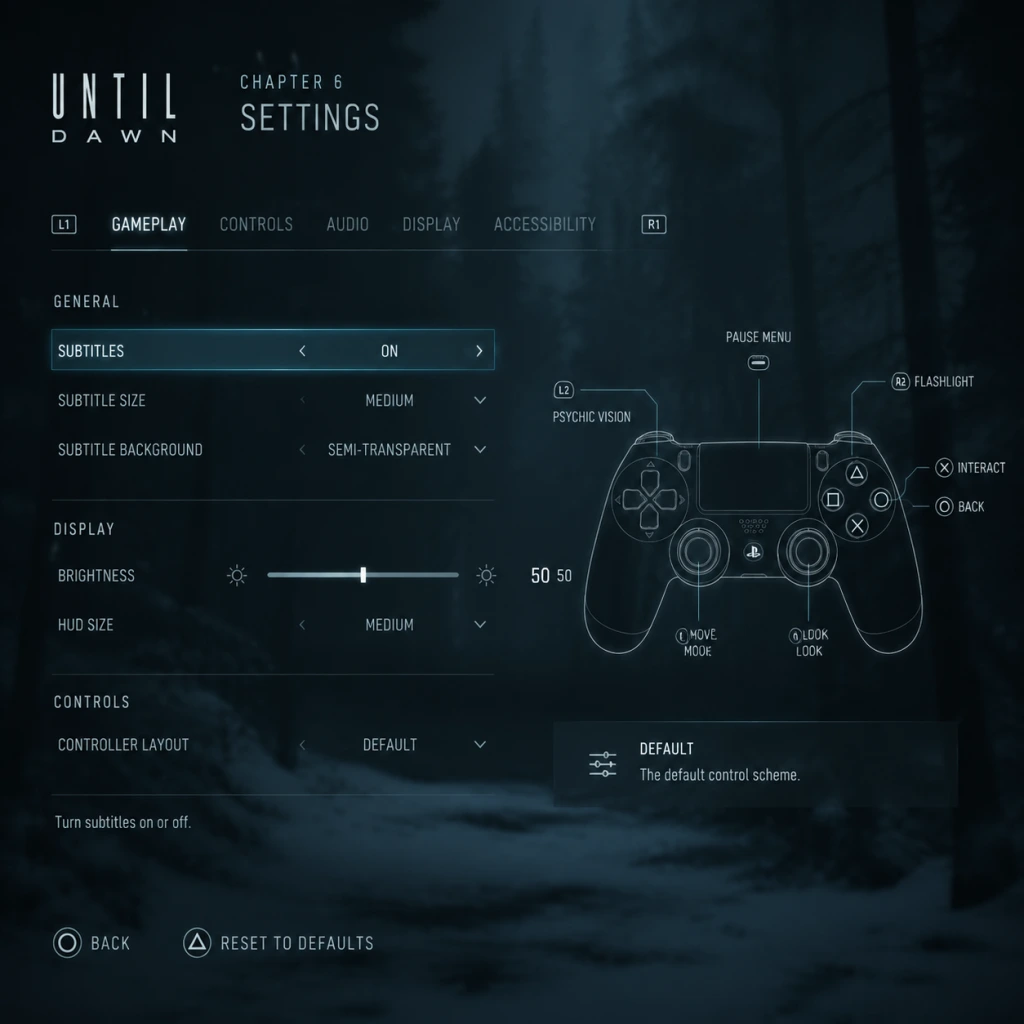
Game Settings
Game Settings Guide for Until Dawn
This guide covers all configurable settings in Until Dawn across PlayStation 4, PlayStation 5, and PC. Properly tuning these options will enhance your experience, improve performance, and ensure you don't miss critical visual or audio cues in this narrative-driven horror game.
Overview of Settings Categories
Until Dawn offers the following settings menus:
- Graphics (PC only; console versions use presets and hardware defaults)
- Audio
- Controls
- Accessibility
- Language
- Network (limited to online features)
- Gameplay (very minimal)
- Low – For minimum spec systems (e.g., GTX 960, 8GB RAM)
- Medium – Balanced for 30–60 FPS on mid-range hardware (e.g., GTX 1060, 16GB RAM)
- High – Targets 60 FPS on high-end hardware (e.g., RTX 2060, 16GB RAM)
- Ultra – For 4K/60 FPS or high-refresh-rate monitors (e.g., RTX 3080+, 32GB RAM)
- Custom – Manual tuning of individual options
---
Graphics Settings (PC)
Until Dawn on PC provides a range of graphical options to balance visual fidelity and performance. The game uses Unreal Engine 4, and these settings are identical in both the Steam and Epic Games Store versions.
Graphics Presets
Detailed Graphics Options
| Setting | Low | Medium | High | Ultra | Description & Recommendation |
|---|
| Display Mode | Fullscreen, Windowed Borderless, Windowed | – | – | – | Fullscreen gives best performance; Borderless recommended for multi-monitor.
| VSync | On/Off | – | – | – | Turn OFF for lower input lag if you have G-Sync/FreeSync; otherwise ON to prevent screen tearing.
| Frame Rate Limit | 30, 60, 120, Unlimited | – | – | – | Set to your target (60 for most, 120+ for high refresh). Unlimited may cause GPU overheating.
| Field of View (FOV) | 70–100 (slider) | – | – | – | Default 80 is fine. Increase to 90+ if you feel motion sick during tight corridors.
| Anti-Aliasing | Off, FXAA, TAA, MSAA x2/x4 | – | – | – | TAA provides best quality with minimal performance hit. FXAA is lighter but blurs. MSAA is heavy; avoid on mid-range.
| Texture Quality | Low, Medium, High, Ultra | – | – | – | Impacts VRAM. Low/Medium for 4GB VRAM, High for 6GB+, Ultra for 8GB+.
| Shadow Quality | Low, Medium, High, Ultra | – | – | – | Medium is a good middle ground. Shadows become sharper at High/Ultra but cost FPS.
| Post-Processing | Low, Medium, High, Ultra | – | – | – | Controls bloom, depth of field, lens flares. High enhances atmosphere; drop to Low for extra FPS.
| Motion Blur | On/Off | – | – | – | Easy to misconfigure: Turn OFF for clearer vision during quick-time events. Motion blur can obscure on-screen prompts.
| Film Grain | Off, On | – | – | – | Personal preference. On adds a horror-movie feel; Off gives a cleaner image.
| Ambient Occlusion | Off, Low, Medium, High, Ultra | – | – | – | Adds depth to shadows. Medium is recommended for balance.
| Reflections | Off, Low, Medium, High, Ultra | – | – | – | Screen-space reflections (SSR). High/Ultra may cause shimmering; Medium is safe.
| Volumetric Lighting | Off, Low, Medium, High, Ultra | – | – | – | Used for fog and light rays. High can be demanding; set to Low on mid-range cards.
| Tessellation | Off, On | – | – | – | Adds detail to snow and terrain. On looks better but costs ~5 FPS.
| Effect Quality | Low, Medium, High, Ultra | – | – | – | Controls particles, fire, smoke. Medium recommended.
Optimal PC Graphics Settings by Hardware Tier
- Low-End (e.g., GTX 960 / RX 470, 8GB RAM, 1080p):
- Mid-Range (e.g., GTX 1060 / RX 580, 16GB RAM, 1080p/1440p):
- High-End (e.g., RTX 2060 / RX 5700, 16GB RAM, 1440p):
- Ultra (e.g., RTX 3080 / RX 6800 XT, 32GB RAM, 4K):
- Master Volume – Controls overall loudness; set to 80–90% to avoid clipping.
- Music Volume – Reduces background music; default 100%. Lower if you want to hear environmental sounds more clearly.
- SFX Volume – Sound effects, footsteps, doors. Keep at 100% to catch audio cues.
- Dialogue Volume – Character speech. Set to 100%—critical for understanding story.
- Voice Language – Choose between English, French, German, Spanish, Italian, Japanese, etc. (varies by region).
- Audio Output – Stereo, 5.1, 7.1, or Headphones. Easy to misconfigure: If you set to 5.1/7.1 but use stereo headphones, dialogue may sound distant. Choose 'Headphones' for best directional audio with a headset.
- Subtitles – On/Off. Recommend ON for non-native speakers or low volume play.
- Invert Look – On/Off. Default Off.
- Controller Vibration – Intensity: Off, Low, High. Keep at High for immersion; feedback from heartbeats and tremors is useful.
- Controller Speaker – On/Off (PS4 only). On gives audio from the controller (e.g., phone calls). Can be distracting; Off recommended for clarity.
- Key Bindings – Fully rebindable. Default follows standard WASD, mouse look, E for interact, Space for run, Shift for sprint (walk toggle).
- Mouse Sensitivity – Slider. Default 5/10. Adjust to your comfort; lower for precision during totems and QTEs.
- Invert Mouse Y – Off by default.
- Controller Support – Full support for Xbox, PlayStation, and generic controllers. Recommended for the cinematic feel, as the game was designed for controller.
- Subtitle Size – Small, Medium, Large. Set to Large for better readability on TV or small screens.
- Subtitle Background – None, Light, Dark. Use Dark for high contrast.
- Colorblind Modes – Protanopia, Deuteranopia, Tritanopia. Affects button prompts and totem colors. Activate if needed.
- QTE Timing Mode – Normal, Generous. Crucial setting for QTE difficulty. Generous doubles the timer. Recommended for players with slower reaction times or first playthrough.
- Hold vs Tap – For interactions, you can set to Hold (hold button) or Tap (press once). Hold reduces accidental actions.
- Screen Shake – On/Off. Off reduces motion sickness during explosions or falls.
- Auto-Ready Weapon – On/Off. Controls whether the aiming reticle appears automatically when danger is near.
- In-Game Text – Choose interface language separately from audio.
- Audio Language – As mentioned in Audio section.
- Subtitles – Match audio language or display a different language for subtitles (e.g., English audio with French subtitles).
- Online Features – Enable/disable. Allows sharing of "Butterfly Effect" choices to load community stats (optional). Disable if you have strict privacy concerns.
- Leaderboards – For some minigames (e.g., collectible races) – can be disabled.
- Auto-Sync Cloud Saves – PS5 and PC via cloud service. Keep enabled to avoid losing progress.
- QTE Timing Mode (described in Accessibility) – This effectively serves as difficulty adjustment.
- Tutorial Hints – On/Off. Off removes on-screen hints after the first few chapters.
- Totem Vision – On/Off. Totems are collectibles that show future events. Off disables their glow, making them harder to find but more immersive.
- Preset: Low, then manually set Textures to Medium (if VRAM allows) and Post-Processing to Low.
- Disable Motion Blur and Film Grain for clarity.
- Target 30 FPS stable.
- Preset: Medium, adjust Textures to High, Shadows to Medium, and Volumetric Lighting to Medium.
- Enable TAA anti-aliasing.
- Motion Blur OFF for QTE readability.
- Target 60 FPS at 1080p; 30–40 FPS at 1440p.
- Preset: High, then set Textures to Ultra, Shadows to High, Reflections to High.
- Keep Motion Blur OFF.
- Enable VSync (or G-Sync).
- Target 60 FPS stable.
- Preset: Ultra, enable all options at max.
- You can safely turn Motion Blur ON for cinematic feel, but be aware of QTE risks.
- Use DLSS (if available) or TAA for upscaling.
- Target 60 FPS at 4K.
> Special Attention: Motion Blur and V-Sync are two settings that can accidentally degrade gameplay. Always turn Motion Blur off until you are confident in your QTE timing. VSync should be off if using adaptive sync monitors.
---
Audio Settings
All platforms offer similar audio options.
---
Controls Settings
Control options differ between console and PC.
PlayStation (PS4/PS5) – Default Controls
PC – Keyboard & Mouse
> Special Attention: Quick-Time Events (QTEs) require fast button presses. If using keyboard, consider rebinding QTE actions (e.g., F or Space for mash prompts) to a comfortable key. Many players prefer a controller to avoid keyboard mash fatigue.
---
Accessibility Settings
Until Dawn offers several accessibility features.
---
Language Settings
---
Network Settings
Until Dawn has no traditional multiplayer. Network options are limited:
---
Gameplay Settings
Unlike many modern games, Until Dawn has no difficulty slider. The only gameplay-altering setting is:
---
Special Attention Points During Setup
1. Motion Blur – Turn it OFF. It reduces visual clarity during QTE prompts, causing missed inputs. The game's filmic look is preserved anyway through cinematic camera cuts.
2. QTE Timing Mode – Set to Generous if you are not confident in quick reactions. The game does not warn you about this setting; many players miss it and struggle unnecessarily.
3. Audio Output – If using a TV's built-in speakers, set to Stereo. Headphone users should select 'Headphones' for spatial audio. Incorrect setting can make whispers in the distance sound flat.
4. Controller vs Keyboard – The game was designed for a controller. QTEs use face buttons (X, Square, Circle, Triangle) and analog stick waggles. On keyboard, rebind button prompts to intuitive keys (e.g., J, K, L, ;) to avoid fumbling.
5. FOV on PC – Stick to default 80. Higher FOV can cause fisheye distortion due to the fixed camera angles in the game; the game already handles perspective via cinematography.
6. Cloud Saves – Ensure cloud sync is ON, especially on PC. The game has multiple branching paths; losing a save can mean replaying hours.
7. HDR (PS5 and PC) – If your display supports HDR, enable it in the system settings (not in-game; the game respects Windows HDR toggle). HDR enhances the dark snowy scenes and torch-light, but requires proper calibration to avoid crushed blacks.
---
Conclusion
By adjusting these settings to your platform and hardware, you can enjoy Until Dawn with optimal performance, clear audio, and responsive controls. Remember that the game's atmosphere relies heavily on sound and visual cues—never compromise dialogue volume or disable subtitles if you want to follow the story fully. Start with the recommended presets, then tweak based on your system's capability and personal comfort.