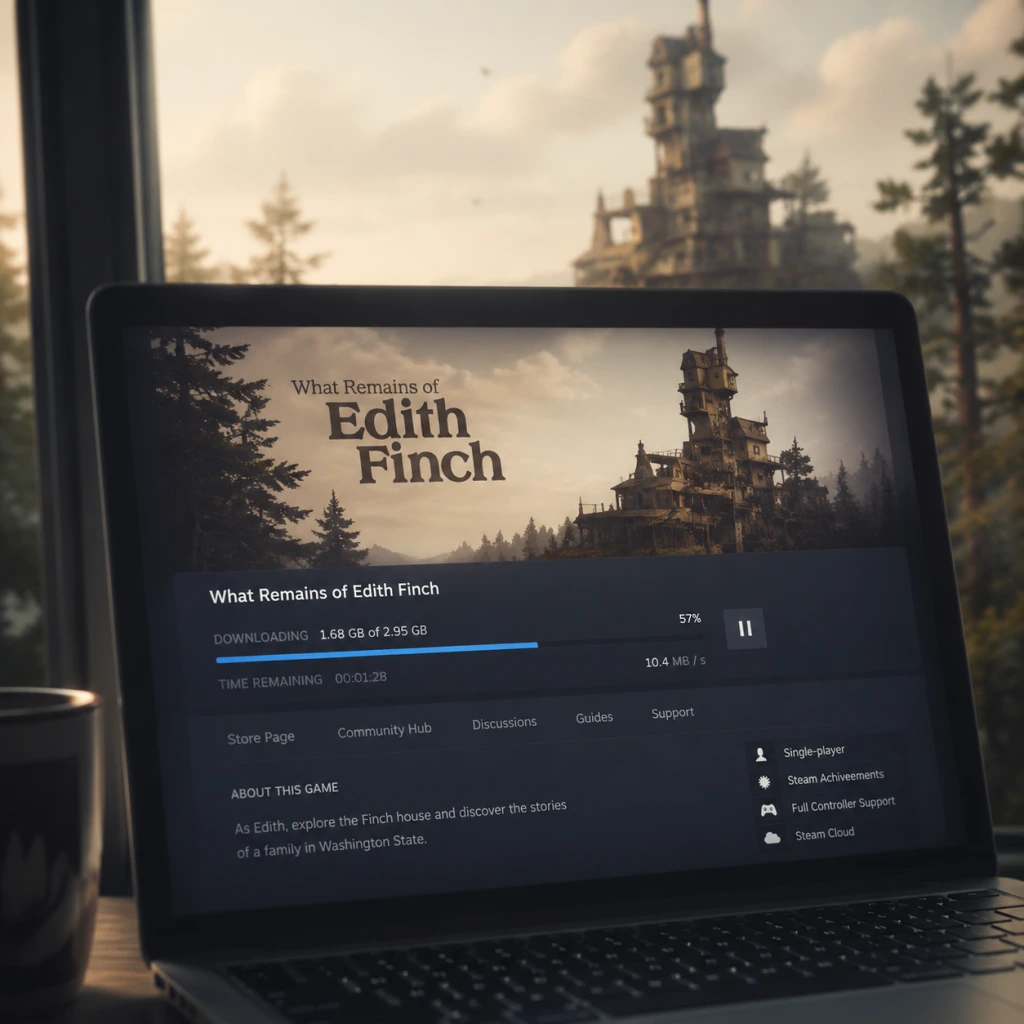
Download & Installation
Overview
"What Remains of Edith Finch" is a narrative-driven adventure game developed by Giant Sparrow and published by Annapurna Interactive. It is available on PC, PlayStation 4/5, Xbox One/Series X|S, and Nintendo Switch. The game is not available on mobile platforms.
---
Platform Availability & Legitimate Sources
| Platform | Official Store / Service | Notes |
|---|---|---|
| PC | Steam, Epic Games Store, GOG (DRM-free), Microsoft Store (for Xbox Game Pass for PC) | Also included with Xbox Game Pass for PC. |
| PlayStation 4/5 | PlayStation Store, PlayStation Plus (Extra/Premium) | PS5 runs via backward compatibility; no native PS5 version, but performance is enhanced. |
| **Xbox One / Series X\ | S** | Microsoft Store, Xbox Game Pass (Console & PC) |
| Nintendo Switch | Nintendo eShop | No physical retail release; digital only. |
System Requirements (PC)
Minimum Requirements
- OS: Windows 7 64-bit
- Processor: Intel Core i3-2100T or AMD FX-6100
- Memory: 4 GB RAM
- Graphics: NVIDIA GeForce GTX 650 or AMD Radeon HD 7750 (1 GB VRAM)
- DirectX: Version 11
- Storage: 8 GB available space
- Additional Notes: DirectX 11 compatible graphics card required.
- OS: Windows 10 64-bit
- Processor: Intel Core i5-2500 or AMD FX-8350
- Memory: 8 GB RAM
- Graphics: NVIDIA GeForce GTX 960 or AMD Radeon R9 380 (2 GB VRAM)
- DirectX: Version 11
- Storage: 8 GB available space (SSD recommended for faster loading)
- PS4:
- PS5:
- Steam / Epic / GOG: Free account required for purchase and download.
- PlayStation: PlayStation Network account required (free).
- Xbox: Microsoft account required (free to create).
- Nintendo: Nintendo Account required (free).
Recommended Requirements
---
Detailed Installation Steps by Platform
1. PC – Steam
1. Install Steam – Download the Steam client from [store.steampowered.com](https://store.steampowered.com) and install it.
2. Create / Log in to Steam account – You need a free Steam account.
3. Purchase the game – Visit the [What Remains of Edith Finch store page](https://store.steampowered.com/app/501300/What_Remains_of_Edith_Finch/) and complete purchase.
4. Install – In your Steam library, select the game and click "Install." Choose installation directory (default: `C:\Program Files (x86)\Steam\steamapps\common`).
5. Wait for download – Approximately 7–8 GB.
6. Launch – Click "Play" in library. First launch may prompt a graphics settings configuration.
2. PC – Epic Games Store
1. Install Epic Games Launcher – Download from [epicgames.com](https://www.epicgames.com/store/en-US/).
2. Log in / Create Epic account – Required.
3. Purchase the game – Search for "What Remains of Edith Finch" in the store and add to cart.
4. Install – Click "Install" on the game page or in your library. Select install location.
5. Download & Launch – After download completes, click "Launch."
3. PC – GOG (DRM-free)
1. Install GOG Galaxy (optional, for updates/cloud saves) or download direct offline installer from gog.com.
2. Purchase – Visit [GOG.com](https://www.gog.com/en/game/what_remains_of_edith_finch).
3. Download offline installers – If using Galaxy, click "Install"; otherwise, download EXE installer files.
4. Run installer – Execute the downloaded file and follow prompts. Default path: `C:\GOG Games\What Remains of Edith Finch`.
5. Launch – Either via GOG Galaxy or from the installed folder (double-click `EdithFinch.exe`).
4. PlayStation 4 / PlayStation 5
1. From PS4 home screen, go to PlayStation Store.
2. Search for "What Remains of Edith Finch."
3. Purchase or download if you own the license (e.g., from PS Plus).
4. Download starts automatically. Wait for full download (~8 GB).
5. Game appears on home screen; launch to start.
1. Navigate to PlayStation Store on PS5.
2. Search and purchase/download.
3. Game runs via backward compatibility. You can also transfer from PS4 via network or external drive.
4. After install, select game from Game Library or Home.
5. Xbox One / Xbox Series X|S
1. Sign in to your Xbox account (requires Xbox Live Gold for online features, but single-player does not need Gold).
2. Go to Microsoft Store (or search via Xbox Home).
3. Search "What Remains of Edith Finch."
4. Install – If purchased, click "Install." If you have Game Pass, the game is included; click "Install" from the Game Pass library.
5. Choose install location – Internal drive or external storage.
6. Automatic download – Game is ~8 GB. On Series X|S, Smart Delivery automatically downloads the optimized version.
7. Launch – From "My games & apps" or Home.
6. Nintendo Switch
1. Go to Nintendo eShop on your Switch.
2. Search for "What Remains of Edith Finch."
3. Purchase – Select the game and complete purchase. Use Nintendo eShop funds or linked credit card.
4. Download – The game starts downloading immediately. Make sure you have enough free space on internal storage or SD card (game size ~3.8 GB).
5. Launch – After download completes, the game icon appears on Home screen. Press A to start.
---
Account Requirements
---
Storage Space & File Sizes
| Platform | Approximate Download Size |
|---|---|
| PC (all stores) | 7.5 – 8 GB |
| PlayStation | ~8 GB |
| Xbox | ~8 GB |
| Nintendo Switch | ~3.8 GB |
---
First Launch Setup
1. Graphics Options (PC only): Upon first launch, you may be presented with a settings screen. You can adjust resolution, fullscreen/windowed, texture quality, and anti-aliasing. For best performance, use recommended settings for your GPU.
2. Controller Configuration: The game supports keyboard/mouse and most controllers (Xbox, PlayStation, Switch Pro). On PC, ensure your controller is detected before launching.
3. Save System: The game automatically saves at checkpoints. On PC, saves are stored locally but can be synced via Steam Cloud or GOG Galaxy Cloud Saves.
4. Language and Subtitles: The game includes multiple language options. Go to Settings > Audio to change language or enable subtitles.
5. Audio Calibration (optional): The game has a focus on spatial audio; you can adjust in settings if using surround sound.
---
Common Installation Errors & Fixes
“Insufficient Disk Space”
- Cause: Not enough free space for download or installation.
- Fix: Free up space by deleting temporary files or moving other games. On PC, check the drive where you install; on console, manage storage via system settings.
- Cause: Server issues or corrupted download cache.
- Fix:
- Cause: Outdated graphics drivers, missing DirectX, or antivirus interference.
- Fix:
- Fix: Use wired connection first; update firmware. Steam users: Enable Steam Input for the game (Properties > Controller). For Epic/GOG, ensure controller is recognized in Windows Game Controllers settings.
- Fix:
- Xbox Game Pass: If you have Game Pass Ultimate, you can also play on PC via the Xbox app (same as Microsoft Store version). Installation steps are identical to the Microsoft Store.
- PlayStation Plus: Subscribers to Extra/Premium tier can download the game at no extra cost.
- Physical copies: The game is digital-only on all platforms except some limited physical editions for PS4/Xbox One (check regional availability). For physical disc, simply insert disc, follow on-screen installation prompts, and apply any day-one patch via internet.
- Cross-platform saves: Not supported.
“Download Stuck” or “Failed to Install”
- PC (Steam/Epic): Restart the launcher, verify game files (Steam: Right-click game > Properties > Local Files > Verify integrity. Epic: Settings > Verify).
- PlayStation/Xbox: Restart console, clear cache (power cycle by holding power button for 10 seconds).
- Switch: Archive and redownload, or check for system update.
“Game Won’t Launch” (PC)
1. Update GPU drivers (NVIDIA/AMD).
2. Install DirectX from Microsoft (included with Steam if needed).
3. Temporarily disable antivirus/firewall.
4. Run the game as administrator (right-click executable > Properties > Compatibility).
“Controller Not Working” on PC
“Black Screen on Launch” (PC)
- Launch in windowed mode: add launch option in Steam (`-windowed`).
- Update GPU drivers.
- Disable overlays (Discord, GeForce Experience).
---
Post-Installation Verification
1. Launch the game – The title screen should appear without errors.
2. Check version – From main menu, look for version number (usually bottom left). Compare with latest patch notes from developer.
3. Test basic functionality – Start a new game, verify that narration plays, controls respond, and save system works (you can save at the first bench).
4. Graphics benchmark – Move the camera to ensure smooth framerate (target 30fps on console/Switch, 60fps on PC recommended).
5. Audio check – Ensure voiceover and music play correctly.
6. Cloud save sync – On PC, exit the game and relaunch to confirm cloud save icon appears (Steam/GOG).
7. Optional: Run the game’s built-in benchmark (if available; Edith Finch does not have a benchmark, but you can monitor performance with MSI Afterburner on PC).
---
Additional Tips
---
This guide covers all legitimate methods to download and install "What Remains of Edith Finch." Always obtain the game from official sources to support the developers and avoid security risks.