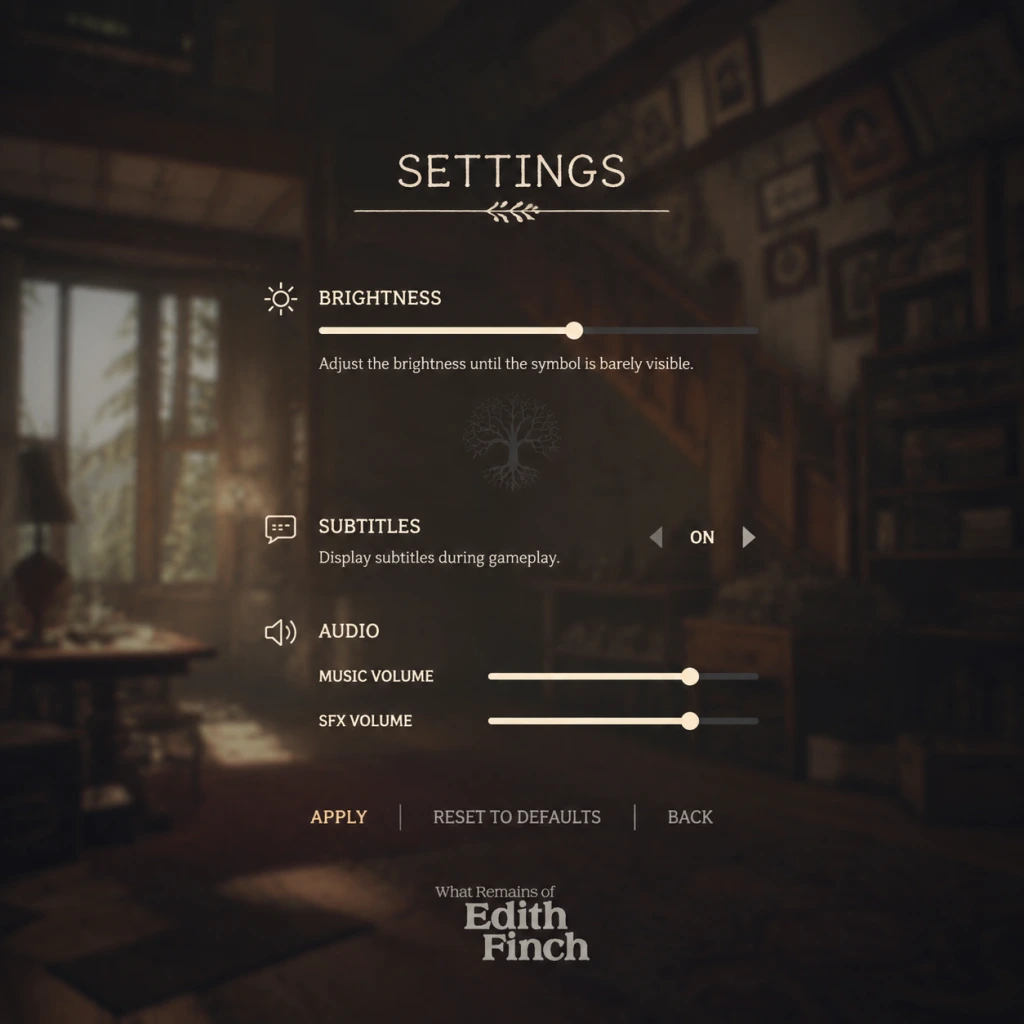
Game Settings
Game Settings Guide for "What Remains of Edith Finch"
This guide covers all configurable settings in "What Remains of Edith Finch" across graphics, audio, controls, accessibility, language, network, and gameplay. While the game is a linear narrative experience with no combat or fail states, optimizing these settings ensures a smooth, immersive playthrough on any hardware.
---
Graphics Settings
PC Graphics Settings
Available under Options > Graphics.
| Setting | Recommendation | Notes |
|---|---|---|
| Display Mode | Fullscreen (performance), Borderless Windowed (alt-tab convenience) | Fullscreen often yields better performance on older GPUs. Borderless Windowed is fine for modern systems. |
| Resolution | Native monitor resolution (e.g., 1920x1080, 2560x1440) | Match your display native for sharpness. Lowering improves performance. |
| Vsync | On (prevent screen tearing), Off (slightly higher performance) | Vsync introduces minor input lag but is acceptable in a narrative game. Off recommended only if you have a G-Sync/FreeSync display. |
| Anti-aliasing | FXAA (low end), TAA (medium/high) | TAA smoothest edges but slightly blurs. FXAA is faster. MSAA is heavy for little gain. |
| Texture Quality | Low (VRAM < 2GB), Medium (2-4GB), High (>4GB) | Mostly affects object detail. High textures look richer but cost VRAM. |
| Shadow Quality | Low (performance), Medium/High (quality) | Shadows are not critical to the story. Set to Low for weaker GPUs. |
| Post-processing | Medium (balance), High (HDR bloom) | Controls bloom, depth of field, color grading. High adds subtle atmosphere but impacts FPS. |
| Effects Quality | Low/Medium (performance), High (particle density) | Affects rain, dust, fire effects. Moderate impact. |
| Anisotropic Filtering | 4x (balance), 8x/16x (high quality) | Improves texture clarity at angles. Low performance cost, set to 8x. |
| Motion Blur | Off (prevent dizziness), On (cinematic) | Many players disable this for clarity. Personal preference. |
| Field of View (FOV) | 90 (default), adjust 80-100 | Narrower FOV can reduce performance load slightly but may feel claustrophobic. 90-95 is comfortable. |
Recommended PC Performance Profiles
#### Low-End Hardware (e.g., Intel HD Graphics, GTX 750)
- Fullscreen, 1280x720 or 1600x900 resolution
- All settings Low or Off except Textures Medium if VRAM allows
- Post-processing Low, Shadows Low, Anti-aliasing Off or FXAA
- Target: 30-40 FPS, playable since game is slow-paced
- 1920x1080 resolution, Fullscreen
- Textures Medium-High, Shadows Medium, Effects Medium
- Anti-aliasing TAA, Anisotropic 8x, Post-processing Medium
- Motion Blur Off, FOV 90
- Target: 60 FPS consistent
- 2560x1440 or 4K (if supported)
- Max out all settings: Textures High, Shadows High, Effects High
- Anti-aliasing TAA, Anisotropic 16x, Post-processing High
- Vsync On (or use Fast Sync if Nvidia)
- Target: 60 FPS at 1440p, 30-60 at 4K
- PlayStation / Xbox / Switch: Graphics settings are fixed. No user adjustments beyond HDR calibration on PS4 Pro / PS5 / Xbox One X / Series X|S.
- Performance / Quality modes: Not available; game runs at 30 FPS (PS4/Xbox One) or 60 FPS (PS5/Series X via backward compatibility with unlocked framerate). On Switch, dynamic resolution 720p docked/undocked with occasional dips.
- HDR: If your TV supports HDR, enable in console system settings and in-game (Options > Display). Calibrate brightness/peak brightness for your display.
#### Mid-Range Hardware (e.g., GTX 1060, RX 580, modern iGPU)
#### High-End Hardware (e.g., RTX 2060+, RX 5700 XT, or better)
Console Graphics Settings
---
Audio & Language Settings
Audio Settings (Options > Audio)
| Setting | Recommendation | Notes |
|---|---|---|
| Master Volume | 70-80% (leaves headroom) | Adjust to comfortable listening level. |
| Music Volume | 100% | Soundtrack is integral to atmosphere; keep full. |
| SFX Volume | 100% | Ambient sounds, footsteps, interactions. |
| Voice Volume | 100% | Narration (Edith) and character voices. |
| Subtitles | On (highly recommended) | Important: narration may be quiet in spots. Subtitles aid comprehension and accessibility. |
| Subtitle Size | Normal / Large | Choose Large if playing on a small screen or with visual impairments. |
| Closed Captions | Optional | Adds sound descriptions like [door creaks]. |
Language Settings
- PC: On Steam, change language via game properties (Right-click > Properties > Language). Some languages require additional download.
- Consoles: Language follows system language. Some versions (e.g., Japanese) have separate releases.
- In-game language selection: Not present; must be set via platform.
---
Controls
PC Controls (Keyboard & Mouse)
Default mapping:
| Action | Key |
|---|---|
| Move | WASD |
| Look | Mouse |
| Interact / Open | E |
| Sprint | Shift (hold) |
| Crouch | Ctrl (hold) |
| Journal | Tab |
| Back / Pause | Esc |
| Flashlight | F (when available) |
Controller Support
- Fully supported on PC (Xbox, PlayStation, Switch Pro, generic).
- On consoles, only the respective controller is supported (PS4/PS5, Xbox, Switch Pro/Joy-Con).
- Game uses left stick for movement, right stick for camera, right trigger for sprint, face buttons for interact.
- Dead zone / sensitivity: Adjust in Options > Controls if joystick drift occurs. Default dead zone is adequate.
- Text Size: Normal / Large (affects subtitles and UI text). Large recommended for readability.
- Subtitle Background: Optional semi-transparent box to improve legibility.
- Colorblind Modes: Not available – the game uses minimal color-dependent cues.
- Auto-Walk / Auto-Run: Not available but not needed; you walk slowly most of the time.
- Hold vs Toggle Crouch/Sprint: Set sprint to toggle in Options > Controls if holding shift is uncomfortable.
- Camera Shake: Cannot be disabled. Minimal in this game.
- Button Prompts: Show console-style icons (PlayStation/Xbox/Switch) on PC – select in Options > Controls > Controller Icon Style.
- Offline Game: No multiplayer, no online features. The game can be played entirely offline.
- Steam Cloud Saves: Enable to sync save files across PCs. Manage via Steam properties.
- Updates: The game receives no gameplay updates. Patches for bug fixes are rare.
- Network Requirements: None for gameplay. Only needed for download and installation.
- Difficulty: No difficulty options. Game is linear and cannot be failed.
- Hints / Tutorials: Not present; game teaches through contextual interaction. The journal (Tab / View button) provides brief story summaries.
- Auto-Advance Text: Not available – you must manually click through dialogue. In cutscenes, text advances automatically.
- Skip Cutscenes: Available (Esc / Options > Skip). Use if replaying.
- Save System: Autosave only – manual saves not supported. Game saves at checkpoints.
- FOV Lock: On console, FOV is fixed. On PC, adjust via Graphics settings (see above).
Important: The game features sections where you need to tilt/rotate the controller for certain sequences (e.g., the swing, the boat). On PC, these are mapped to mouse or joystick. On Switch, motion controls can be used if enabled in system settings. Disable motion control if it feels jittery.
---
Accessibility Settings
---
Network Settings
---
Gameplay Settings
---
Special Attention Points During Setup
1. Subtitle On by Default: The game defaults subtitles OFF. Turn them ON immediately in Audio settings. Key narration can be quiet, and subtitles ensure you don't miss subtle story beats.
2. Mouse Sensitivity: Default PC sensitivity (5) may feel too fast for precise atmosphere exploration. Reduce to 3-4 for a more cinematic camera movement.
3. Controller Tilt Sections: The game uses physical controller tilting for certain sequences (e.g., swinging, flying). On PC with a controller, ensure motion controls are not accidentally activated. Disable gyro in controller properties if unwanted.
4. VSync on Console: Not adjustable on consoles, but if you experience screen tearing on PS4/Xbox One (rare), try enabling Vsync in TV settings.
5. Fullscreen vs Windowed: On PC, if you alt-tab frequently, choose Borderless Windowed to prevent crashes or freezes. Otherwise, Fullscreen offers slightly better performance.
6. HDR Calibration: If playing on a HDR-capable display, calibrate the peak brightness slider in Options > Display (PC) or console system HDR settings. Too high can wash out blacks; too low loses highlights.
7. Language Download: If you need non-English audio/text, verify that the language pack is downloaded before playing. On Steam, this requires a property change and update.
8. Save Backup: Since the game has only one autosave slot and no manual saves, consider copying your save file before important story decisions (though none exist). On PC, saves are in `%USERPROFILE%\Documents\My Games\Edith Finch\`.
---
Summary of Recommended Settings
| Category | Low-End PC | Mid-Range PC | High-End PC | Console |
|---|---|---|---|---|
| Resolution | 720p | 1080p | 1440p/4K | Native |
| Texture Quality | Low/Medium | Medium/High | High | Fixed |
| Shadows | Low | Medium | High | Fixed |
| Anti-aliasing | Off/FXAA | TAA | TAA | Fixed |
| FPS Target | 30 | 60 | 60 | 30 or 60 |
| Subtitles | On | On | On | On |
| Voice Volume | 100% | 100% | 100% | 100% |
Enjoy the journey through the Finch family history.