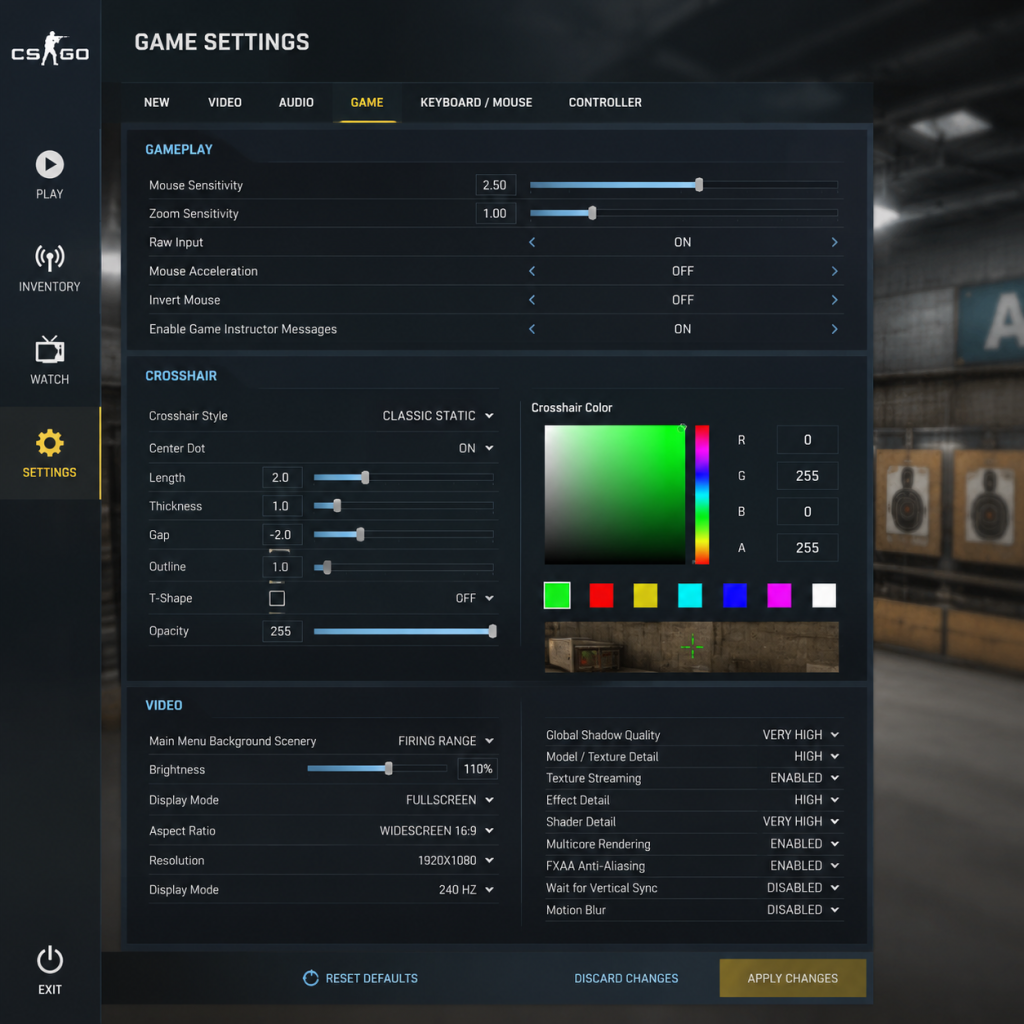
Game Settings
Game Settings Guide for Counter-Strike: Global Offensive (now Counter-Strike 2)
This guide covers all essential settings in Counter-Strike: Global Offensive (CS:GO) and its successor Counter-Strike 2 (CS2). While CS:GO has been replaced, many settings carry over. We provide optimal configurations for different hardware tiers and highlight common pitfalls.
Graphics Settings
Graphics heavily impact performance and visibility. Adjust these in Settings > Video.
#### Resolution & Display Mode
- Resolution: Use your monitor's native resolution for clarity. For competitive edge, many pros use 1280x960 or 1024x768 stretched (4:3) to make player models wider. Lower resolution increases FPS.
- Display Mode: Fullscreen (not windowed) for best performance. Fullscreen Windowed may reduce input lag in some setups.
- Aspect Ratio: 4:3 (stretched) or 16:9. Stretched makes enemies appear larger but distorts horizontal speed. Native gives sharper image.
- Global Shadow Quality: Low (shadows still visible, minimal performance hit). Medium/High can cause frame drops in crowded areas.
- Model / Texture Detail: Low for maximum FPS; Medium if GPU can handle. High provides no competitive advantage.
- Effect Detail: Low reduces grenade and fire effects. Medium/High can obscure vision momentarily.
- Shader Detail: Low for FPS. Medium/High improves lighting but may cause shimmering.
- Multisampling Anti-Aliasing (MSAA): None or 2x if GPU is strong. Higher values blur edges and cost FPS. Use FSR or NVIDIA DLSS on supported cards.
- FXAA: Disabled – blurs the image and reduces clarity.
- Texture Filtering Mode: Bilinear (lowest) or Trilinear for balance. Anisotropic 4x/8x looks sharper but hits FPS.
- Wait for Vertical Sync: Disabled – enables V-Sync adds input lag.
- Motion Blur: Disabled – harms aim.
- Boost Player Contrast: Enabled – outlines enemies in bright/dark areas. Helps visibility.
- Ambient Occlusion (HBAO+): Disabled – no competitive benefit, heavy GPU cost.
- Shader Cache: Enabled to reduce stutter. Set to "On" in NVIDIA/AMD control panel.
- Low-end (GT 1030, Intel UHD): Resolution 1280x720, all settings Low/Disabled, MSAA off, FSR Ultra Performance if available. Target 60+ FPS.
- Mid-range (GTX 1060, RX 580): Native 1920x1080, Low-Medium, maybe 2x MSAA, boost contrast on, target 144+ FPS.
- High-end (RTX 3060+, RX 6000+): Native 1440p/4K, Medium-High, 4x MSAA, HBAO+ off, target 240+ FPS. Use DLSS/FSR Quality if needed.
- Master Volume: 80-100% (adjust system volume separate).
- Music Volumes: All music (Menu, Round Action, etc.) set to 0% – distracts from game sounds.
- Phone Conversation: Off.
- Headphone Mode: Enabled (stereo). If using 7.1 surround, disable virtualization for better directionality.
- HRTF (Head-Related Transfer Function): Enabled – improves 3D sound precision over stereo. Most beneficial with headphones.
- Spatial Audio: Choose Windows Sonic or Dolby Atmos if supported, otherwise off.
- VOIP Volume: 50-70% – you need to hear teammates but not overpower game sounds.
- Sound Device: Select your actual output device. Avoid "Default Device" if multiple outputs.
- DPI: 400-800 are common. Extremely high DPI (>1600) can cause pixel skipping.
- In-game Sensitivity: 0.8–2.5 (depending on DPI). Lower sensitivity (0.8–1.2 at 800 DPI) improves accuracy.
- Zoom Sensitivity: 0.8–1.0 (default 1.0 is fine; lower helps scoped aim).
- Raw Input: On – bypasses Windows mouse acceleration.
- Mouse Acceleration: Off – disabled in Windows (Enhance pointer precision unchecked) and in-game if possible.
- Walk (Shift): Default fine.
- Crouch (Ctrl): May rebind to a thumb button for easier sliding.
- Jump (Space): Roll with scroll wheel for bhopping (bind `mwheelup +jump` and `mwheeldown +jump`).
- Use (E): Default.
- Drop (Q): Careful not to accidentally Q during combat.
- Reload (R): Default.
- Console key: Bind to ~ or another key (Tools > Options > Keyboard > Advanced).
- If using controller (not recommended), enable Controller Support and adjust deadzone. For KB/M players, disable Controller Vibrations.
- Use a custom crosshair via console or in Settings > Crosshair. Recommended: `cl_crosshairsize 3`, `cl_crosshairgap -2`, `cl_crosshairthickness 0.5`, `cl_crosshairdot 1`, `cl_crosshairalpha 200`. Color: green or cyan for contrast.
- Fix: `cl_crosshaircolor 5` for custom.
- Colorblind Mode: Options for Deuteranopia, Tritanopia, etc. Enables distinct radar shapes and team colors.
- Teammate Color: Set teammates to a bright color (e.g., yellow) for quick identification.
- Subtitles: On if you have hearing loss – shows voice lines.
- Text-to-Speech: Can read chat aloud.
- Mouse Key Sniper Sensitivity: Reduces sensitivity while scoped – assistive for fine aiming.
- Main Menu Language: Choose your preferred language (affects menus, settings).
- Subtitles Language: Separate from menu.
- VOIP Language: No setting – teammates speak whatever.
- rate: `128000` (default 786000 is fine). Controls bandwidth limit. For 128-tick servers, set to `786432` (max).
- cl_cmdrate: `128` (must match server tickrate; set to 128 for competitive).
- cl_updaterate: `128`.
- interp (interpolation): `cl_interp 0` and `cl_interp_ratio 2` (default). For low ping (<50), set `cl_interp_ratio 1` for less delay.
- cl_predictweapons: `1` (on) – essential for hit registration.
- cl_lagcompensation: `1` (on) – enables lag compensation.
- cl_predict: `1` (on) – predict movement.
- net_graph: Enable with `net_graph 1` to monitor choke, loss, var. Keep at bottom (net_graphproportionalfont 0, net_graphpos 3).
- Changing rate too low (e.g., < 128000) causes choke.
- Setting interp_ratio 1 with high ping (>80) leads to jittery movement.
- Leaving nolerp at default is fine; don't alter `cl_nolerp`.
- Enable Developer Console: Yes (Essential for commands).
- Enable HUD: Default. Turn off unnecessary elements via `hud_scaling 0.85`.
- Radar:
- Viewmodel: Use `viewmodel_presetpos 2` for classic view. Customize with `viewmodel_fov 68` and `viewmodel_offset_x 2.5`, `viewmodel_offset_y 1`, `viewmodel_offset_z -1.5`.
- Weapon Bob: Set `cl_bob_lower_amt 5`, `cl_bobamt_lat 0.1`, `cl_bobamt_vert 0.1` – reduces view kick.
- Crosshair Settings: Already covered.
- Dynamic Crosshair: `cl_crosshairgap_useweapon 0` – disable spread indicators.
- Show Teams: Enable.
- Mature Content Filter: Disable if you want all voice chat.
- Budget Laptop (Intel UHD, 8GB RAM): 800x600, all low, 30 FPS target. Use `mat_queue_mode 2` and `r_dynamic 0`.
- Mid-Range Desktop (GTX 1650, 16GB): 1920x1080, medium textures, low shadows, 120+ FPS. Use `cl_forcepreload 0`.
- High-End (RTX 4070, 32GB): 2560x1440, high shadows (improves contrast), MSAA 2x, 240+ FPS. Use `r_eyemove 0`, `r_eyegloss 0` to reduce subtle eye animations.
#### Advanced Video Options
#### Hardware Tiers
Audio Settings
Sound is critical for positional awareness. Go to Settings > Audio.
Note: Disable Loudness Equalization in Windows sound settings to preserve quiet footsteps.
Controls Settings
Controls are personal, but certain defaults should be adjusted. Settings > Keyboard/Mouse.
#### Mouse Sensitivity
#### Key Bindings
#### Controller Settings
#### Crosshair
Accessibility Settings
Settings > Game > Accessibility
Language Settings
Settings > Audio > Language
Network Settings
Crucial for stability. Settings > Game > Network or via console.
Easy to Misconfigure:
Gameplay Settings
Settings > Game > Gameplay
- `cl_radar_always_centered 0` – better awareness.
- `cl_radar_scale 0.4–0.6` – shows more map.
- `cl_radar_icon_scale 1` – distinguish teammates.
Special Attention Points
1. Console Commands vs Menu: Many advanced settings only exist as console commands (e.g., `cl_showfps`). Use the developer console (enable in settings).
2. Autoexec file: Create `autoexec.cfg` in `...\Steam\steamapps\common\Counter-Strike Global Offensive\csgo\cfg` (CS:GO) or `...game\csgo\cfg` (CS2). Put your settings there to apply each launch.
3. Launch Options: Right-click CS2 in Steam > Properties > General > Launch Options: `-novid -high -threads [your CPU threads] +fps_max 0` (remove FPS cap).
4. FPS Cap: Set `fps_max 0` to uncap, or `fps_max 300` (monitor refresh rate + 1). If you have a 144Hz monitor, `fps_max 144` to reduce lag? Actually, higher FPS reduces input lag even if monitor can't display it.
5. Mouse Polling Rate: Set to 1000 Hz in mouse software.
6. Windows Power Plan: High Performance.
7. NVIDIA / AMD Control Panel: Set power management mode to Prefer Maximum Performance, Texture Filtering Quality to High Performance.
8. Disable Fullscreen Optimizations: Right-click CS2.exe > Properties > Compatibility > Check "Disable fullscreen optimizations".
9. Game Mode in Windows: Disable – can cause stutter.
10. Overlays: Disable Steam Overlay, Discord Overlay, etc. in competitive play to avoid frame drops.
Optimizing for Different Hardware
Summary of Critical Changes
| Setting | Recommended | Pitfall |
|---|---|---|
| Resolution | Native or stretched 4:3 | Using windowed mode reduces FPS |
| Global Shadow | Low | High kills FPS with no gain |
| Boost Player Contrast | On | Off reduces enemy visibility |
| HRTF | On | Off with headphones loses positional audio |
| Raw Input | On | Off adds mouse lag |
| cl_cmdrate/cl_updaterate | 128 | 64 causes delayed reg |
| net_graph | Always on | Blind without network stats |
| Viewmodel | Custom (offset z -1.5) | Default may block corner |