Game Settings
Game Settings
Overview
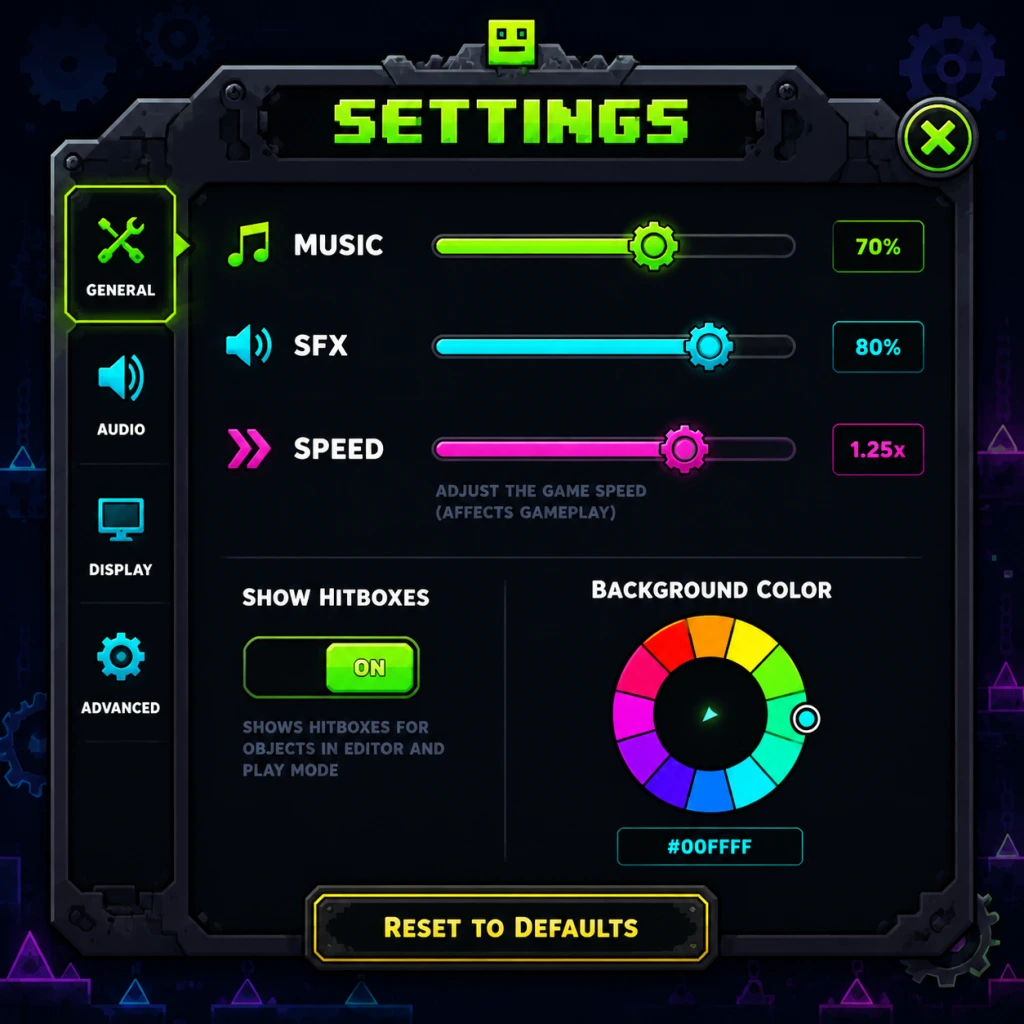
Geometry Dash offers a variety of settings to customize your experience across graphics, audio, controls, accessibility, language, network, and gameplay. Properly tuning these settings is crucial for maximizing performance, input responsiveness, and synchronization with the music—the core of the game. This guide covers every setting, explains their impact, and provides recommendations for different hardware levels.
Graphics Settings
Accessible from the Options menu (gear icon) under Graphics. Settings affect visual quality and performance.
| Setting | Description | Impact |
|---|---|---|
| Resolution | Native resolution (e.g., 1920×1080). Lower = faster but blurrier. | Heavy performance impact. |
| Fullscreen | Toggles fullscreen vs windowed. Windowed can reduce input lag. | Performance gain in fullscreen on some systems. |
| VSync | Synchronizes frame rate with monitor refresh. On = no screen tearing but adds input lag. | Off for best responsiveness. |
| Quality | Low/Medium/High. Controls textures, effects, particles. | Medium-high affects FPS significantly. |
| High Detail Mode | Enables more detailed backgrounds, glow effects. | Very GPU-heavy. Disable on low-end. |
| Smooth Trail | Smooths the icon's trail drawing. Negligible performance cost. | Keep on for aesthetics. |
| FPS Cap | Limits max frames per second (60, 120, 144, 240, 360). | Higher FPS reduces input lag but may cause physics inconsistencies (see Special Attention). |
| Colorblind Mode | Changes some colors to aid colorblind players. | Performance neutral. |
- Low-end (integrated graphics, older CPUs): Resolution 1280×720, Fullscreen ON, VSync OFF, Quality Low, High Detail OFF, Smooth Trail OFF, FPS Cap 60.
- Mid-range (GTX 1060/RX 580 equivalent): 1920×1080, Fullscreen ON, VSync OFF, Quality Medium, High Detail OFF, Smooth Trail ON, FPS Cap 144.
- High-end (RTX 2070 / RX 6700 XT+): Native resolution, Fullscreen ON, VSync OFF, Quality High, High Detail ON, Smooth Trail ON, FPS Cap 240 or 360 (if monitor supports).
- VSync: ON introduces noticeable input lag. Always turn OFF for rhythm games. The slight screen tearing is preferable to delayed jumps.
- FPS Cap: Changing FPS alters how the game processes physics. Higher FPS = less input lag but also makes certain timings tighter (e.g., wave sections). If you feel gameplay is “different,” revert to 60 or 144. Many top players use 240 FPS bypass (hidden setting) for consistency.
#### Easy-to-Misconfigure Settings
Audio Settings
Found under Options > Audio. Since Geometry Dash is rhythm-based, audio settings are critical.
| Setting | Description |
|---|---|
| Music Volume | Controls background music volume (0-100%). |
| SFX Volume | Controls sound effects (e.g., jump, coin, death). |
| Audio Offset | Adjusts delay between visual and audio cues (range -100 to +100 ms). |
A misconfigured Audio Offset makes levels feel “off-beat.” To calibrate:
1. Go to Options > Audio.
2. Play a level you know well (e.g., Stereo Madness).
3. Increase offset if taps feel late; decrease if taps feel early.
4. Alternatively, use an online audio offset test (search “Geometry Dash audio offset calibration”).
5. Ideal offset is usually 0–50ms for most setups. Test with different headsets/speakers.
Controls Settings
Accessible from Options > Controls. Covers input mapping.
#### Keyboard/Mouse (PC/Mac)
Default keys: Space / Up arrow / Click – Jump, Escape – Pause. You can rebind:
- Jump: Set to mouse click or keyboard. Many players prefer Space for speed.
- Pause: Keep easy to reach.
- Switch (if using two keys for jump): Not used in standard gameplay.
- Mouse Click for Jump: On PC, if using mouse, ensure cursor is on screen—clicking while cursor is outside window does nothing.
- Dual Input (using keyboard and mouse simultaneously): Works but may cause accidental jumps. Stick to one input method.
#### Controller (All Platforms)
Supported controllers: Xbox, PlayStation, Switch Pro, etc. Map jump to A (Xbox) / Cross (PS) or a shoulder button for comfort. Enable Controller Vibration for feedback (optional).
#### Mobile (iOS/Android)
Touch controls only. Tapping anywhere jumps. No remapping possible. Consider using a controller via Bluetooth for precision.
#### Easy-to-Misconfigure Settings
Accessibility Settings
Geometry Dash has limited built-in accessibility options. Found under Options (some are global).
| Setting | Description |
|---|---|
| Auto Mode | Automatically plays levels (for preview/learning). |
| Practice Mode | Allows placing checkpoints (not a true setting, but use it). |
| Hide Attempts | Hides attempt counter (reduces stress). |
| Hide Hints | Removes on-screen tips. |
| Colorblind Mode | (In Graphics) Changes some colors for better contrast. |
| Reduce Motion | Not present; no animation reduction option. |
- Use Practice Mode to learn levels without retrying from start.
- Enable Hide Attempts to avoid mental pressure.
- For colorblind players, enable Colorblind Mode and also look for user-created levels with colorblind-friendly palettes.
Language Settings
Since update 2.2, Geometry Dash supports multiple languages. Go to Options > Language. Choose from English, Spanish, French, German, Portuguese, Russian, Chinese, Japanese, and more.
Note: Language only affects UI text; level names and in-game messages remain in English.
Network Settings
Geometry Dash is primarily offline. Network options are minimal and found under Options > Account.
| Setting | Description |
|---|---|
| Login/Logout | Connect to RobTop servers for leaderboards, friends, and profile sync. |
| Online Leaderboards | Automatically enabled when logged in. |
| Download Levels | Requires internet to browse and download user-created levels. |
You can play fully offline. Network is only needed for community features. If you experience lag in menus, it is often due to leaderboard refreshing – select Offline Mode (by simply not logging in) to eliminate that.
Gameplay Settings
These are under Options > Gameplay.
| Setting | Description | Advice |
|---|---|---|
| Auto-Retry | Automatically restarts after death (on by default). | Keep ON for practice; OFF for deliberate attempts. |
| Show Attempts | Displays attempt counter on screen. | Toggle ON or OFF based on preference. |
| Show Hints | Shows tips during menus. | OFF to declutter. |
| Smooth Fix | Disables certain smoothing effects (not always present). | Leave default. |
| Start Position | Set a manual start point (only in Practice Mode). | Useful for tough sections. |
| Percent Display | Shows progress percentage during gameplay. | ON recommended. |
| Background | Choose from presets or disable entirely (for performance). | Disable for maximum FPS. |
- Auto-Retry: If you are trying to record or analyze a death, turn OFF to stay on the death screen.
- Background: Disabling removes all background animations – great for low-end devices or reducing distractions.
- Low-end: 720p, Low Quality, VSync OFF, FPS Cap 60, Background OFF, Smooth Trail OFF, High Detail OFF, Audio Offset 0–30ms.
- Mid-range: 1080p, Medium Quality, VSync OFF, FPS Cap 144, Background ON (Simple), Smooth Trail ON, Audio Offset 0–20ms.
- High-end: 1440p or 4K, High Quality, VSync OFF, FPS Cap 240 or 360, Background ON (Detailed), High Detail ON, Smooth Trail ON, Audio Offset 0–10ms.
- iOS/Android: Keep at default; if lagging, lower Resolution (if available) and turn off High Detail Mode. Use Low Power Mode on device for stability.
- Minimal settings available. Ensure VSync is OFF (if toggle exists). Use wired controller to reduce input latency.
Recommended Optimal Settings for Performance & Quality
#### PC / Mac (Steam)
#### Mobile
#### Console (PS/Xbox/Switch)
Special Attention Points During Setup
1. VSync vs. Input Lag: Always turn VSync OFF. The lag it introduces can cause mistimed jumps. Monitor tearing is almost invisible in a fast-paced rhythm game.
2. Audio Offset Calibration: This is the most critical setting for enjoyment. A wrong offset makes the game feel “off”. Spend 5 minutes calibrating with a simple level.
3. FPS Cap and Physics: At higher FPS (above 60), the game runs faster internally. This is known as the FPS bug or FPS bypass. Features like the wave and ship become more sensitive. If you are struggling with consistency, try capping to 60 FPS. Many competitive players use 240 FPS for smoother inputs but accept physics changes.
4. Controller vs. Keyboard: On PC, keyboard input is slightly faster than most controllers. If using a controller, ensure it is wired and has low latency (e.g., Xbox One controller via USB).
5. Background Disable: In certain levels (e.g., Clubstep, Theory of Everything), complex backgrounds can halve frame rate on low-end devices. Disable Background in Gameplay settings if you experience stutter.
6. Hide Attempts: This is psychological. If you find yourself getting frustrated by a high attempt count, enable Hide Attempts to focus on the gameplay.
7. Practice Mode Abuse: You can set a Start Position in Practice Mode to replay specific sections without resetting the whole level. Use this to master tricky parts.
By configuring these settings properly, you will have a smoother, more responsive, and more enjoyable Geometry Dash experience tailored to your hardware and playstyle.