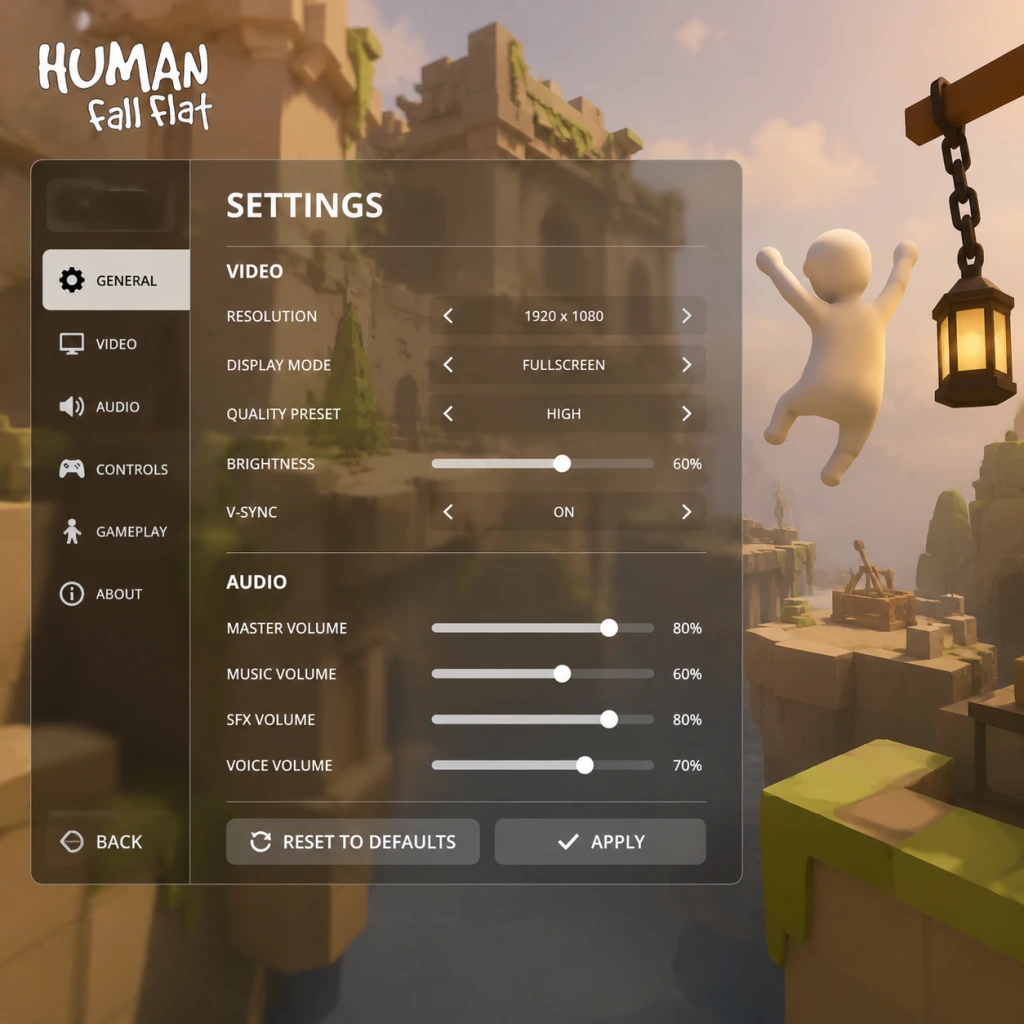
Game Settings
Overview
Human: Fall Flat offers a modest but functional settings menu across all platforms. While the game is not graphically demanding, tweaking certain options can significantly improve performance on older hardware or enhance visual fidelity on high-end systems. This guide covers every settings category—Graphics, Audio, Controls, Accessibility, Language, Network, and Gameplay—with platform-specific notes (PC, console, mobile) and recommended configurations for different hardware tiers.
---
Graphics Settings
Available Options (PC)
| Setting | Options | Description |
|---|---|---|
| Resolution | Native, windowed, borderless | Set to your monitor’s native resolution. Borderless windowed is best for alt-tabbing. |
| Quality Preset | Low, Medium, High, Ultra | Adjusts multiple sub-settings at once. Ultra adds extra shadow detail and higher texture filtering. |
| Anti-Aliasing | Off, FXAA, MSAA 2x/4x, CMAA | MSAA 4x reduces jaggies but costs FPS. CMAA is a good compromise. |
| Shadow Quality | Low, Medium, High, Ultra | High/Ultra enable soft shadows and higher resolution shadow maps. |
| Texture Quality | Low, Medium, High | High requires at least 2GB VRAM. Medium looks nearly identical on lower resolutions. |
| Ambient Occlusion | Off, Low, High | Adds depth by darkening crevices. High has minor performance impact. |
| VSync | On/Off | On prevents screen tearing but may add input lag. Recommended to cap FPS instead. |
| Frame Rate Limit | 30, 60, 120, Unlimited | Capping at 60 ensures consistent physics (game’s physics are tied to frame rate). Avoid unlimited on low-end PCs. |
| Field of View | Slider (default 60–90) | Higher FOV lets you see more but may cause fisheye effect. 70–80 is comfortable. |
Console-Specific Graphics
- PlayStation 4 Pro / Xbox One X: Offer “Performance Mode” (targets 60 FPS) vs “Resolution Mode” (upscaled 4K at 30 FPS). Choose Performance for smoother gameplay. |
- PlayStation 5 / Xbox Series X|S: Run at 60 FPS native 4K with Ultra-equivalent settings. No additional graphics options beyond HDR toggle. |
- Nintendo Switch: Locked 30 FPS, 720p docked/undocked. No graphics adjustments. |
Recommended Settings by Hardware Tier
| Tier | Preset | Key Adjustments |
|---|---|---|
| Low-End (e.g., Intel HD Graphics, 4GB RAM) | Low | Resolution 1280×720, Anti-Aliasing Off, Shadows Low, Ambient Occlusion Off, Frame Rate cap 30. |
| Mid-Range (e.g., GTX 1050, 8GB RAM) | Medium | Resolution 1920×1080, Anti-Aliasing FXAA, Shadows Medium, Ambient Occlusion Low, Frame Rate cap 60. |
| High-End (e.g., RTX 3060, 16GB RAM) | Ultra | Resolution 2560×1440, Anti-Aliasing MSAA 4x, Shadows Ultra, Ambient Occlusion High, Frame Rate cap 120 or unlimited (monitor willing). |
Pitfalls to Avoid
- Disable VSync unless you experience tearing. The game’s built-in VSync can cause noticeable input lag. Use your GPU’s control panel or RivaTuner to cap FPS instead. |
- Don’t set Shadow Quality to Ultra on low-end GPUs. It can halve your framerate without visual improvement at 1080p. |
- Field of View above 80 may distort object distances, making jumping puzzles harder. Stick to default 70. |
- Master Volume: Controls all sound globally. |
- SFX Volume: Player grunts, object collisions, physics sounds. Keep at 100% to hear interactive cues. |
- Music Volume: Background tracks. Lower if distracting; they are not critical for gameplay. |
- Voice Volume: Affects character grunts and any online chat audio? (Minimal). |
- Select your speakers/headset. On PC, ensure the correct device is chosen if using USB headphones. |
- Master 80%, SFX 100%, Music 50%, Voice 100%. |
- Turn off in-game music if you want to listen to your own soundtrack. |
- Keyboard & Mouse (PC) |
- Controller (PC & Console): Xbox, PlayStation, Switch Pro, generic gamepad. |
- Touch Controls (Mobile): On-screen buttons with adjustable opacity. |
---
Audio Settings
Volume Mix
Output Device
Recommended Settings
---
Controls Settings
Input Device
Keyboard/Mouse Mapping (PC)
| Action | Default | Recommendation |
|---|---|---|
| Move | WASD | Keep default. |
| Look | Mouse | Set sensitivity to 1.0–1.5. Higher values make precise climbing harder. |
| Jump | Space | Keep default. |
| Grab/Interact | Left Mouse Button | Keep default. |
| Secondary Grab | Right Mouse Button | Useful for two-handed holding. |
| Drop | Q or cancel grab | Rebinding drop to a keyboard key is faster than releasing mouse button. |
| Camera Reset | Middle Mouse Button | Set to something comfortable (e.g., extra mouse button). |
| Run | Left Shift | Keep default. |
| Crouch | Left Ctrl | Keep default. |
| Menu | Escape | Keep default. |
Controller Mapping (PC & Console)
| Action | Xbox | PlayStation | Nintendo Switch |
|---|---|---|---|
| Move | Left Stick | Left Stick | Left Stick |
| Look | Right Stick | Right Stick | Right Stick |
| Jump | A | Cross | B |
| Grab (Left Hand) | LT (Left Trigger) | L2 | ZL |
| Grab (Right Hand) | RT (Right Trigger) | R2 | ZR |
| Drop/Swap | LB / RB | L1 / R1 | L / R |
| Crouch | Left Stick Click | Left Stick Click | Left Stick Click |
| Run | Right Stick Click | Right Stick Click | Right Stick Click |
| Pause | Start (Menu) | Options | + |
Sensitivity & Dead Zones
- Look Sensitivity (Right Stick / Mouse): Default 50%. Consider lowering to 30–40% for finer control when grabbing ledges. |
- Dead Zone (Controller): Default usually fine. If your controller has drift, increase dead zone to 0.15–0.20. |
- Invert Y Axis: Off for most. Toggle on if you come from flight games. |
- Don’t map Jump and Grab to the same button – you can’t jump while grabbing overhead. |
- Mouse acceleration (Windows Ease of Access) can make camera movement inconsistent. Disable “Enhance pointer precision” in Windows mouse settings. |
- On controller, the grab triggers are analog – half-pressing can cause accidental drops. Press fully. |
- Colorblind Modes: None officially. However, the game’s art style uses distinct shapes and objects, so color cues are minimal. |
- HUD Size: Not adjustable. HUD is very minimal (only grab indicators and controls hints). |
- Subtitle Size: Not adjustable. Subtitles are fixed small text. This may be hard to read on TV from a distance. |
- Subtitles: Turn on for in-game dialogue (rare). Enable in Audio menu. |
- Sound Cues: Pickups and switches have distinct sounds; keep SFX volume high. |
- Controller Remapping: Full remapping on PC, limited on console (only button swap options). |
- Auto-Climb: Toggle in Gameplay settings. When enabled, holding grab triggers automatically pulls the character up if a ledge is within reach. Very helpful for players who struggle with precise climbing. |
- Invert Y Axis: Available. |
- Enable Auto-Climb to reduce gripping fatigue. |
- For players with limited hand mobility, use keyboard/mouse (PC) with rebinding to large keys. |
- Console players can use Xbox Adaptive Controller with PC mapping. |
- Interface & Subtitles: The game supports over 20 languages. Change from the main menu Options > Language. |
- Voice Language: No voiced dialogue; only grunts and sound effects – so language setting only affects menus, subtitles, and hints. |
- Region Lock: No region lock for language packs. |
- Online: Requires internet connection for co-op. Options: Play Online (quick join), Host Game, Join Game (by invitation or room code). |
- Local Split-Screen: Available on PC and consoles (2 players). No settings needed – just connect second controller. |
- Voice Chat: No in-game voice chat. Use platform party chat (Steam, Xbox Live, PSN). |
- Ping Display: Not available in-game. Use system network monitor. |
- NAT Type: Ensure your NAT is Open or Moderate to host games. Strict NAT may prevent connections. |
- Port Forwarding (PC): Not required – the game uses Steamworks matchmaking. |
- If you cannot connect, disable VPNs and check firewall. Allow Human: Fall Flat through Windows Defender. |
- For split-screen, both players must use the same physical screen; no option for separate monitors. |
Pitfalls to Avoid
---
Accessibility Settings
Visual Accessibility
Audio Accessibility
Motor Accessibility
Recommended for Accessibility
---
Language Settings
---
Network Settings
Multiplayer Configuration (PC & Console)
Connection Quality
Pitfalls to Avoid
---
Gameplay Settings
Available Options
| Setting | Effect | Recommendation |
|---|---|---|
| Auto-Climb | When holding grab near a ledge, character automatically climbs up. | OFF for precision; ON for casual play or accessibility. |
| Grip Strength (Not adjustable – always max) | N/A | N/A |
| Haptic Feedback (Controller) | Rumble on grabbing, falling, collision. | ON for immersion; OFF to save battery. |
| Camera Follow Style | “Fixed” or “Follow Player”. Fixed keeps camera steady; Follow keeps player centered. | Follow Player for better spatial awareness. |
| Reset Camera | Press a button to snap camera behind player. | Useful after spinning puzzles. |
| Show Controls Hints | Displays button prompts on screen. | ON for new players; OFF for immersion. |
Special Attention: Auto-Climb
- Misconfiguration risk: Leaving Auto-Climb ON might cause unintended climbing when you only wanted to grab an object. It can be frustrating during level puzzles that require careful grip. |
- Recommendation: Disable it initially. If you find climbing tedious, enable it later. |
- Camera Sensitivity: Keep below 70% on controller or 1.5 on mouse to avoid disorientation. |
- Run Mode: The character runs by default (no stamina). Tap run button to toggle walk. |
- Grab Toggle vs Hold: Choose in controller layout? Not adjustable – grab is hold-only. |
- PC: Use the config file located at `%LOCALAPPDATA%\HumanFallFlat\settings.cfg` for advanced tweaks (e.g., disabling blur). |
- PlayStation 5: Use “Game Preset” under system settings to force Performance Mode. |
- Xbox Series X: The game prioritizes frame rate automatically; no manual toggle. |
- Nintendo Switch: No video options; only audio and controls. |
- Mobile (iOS/Android): Graphics slider (Low/Medium/High) and touch sensitivity. Use Low for older devices to avoid stutter. |
Tips for Smooth Gameplay
---
Summary of Easy-to-Misconfigure Settings
1. VSync ON → Adds input lag. Turn OFF and cap FPS at 60. |
2. Auto-Climb ON → Interferes with precise grabbing. Set OFF initially. |
3. Mouse Acceleration (Windows) → Makes aiming inconsistent. Disable in OS settings. |
4. Field of View above 80 → Distorts depth perception. Stick to 70–75. |
5. High Shadow Quality on low-end PCs → Major FPS drop. Set to Low or Medium. |
6. Frame Rate Unlimited → Physics can become erratic above 120 FPS. Cap at 60 for consistency. |
7. Controller Dead Zone too low → Drift leads to accidental camera movement. Increase slightly if needed. |
> Final Tip: After changing any graphics setting, restart the level to ensure physics are not disrupted. Some settings (like resolution) take effect immediately, but new shadows may only apply after loading a new map.
---
Platform-Specific Notes
---
By tailoring these settings to your hardware and playstyle, you can enjoy Human: Fall Flat smoothly whether you’re exploring solo or solving puzzles with friends. Adjust slowly, test in the first level, and remember—grip tight!