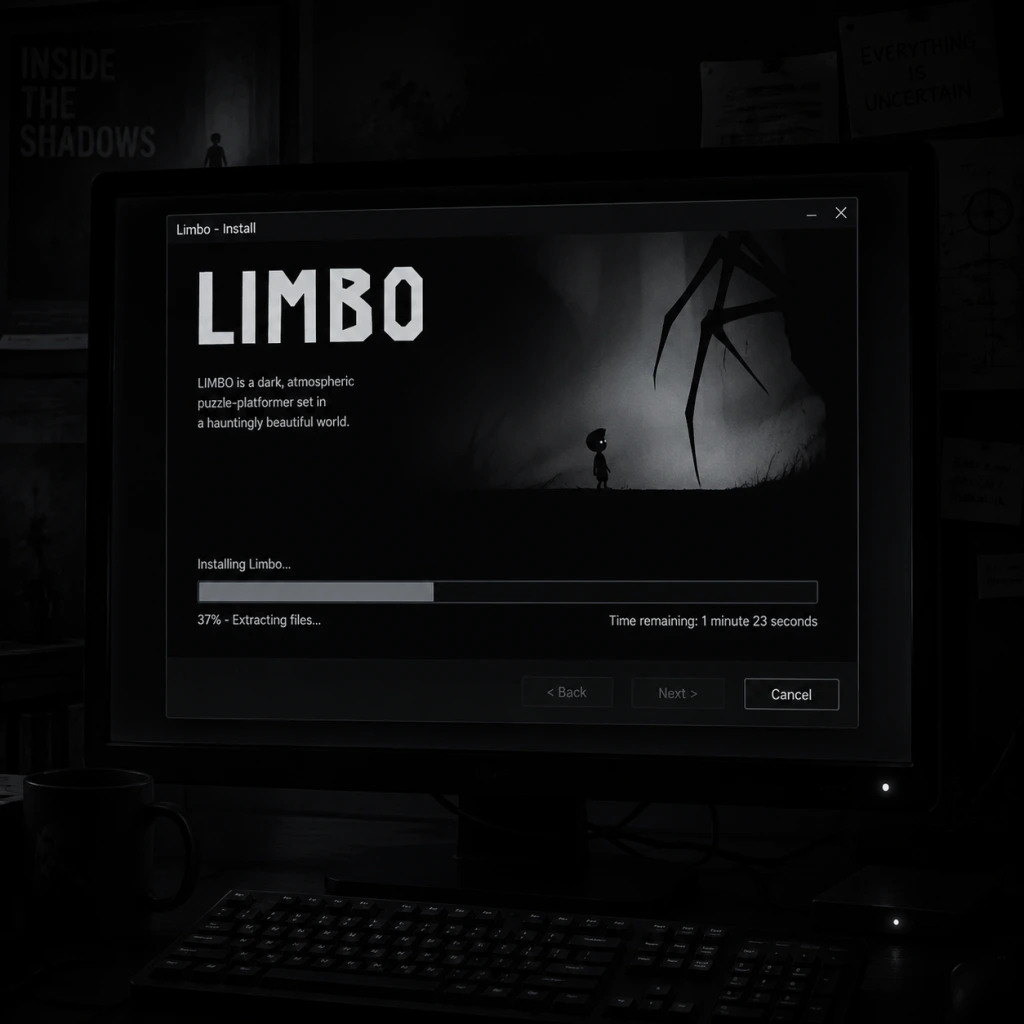
Download & Installation
Introduction
Limbo is a critically acclaimed puzzle-platformer developed by Playdead. This guide covers how to download and install the game on all major platforms, including PC (Steam, Epic Games Store, GOG), PlayStation (PS3, PS4, PS5), Xbox (Xbox 360, Xbox One, Xbox Series X|S), Nintendo Switch, and mobile (iOS, Android). All steps reference official, legitimate sources only.
Platform Availability & Official Stores
| Platform | Official Store(s) | Notes |
|---|---|---|
| PC | Steam, Epic Games Store, GOG, Microsoft Store (Xbox Game Pass) | DRM-free on GOG. |
| PlayStation | PlayStation Store (PS3, PS4, PS5) | PS5 runs via backward compatibility. |
| Xbox | Xbox Store (Xbox 360, Xbox One, Xbox Series X | S) |
| Nintendo Switch | Nintendo eShop | Supports handheld and docked modes. |
| iOS | App Store | Requires iOS 9.0 or later. |
| Android | Google Play Store | Requires Android 4.1 or later. |
System Requirements (PC)
Minimum
- OS: Windows 7 or later
- Processor: 2.0 GHz dual-core
- Memory: 512 MB RAM
- Graphics: DirectX 9.0c compatible with 256 MB VRAM (e.g., NVIDIA GeForce 6600 or ATI Radeon X1300)
- DirectX: Version 9.0c
- Storage: 150 MB available space
- Sound Card: DirectX compatible
- OS: Windows 10
- Processor: 2.4 GHz dual-core
- Memory: 1 GB RAM
- Graphics: DirectX 10 compatible with 512 MB VRAM (e.g., NVIDIA GeForce 8800 or ATI Radeon HD 3850)
- DirectX: Version 10
- Storage: 150 MB available space
- PC (all stores): ~150 MB
- PlayStation (PS3/PS4/PS5): ~200 MB
- Xbox 360: ~150 MB
- Xbox One / Series: ~200 MB
- Nintendo Switch: ~200 MB
- iOS: ~150 MB
- Android: ~100 MB
- Steam: A Steam account.
- Epic Games Store: An Epic Games account.
- GOG: A GOG account.
- Microsoft Store (PC or Xbox): A Microsoft account (Xbox Live for console).
- PlayStation: A PlayStation Network (PSN) account.
- Nintendo Switch: A Nintendo Account.
- iOS: An Apple ID.
- Android: A Google account.
- PC (Steam/Epic/GOG): The game launches directly. You may be prompted to adjust audio volume and toggle fullscreen mode via in-game settings (Options menu). Controller support is automatic if a compatible controller is connected.
- PlayStation/Xbox/Switch: No additional setup required; game starts immediately. Options menu allows language selection and screen brightness adjustment.
- Mobile: On first launch, you may need to grant storage permissions (for saved data). The game runs in portrait orientation only (on phones) or landscape on tablets. Audio settings available in the pause menu.
- Error: “Insufficient disk space” – Ensure at least 300 MB free (more to account for downloads). Clear temporary files if needed.
- Steam: “Missing executable” – Verify game files: right-click Limbo in Library → Properties → Local Files → Verify Integrity of Game Files.
- Epic Games: “Installation failed” – Run the Epic Launcher as administrator. Disable antivirus temporarily, as it may block the installer.
- GOG offline installer: “File corruption” – Re-download the installer. Ensure your download completes fully.
- Game crashes on launch – Update graphics drivers. Run the game in compatibility mode (for older Windows: right-click .exe → Properties → Compatibility → Run as Windows 7).
- No sound – Ensure DirectX version is correct (install from Microsoft). Check audio device settings.
- Download stuck or slow – Pause and resume the download. Restart the console. Check internet connection.
- “Cannot install” error – Free up storage space. Delete old game data. Rebuild database (PS4 Safe Mode).
- Installation stops at 99% – Hard reset the console (hold power button for 10 seconds). Manually cancel and restart the install.
- “Something went wrong” – Clear local saved games: Settings → System → Storage → Clear local saved games (does not delete cloud saves).
- eShop not opening – Check system update. Restart the Switch.
- Download error – Ensure enough free space. Archive unused games if needed.
- Game won’t start – Try redownloading from eShop (re-download option in account settings).
- iOS: “Unable to download” – Check Apple ID payment method. Free up storage. Restart device.
- Android: “Installation blocked” – Enable “Install from unknown sources” only if sideloading (not needed for official Play Store). Ensure Google Play Services are up to date.
- Game crashes on older devices – The game may be too demanding. Close background apps. Reduce screen brightness or switch to airplane mode.
Recommended
Storage Space Per Platform
Account Requirements
Step-by-Step Installation
PC – Steam
1. Download and install the [Steam client](https://store.steampowered.com/about/).
2. Launch Steam and log into your account (or create one).
3. Click the Store tab and search for “Limbo”.
4. Purchase the game (or redeem a key) and add it to your library.
5. Go to your Library, find Limbo, and click Install.
6. Choose a destination folder (default is fine) and click Next then Finish.
7. Wait for the download (~150 MB) and automatic installation.
8. Click Play to launch.
PC – Epic Games Store
1. Install the [Epic Games Launcher](https://www.epicgames.com/store/en-US/download).
2. Log in with your Epic account.
3. Go to the Store page, search “Limbo”.
4. Purchase and Get the game to add to your library.
5. Click Library, find Limbo, and click Install.
6. Choose installation location and confirm.
7. Once installed, click Launch.
PC – GOG
1. Install [GOG Galaxy](https://www.gog.com/galaxy) (optional but recommended) or download offline installers.
2. Log into your GOG account.
3. Purchase Limbo from [GOG](https://www.gog.com/game/limbo).
4. Click Add to Library.
5. In Galaxy, go to Owned games, click Install.
6. Alternatively, download the offline installer `.exe` from your account, run it, and follow the wizard.
PlayStation (PS3/PS4/PS5)
1. Turn on your PlayStation and ensure internet connection.
2. Sign in to your PSN account.
3. Open the PlayStation Store.
4. Search for “Limbo”.
5. Select the game and choose Add to Cart or Download (if already purchased).
6. Complete the purchase if needed.
7. The download will start automatically. You can check progress under Downloads.
8. Once installed, the game appears in your library. Launch from there.
Xbox (Xbox 360 / Xbox One / Xbox Series X|S)
1. Power on your console and sign in to Xbox Live.
2. Open the Microsoft Store (or Xbox Store on Xbox 360).
3. Search for “Limbo”.
4. Select the game and click Get or Buy (if owned, choose Install).
5. Wait for the download and installation to complete.
6. Launch from My games & apps (or Games library on Xbox 360).
Nintendo Switch
1. Connect your Switch to the internet and sign in to your Nintendo Account.
2. Open the Nintendo eShop from the Home Menu.
3. Search for “Limbo”.
4. Select the game and choose Proceed to Purchase (or Download if free).
5. Confirm payment or redeem a download code.
6. The game will download. You can monitor progress on the Home screen.
7. Once finished, the game icon appears; select it to play.
Mobile – iOS (iPhone/iPad)
1. Open the App Store app.
2. Tap the Search tab and type “Limbo – Playdead”.
3. Find the official app by Playdead.
4. Tap Get and authenticate with Face ID, Touch ID, or password.
5. The download begins. Wait for installation.
6. Open the app from your home screen to start playing.
Mobile – Android
1. Open the Google Play Store.
2. Search for “Limbo – Playdead”.
3. Tap the correct result (developer: Playdead).
4. Tap Install and accept permissions.
5. Wait for download (~100 MB) and automatic installation.
6. Tap Open to launch the game.
First Launch Setup
Note: Limbo has no difficulty settings – it’s a linear experience.
Common Installation Errors & Fixes
PC
PlayStation
Xbox
Nintendo Switch
Mobile
Post-Installation Verification
1. Launch the game on each platform to ensure it starts without errors.
2. Check the title screen displays correctly with the Playdead logo.
3. Audio test: Confirm music and sound effects play.
4. Control test: Move the boy left/right, jump, and interact with objects.
5. Save test: On PC, a save file is created in `%USERPROFILE%\Documents\Limbo` (or `~/Library/Application Support/Limbo` on macOS). On consoles, check system storage for save data. On mobile, cloud saves are not supported; local save exists.
6. Version verification: In-game settings menu usually shows the version number. Ensure it matches the latest (current PC version is 1.5 for Steam, etc.).
If the game runs smoothly and saves correctly, the installation is successful. Enjoy Limbo!