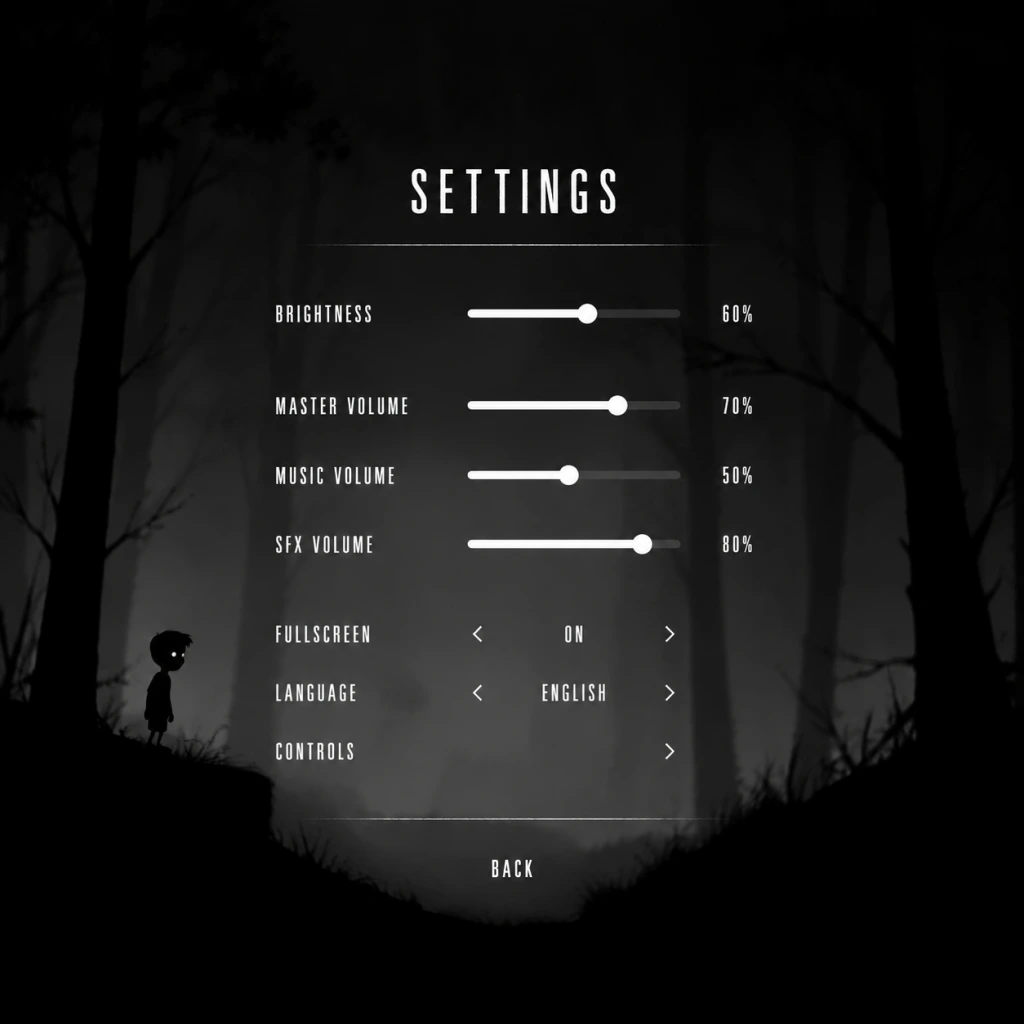
Game Settings
Game Settings
Limbo is a lightweight, 2D side-scroller with minimal graphical demands. Despite its age, adjusting a few key settings can significantly improve your experience. This section covers every available setting across Graphics, Audio, Controls, Accessibility, Language, and Network (where applicable), with platform-specific notes and optimal configurations for various hardware levels.
Accessing the Settings Menu
On PC (Steam, GOG, Epic Games Store), launch Limbo and from the main menu select Options. On consoles (PlayStation 3, 4, 5; Xbox 360, One, Series X|S; Nintendo Switch), the options are accessed from the pause menu during gameplay or from the main menu. Note that console versions offer fewer tweakable options than the PC version.
Graphics Settings
Only available on PC. Console versions run at a fixed resolution and framerate (typically 1080p/30fps on older consoles, up to 4K/60fps on Xbox Series X|S and PS5 via backward compatibility or native enhancements).
| Setting | Options | Description |
|---|---|---|
| Resolution | List of supported display resolutions (e.g., 1280x720, 1920x1080, 2560x1440, 3840x2160) | Sets the rendering resolution. Higher resolutions provide sharper image at the cost of GPU load. Limbo’s art style looks excellent even at 1080p. |
| Fullscreen | On / Off / Windowed / Borderless | Exclusive fullscreen (On) tends to give best performance. Borderless windowed is useful for multi-monitor setups or quick alt-tabbing. |
| V-Sync | On / Off | Synchronizes frame rate with monitor refresh rate to eliminate screen tearing. Off can reduce input lag but may cause tearing. Limbo is not a fast-twitch game, so V-Sync On is generally safe. |
| Anti-Aliasing | Off / 2x / 4x / 8x / 16x (may be labelled as MSAA) | Smooths jagged edges. Because Limbo uses a heavily stylized 2D art with soft gradients and no hard polygons, anti-aliasing has minimal visual benefit and can degrade performance on very low-end hardware. Recommended: Off or 2x at most. |
| Shadow Quality | Low / Medium / High / Very High | Controls resolution and detail of dynamic shadows. Shadows in Limbo are subtle; High and Very High offer negligible improvements on most hardware. Recommended: Medium for best balance. |
| Texture Quality | Low / Medium / High / Very High | Affects the resolution of 2D textures. Since Limbo’s textures are deliberately low-res and grainy, setting this to High or Very High does not yield dramatic improvement. Recommended: High for crispness on modern displays; Low for very old integrated GPUs. |
| Shader Quality | Low / Medium / High | Affects lighting, post-effects, and water ripples. High adds minor atmospheric bloom and particle effects. Recommended: High unless you experience stutter. |
| Post-Processing | On / Off | Enables bloom, lens flares, and film grain. These are integral to Limbo’s moody aesthetic. Recommended: On – disabling makes the game look flat. |
| Framerate Limit | 30 / 60 / 120 / Unlimited | Caps the maximum FPS. Limbo’s physics are tied to framerate (60fps target). Setting to Unlimited may cause physics glitches or faster movement on high-refresh monitors. Recommended: 60 FPS for stability. |
Low-End (e.g., Intel HD Graphics 3000, AMD Radeon HD 5000 series, laptops from ~2010):
- Resolution: 1280x720
- Fullscreen: On
- V-Sync: Off (if tearing is not an issue) or On (if tearing bothers you)
- Anti-Aliasing: Off
- Shadow Quality: Low
- Texture Quality: Low
- Shader Quality: Low
- Post-Processing: Off (sacrifice visual mood for playable frame rate)
- Framerate Limit: 30 FPS (locked for consistency)
- Resolution: 1920x1080
- Fullscreen: On
- V-Sync: On
- Anti-Aliasing: Off or 2x
- Shadow Quality: Medium
- Texture Quality: High
- Shader Quality: High
- Post-Processing: On
- Framerate Limit: 60 FPS
- Resolution: Native monitor resolution (up to 4K)
- Fullscreen: On or Borderless (your preference)
- V-Sync: On (to avoid tearing; could use Fast Sync or G-Sync if supported)
- Anti-Aliasing: Off (unnecessary; 4K resolution does the job)
- Shadow Quality: Very High
- Texture Quality: Very High
- Shader Quality: High
- Post-Processing: On
- Framerate Limit: 60 FPS (to maintain physics integrity; do not use Unlimited)
Mid-Range (e.g., NVIDIA GTX 900 series, AMD RX 400 series, or any modern integrated GPU like Intel UHD 630):
High-End (any dedicated GPU from the last 5+ years, e.g., RTX 2060, RX 5700, or better):
Audio Settings
Available on all platforms. Limbo’s soundscape is essential to its atmosphere, so proper configuration is key.
| Setting | Options | Description |
|---|---|---|
| Master Volume | 0–100 | Controls overall game volume. |
| SFX Volume | 0–100 | Sound effects: footsteps, mechanisms, ambient creaks. |
| Music Volume | 0–100 | Background music. Limbo’s music is subtle and infrequent – keep this around 70-80 for balance. |
| Voice Volume | 0–100 | On PC, voice lines are extremely rare (mostly ambient grunts). This setting can be confusing – players often expect dialogue, but there is none. Setting to zero will not mute anything important. |
| Sound Mode | Stereo / 5.1 / 7.1 (PC only) | Selects audio output configuration. If you use headphones, choose Stereo. For home theater setups, use your speaker arrangement. Misconfiguration: Setting 5.1 on headphones can cause muffled or missing sounds. |
| Language | See Language section below | Affects menu text and subtitles (if enabled). Audio remains non-verbal. |
Controls Settings
Available on all platforms. Limbo uses minimal inputs, but rebinding can improve comfort.
#### Keyboard & Mouse (PC)
| Action | Default Key | Notes |
|---|---|---|
| Move Left / Move Right | A / D or Left/Right Arrow | You can use arrow keys or WASD. |
| Jump / Interact | Space, Up Arrow, or W | Only one action button: context-sensitive. |
| Pause / Menu | Escape | Also opens options during gameplay. |
| Restart from checkpoint | R | Useful after dying (you will die often). |
| Skip cutscene | Space / Enter | Cutscenes are few and short. |
- Some players prefer jumping with Space and moving with Arrow keys for legacy platformer feel.
- On laptops, avoid using arrow keys if they are small; use WASD.
- Special attention: The Restart key (R) is easy to press accidentally. If you often hit R while trying to jump (e.g., when R is near Space), consider rebinding it to a different key like Backspace or a mouse button.
#### Controllers (PC, Consoles, Switch)
Limbo fully supports Xbox, PlayStation, and Switch controllers on PC (via Steam Input or native XInput). On consoles, the controller is built-in.
| Action | Xbox / PlayStation / Switch |
|---|---|
| Move Left / Right | Left stick or D-pad |
| Jump / Interact | A / Cross / B (Switch layout varies) |
| Pause | Start / Options / + |
| Restart | Select / Touchpad left / - |
Dead zone and sensitivity: Limbo does not offer analog dead zone or stick sensitivity adjustments. The left stick works fine with default settings. If movement feels sluggish, use the D-pad instead for precise digital input.
Accessibility Settings
Limbo has limited built-in accessibility options, but some settings can help.
| Setting | Description |
|---|---|
| Subtitles | On / Off (PC and some console versions). Limbo has no spoken dialogue, but subtitles will display on-screen text for environmental sounds (e.g., “water drips”). Turning on subtitles can help players with hearing impairments catch audio cues. Misconfiguration: Many players leave Subtitles Off, but they can provide useful hints for hidden puzzles. |
| Screen Shake | On / Off (PC only). Reduces camera shake during certain events. Recommended Off for players with motion sensitivity or vestibular disorders. |
| Colorblind Modes | Not available. Limbo’s grayscale palette is intentionally inaccessible for colorblindness; however, contrast is naturally high. |
| Difficulty Adjustments | None. Limbo does not offer difficulty sliders; the challenge is fixed. |
Language Settings
Available on PC and some console versions (typically set via system language or in-game menu).
| Setting | Options | Notes |
|---|---|---|
| Menu Language | English, French, Italian, German, Spanish, Japanese, Korean, Portuguese, Russian, Simplified Chinese, Traditional Chinese, etc. | Changes all in-game text. Limbo has very little text, so this is mostly for the options menu and subtitles. |
| Audio Language | Not applicable – no voiced languages. | All sounds are ambient. |
Network Settings
Limbo is a single-player offline game. It has no multiplayer or online features. Therefore, there are no network settings to configure. The only network-related aspect is on PC for achievements and cloud saves, which are handled automatically through the platform (Steam, GOG Galaxy, Epic).
Tip: If you play on a platform that supports cloud saves (Steam), ensure the cloud sync is enabled in the platform settings to back up your progress.
Gameplay Settings
Limbo has very few gameplay-affecting options beyond controls. The following are available on most versions:
| Setting | Options | Description |
|---|---|---|
| Auto-Run | On / Off (PC only) | When On, the boy will automatically move forward; you only need to jump or interact. This can reduce finger fatigue but may cause unintended falls. Misconfiguration: If you enable Auto-Run and are not prepared, you may walk off cliffs. Recommended Off for precise platforming. |
| Invert Y-Axis | On / Off | Inverts the vertical axis for aiming (not applicable in Limbo, as there is no camera control). This setting is irrelevant and can be ignored. |
Summary of Settings That Are Easy to Misconfigure
1. Framerate Limit (PC): Setting to Unlimited can break physics. Stick to 60 FPS.
2. Sound Mode (PC): Choosing 5.1 on headphones causes poor audio. Always match your output.
3. Auto-Run: Activating this without knowing can lead to constant deaths. Keep it Off.
4. Restart Key (PC default R): Easily pressed accidentally, causing loss of progress. Consider rebinding.
5. Subtitles: Off by default; turning them On can reveal subtle environmental hints.
6. Language Setting: May default to a non-preferred language; check early.
7. V-Sync: Off reduces input lag but may cause tearing that is distracting in dark scenes. On is recommended for most.
Special Attention Points During Setup
- First Launch Resolution: Limbo may default to a low resolution. Immediately go to Options > Graphics to set your native resolution.
- Controller Detection: On PC, if your controller is not recognized, ensure it is connected before launching. Steam users should check Controller Settings in Big Picture mode. On Epic Games Store, you may need to configure controller support via the platform.
- Achievement Compatibility: Some achievements (e.g., “No Point in Dying” – finish without dying) can be broken if you change settings mid-playthrough. It is safe to adjust settings at any time, but resetting does not affect achievements.
- Cloud Save Conflicts: If you switch between devices, ensure cloud save is synced before playing. Mismatched saves may cause loss of progress.
Adjust these settings to your preference before diving into the dark woods. Limbo’s mood and challenge are best experienced with a properly configured game environment.