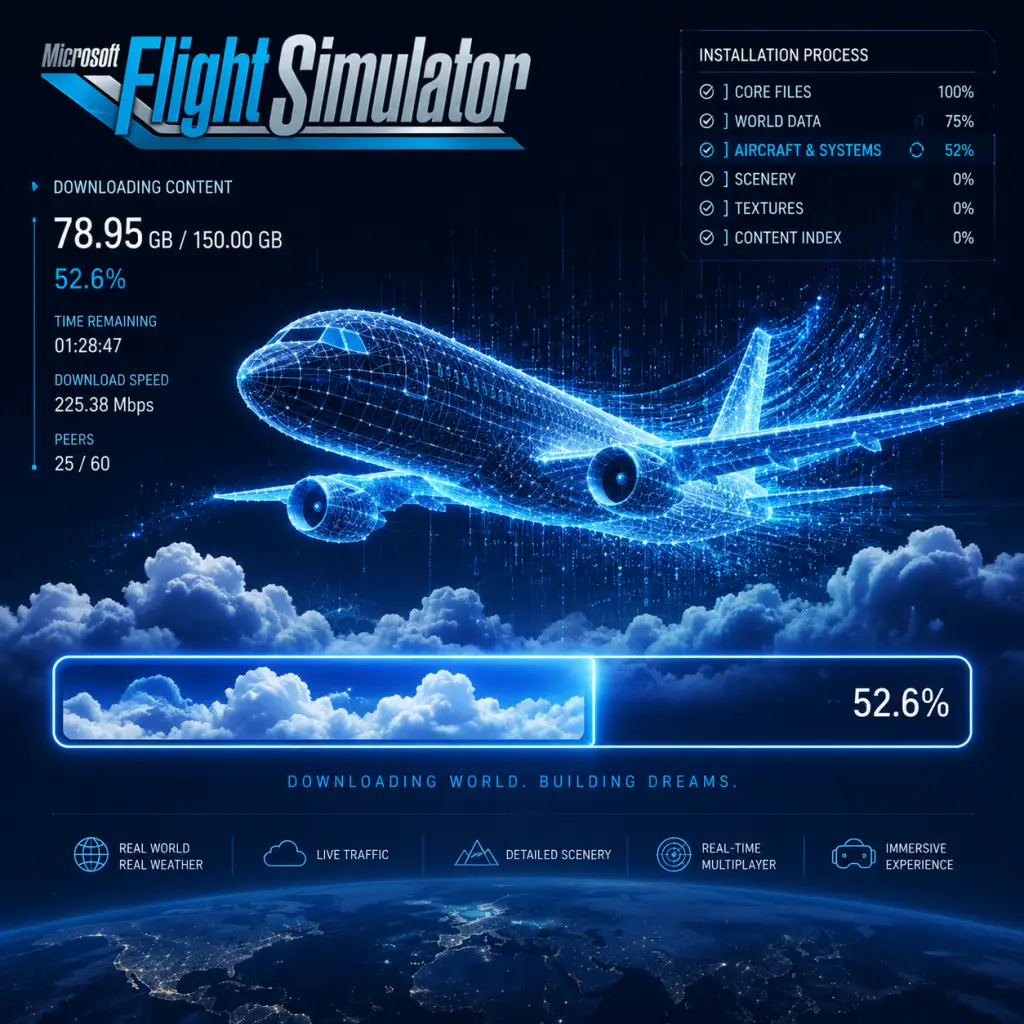
Download & Installation
Download & Installation Guide for Microsoft Flight Simulator
This guide covers how to download and install Microsoft Flight Simulator (2020 edition) on all supported platforms. The game is available on PC (Microsoft Store and Steam), Xbox Series X|S, and via Xbox Cloud Gaming (beta). It is not natively available on PlayStation, Nintendo Switch, or mobile devices.
Official Download Sources
- PC (Microsoft Store): Buy directly from the Microsoft Store on Windows 10/11, or subscribe to Xbox Game Pass for PC.
- PC (Steam): Purchase and download via the Steam client.
- Xbox Series X|S: Purchase from the Microsoft Store on Xbox, or play with an Xbox Game Pass Ultimate subscription.
- Xbox Cloud Gaming: Stream the game to supported devices (Android, iOS, PC, Xbox) with an Xbox Game Pass Ultimate subscription.
Important: Always use official stores. Do not download from third‑party sites – they may distribute malware or pirated copies.
Editions
Microsoft Flight Simulator comes in three editions (as of 2024):
| Edition | Content |
|---|---|
| Standard | 20 planes, 30 handcrafted airports |
| Deluxe | Standard + 5 additional planes and 5 handcrafted airports |
| Premium Deluxe | Deluxe + 5 more planes and 10 handcrafted airports (total 30 planes, 45 airports) |
System Requirements (PC)
Minimum (1080p, low settings, ~30 FPS)
- OS: Windows 10 (version 1909 or newer) or Windows 11
- CPU: Intel Core i5-4460 / AMD Ryzen 3 1200
- GPU: NVIDIA GTX 770 / AMD Radeon RX 570 (2 GB VRAM)
- RAM: 8 GB
- Storage: 150 GB (SSD strongly recommended)
- Internet: Broadband (for initial download and online features)
- OS: Windows 10/11
- CPU: Intel Core i5-8400 / AMD Ryzen 5 1500X
- GPU: NVIDIA GTX 970 / AMD Radeon RX 590 (4 GB VRAM)
- RAM: 16 GB
- Storage: 150 GB SSD
- Internet: 20 Mbps
- OS: Windows 10/11
- CPU: Intel Core i7-10700K / AMD Ryzen 7 2700X
- GPU: NVIDIA RTX 2080 / AMD Radeon RX 6800 XT (8 GB VRAM)
- RAM: 32 GB
- Storage: 150 GB NVMe SSD
- Internet: 50 Mbps
- Base game: ~130–150 GB
- Optional add‑ons (airports, planes, liveries): up to 200+ GB total
- Rolling cache: Configure up to 100 GB (adjustable in settings)
- Temporary download: The installer needs about 50–80 GB free for decompression even if the final install is smaller.
- Microsoft Account: Required for Microsoft Store and Xbox versions. Also needed for cloud saves and multiplayer.
- Xbox Live / Game Pass: For console play or if you subscribe to Game Pass on PC.
- Steam Account: Only needed if you purchase the game on Steam. (You still sign in with your Microsoft Account inside the game.)
Recommended (1080p, medium-high, ~30 FPS)
Ideal (4K, ultra, 30+ FPS)
Note: The game also requires a stable internet connection for downloading world scenery and updates. An additional 10–20 GB may be needed for the rolling cache.
Storage Space
Best practice: Have at least 200 GB free on your SSD before starting installation.
Account Requirements
Step-by-Step Installation
1. Installation on PC (Microsoft Store / Xbox Game Pass for PC)
1. Open Microsoft Store on Windows 10/11.
2. Search for "Microsoft Flight Simulator".
3. Click Buy (or Install if you have Game Pass).
4. Sign in with your Microsoft Account if prompted.
5. Choose your edition (Standard / Deluxe / Premium Deluxe).
6. Confirm payment (if applicable). The store will begin downloading.
7. Wait for the download to finish. The game will appear in your Start menu and Xbox app.
8. Launch the game from the Xbox app or Start menu.
Tip: You can also install via the Xbox app for PC, which gives more control over download location and updates.
2. Installation on PC (Steam)
1. Download and install the Steam client from store.steampowered.com.
2. Log into your Steam account.
3. Search for "Microsoft Flight Simulator".
4. Click Add to Cart and complete purchase.
5. The game will appear in your Library. Click Install.
6. Choose the installation folder (ensure at least 200 GB free on that drive).
7. Steam will download and install the game. This may take several hours.
8. Once done, click Play. The game will launch and prompt you to sign in with your Microsoft Account.
3. Installation on Xbox Series X|S
1. On your Xbox, go to Microsoft Store.
2. Search for "Microsoft Flight Simulator".
3. Select your edition and choose Buy or Install (if you have Game Pass).
4. Confirm the download. The console will start downloading.
5. Wait for installation – the game is about 150 GB. You can check progress in My games & apps.
6. After installation, launch the game from the Home screen or Game Pass tab.
Note: An external USB 3.0 drive can be used, but an internal SSD is recommended for best performance.
4. Xbox Cloud Gaming (Beta)
1. Subscribe to Xbox Game Pass Ultimate.
2. On a supported device (Android/iOS via browser, PC via xbox.com/play, or Xbox console), go to xbox.com/play or open the Xbox Game Pass app.
3. Find Microsoft Flight Simulator and tap Play.
4. The game will stream to your device. No download is required, but a stable 20+ Mbps internet connection is needed.
First Launch Setup
1. Sign in: Use your Microsoft Account when prompted.
2. Welcome screen: The installer will start downloading essential data (checking for updates, downloading world cache). This may take 10–30 minutes.
3. Graphics settings: The first launch automatically detects your hardware. Review and adjust:
- Display: Resolution, fullscreen/windowed.
- Graphics quality: Low, Medium, High, Ultra, Custom.
- VSync, frame rate limit, scenery detail, etc.
4. Control configuration: Choose your input device:
- Mouse & Keyboard (default)
- Gamepad (Xbox controller recommended)
- Joystick/Yoke (flight peripherals – calibrate in settings)
5. Audio settings: Volume levels for engine, radio, environment.
6. Content Manager: After first boot, open Content Manager from the main menu. Here you can download free updates, airports, and liveries.
7. Tutorial: It’s highly recommended to complete the initial flight training to learn basic controls.
Common Installation Errors and Fixes
| Error | Cause | Solution |
|---|---|---|
| "Checking for updates" stuck | Corrupted cache or server delay | Restart the PC and run the game as administrator. If still stuck, delete the `%LOCALAPPDATA%\Microsoft Flight Simulator` folder (backup custom settings first). |
| "We are so sorry but something went wrong" (0x0) | Outdated GPU drivers | Update drivers, disable antivirus temporarily, and reinstall the game. |
| "Not enough disk space" | Insufficient free space even though you have enough | The installer needs extra free space for temporary files. Free up 50–100 GB more. Use an SSD with at least 200 GB free. |
| Download stops or is extremely slow | ISP throttling or server load | Pause and restart the download. Use a wired connection. If on Steam, change download region to a less congested one. |
| Error 0x8007000E (Microsoft Store) | System memory or installation corruption | Run Windows Update, run `wsreset.exe` to reset Store cache, then try again. |
| Game crashes on launch | Corrupted configuration file | Delete `%APPDATA%\Microsoft Flight Simulator` folders (not the main game install). Relaunch the game – it will recreate default settings. |
| Xbox – Installation stuck at 0% | Console communication error | Hard reset the console (hold power button 10 seconds), check network, then retry. |
General Troubleshooting Steps
- Run as Administrator (PC): Right‑click the game exe or shortcut and select "Run as administrator".
- Disable Antivirus: Temporarily turn off Windows Defender or third‑party AV during download and installation.
- Verify Integrity (Steam): Right‑click the game in Library → Properties → Local Files → Verify integrity of game files.
- Repair Microsoft Store app: Go to Settings → Apps → Microsoft Store → Advanced options → Repair.
- Check for Windows Updates: Ensure you have the latest updates for Windows 10/11.
- SSD is essential – mechanical hard drives cause stuttering and slow loading.
- Keep your graphics drivers up to date (NVIDIA or AMD).
- Join the official forums (flightsimulator.com) for help and updates.
- Back up your `UserCfg.opt` file after configuring settings – it saves your preferences and can be reused after reinstallation.
Post-Installation Verification
1. Check game version: From the main menu, look at the bottom‑left corner (e.g., v1.36.2.0). Visit the official forums to see if that’s the latest.
2. Verify installation size: Right‑click the game folder (e.g., `C:\Program Files\WindowsApps\Microsoft.FlightSimulator...` or Steam library) and check size. It should be around 130–150 GB.
3. Test a flight: Load a free flight at your local airport. Ensure the textures load, controls respond, and framerate is stable.
4. Download world updates: Open Content Manager → Updates and download any available world updates (e.g., USA, Japan, etc.) to access improved scenery.
5. Check community folder: Ensure the `Community` folder exists in your install directory (for mods). If using Steam, it’s under `...\steamapps\common\MicrosoftFlightSimulator\Community\`.
6. Confirm online features: Go to Profile → Account and verify you are signed in. Try the live weather feature to ensure internet connection works.
7. Performance monitoring: Use the built‑in developer mode (Options → General → Data → Enable Developer Mode) to see FPS and usage stats.
Final Tips
By following this guide, you should have Microsoft Flight Simulator up and running on your chosen platform. Happy flying!