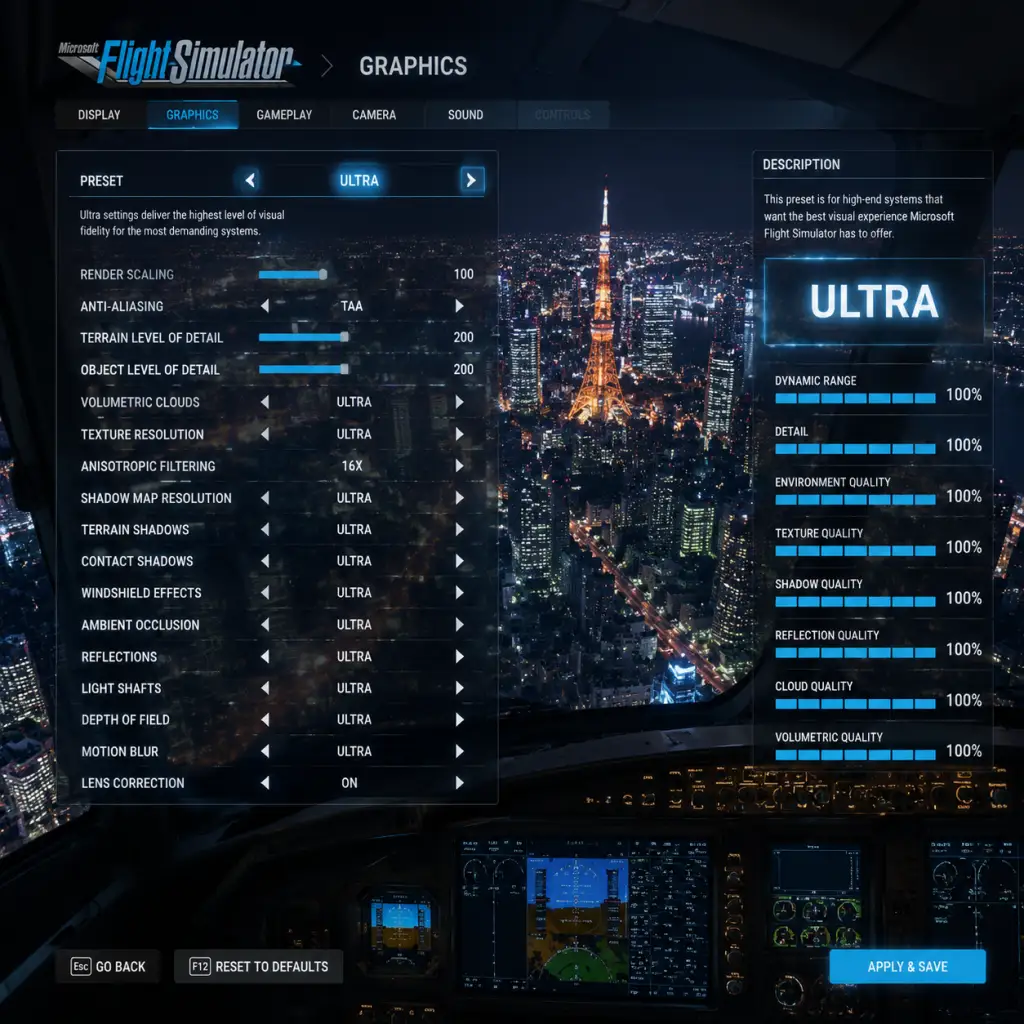
Game Settings
Graphics Settings
Graphics options heavily impact performance and visual fidelity. The game offers presets (Low, Medium, High, Ultra) but fine-tuning is recommended.
Key Options and Their Impact
- Render Scaling: Controls internal resolution. 100% = native. Lower for performance, higher for anti-aliasing. 70-80% is a good balance for mid-range.
- Terrain Level of Detail (LOD): How detailed ground textures appear. Lower values improve FPS over cities.
- Object Level of Detail: Similar but for buildings and vehicles. Significant VRAM usage.
- Texture Resolution: High textures need 4GB+ VRAM. Use Medium on 4GB cards, High on 6GB+, Ultra on 8GB+.
- Shadows: 512 or 1024 resolution. 1024 is sharp but FPS heavy. Medium 1024 recommended.
- Reflections: Cube or SSR. SSR is more realistic but performance cost. Off or Low for weak GPUs.
- Clouds: Volumetric clouds are beautiful but expensive. High or Ultra for strong GPUs, Medium otherwise.
- Ambient Occlusion: SSAO is lighter than HBAO+. HBAO+ for best visuals.
- Anti-Aliasing: TAA is default. DLSS/FSR available if supported. DLSS Quality gives great performance boost.
- Water: Wave detail and reflections. Medium is fine, High has more realism.
Hardware Tier Recommendations
| Tier | GPU example | CPU example | RAM | VRAM | Recommended Presets | Custom Tweaks |
|---|---|---|---|---|---|---|
| Low-end | GTX 1050 Ti | i5-8400 | 8 GB | 4 GB | Low | Render Scaling 70%, Terrain LOD 50, Clouds Low, Reflections Off |
| Mid-range | RTX 2060 | Ryzen 5 3600 | 16 GB | 6 GB | High (custom) | Render Scaling 80%, Terrain LOD 100, Clouds Medium, Shadows 1024 |
| High-end | RTX 3070 | Ryzen 7 5800X | 32 GB | 8 GB | Ultra (custom) | Render Scaling 100%, Terrain LOD 150, Clouds High, Shadows 2048, HBAO+ |
| Ultra | RTX 4090 | i9-13900K | 64 GB | 24 GB | Ultra | Render Scaling 100% (or 4x if 4K), Terrain LOD 200, Clouds Ultra, Shadows 4096, SSR + Cube |
Easy to Misconfigure Settings
- Rolling Cache: Stores terrain data locally for smoother streaming. Too small causes stuttering. Recommended minimum 16 GB, ideally 32 GB if you fly same area often.
- Photogrammetry: Streams real-world 3D data. Turn off if you have slow internet or want to reduce VRAM usage. On requires constant data.
- Weather: Live weather uses online data; can cause FPS drops if heavy clouds. Set to preset Clear or Few Clouds for performance.
- Aircraft Traffic: AI traffic or multiplayer traffic increases CPU load. Set to Low or Off if CPU limited.
- VSync: Enable to avoid screen tearing but adds input lag. Better to cap FPS in sim or via driver.
- Master Volume: 100% then adjust individual sliders.
- Internal Engine: Volume of your own aircraft. Keep high.
- External Engine: Other aircraft near you. Useful for traffic.
- ATC (Air Traffic Control): Speech volume. Set to 100% for clear instructions.
- Radio: COM1/COM2 audio separate; important for multiplayer.
- Ambient: Wind, rain, cockpit sounds. Adjust to taste.
- Notifications: Tutorial or event sounds.
- Throttle: Set to a slider or throttle quadrant.
- Aileron/Elevator/Rudder: Assign to joystick axes. Deadzones: 5-10% to avoid drifting.
- Sensitivity: Default 0.5 linear. Lower for smoother control on twitchy sticks. Example: Aileron sensitivity 0.3, elevator 0.4.
Audio Settings
Proper audio enhances immersion. Key settings:
Spatial Audio: Windows Sonic or Dolby Atmos supported. Enable for directional awareness (e.g., hearing another plane's engine position).
Misconfigured: ATC volume too low → mishear clearances. Internal engine too loud → miss radio calls.
Controls Settings
Controls are highly customizable. Use a joystick/yoke for best experience.
Axis Assignments
Key Bindings (Essential)
| Action | Default Keyboard | Recommended Alternative |
|---|---|---|
| Parking Brake | Ctrl+Period | Button on throttle |
| AutoPilot On/Off | Ctrl+Z | Side button |
| Flaps Up/Down | F6/F7 | Hat switch |
| Landing Gear | G | Button near thumb |
| View: Cockpit | A (hold) | POV hat |
Misconfigured Controls
- Null zones too small → aircraft veers off. Increase on worn joysticks.
- Throttle reverse axis → full throttle when pulling back. Reverse axis flag in settings.
- Multi-engine assignment – assign one axis per engine via throttle per engine option.
- Colorblind Modes: Protanopia, Deuteranopia, Tritanopia filters for instruments.
- Subtitles: All speech has subtitles, including ATC. Essential for hearing-impaired.
- Narration: Voice reads menus and tooltips. Good for visually impaired.
- Text Size: Increase UI scale for cockpit HUD elements.
- Controller Vibration: Feedback on triggers for turbulence, ground roll. Can be distracting.
- Toggle vs Hold: Many actions can be set to toggle (e.g., push-to-talk, flaps). Easier for limited mobility.
- Interface Language: Affects menus, labels, checklists. Choose your preferred.
- Voice Language: Sets language for ATC and pilot voice (if enabled). Must match region for realism or pick English.
- Keyboard Layout: Not in-game; use Windows language bar.
- Bandwidth Limit: Set to 100% (unlimited) for best streaming, reduce if internet capped (e.g., 10 Mbps limit).
- Manual Cache: Pre-download terrain for areas you fly often. Size adjustable (e.g., 50 GB for a country).
- Multiplayer: Enable to see other players. Disable for solo performance gain.
- Live Weather & Traffic: Require internet. Turn off for offline simplicity.
- AI Traffic: Simulated aircraft. High density reduces FPS.
- Data Source: Online Bing Maps vs offline (if caching). Online gives latest.
- Difficulty: Easy (full assist), Medium (some assist), Hard (realistic). Recommend Medium for beginners.
- Assistance: Individual toggles for auto-rudder, auto-mixture, auto-feather. Turn off to learn.
- Time Compression: Up to 16x. Use for long flights but note flight model may glitch at high values.
- Pause On: Pause on landing? Off for immersion.
- Cockpit Camera: Default eye point. Adjust vertical offset for tall/short players.
- External Camera: Chase, tower, etc. Can assign key to cycle.
- Difficulty: Medium
- Auto-rudder: ON
- Auto-mixture: ON
- Auto-feather: OFF
- Pause on landing: OFF
- Time compression: 2x initially
Calibration: Use Windows game controller panel first, then set sensitivities in-game.
Accessibility Settings
Microsoft Flight Simulator offers several accessibility features:
Special Attention: Subtitles for ATC are disabled by default. Enable in Audio settings.
Language Settings
Available languages: Interface and voice (ATC/Co-Pilot) can be set independently.
Note: ATC voice language may not have full coverage in all regions. If not, English default.
Network Settings
Controls data usage and multiplayer.
Misconfigured: Bandwidth limit too low causes blurry textures. Set to at least 50 Mbps if available.
Gameplay Settings
These affect flight experience and assistance.
Special Attention: Auto-mixture set ON for beginners to prevent engine damage. Turn OFF for realistic engine management.
Recommended Starting Setup: