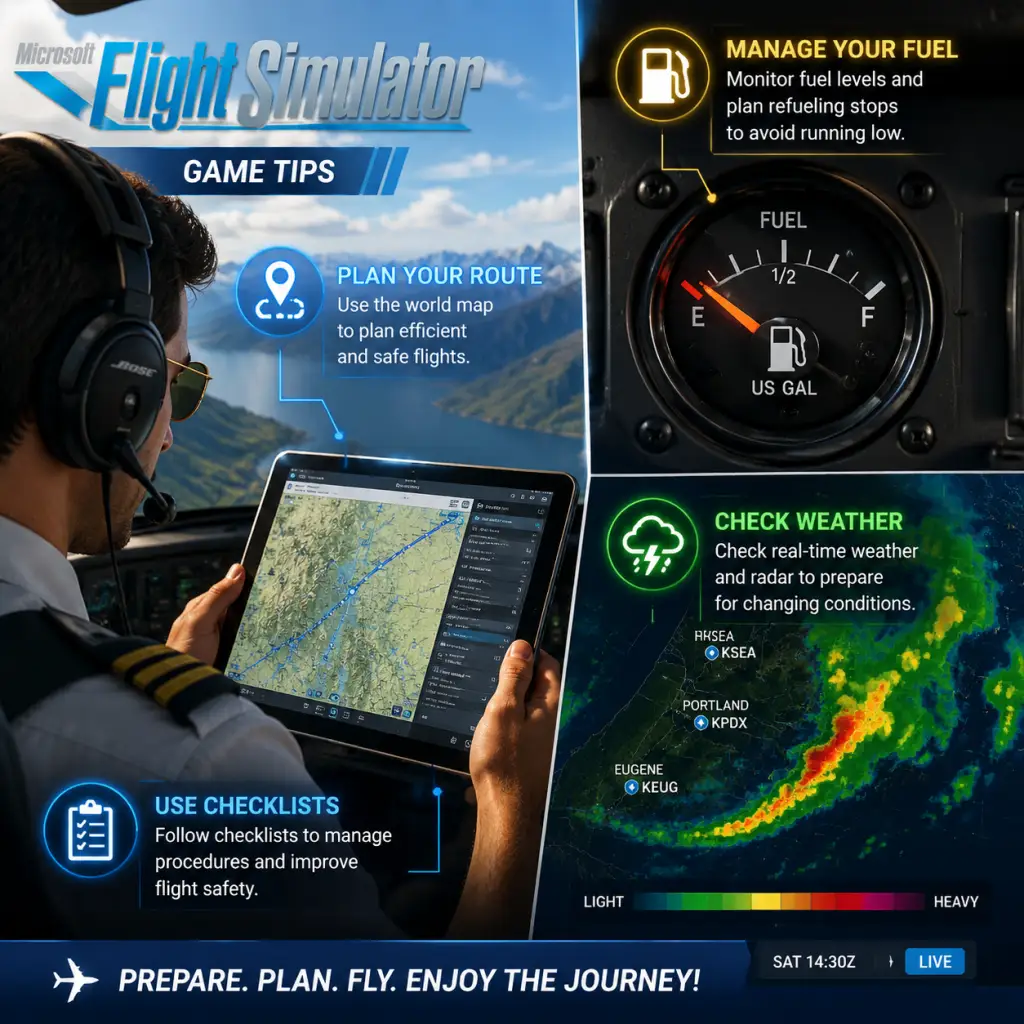
Game Tips
Game Tips for Microsoft Flight Simulator
This guide provides a comprehensive collection of tips for Microsoft Flight Simulator (2020 edition), organized by skill level and focus area. Whether you're a beginner just learning to taxi or an advanced sim pilot optimizing for realism, these actionable tips will enhance your experience.
---
Beginner Tips: Getting Airborne
These tips are essential for players who are new to flight simulation or returning after a long break.
#### 1. Start with the Cessna 152 or Icon A5
- Tip: Use the default Cessna 152 or the Icon A5 for your first few flights. These aircraft are simple, forgiving, and have low stall speeds.
- Why it works: Complex aircraft like the Airbus A320 or Boeing 747 have advanced systems (FMC, autothrottle, etc.) that can overwhelm a new player. The Cessna teaches basic concepts: pitch for airspeed, power for altitude, and coordinated turns.
- When to use: Until you can take off, maintain altitude, and land consistently without crashing.
- Tip: Press Pause/Break key (or Ctrl+.) to freeze the simulation, then press Y to enter Slew mode (instant repositioning). Use arrow keys to move the aircraft.
- Why it works: Active Pause stops time, allowing you to study instruments or plan your next move without crashing. Slew mode lets you reposition to practice specific phases like final approach.
- When to use: While learning instrument scanning, or if you stray off course and want to reset quickly.
- Tip: In the Assistance Options menu, set \"Takeoff Assist\", \"Landing Assist\", and \"Taxi Assist\" to Full. Disable crash detection initially.
- Why it works: This automated help reduces the learning curve for critical phases. You can focus on general flying using the controller/yoke rather than precise rudder control.
- When to use: First 5–10 hours, then gradually reduce assistance to \"Limited\" or \"Hard\" as you improve.
- Tip: Use elevator trim (mouse wheel or assigned keys) to relieve control pressure in level flight. The Cessna 152’s trim wheel is on the center pedestal.
- Why it works: Properly trimmed aircraft maintains altitude hands-off, reducing workload. It also makes approach smoother.
- When to use: After reaching cruise altitude; during descent, re-trim for attitude changes.
- Tip: Use Shift+Enter to zoom in, Shift+Backspace to zoom out. Middle mouse button to pan. Insert/Delete to change cockpit camera position.
- Why it works: Adjusting your view is crucial for spotting runway markers, checking instruments, or looking for traffic.
- When to use: Pre-takeoff checks, pattern work, and landing.
- Tip: Tune a VOR frequency (e.g., 113.40 for a local VOR) on the NAV radio, set the OBS (Omni Bearing Selector) to the desired radial, and fly to intercept.
- Why it works: VORs are the backbone of navigation before modern GPS. Even in MSFS, many missions rely on them. Understanding radials and CDI needle deflection builds navigation skills.
- When to use: Cross-country flights without direct-to GPS; practice in Free Flight with low weather.
- Tip: In aircraft with Garmin G1000 (e.g., Cessna 172 G1000), press FPL to enter flight plan waypoints. Use Direct-To button (green arrow) to fly directly to a waypoint.
- Why it works: The G1000 is the most common glass cockpit in MSFS. Feeling comfortable with it unlocks many add-on aircraft and enables GPS-based approaches.
- When to use: Flight planning for any cross-country; it reduces workload compared to VOR tuning.
- Tip: Press ~ (tilde) or the default '1' key to open ATC menu. Request IFR clearance before departure, then follow headings and altitudes given.
- Why it works: ATC vectors you through controlled airspace, helping you learn proper phraseology and expect approaches. It also reduces risk of traffic conflicts in multiplayer.
- When to use: When you want realistic procedures or are flying in busy airspace (e.g., KLAX, KJFK).
- Tip: In constant-speed propeller aircraft (e.g., Mooney M20), the blue lever is propeller RPM, black is mixture, red is throttle. Set full RPM for takeoff (2700), then reduce to 2400 for cruise.
- Why it works: Managing prop RPM improves fuel efficiency and engine longevity. Mixture (lean for altitude) prevents engine damage.
- When to use: All flights with constant-speed props; check the POH (checklist) for target RPM.
- Tip: When cleared for an ILS approach, press APR (Approach) button on the autopilot panel. The autopilot will capture the localizer and glideslope automatically.
- Why it works: Manual ILS flying is challenging; using AP helps you learn the procedure. Disconnect at minimums (200 ft) for a realistic hands-on landing.
- When to use: When practicing approaches in poor visibility; switch to manual at decision height.
- Tip: Use a free tool like MSFS Addon Linker to manage community folders. Turn off heavy sceneries for distant airports to improve performance.
- Why it works: Many add-ons run even when not near them, degrading performance. Addon Linker creates symbolic links you can enable/disable per flight.
- When to use: Before any flight, disable sceneries outside your route to save VRAM and CPU.
- Tip: Set Terrain Level of Detail (LOD) to 100–150 (default 200) for sharper ground textures with less stutter. Keep Cloud Quality on High, not Ultra, and disable Lens Flare.
- Why it works: LOD 200 loads too many triangles, causing CPU bottlenecks. Cloud quality is the biggest hit on GPU. These tweaks preserve visuals while gaining 10–15 FPS.
- When to use: Any flight, especially in VR or on mid-range GPUs (RTX 3060, 2070).
- Tip: In airliners like the A320, activate VNAV (Vertical Navigation) to automatically manage descent path from top of descent to approach fix. Set altitude constraints in the MCDU.
- Why it works: VNAV calculates optimal descent profile (idle thrust, 3-degree glidepath) saving fuel and avoiding terrain. It also sets precise crossing restrictions.
- When to use: Long-haul flights where ATC expects continuous descent; avoid VNAV during speed constraints if not programmed.
- Tip: Press Alt++ (plus key on numpad) to increase sim rate up to 16x. Use Alt+- to decrease. (You may need to bind keys in controls).
- Why it works: Cruise phases of long flights (e.g., London to New York) can take hours. Sim rate compresses time while maintaining physics accuracy.
- When to use: After reaching cruise altitude in a stable aircraft (AP on). Do not use during descent or approach as it may cause overspeeds or crashes.
- Tip: Use the Shift+4 shortcut to open the checklist panel. You can create custom checklists for each aircraft and share via text files.
- Why it works: Custom checklists ensure you never skip steps like setting flaps, mixture, or fuel pumps. They are especially handy for complex aircraft.
- When to use: Before every flight for the aircraft you fly; share with friends for consistency.
- Tip: In Neofly, choose cargo contracts for Cessna 172 or Piper Seneca. Avoid passenger missions until you can handle tight schedules.
- Why it works: Cargo missions have more flexible time windows, and penalties for damage are lower. You can earn rep slowly.
- When to use: First 10 missions to build capital for faster aircraft.
- Tip: Once you have \$50k, buy a used Cessna 208 Caravan for medium cargo, and keep the 172 for short hops. Do not sell the 172; use it for high-frequency short runs.
- Why it works: Different aircraft for different job lengths maximize earnings per hour. A single high-performance aircraft may sit idle on long runways.
- When to use: After initial capital build-up.
- Tip: In OnAir or FSCharter, enable live weather and set wind tolerance to realistic limits. Avoid flying in marginal conditions (crosswinds >15 knots) until you have more skill.
- Why it works: Live weather increases immersion and affects fuel consumption. Strong headwinds reduce range, increasing fuel costs.
- When to use: When you want career mode to be authentic; disable in beginners.
- Tip: Visit websites like VAT-SIM (for VATSIM) or IVAO to fly with real ATC. Or join a VA like Airline2Sim that schedules group flights.
- Why it works: Flying with others and receiving ATC instruction improves your radio skills and situational awareness. VAs often provide detailed manuals.
- When to use: After you can fly a simple IFR flight plan without hand-holding (intermediate).
- Tip: Install liveries via Flightsim.to and activate them via the in-game livery selection. Share custom ones via the community.
- Why it works: Liveries make multiplayer events more immersive as you can rep your VA or a real airline. They also personalize your aircraft.
- When to use: Before a group flight.
- Tip: Enable Developer Mode in Settings > General. Press Alt+Ctrl+Shift+D to open the performance monitor. Watch MainThread and GPU times.
- Why it works: If MainThread > 15ms, you are CPU limited (reduce traffic, LOD). If GPU > 15ms, lower rendering resolution or cloud quality.
- When to use: When troubleshooting stutters or FPS drops.
- Tip: Turn off in-game weather and traffic updates (set to live only when needed). Use static weather for benchmarks.
- Why it works: Streaming live weather and traffic pulls from servers, causing lag spikes. Static weather is purely local.
- When to use: During competitive multiplayer or when you need stable FPS.
- Tip: Use SimBrief to create flight plans that auto-load into MSFS via SimBrief Downloader. Pair with Little Navmap for offline mapping.
- Why it works: In-game flight planner is limited. SimBrief generates accurate fuel, weight, and route. Little Navmap shows terrain and weather overlays.
- When to use: For every IFR or long VFR flight.
- Learn to read METARs – The game uses real METAR data. Understanding wind direction (e.g., 27015KT meaning 15 knot wind from 270°) ensures you choose the correct runway.
- Use VFR Map (Shift+5) – It shows airports, obstacles, and your position. Great for visual navigation.
- Bind a key to Power On/Off Avionics – (Default G) to start engine without avionics draining battery.
- Set Flight Model to Modern – While Legacy is more simplified, Modern gives more realistic stall/spin behavior. Use Modern once you can handle it.
- Backup your UserCfg.opt** file – It contains all settings. Copy before major updates.
#### 2. Use Active Pause and Slew Mode
#### 3. Enable All Assistance toggles at first
#### 4. Master the Trim
#### 5. Know Your View Controls
---
Intermediate Tips: Mastering Systems and Navigation
These tips are for pilots who can fly visually but want to move to instrument flying and more complex aircraft.
#### 6. Learn VOR Navigation with the Cessna 172
#### 7. Program the G1000 Glass Cockpit
#### 8. Use the ATC Communications for IFR Clearance
#### 9. Understand the Throttle and Propeller Controls
#### 10. Use Approach Mode on Autopilot for ILS Landings
---
Advanced Tips: Optimizing Realism and Performance
For veterans seeking maximum immersion or frame rate.
#### 11. Install and Configure MSFS Add-on Linker (Addon Linker)
#### 12. Fine-Tune Graphics Settings for VR or 4K
#### 13. Use VNAV for Precise Descent Planning
#### 14. Enable Sim Rate for Long Flights
#### 15. Create Custom Checklists with the In-Game Checklist Tool
---
Economy & Career Mode Tips
MSFS 2020 itself has no built-in economy, but Neofly, OnAir, or FSCharter add-ons simulate jobs and money. These tips apply to those.
#### 16. Start with Cargo Missions in Light Aircraft
#### 17. Diversify Aircraft Instead of Upgrading One
#### 18. Use Live Weather for Realistic Operating Costs
---
Multiplayer & Community Tips
#### 19. Join a Virtual Airline (VA)
#### 20. Use Add-on Manager for Aircraft Liveries
---
Advanced Performance Optimization
#### 21. Use Developer Mode to Monitor Performance
#### 22. Disable Live World Updates During Sim
#### 23. Use External Programs for Flight Planning
---
Final Pro-Tips
This guide covers the most practical tips across all skill levels. Fly safe, and see you in the skies!