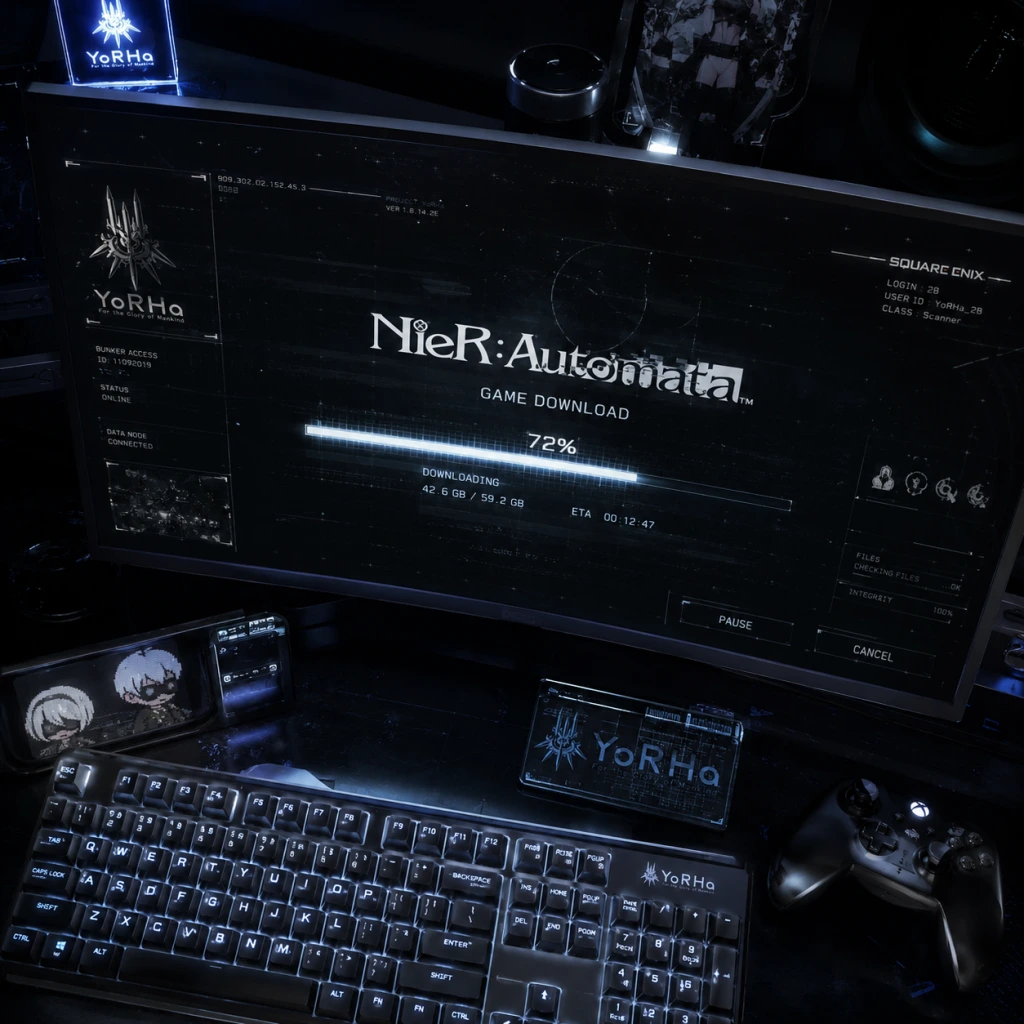
Download & Installation
Download & Installation Guide for NieR: Automata
This guide covers all official platforms where NieR: Automata can be legally purchased and installed, including PC (Steam and Microsoft Store), PlayStation 4, Xbox One / Xbox Series X|S, and Nintendo Switch. Mobile versions (iOS/Android) do not exist for this title. Follow the steps for your platform to ensure a smooth installation.
---
System Requirements
PC (Steam / Microsoft Store)
| Component | Minimum | Recommended |
|---|---|---|
| OS | Windows 7 64-bit SP1 or Windows 10 64-bit | Windows 10 64-bit (version 2004 or later) |
| CPU | Intel Core i3-2100 or AMD FX-4350 | Intel Core i5-4670 or AMD Ryzen 3 1200 |
| RAM | 4 GB | 8 GB |
| GPU | NVIDIA GeForce GTX 760 (2 GB VRAM) or AMD Radeon R9 270X | NVIDIA GeForce GTX 980 (4 GB VRAM) or AMD Radeon RX 580 |
| DirectX | Version 11 | Version 11 |
| Storage | 50 GB available space | 50 GB (SSD recommended) |
| Sound | DirectX compatible sound card | DirectX compatible sound card |
PlayStation 4 / PlayStation 5 (via backward compatibility)
- Storage: 50 GB free space
- PS4 Pro / PS5: Supports higher frame rates (up to 60 FPS on PS5) but no native PS5 version.
- Storage: 50 GB free space
- Xbox Series X|S: Enhanced with faster load times and higher resolution.
- Storage: 13.8 GB (digital version); physical cart requires no download but may need additional storage for updates.
- Performance: Runs at 30 FPS, 720p handheld / 900p docked.
- PC Steam: [Steam Store - NieR:Automata](https://store.steampowered.com/app/524220/NieRAutomata/)
- PC Microsoft Store: [Microsoft Store - NieR:Automata](https://www.microsoft.com/en-us/p/nierautomata/9nblggh6f0z9) (requires Windows 10/11, supports Xbox Play Anywhere)
- PlayStation 4/5: PlayStation Store (search "NieR: Automata")
- Xbox One / Series X|S: Microsoft Store (Xbox console or web)
- Nintendo Switch: Nintendo eShop (search "NieR:Automata The End of YoRHa Edition")
- Digital Purchase:
- Physical Disc:
- Digital:
- Physical:
- Digital:
- Physical:
- Steam: Free Steam account required. No additional accounts needed.
- Microsoft Store (PC/Xbox): Microsoft account (Xbox profile) required for both purchase and cloud saves.
- PlayStation: PlayStation Network account (free or PS Plus, though PS Plus not needed for single-player).
- Nintendo Switch: Nintendo Account (free) to access eShop. Online features (if any) require Nintendo Switch Online subscription (but the game is single-player only, so not needed).
Xbox One / Xbox Series X|S
Nintendo Switch
---
Official Download Sources
Note: Physical discs/cartridges are also available for all consoles. No mobile or Epic Games Store version exists.
---
Step-by-Step Installation
PC – Steam
1. Create/Log in to Steam Account: If you don't have one, create at [store.steampowered.com](https://store.steampowered.com/).
2. Install Steam Client: Download and install the Steam desktop app from the official site.
3. Purchase the Game: Go to the NieR:Automata store page and complete the purchase.
4. Initiate Download: In your Steam Library, find the game, click "Install", choose the installation folder (ensure at least 50 GB free on an SSD for best performance), and click "Next".
5. Wait for Download: The game will download approximately 48 GB of data. A progress bar will show.
6. Launch: Once installed, click "Play".
PC – Microsoft Store
1. Microsoft Account: Sign in with a Microsoft account on Windows 10/11.
2. Open Microsoft Store: Launch the Store app from the Start menu.
3. Search and Purchase: Search for "NieR:Automata" and buy it.
4. Install: Click "Install" – it will automatically download and install to your default drive (you can change location in Settings > System > Storage).
5. Launch: After installation, you can launch from the Start menu or through the Store.
PlayStation 4/5
1. On your PS4/PS5, go to PlayStation Store.
2. Search for "NieR: Automata" and purchase it.
3. Go to Library > Purchased, find the game, and select "Download".
4. Wait for download (50 GB) and installation.
1. Insert the disc into the console.
2. The game will begin installing automatically. Follow on-screen prompts.
3. Insert disc each time you play.
Xbox One / Xbox Series X|S
1. From your Xbox dashboard, open Microsoft Store.
2. Search for the game and purchase it.
3. It will automatically download. You can monitor progress in My Games & Apps.
1. Insert the disc. The console prompts to install.
2. Follow the installation wizard.
3. Keep the disc in the drive to play.
Nintendo Switch
1. From the Home menu, open Nintendo eShop.
2. Search for "NieR:Automata The End of YoRHa Edition" and purchase.
3. The game will download (13.8 GB). Ensure enough free space (manage data in System Settings).
1. Insert the game card into your Switch.
2. The game will install automatically (may require a small update).
3. No need to keep the card inserted after the initial install? Actually, for Switch physical, the game runs from cart, but updates are stored on internal memory. You need the card to play.
---
Account Requirements
---
First Launch Setup
1. Graphic Settings (PC): On first launch, the game presents options for resolution, display mode (Fullscreen/Windowed/Borderless), and quality presets. Select based on your hardware. Important: The default resolution may be capped at 1920x1080 due to a known bug. Installing the FAR Mod (Fix Automata Resolution) is highly recommended for 4K/ultrawide support and improved performance.
2. Controller Setup: The game natively supports Xbox and PlayStation controllers (wired or Bluetooth). If using a PlayStation controller, you may need a third-party driver like DS4Windows for proper button prompts.
3. Audio & Language: Choose subtitles and voice language (English or Japanese). Note that the PC version sometimes has audio issues (cut-out); reducing audio quality in Windows sound settings may help.
4. Saving: The game auto-saves at certain points (marked by a triangle icon). Physical save points are rare; rely on auto-save.
For all platforms: The game may have a brief intro video and title screen. Press any button to proceed.
---
Common Installation Errors and Fixes
| Error / Issue | Cause | Solution |
|---|---|---|
| PC: "d3dx9_xx.dll missing" | DirectX files not installed | Install DirectX End-User Runtimes from Microsoft. The game’s _CommonRedist folder (in installation directory) has required redistributables – run them. |
| PC: Crash on startup (white screen) | FAR mod conflicts or GPU driver issues | Update graphics drivers. If you have FAR mod, try deleting or updating it. Run the game as Administrator. |
| PC: Stuttering / low FPS | Default settings too high or FAR mod not configured | Lower graphics settings, disable anti-aliasing, install FAR mod and cap FPS to 60. |
| PC: Error 0x887A0006 (DXGI_ERROR_DEVICE_REMOVED) | GPU overclock or driver timeout | Reduce GPU overclock, increase TdrDelay in registry (risk). |
| Console: “Cannot start application” | Corrupted installation or insufficient space | Delete and re-download/install. Ensure free space > required amount. |
| Switch: Download stuck | Network issues or low storage | Cancel and restart download, free up space, switch to wired internet. |
| PlayStation: CE-30005-8 error | Hard drive issue | Rebuild database (Safe Mode) or reinstall game. |
| Xbox: Installation stopped | Network congestion or disc read issue | Pause and resume, clear local cache, restart console. |
- Always install the latest system updates (Windows, firmware, OS).
- For PC, verify integrity of game files via Steam (Properties > Local Files > Verify integrity) or Microsoft Store (Use the “Reset” option in Apps & Features).
- Reboot your device before reinstalling.
- Save Backups (PC): Manually back up your save files located in `%APPDATA%\NieRAutomata` or `Documents\My Games\NieR_Automata`.
- Cross-Platform Saves: Not supported. Each platform uses its own save system.
- DLC: The game includes the "3C3C1D119440927" DLC (colosseum battles) which is pre-installed in all versions. The Switch version also includes the "6C2P4A118680823" DLC and all prior DLC.
- Steam: [NieR:Automata Community Hub](https://steamcommunity.com/app/524220)
- Square Enix Support: [support.square-enix.com](https://support.square-enix.com)
---
Post-Installation Verification
1. Check File Size:
- PC (Steam): ~48 GB
- PC (Microsoft Store): ~48 GB
- PlayStation: ~46 GB
- Xbox: ~47 GB
- Switch: ~13.8 GB (digital)
2. Verify Launch: The game should load to the title screen without errors. If you see only a black screen, it may be a known issue – press Alt+Enter to force windowed mode, then adjust settings.
3. Test Controls: Move the character in the first area (the ruined city) to ensure all buttons work.
4. Check for Updates: On consoles, check for game updates (option in system menu). On PC, Steam auto-updates. For Microsoft Store, updates are handled by Windows Update.
5. Optional Mods (PC): The FAR Mod is essential for stability and resolution. Download from GitHub (search "NieR Automata FAR") and extract files into the game folder. Also consider the Special K mod for additional fixes.
---
Additional Tips
For further assistance, consult the official support pages:
---
This guide was last updated in October 2023. Check for patches or updates on your platform.