Game Settings
Game Settings Guide for NieR: Automata
This guide covers all configurable options in NieR: Automata across PC and console platforms. Settings are grouped by category: Graphics, Audio, Controls, Accessibility, Language, Network, and Gameplay. Where applicable, recommendations are provided for different hardware tiers (Low, Mid, High, Ultra) and attention points highlight common misconfigurations.
1. Graphics Settings
Available in the Options → Graphics menu. PC version offers more granular options; console versions have fewer but include performance/quality presets on PS4 Pro, Xbox One X, and newer consoles via backward compatibility.
| Setting | Description | Recommended Value | Notes |
|---|---|---|---|
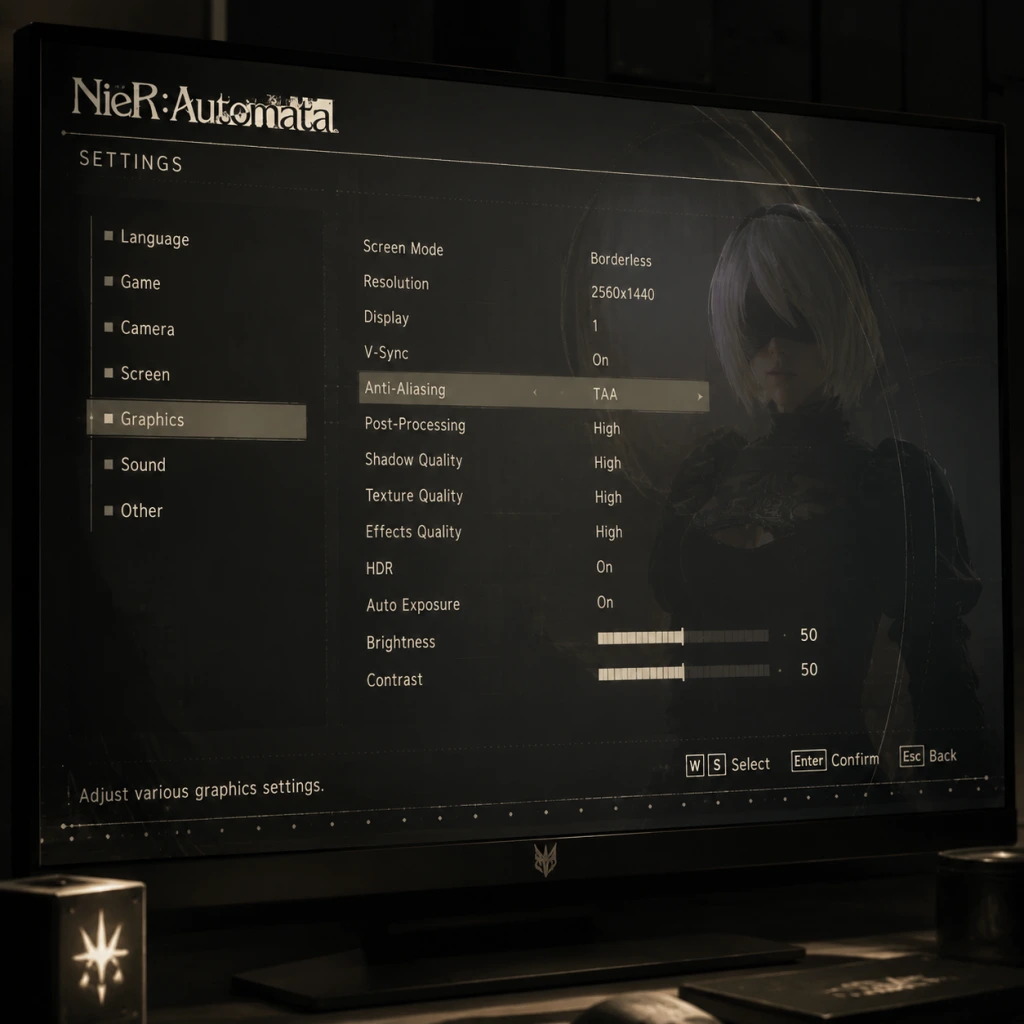
| Resolution | Display resolution. PC only (console uses fixed output). | Native monitor resolution (e.g., 1920×1080 for 1080p). | On PC, do not use a resolution higher than your monitor’s native unless you want supersampling (performance cost). |
| Display Mode | Fullscreen, Borderless Windowed, Windowed. PC only. | Borderless Windowed improves Alt+Tab stability and reduces input lag in some cases. Fullscreen can be fine if you don’t alt-tab. Avoid Windowed mode (lower performance). | Many PC players report that Borderless Windowed is more stable than exclusive Fullscreen for this game. |
| Anti-Aliasing | Post-process FXAA only (no MSAA). | On – reduces jagged edges. No quality levels. | Toggle only. FXAA blurs slightly; if you prefer no blur, turn off and rely on high resolution. |
| Ambient Occlusion | SSAO (Screen Space Ambient Occlusion). | On – adds depth and realism. Performance impact is moderate. Turn off on very low-end hardware. | |
| Texture Quality | Two options: Standard or High. | High if VRAM ≥ 2 GB (PC) or on PS4 Pro/Xbox One X. Standard on base consoles or low-end PC. | High-quality textures use significantly more VRAM. On PC with 1 GB VRAM, stick to Standard to avoid stuttering. |
| Shadow Quality | Low, Medium, High. | High on high-end PC, Medium on mid-range, Low on low-end. On consoles, usually fixed to Medium. | High shadows have longer draw distance and softer edges. Performance hit is noticeable on weak CPUs. |
| Effects Quality | Controls particle effects, bloom, and post-processing. | High recommended on capable hardware; Low reduces visual clutter but may make some attacks harder to see. | Low effects can improve FPS significantly on older GPUs. |
| Anisotropic Filtering | 2x, 4x, 8x, 16x. | 16x – negligible performance cost on modern GPUs; improves ground texture clarity. | Set to 16x always; even low-end PCs handle it well. |
| V-Sync | On/Off. | Off if you have G-Sync/FreeSync, otherwise On to prevent screen tearing. Turning off V-Sync can increase input responsiveness. | On PC, disabling V-Sync may cause physics glitches if frame rate exceeds 60 FPS (game engine ties physics to 60 FPS). Do not uncap FPS above 60 without a mod (FAR) that decouples physics. |
| Frame Rate Cap | 30/60/Uncapped (PC). | 60 FPS is the intended target. 30 for consistent framerate on weak hardware (e.g., Intel HD). Uncapped causes glitches (fast game speed, broken physics) – avoid unless using FAR mod. | Console versions are always 60 FPS (with occasional drops). On PC, use the official 60 FPS cap or a community mod like FAR. |
| HDR | Not natively supported. PC and console versions lack HDR. | N/A | If you want HDR, inject via GPU driver or use a software solution; results vary. |
| Brightness | Calibration slider. | Adjust until the test image is barely visible. | Useful to set black levels correctly on different displays. |
| Tier | Example GPU | Resolution | Graphics Settings | Expected FPS |
|---|---|---|---|---|
| Low | Intel HD 520, GT 1030, Vega 3 | 1280×720 or 1366×768 | Texture: Standard, Shadows: Low, Effects: Low, AO: Off, AA: Off, AF: 4x, Borderless Windowed, V-Sync: On, Frame Rate Cap: 30 | 30 stable |
| Mid | GTX 1060 6GB, RX 580 8GB | 1920×1080 | Texture: High, Shadows: Medium, Effects: High, AO: On, AA: On, AF: 16x, VSync: Off (if adaptive sync), Frame Rate Cap: 60 | 60 stable |
| High | RTX 2070, RX 5700 XT | 2560×1440 | All High except Shadows: High, Frame Rate Cap: 60 | 60 stable |
| Ultra | RTX 3080+, RX 6800 XT+ | 3840×2160 (4K) | All High (including Shadows: High), Frame Rate Cap: 60; consider using DSR/VSR for supersampling if performance headroom allows | 60 stable |
2. Audio Settings
Found under Options → Audio. Settings apply across all platforms.
| Setting | Description | Recommendation |
|---|---|---|
| Master Volume | Overall volume. | 100% (adjust system volume accordingly). |
| Music Volume | Background music. | 100% – the soundtrack is iconic. |
| SFX Volume | Sound effects (attacks, enemies, etc.). | 100% (reduce if too loud compared to music). |
| Voice Volume | Character voices (during dialogue, combat). | 100% (or 80% if you prefer to hear the music more). |
| Speaker Configuration | Monaural / Stereo / 5.1 Surround / 7.1 Surround. | Stereo for headphones or standard speakers. Choose surround if set up correctly. |
| Dynamic Range | Night/Standard/Dynamic. | Normal for standard listening; Night compresses loud sounds for quiet environments; Dynamic preserves wide range but may require high volume. |
| Subtitles | On/Off. | On – essential for understanding dialogue, especially if using Japanese voices. |
| Subtitle Size | Small / Medium / Large. | Medium or Large for readability if playing on a small screen or far away. |
Audio language is set separately (see Language Settings section). The game offers both English and Japanese voice tracks. Recommendations:
- Japanese voices – original performance; many fans prefer them for emotional delivery. Requires subtitles.
- English voices – well-done localization; good if you prefer not to read subtitles.
3. Controls Settings
Options → Controls on all platforms. Key binding is available only on PC; console has fixed presets.
| Setting | Description | Recommendation |
|---|---|---|
| Controller / Keyboard & Mouse | Choose input method (PC). | Controller is highly recommended – the game was designed with a controller in mind. Keyboard & mouse works but requires remapping for comfortable play. |
| Controller Layout | Type A / Type B / Type C (console and PC). | Type A is default (attack on square, dash on cross). Type B swaps attacks and dodge. Type C changes pod program button. Try each briefly during the intro segment. |
| Camera X/Y Sensitivity | Adjusts how fast the camera moves. | Start at 50%; increase to 70% if you want quicker turns in combat. |
| Camera Auto-Rotate | On/Off. | On helps keep enemies in view; Off gives more manual control. |
| Invert Y-Axis | For camera and aiming. | As per personal preference. |
| Vibration | Controller vibration intensity. | On for immersion; may drain batteries quickly. |
| Analog Stick Deadzone | Only adjustable via mods on PC. Not in vanilla settings. | N/A – if aiming feels sluggish, consider a mod or hardware fix. |
The default keyboard layout is awkward (e.g., dodge on Shift, pod program on Q). Recommended changes:
- Dodge → Right mouse button or side mouse button.
- Move → WASD (default fine).
- Camera → Mouse (default fine).
- Lock-on → Middle mouse button or mouse wheel click.
- Pod Program → Q or E (easy to reach).
- Weapon Swap → 1/2 or scroll.
- Quick Item → Tab or R.
- Subtitles and Subtitle Size (see Audio) – enable for deaf/HoH players.
- Difficulty Level (see Gameplay) – Easy mode includes automatic chips (auto-dodge, auto-use items) that can reduce motor skill demands.
- Controller Remapping (see Controls) – allows customization for physical disabilities on PC; console has layout presets only.
- Color Blindness – no specific options; rely on UI contrast and audio cues. Plug-in chips like “Enemy Sensor” show enemy direction via audio ping.
- Hearing Impaired – Always enable subtitles. The game has no visual indicators for directional dialogue; spatial audio helps.
- Motion Sickness – Turn off camera auto-rotate and lower camera sensitivity. Use a larger FOV? Unfortunately, FOV is not adjustable. Sitting farther from the screen or reducing screen brightness may help.
> Special attention: The game’s dodge window can be tight; assigning dodge to a comfortable button (mouse side button or right click) avoids hand cramp.
4. Accessibility Settings
NieR: Automata has limited dedicated accessibility options, but several settings affect accessibility:
> There is no dedicated accessibility menu. Utilize the flexibility of Difficulty and Plug-in Chips (see Gameplay Settings) to tailor the experience.
5. Language Settings
Options → Language sets menu and subtitle text language. Audio language is set separately in the same menu.
| Setting | Options | Notes |
|---|---|---|
| Text Language | English, French, Italian, German, Spanish, Japanese, etc. (Platform-dependent). | Changes all UI text and subtitles. |
| Audio Language | English or Japanese (all platforms). | Japanese voices are the original; English localization is well-acted. Can be changed anytime. |
6. Network Settings
Options → Network controls online asynchronous features.
| Setting | Description | Recommendation |
|---|---|---|
| Enable Online Features | On/Off. When on, the game sends/receives messages about player deaths, and you can view other players’ death locations on the map. Also allows retrieval of player data (e.g., “Player Data” items). | On for full experience – adds atmospheric reminders that you’re not alone. Turn Off if you want solitude or are playing offline. |
| Loot Mode | Affects how player data is displayed (positive/negative). Not a critical setting. | Default is fine. |
7. Gameplay Settings
These are found in Options → Gameplay and Options → Battle Settings (some on console).
| Setting | Description | Recommendation |
|---|---|---|
| Difficulty | Easy, Normal, Hard, Very Hard. | Normal for balanced experience. Easy if you struggle with action games or want a story-focused playthrough. Hard for a challenge (enemies deal more damage, have more health, and are more aggressive). Very Hard – enemy damage is extreme (most hits kill you). |
| Auto-Use Items | Plug-in Chip (found in game; not menu setting). Can be equipped to automatically use healing items. | Equip on Easy mode or if you want less inventory management. Not available from start. |
| Auto-Evade | Plug-in Chip – automatically dodges enemy attacks. | Equip on Easy mode to greatly reduce mechanical difficulty. |
| Lock-On | Toggle or hold. In Options → Battle Settings, set lock-on type to “Hold” or “Toggle”. | Toggle is easier for most players – press lock-on once to stay locked until you press again. |
| Camera Speed (Combat/Field) | Separate sliders for combat and field exploration. | 50% to start; increase for faster target tracking. |
| Pod Program Input | How you activate pod special attack (e.g., Pod A’s “Homing Missiles”). | Default (R1/RB) is fine. |
| Quick Item | Assign healing/item to a button. | On controller, default is D-pad up/left/right. On keyboard, assign to easy-to-reach hotkey. |
| Weapon Switch | Assign to a button. | Default well-placed (press shoulder button + face button on controller). |
| Auto-Dash | Plug-in Chip – character automatically sprints. Available later. | Equip if you dislike holding sprint. |
| Auto-Fire (Pod) | Plug-in Chip – Pod automatically shoots at enemies. Available later. | Useful for maintaining chip damage without pressing the fire button. |
| Auto-Heal | Plug-in Chip – automatically uses healing items when HP is low. | Equip for convenience, but it may waste items. |
8. Easy-to-Misconfigure Settings & Special Attention Points
- PC Frame Rate Cap (critical): Never set “Frame Rate” to “Uncapped” without using the FAR mod. The game’s physics engine runs at 60 FPS; uncapped causes double-speed gameplay, broken collision, and softlocks. Always use either 30 or 60 cap, or install FAR (Fix Automata Resolution) to safely uncap.
- PC Resolution and Display Mode: If you select Fullscreen, the game may not respect your chosen resolution (known bug). Borderless Windowed is recommended for stability. Also, setting a resolution higher than your monitor’s native may cause black borders or performance issues.
- Controller Layout: The default “Type A” has dodge on Cross (A on Xbox). This can be unintuitive for players used to Dark Souls or other action games. Experiment with Types B and C in the first safe area.
- Subtitles Off by Default: Subtitles are turned off! If you play with Japanese audio, you must enable subtitles. Even with English audio, subtitles help with ambient dialogue.
- Online Features Off by Default? Actually, they are on by default. But if you want a completely isolated experience, turn them off. Leaving them on is fine.
- Difficulty Locked During Tutorial? No, difficulty can be changed from the pause menu even during the prologue. Remember to adjust if you’re stuck.
- HDR Missing: If you have an HDR display, you cannot enable HDR within the game. You must use system-level HDR or special tools (e.g., AutoHDR on Windows 11).
- Keyboard Prompts on Console: If you’re playing on PC with a controller, the game might show keyboard prompts if you’ve pressed a keyboard key. Restart the game to fix.
- PC: Install the FAR mod for better performance, resolution options, and decoupled physics. Configure graphics as per hardware tier above. Use Borderless Windowed, V-Sync off if adaptive sync available, cap at 60 FPS. Remap keyboard controls if necessary.
- PlayStation 4/5 (backward compatible): On PS4 Pro, select “Resolution Priority” for 4K (checkerboard) or “Performance” for 1080p 60fps. On PS5, the game runs at a locked 60 FPS via backwards compatibility with no special enhancements. No settings need changing beyond control layout.
- Xbox One / Xbox Series X|S: On Xbox One X, the game runs at 4K 30 FPS (use performance mode if available for 1080p 60 FPS). Xbox Series X|S runs at 60 FPS with dynamic resolution scaling. Adjust only difficulty and controls.
- Switch (cloud version): Not officially released as of now; no settings advice.
9. Final Setup Recommendations
> Final Tip: The most crucial setting is Difficulty. Don’t feel ashamed to start on Easy; the story will still resonate. You can always increase it later. Enjoy the philosophical journey, and remember: everything has meaning.