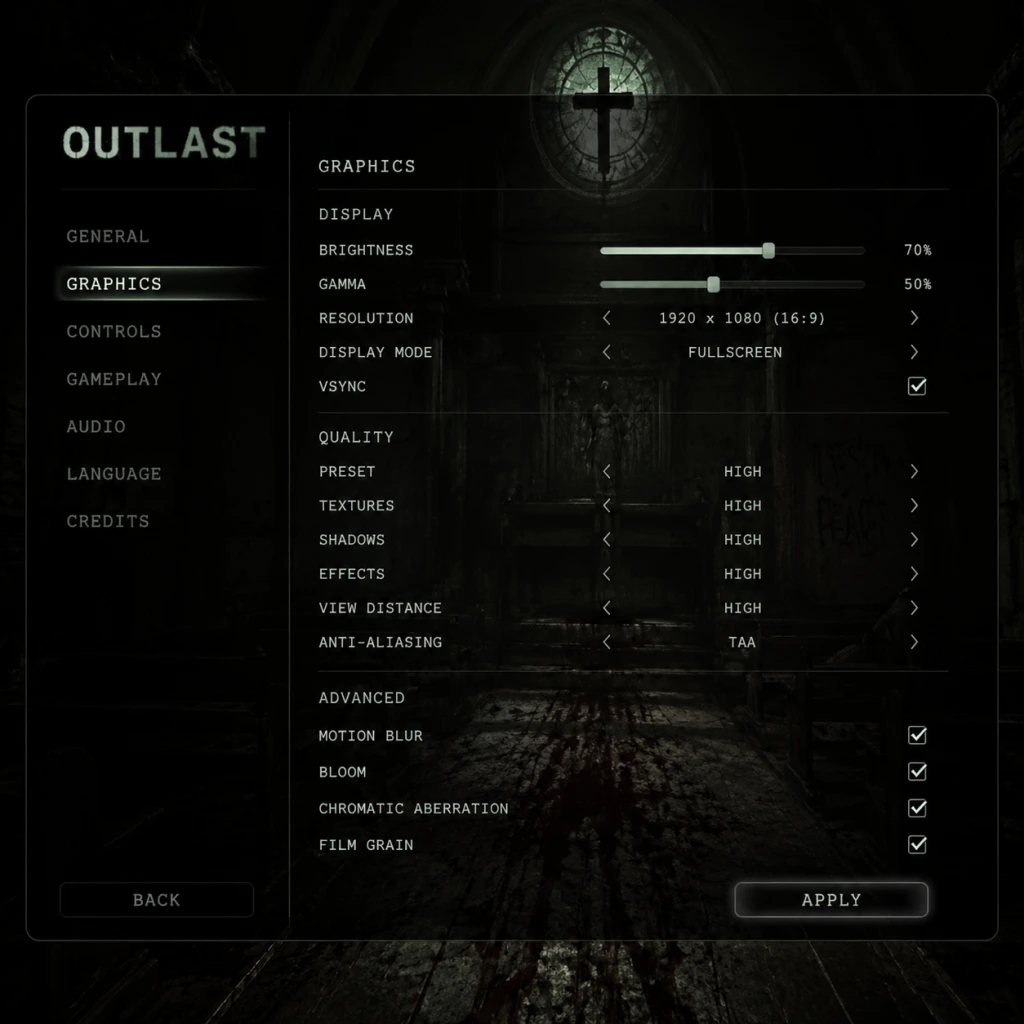
Game Settings
Game Settings Guide: Outlast
This section covers every setting available in Outlast on PC, PlayStation 4, Xbox One, and Nintendo Switch. We’ll explain each option, recommend optimal configurations for performance vs. quality on different hardware tiers, and point out common pitfalls during setup.
---
Graphics Settings (PC)
Outlast runs on the Unreal Engine 3.5 and is well-optimized, but certain options can drastically affect performance. Below is the full list of graphics settings and recommended values.
| Setting | Options | Low-End (GTX 650 / HD 7770) | Mid-Range (GTX 960 / RX 470) | High-End (GTX 1060 / RX 580+) | Ultra (RTX 20-series+) |
|---|---|---|---|---|---|
| Resolution | Native desktop / custom | 1366×768 or 1600×900 | 1920×1080 | 1920×1080 | 2560×1440 / 4K |
| Display Mode | Fullscreen / Windowed / Borderless | Fullscreen | Fullscreen | Fullscreen | Fullscreen |
| VSync | On / Off | Off (if no screen tearing) | Off (use driver vsync) | Off (use G-Sync/FreeSync) | Off |
| Frame Rate Limit | 30 / 60 / 120 / Unlimited | 30 (steady) or 60 | 60 | 60 | 60 or monitor max |
| Anti-Aliasing | Off / FXAA / MSAA 2x / MSAA 4x / TxAA | Off or FXAA | FXAA | 2x MSAA | 4x MSAA or TxAA |
| Texture Quality | Low / Medium / High / Very High | Medium | High | Very High | Very High |
| Shadow Quality | Low / Medium / High | Low | Medium | High | High |
| Post-Processing | Off / Low / Medium / High / Very High | Low | Medium | High | Very High |
| Ambient Occlusion | Off / Low / High | Off | Low | High | High |
| Motion Blur | On / Off | Off | Off (preference) | Off | Off |
| Field of View | Slider (65° – 90°) | 70° | 75° | 80° | 80° |
| Texture Streaming | On / Off | On | On | On | On |
| Resolution Scale | 50% – 200% | 100% | 100% | 100% | 100% (or 120% if headroom) |
- Motion Blur is often left on by default; disabling it improves clarity during fast camera turns and reduces nausea for some players.
- Field of View defaults to 65°, which can feel claustrophobic. Increase to 75°–80° for better peripheral awareness, but be aware that higher FoV slightly reduces performance.
- Texture Quality to Very High uses noticeably more VRAM. If you have less than 2GB VRAM, stay at High or Medium.
- Resolution Scale below 100% makes the game blurry. Only use if you need a huge performance boost.
- VSync in-game can introduce input lag. Prefer to cap frame rate via driver or in-game frame limit and disable VSync for better responsiveness.
- For 60 FPS on low-end hardware: 1366×768, all settings Low, FXAA off, shadows Low, post-processing Low, FoV 70°, motion blur off.
- For 60 FPS on mid-range: 1080p, High textures, medium shadows, FXAA, post-processing High, ambient occlusion Low.
- For 4K on high-end: 4K resolution, Very High textures, High shadows, TxAA, post-processing Very High, ambient occlusion High, but expect drops in the outdoor courtyard area – drop shadows to Medium if needed.
Performance targets:
---
Audio Settings
Outlast relies heavily on audio cues for enemy location and atmosphere. Proper configuration is critical.
| Setting | Options | Recommended | Notes |
|---|---|---|---|
| Master Volume | 0–100 | 80–90 | Leave headroom for other sounds |
| Effects Volume | 0–100 | 100 | Footsteps, doors, breathing – keep max |
| Music Volume | 0–100 | 70–80 | Atmospheric but not overwhelming |
| Voice Volume | 0–100 | 100 | Player grunts and enemy dialogues (rare) |
| Ambient Volume | 0–100 | 100 | Crucially, whispers, distant screams, machinery |
| Audio Output | Speakers / Headphones / Auto | Headphones | Headphones are strongly recommended for directional audio. The game has no 3D audio simulation; it uses simple panning, but headphones help isolate cues. |
| Sound Quality | Low / Medium / High | High | Affects sample rate; negligible performance impact |
---
Controls Settings
Outlast is played with keyboard/mouse or controller. We cover both.
#### Keyboard and Mouse Default (PC)
| Action | Default Key | Personalization Tips |
|---|---|---|
| Move | W/A/S/D | Keep default |
| Look | Mouse | Adjust sensitivity to your liking |
| Interact | E | Keep |
| Use Camera | F | Keep – frequent toggle |
| Zoom Camera | Right Mouse Button | Very important for seeing in darkness |
| Toggle Night Vision (hold) | F (or hold) | Default is hold; many prefer toggle. See accessibility. |
| Run | Left Shift | If you change to a different key, ensure it’s comfortable for long periods |
| Crouch | Left Ctrl | Default is toggle crouch; holding is not possible |
| Reset Camera View | R | Rarely used |
| Pause / Menu | Esc | Keep |
| Journal | J | Not essential |
| Action | Default Mapping | Notes |
|---|---|---|
| Move | Left Stick | |
| Look | Right Stick | |
| Interact / Use Camera | X (Xbox), Square (PS) / Y (Switch) | Camera toggle is on face button – takes thumb off stick, so use right stick click? Not available. But controller players adapt. |
| Zoom Camera | Left Trigger | Good placement |
| Run | Left Stick Click (L3) | Can be fatiguing. Some prefer to swap with a bumper. |
| Crouch | Right Stick Click (R3) | Also risky during combat. |
| Night Vision (hold) | Left Bumper (LB) | Hold to keep on. Toggle not available on controller natively. |
| Pause | Start / Options |
- Night Vision is hold-to-use on both PC and controller. If you want toggle (press once to enable/disable), this can only be changed via config file editing (on PC) – not in the in-game settings. See Accessibility below.
- Camera zoom uses right mouse button on PC; left trigger on controller. If your mouse has side buttons, you can rebind but the game’s limited rebinding may not allow it – only a few actions are remappable on PC.
- Running uses L3 or Left Shift; these can become uncomfortable in tense moments. If possible, rebind run to a button that doesn’t require constant downward pressure.
---
Accessibility Settings
Outlast is notoriously unforgiving. Red Barrels included minimal accessibility options, but some workarounds exist.
| Setting | Options | Recommendation |
|---|---|---|
| Subtitles | On / Off | Set to On – they display enemy dialogue and occasional notes read by the player. Important for non-English speakers or hearing-impaired. |
| Camera Shake | On / Off | Off – reduces motion sickness from fast camera bobbing during sprint and hits. |
| Invert Y-Axis | On / Off | Personal preference |
| Controller Vibration | On / Off (only on controller) | Off if it interferes with fine camera control; on for immersion. |
| Mouse Sensitivity | Slider | Start at 1.0 and adjust. |
| Controller Look Sensitivity | Slider | Similar, start at 0.5. |
| Night Vision Mode | Hold (press & hold) / not toggleable in menus | To make toggle: on PC, edit `...Outlast/UDKGame/Config/UDKInput.ini` and search for `NightVision`. Change `Hold=true` to `Hold=false`. This is a user-level mod and is safe. |
| Colorblind Modes | None | Not available. Use post-processing or GPU driver filters if needed. |
| UI Scale | Not adjustable | Fixed UI sizes – may be small on 4K. |
- Many players miss the Camera Shake toggle and complain of dizziness. Go into Settings → Gameplay and turn it Off.
- Subtitles are off by default – turn them on for story clarity.
- Night Vision toggle is a huge quality-of-life improvement for players with hand fatigue. Edit the config file only if you are comfortable with simple text files.
---
Language Settings
| Setting | Options | Recommendation |
|---|---|---|
| Language | English, French, German, Spanish, Italian, Russian, Polish, Portuguese-Brazil, Japanese, Chinese (Simplified & Traditional) | Choose your preferred language. |
| Subtitles Language | Same list | Can match or differ from audio. |
| Text Language | Same list | Overrides UI text. |
- Attention: If you set the language to a non-English option, subtitles may default to that language as well. Check the subtitle option separately.
- The game supports only one audio track (English) regardless of language selection; all other languages are text/subtitle only. So select “English” for audio and your native language for subtitles if you want English voices.
---
Network / Online Settings
Outlast is a single-player only game. There are no multiplayer, co-op, or online connectivity settings. However, the game does have Steam Cloud saves on PC.
| Setting | Notes |
|---|---|
| Steam Cloud (PC) | Enable via Steam client (right-click game → Properties → Cloud). Saves progress across computers. |
| DRM | None beyond Steam/Origin/GOG client. Offline play is fully supported. |
| Leaderboards / Achievements | No leaderboards. Achievements are offline. |
---
Gameplay Settings
These affect the core experience beyond graphics and controls.
| Setting | Options | Recommendation | Notes |
|---|---|---|---|
| Camera Shake | On / Off | Off (as mentioned). | |
| Auto-Aim (controller only) | On / Off | Off – there is no combat, but auto-aim may affect camera interaction. Test it. | |
| Quick Turn | On / Off (controller) | On – pressing down on right stick snaps camera 180°. Invaluable while escaping. Not present on PC. | |
| Hints / Tutorial Prompts | On / Off | On for first playthrough; off for replays or immersion. | |
| Crosshair | On / Off | Always on (small dot) – cannot be disabled. | |
| Camera Battery Display | Always visible as battery gauge on camera. No options. | ||
| Save System | Autosave only at checkpoints. No manual saves. |
---
Special Attention Points During Setup
1. Night Vision toggle vs hold: Most players find holding F or LB for the entire game fatiguing. If you have trouble, edit the config file (PC) as described in Accessibility section. On console, you are stuck with hold unless you use controller macro remapping (for example, Xbox Accessories app or PlayStation button assignments).
2. Field of View: Default 65° is very narrow. Change it to at least 75° as soon as you start the game. Wide FOV helps you see threats from the side without turning.
3. Audio Output: The game does not auto-detect headphones. Manually select “Headphones” under Audio Settings to get proper stereo imaging.
4. Graphics Presets: The in-game presets (Low, Medium, High, Very High) are a good starting point, but often set Texture Quality to Very High even on 2GB cards – causing stuttering. Manually lower Textures if you experience hitches.
5. Controller Deadzone: There is no deadzone adjustment. Some Xbox/PS controllers with drift may cause camera drift. Use external software (e.g., JoyToKey or Steam Controller Config) to add deadzone.
6. Windowed Mode Glitch: If you switch to Windowed mode and then back to Fullscreen, the game may lose proper resolution. Always set resolution before switching to Fullscreen. If glitched, restart the game.
---
Conclusion
Outlast’s settings are relatively simple but have a few traps. Prioritize audio and FoV adjustments for a better horror experience. On PC, disable motion blur and camera shake for clarity, and consider toggling night vision via config. Console players have fewer options but can still enable Quick Turn and disable camera shake. With these recommendations, your descent into Mount Massive Asylum will be as smooth as it can be – which is not very smooth, but terrifyingly good.
For further fine-tuning, consult PC-specific guides on the `UDKInput.ini` and `UDKEngine.ini` files for advanced tweaks (e.g., disabling film grain, increasing shadow map resolution).