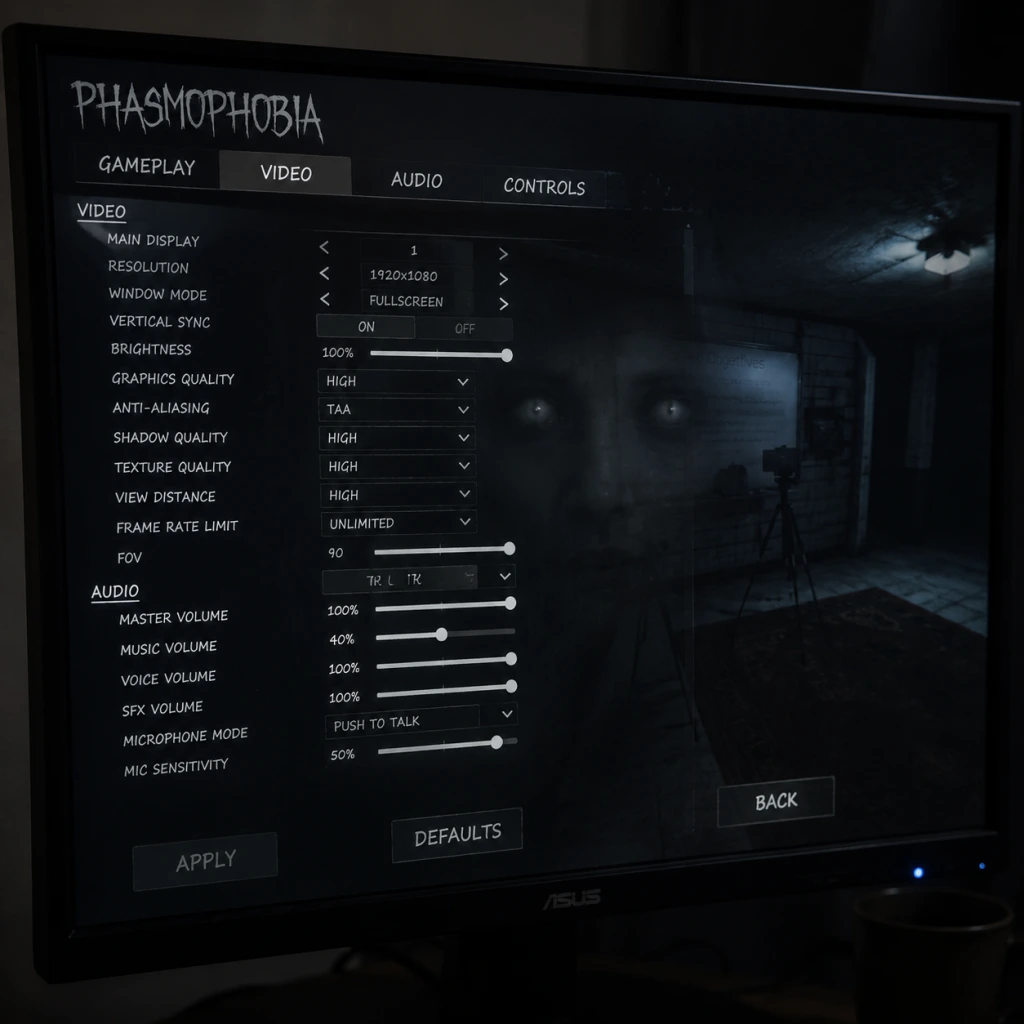
Game Settings
Game Settings Guide for Phasmophobia
This comprehensive guide covers all settings in Phasmophobia, from graphics and audio to controls and gameplay. Proper configuration can improve performance, enhance immersion, and help you survive longer. We include recommended settings for different hardware tiers and highlight common pitfalls.
---
Graphics Settings
Access via Options > Graphics. Settings affect visual quality and performance.
| Setting | Description | Low-End (GTX 1060 / RX 580) | Mid-Range (RTX 3060 / RX 6600) | High-End (RTX 3080 / RX 6800 XT) |
|---|---|---|---|---|
| Resolution | Native monitor resolution. Lower reduces GPU load. | 1920x1080 | 1920x1080 or 2560x1440 | 4K (3840x2160) |
| Display Mode | Fullscreen, Borderless, Windowed. Fullscreen reduces input lag. | Fullscreen | Fullscreen | Fullscreen |
| VSync | Synchronizes frame rate with monitor refresh. Disable for lower input lag. | Off | Off | Off |
| Quality Preset | Overrides many individual settings. | Low | Medium/High | High/Ultra |
| Texture Quality | Detail on surfaces. VRAM intensive. | Low | Medium | High |
| Shadow Quality | Shadow resolution and distance. Crucial for spotting ghost movements. | Low | Medium | High |
| Reflection Quality | Screen-space reflections. Minor impact. | Low | Low | Medium |
| Ambient Occlusion | Adds shading in corners. Slight performance hit. | Off | SSAO | HBAO |
| Anti-Aliasing | Smoothes edges. TAA recommended. | Off or FXAA | TAA | TAA |
| Post-Processing | Bloom, Eye Adaptation, etc. Disable for clarity in dark areas. | Off | On | On |
| Volumetric Lighting | Light beams from flashlights. Heavy on GPU. | Off | Low | Medium |
| Depth of Field | Blurs far objects. Artistic, not needed. | Off | Off | Off |
| Field of View (FOV) | Horizontal view angle. Higher FOV reveals more but can warp edges. | 90 | 100 | 110 |
- Variable Rate Shading (VRS): Available on Nvidia cards. Can improve FPS but may cause blurry highlights. Test per hardware.
- Eye Adaptation & Bloom: These can make dark areas even darker. Disable for competitive advantage.
- VSync: Enable only if screen tearing is bothersome; input lag can hurt during hunts.
- Master Volume: Overall game sound.
- SFX Volume: Ghost sounds, doors, footsteps.
- Voice Chat Volume: Volume of other players.
- Voice Chat Mic Volume: Your microphone input.
- Push-to-Talk (PTT) vs Voice Activation: PTT reduces background noise. Always use PTT for clarity.
- HRTF (Head-Related Transfer Function): CRITICAL. Enable for directional audio through headphones. Simulates 3D sound. Disable if using external surround software.
- Global Chat vs Proximity Chat: Global allows all players to hear you anywhere. Proximity restricts range for immersion. Adjust per preference.
- Use HRTF ON with stereo headphones.
- Set SFX Volume high (80-100%) to hear ghost footsteps and events.
- Disable Voice Activation to avoid TV noises.
- Master Volume: 70-80% to avoid ear damage from sudden screams.
---
Audio Settings
Access via Options > Audio. Sound is critical for locating ghosts and communicating with teammates.
Optimal Settings:
---
Controls Settings
Access via Options > Controls. Customize keyboard/mouse or controller.
Key Bindings (Recommended Defaults with Notes):
| Action | Key | Alternative | Notes |
|---|---|---|---|
| Move Forward | W | (controller: left stick) | |
| Move Backward | S | ||
| Strafe Left | A | ||
| Strafe Right | D | ||
| Walk (Toggle) | Left Shift | Hold to toggle? | Many players prefer Toggle Walk to avoid accidental running during hunts. |
| Sprint | Left Ctrl | (hold) | Sprint consumes sanity faster; map to a thumb button if possible. |
| Interact | E | F | |
| Pick Up / Drop | G | ||
| Use Item | Mouse Left | ||
| Secondary Use | Mouse Right | ||
| Inventory | Tab | Quick-switch wheel. | |
| Push-to-Talk | B | V | Essential for voice comms. |
| Global Chat | C | Y | Speak to all dead teammates. |
| Crouch | C | (toggle recommended) | Helps hide in small spaces. |
| Lean | Q & E | (hold) | For peeking around corners. |
| Flashlight | F | T | Toggle on/off. |
| Journal | J | ||
| Photo Camera | Middle Mouse | ||
| Drop Held Item | Q (hold) |
- Sensitivity: Default 5. Lower to 3-4 for precision; higher for fast turning. Adjust in practice.
- Invert Mouse Y: Off.
- Smoothing: Off (adds input lag).
- Fully supported on PC (Xbox/PlayStation). Works on consoles natively.
- Enable `Controller Prompts` in Accessibility menu.
- Adjust stick dead zone (default 0.1) to reduce drift.
- Colorblind Mode: Protanopia, Deuteranopia, Tritanopia options. Affects UI elements and ghost activity indicators.
- Subtitle Size: Small, Normal, Large. Enable subtitles for ghost voices and team comms.
- Controller Prompts: Shows Xbox or PlayStation button icons.
- Crosshair Settings:
- Text Chat Size: On-screen chat text scale.
- Motion Sickness Reduction: Disable head bob and camera shake (in gameplay settings).
- Game Language: Select interface language (supports many). Requires restart.
- Voice Language: Not changeable – all ghost voices are English. Subtitles will be in your chosen language.
- Region: Automatically selects server region from Steam/Epic. No manual region lock in game. Use Steam download region to influence matchmaking.
- Host Migration: If host disconnects, game ends. Ensure stable internet if hosting.
- Voice Chat: P2P, bandwidth usage minimal.
- Port Forwarding: Not required for clients. Hosts with Strict NAT may have connection issues. Forward UDP port 27015 for smoother hosting.
- Network Quality: Use wired connection. If using Wi-Fi, check signal strength.
- Invert Y: For camera/aiming (if using VR or controller).
- Head Bob: Off for less motion sickness.
- Camera Shake: Off.
- Hold to Run vs Toggle: Most use Hold to run for better control.
- Toggle Crouch: Recommended.
- Enable Proximity Voice: Turn On for realistic horror experience.
- Global Voice Chat Button: Set to a key (default C).
- Auto-switch to Last Equipment: Off (keep manual control).
- Photo Sensitivity: Default (controls how much movement required for photo to count).
- Amateur: 5 min setup timer, 50% starting sanity, 2 evidence.
- Intermediate: 2 min setup, 75% sanity, 2 evidence.
- Professional: No setup, 100% sanity (still decays), 2 evidence.
- Nightmare: No setup, 100% sanity, 1 evidence (trickier).
- Insanity: No setup, 0% sanity, 0 evidence.
- Custom: Modify all parameters.
- Evidence Count, Grace Period, Hunt Timer, Ghost Speed, Player Speed, Sanity Pill Effectiveness, etc. Adjust for challenge or practice.
- HRTF Audio: The number one setting misconfigured by new players. Without it, ghost footsteps lack direction. Always enable when using headphones.
- Toggle Walk vs Hold to Run: Default is press to walk, hold to run. Many accidentally run during hunts, increasing noise. Change to Toggle Walk (so running is hold) to stay quiet.
- FOV Too High: 110 FOV may cause fish-eye effect and distort distance judgment. Stick to 90-100 for better depth perception.
- Graphics Post-Processing: Bloom and Eye Adaptation can hide ghost shapes in bright flashes. Turn off if struggling to see.
- Voice Activation: Can pick up fan noise. Always use Push-to-Talk.
- Resolution Scale: In graphics, sometimes set below 100% to boost FPS. Keep at 100% for clarity.
- Photo Camera Sensitivity: If photos are blurry, increase sensitivity slightly.
Controller Support:
---
Accessibility Settings
Access via Options > Accessibility.
- Crosshair Color: Change to red or green for visibility.
- Crosshair Style: Dot, Cross, Circle.
- Size: Adjust to preference.
Important: Set subtitles to Large if playing on TV from a distance. Crosshair color to bright green helps against dark backgrounds.
---
Language & Region Settings
Access via Options > Language.
---
Network Settings
Phasmophobia uses Peer-to-Peer (P2P) networking. No in-game network sliders, but understanding helps.
---
Gameplay Settings
Access via Options > Gameplay.
General:
Journal & Equipment:
Difficulty Presets (in Lobby):
Custom Difficulty Settings (Note):
---
Special Attention Points
If you experience stuttering, reset to `Low` preset and incrementally raise settings. Use `FPS` counter (Steam overlay) to monitor.
---
By tuning these settings, you can achieve smoother performance, clearer audio, and better control for more successful ghost hunts. Good luck, investigator!