Download & Installation
Portal 2 – Comprehensive Download & Installation Guide
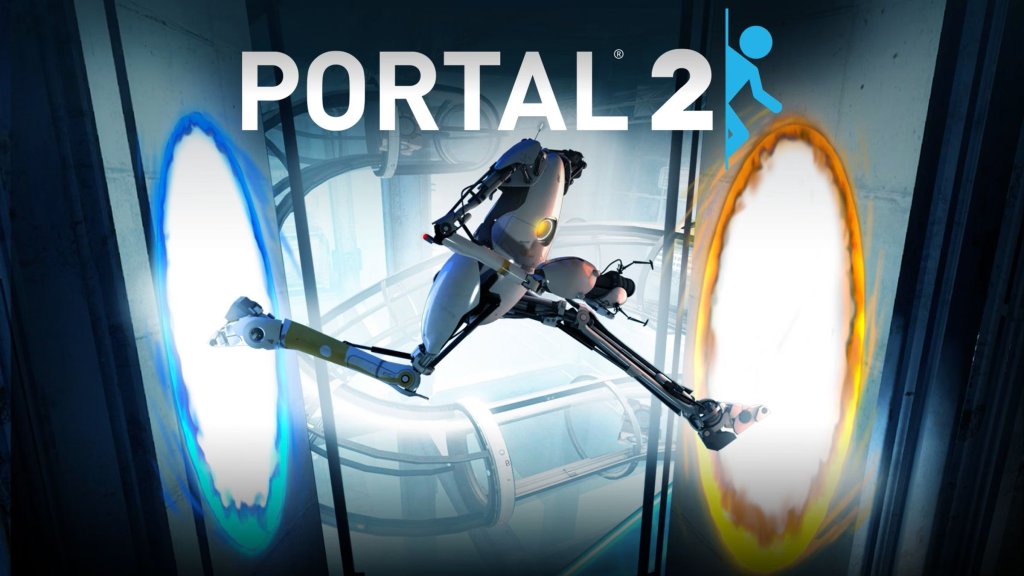
Portal 2 is a critically acclaimed first-person puzzle game developed by Valve. This guide covers legitimate download and installation methods for all supported platforms, including PC (Steam), PlayStation 3, Xbox 360/One/Series X|S, and Nintendo Switch (via Portal: Companion Collection). Mobile platforms are not supported.
Official Download Sources
Only download Portal 2 from official digital storefronts. Avoid unauthorised third‑party sites.
| Platform | Store / Service | Purchase & Download Link |
|---|---|---|
| PC (Windows / macOS / Linux) | Steam | [store.steampowered.com/app/620](https://store.steampowered.com/app/620) |
| PlayStation 3 | PlayStation Store (PS3) | (Legacy store, purchase via web or console) |
| **Xbox 360 / Xbox One / Xbox Series X | S** | Xbox Store (backward compatible on Xbox One / Series) |
| Nintendo Switch | Nintendo eShop (as part of Portal: Companion Collection) | [nintendo.com/games/detail/portal-companion-collection-switch](https://www.nintendo.com/games/detail/portal-companion-collection-switch) |
---
System Requirements (PC)
Minimum Requirements (for 720p, 30 FPS, low settings)
- OS: Windows 7 / Vista / XP (32‑bit or 64‑bit) – Note: Windows XP no longer supported by Steam. Modern Windows 10/11 recommended.
- Processor: Intel Core 2 Duo 2.0 GHz or AMD Athlon 64 X2 2.0 GHz
- Memory: 2 GB RAM
- Graphics: DirectX 9.0c compliant, 256 MB VRAM (NVIDIA GeForce 7600 / ATI Radeon X1600 or better)
- Storage: 8 GB free space (after installation)
- Sound: DirectX 9.0c compatible
- DirectX: Version 9.0c (included with game)
- OS: Windows 10 64‑bit
- Processor: Intel Core i5 2.5 GHz or AMD Phenom II X4 3.0 GHz
- Memory: 4 GB RAM
- Graphics: NVIDIA GeForce GTX 460 / AMD Radeon HD 6850 or better (1 GB VRAM)
- Storage: 10 GB SSD recommended (8 GB HDD minimum)
- Sound: DirectX 9.0c compatible
- OS: macOS 10.12 Sierra or newer (official support ends at macOS 10.15 Catalina; may not run on Apple Silicon without Rosetta 2)
- Processor: Intel Core i5 2.5 GHz
- Memory: 4 GB RAM
- Graphics: Intel HD Graphics 4000 / NVIDIA GeForce GT 330M or better (512 MB VRAM)
- Storage: 8 GB free space
- OS: Ubuntu 12.04 or newer (or any modern 64‑bit distribution with Steam runtime)
- Processor: 2.5 GHz dual‑core
- Memory: 4 GB RAM
- Graphics: NVIDIA GeForce GTX 460 / AMD Radeon HD 6850 (proprietary drivers recommended)
- Storage: 8 GB free space
- PC (Steam): ~8 GB after download (download size ≈ 5.5 GB). Extra space may be required during patching.
- PlayStation 3: ~6 GB (PS3 HDD space).
- Xbox 360: ~4.5 GB (may require an HDD for installation on older models).
- Xbox One / Series: ~6.5 GB.
- Nintendo Switch: ~5.5 GB (Portal 2 alone; total for Companion Collection ≈ 6.5 GB).
- macOS / Linux: Comparable to Windows.
- Steam (PC/macOS/Linux): A free Steam account is mandatory. The game is permanently tied to your Steam library. An internet connection is required for initial activation and verify ownership; offline play is allowed after first launch.
- PlayStation Network: Required for PS3 version. An internet connection for initial download.
- Xbox Live: Required for Xbox 360/One/Series. A free Microsoft account is sufficient (no Gold needed for single‑player).
- Nintendo Switch: A Nintendo Account needed to purchase and download from eShop.
- Xbox 360 (digital): Purchase from Xbox Live Marketplace. Download via the “My Games & Apps” queue. Disc users insert the disc and follow on‑screen installation prompts.
- Xbox One / Series (backward compatible):
- Graphics Configuration: On first run, the game may display a dialog asking to set resolution, quality, and display mode (fullscreen, borderless, windowed). You can also skip and adjust later in Options.
- Steam Overlay: Enabled by default. Press Shift+Tab to access friends, screenshots, etc.
- Cloud Saves: Automatically enabled; syncs progress across PCs.
- Audio Language: Can be changed in Options menu.
- Workshop Content: Portal 2 has Steam Workshop for custom maps. Optional.
- Profile Selection: Choose your local profile or sign in to PSN / Xbox Live / Nintendo Account.
- Online Features: On PS3 / Xbox, you may be prompted to sign in to PSN/Xbox Live for multiplayer or leaderboards. On Switch, online play requires Nintendo Switch Online subscription.
- Brightness Calibration: Some platforms offer a quick brightness adjustment.
- Controls: Default control schemes are pre‑configured. You can remap buttons in settings.
Recommended Requirements (for 1080p, 60 FPS, high settings)
macOS Requirements
Linux Requirements
---
Storage Space
---
Account Requirements
---
Step‑by‑Step Installation
1. PC – Steam (Windows / macOS / Linux)
1. Create / Log in to Steam: Download the Steam client from [store.steampowered.com](https://store.steampowered.com). Install and log in with your Steam account.
2. Purchase Portal 2: Go to the Steam Store page for Portal 2 and purchase the game. It will be added to your library.
3. Install the game:
- Open your Steam Library.
- Locate “Portal 2” in the list (or use search).
- Click the Install button.
- Choose an installation directory (default is `C:\Program Files (x86)\Steam\steamapps\common\Portal 2`).
- Select Next and wait for the download to complete. Download size is ~5.5 GB.
4. Post‑install: Once downloaded, Steam will automatically verify files and apply any patches. The “Play” button becomes active.
5. Launch: Click Play. The game will start. You may be prompted to choose graphics settings on first launch (or it will auto‑detect).
2. PlayStation 3
1. Access PlayStation Store: From the PS3 XMB, navigate to PlayStation Store.
2. Search for Portal 2: Use the search function or browse the PS3 games section.
3. Purchase & Download: Buy the game (digital version). The download will begin automatically. You can check download progress under “Notifications”.
4. Install: After download, the game will install. Once complete, the icon appears on the XMB.
5. Launch: Insert the disc (if physical) or select the digital icon to start. The game may install a small update (requires PSN connection).
> Note: Physical disc users: Insert the disc, then navigate to the game disc icon. The game will install a mandatory 6 GB data file before play. An internet connection for patches is recommended.
3. Xbox 360 / Xbox One / Xbox Series X|S
1. Insert the Xbox 360 disc OR purchase digitally from Microsoft Store.
2. The console will download a migration package (approx. 6.5 GB) and install the game.
3. Wait for installation to finish. Portal 2 will appear in “My Games & Apps”.
4. Launch the game – it runs natively via the backward compatibility emulation layer. Achievements, cloud saves, and online multiplayer work.
> Tip: On Xbox Series X|S, Portal 2 benefits from auto HDR and faster load times due to the SSD.
4. Nintendo Switch
1. Open Nintendo eShop from the HOME menu. Ensure your Nintendo Account is linked.
2. Search for “Portal: Companion Collection” (contains Portal 2).
3. Purchase & Download: Select the game, proceed to purchase. The download will start automatically. Check download status from HOME menu or eShop.
4. Install: Wait for the download to complete. The game icon will appear on your HOME screen.
5. Launch: Select the icon. First launch loads a menu to choose between Portal 1 and Portal 2. Select Portal 2 to begin.
---
First Launch Setup
PC / Steam
Console / Switch
---
Common Installation Errors & Fixes
PC / Steam
| Error | Cause | Solution |
|---|---|---|
| “Missing executable” or “Application load error” | Corrupted installation or antivirus flagging | Verify integrity of game files via Steam: Right‑click Portal 2 > Properties > Local Files > Verify integrity of game files. |
| “Failure to write to disk” | Insufficient permissions or drive full | Run Steam as administrator. Check free space (need >8 GB). Try a different Steam library folder. |
| Steam download stuck at 0% | Server congestion or outdated Steam client | Restart Steam. Change download region in Settings > Downloads. |
| Game crashes on launch (black screen) | Missing DirectX or GPU driver issues | Install/repair DirectX from `_CommonRedist` folder inside Portal 2 directory. Update graphics drivers. |
| Low FPS / stutter | Hardware below minimum or outdated drivers | Lower resolution and graphics settings. Set launch options: `-high` (high priority) or `-threads X` (where X = CPU core count). |
| No sound | Audio device mismatch or sample rate | In Windows Sound settings, set speaker configuration to stereo. Try 44100 Hz sample rate. |
| Steam Cloud sync conflict | Multiple PCs playing offline | Launch game while online; Steam will resolve conflict automatically (choose local or cloud). |
PlayStation 3
| Error | Cause | Solution |
|---|---|---|
| Disc unreadable / installation fails | Dirty disc or failing Blu‑ray drive | Clean disc with soft cloth. Delete partial installation and retry. |
| Network error when downloading | PSN server issues or corruption | Check PSN status. Delete the partially downloaded file and redownload. |
| Game freezes at title screen | Hard drive fragmentation or corrupt data | Rebuild PS3 database via Safe Mode (hold power button on boot until beeps). |
Xbox 360 / One / Series
| Error | Cause | Solution |
|---|---|---|
| “Game took too long to launch” / Backwards compat error | Emulation data missing or corrupted | Uninstall and reinstall the game. Ensure console is fully updated (Settings > System > Updates). |
| Installation stops at 99% | Disc model not supported or dirty disc | On Xbox 360: try a different region disc. On One/Series: insert disc and wait; if stuck, restart console. |
| No audio / Visual glitches | Unsigned driver or console overheating | Hard reboot (hold power for 10 seconds). Check ventilation. |
Nintendo Switch
| Error | Cause | Solution |
|---|---|---|
| Download fails or pauses | Insufficient storage or internet instability | Clear storage (Settings > Data Management > Manage Software). Delete unneeded saves. Connect to a stable Wi‑Fi. |
| Game won’t start after download | Corrupt download | From HOME menu, highlight game, press `+` > Manage Software > Check for Corrupt Data. If found, delete and redownload. |
| Low battery warning | Hardware strain from heavy game | Ensure system is charged; play in docked mode. |
Post‑Installation Verification
After installing Portal 2, perform these checks to confirm everything is working:
PC / Steam
1. Launch the game and reach the main menu.
2. Start a new game or load a save (single‑player).
3. Verify that audio (dialog, music, sound effects) plays correctly.
4. Check that the Steam Overlay (Shift+Tab) appears and that you can access friends / web browser.
5. (Optional) Start a multiplayer lobby: invite a friend or use `map workshop/xxxx` in console to test connectivity.
6. Confirm cloud saves are working: exit the game, then check Steam Cloud status in Library (cloud icon next to game).
Consoles
1. PS3 / Xbox / Switch: Launch game and navigate to options > controls. Ensure all buttons respond.
2. PS3: Check that trophies sync (go to XMB > Trophies > Portal 2).
3. Xbox: Verify achievements are popping (e.g., complete the first chamber).
4. Switch: Test both Joy‑Con and Pro Controller input. Check that the game runs smoothly in docked and handheld modes.
5. Online: If applicable, join a co‑op game quickly – the game will search for a partner or you can invite a friend.
---
Additional Tips
- Modding (PC): Portal 2 supports Steam Workshop. Subscribe to maps in the Steam client; they will download automatically. Use the in‑game “Community Test Chambers” menu to play them.
- Steam Link / Remote Play: You can stream Portal 2 to mobile devices via Steam Link app, but the game itself cannot be installed on mobile.
- Cross‑platform Play: Portal 2 does not support cross‑platform multiplayer. PC, PS3, Xbox, and Switch communities are separate.
- Backward Compatibility: The Xbox 360 version runs on Xbox One/Series via BC; PS3 version is not compatible with PS4/PS5.
- Legacy OS: Windows XP and Vista are no longer supported by Steam. The game may still run but technical support is limited.
---
Last updated: October 2025. Information is accurate at time of writing.