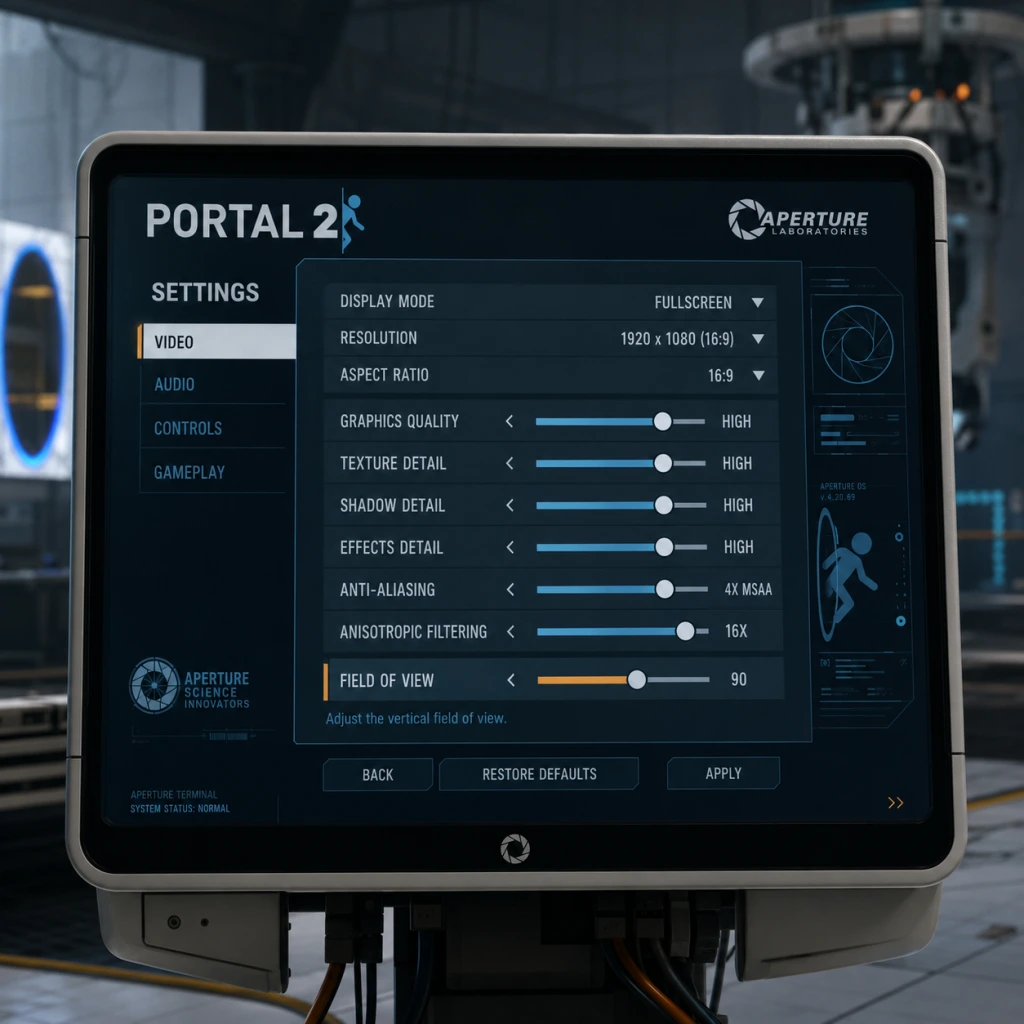
Game Settings
Game Settings: Portal 2
Portal 2 offers a wide range of customizable settings that can significantly affect visual fidelity, performance, and comfort. This guide covers every category: Graphics, Audio, Controls, Accessibility, Language, Network, and Gameplay. Optimal recommendations are provided for low-end, mid-range, and high-end hardware, along with special attention points to avoid common misconfigurations.
---
Graphics Settings
Graphics settings control visual quality and performance. Portal 2 uses the Source engine, which scales well on modern hardware but can be demanding on low-end systems. Below is a table of each option, its effect, and recommended values per hardware tier.
| Setting | Description | Low-End | Mid-Range | High-End |
|---|---|---|---|---|
| Resolution | Native display resolution. Lower = better performance. | 1280x720 | 1920x1080 | 2560x1440 or native |
| Display Mode | Fullscreen, Windowed, Borderless Windowed | Fullscreen | Fullscreen | Fullscreen |
| Refresh Rate | Monitor refresh rate; match max supported. | 60Hz | 60-144Hz | up to max |
| Field of View (FOV) | Horizontal viewing angle. Higher = wider view. | 75 | 90 | 90+ (up to 110) |
| Model Detail | Polygon count on characters/objects. | Low | High | Very High |
| Texture Detail | Resolution of textures. | Low | High | Very High |
| Shadow Detail | Shadow resolution and distance. Off/Low = big performance gain. | Low | Medium | High |
| Water Detail | Reflections and transparency quality. | Low | Medium | High |
| Shader Detail | Lighting and material complexity. | Low | High | Very High |
| Antialiasing | Smooths jagged edges. Options: None, FXAA, MSAA 2x/4x | None | FXAA or MSAA 2x | MSAA 4x |
| Multisampling (MSAA) | Subset of antialiasing; trades performance for quality | Off | 2x | 4x |
| Wait for Vertical Sync | Prevents screen tearing; caps FPS to refresh rate. | Off (if tearing tolerable) | On | On (G-Sync/FreeSync override recommended) |
| Motion Blur | Blurs during camera movement; can cause nausea. | Off | Off | Off |
| HDR (High Dynamic Range) | Improves contrast and brightness in supported displays. | Off | Off | On (if monitor supports) |
| Vsync Triple Buffering | Reduces input lag with Vsync on. | Off | On | On (if Vsync on) |
- Low-End Preset (e.g., integrated graphics, older laptops):
- Mid-Range Preset (e.g., GTX 1060, RX 580):
- High-End Preset (e.g., RTX 3070+):
- Field of View: Increasing FOV beyond 90 can cause distortion on narrow screens; test in the first chamber. Many players find 90-95 optimal. Too high (110+) may reduce target visibility in puzzles requiring precise angles.
- Vsync: Enabling Vsync without triple buffering can add input lag. For competitive time trials, disable Vsync and cap FPS via GPU driver instead.
- Motion Blur: Off by default for clarity; keep off to avoid motion sickness.
- Antialiasing: FXAA is light but blurs textures; MSAA is sharper but costly. On low-end, disable entirely.
- Set resolution to 1280x720.
- Turn all details to Low.
- Disable Antialiasing, Vsync, Motion Blur, HDR.
- Set FOV to 75-85.
- Expected performance: 30-60 FPS in most chambers.
- 1920x1080 resolution.
- Model: High, Texture: High, Shadows: Medium, Water: Medium, Shader: High.
- Antialiasing: FXAA or MSAA 2x.
- Vsync ON, Motion Blur OFF.
- FOV 90.
- Expected performance: 60-90 FPS.
- Native resolution (1440p or 4K).
- All details to Very High.
- MSAA 4x.
- Vsync ON (or use G-Sync).
- HDR enabled if supported.
- FOV up to 110.
- Expected performance: 120+ FPS.
#### Special Attention Points
---
Audio Settings
Audio settings affect sound output and balance. Portal 2 relies on audio cues from turrets, lasers, and environmental sounds.
| Setting | Description | Recommended |
|---|---|---|
| Master Volume | Overall volume. | 70-90% |
| Sound Effects Volume | In-game sounds (portals, lasers, steps). | 80% |
| Music Volume | Background music. | 50-70% |
| Voice Volume | Character dialogue (GLaDOS, Wheatley, etc.) | 100% (story critical) |
| Mute When Unfocused | Mutes audio when window loses focus. | On (if multitasking) or Off |
| Audio Device | Choose output device. | Default or headset |
| Headphones / Speakers | Optimize for headphone or speaker output. | Headphones (for surround sound virtual) |
- Voice Volume: Keep at 100%; many puzzle clues are delivered verbally.
- Headphones Mode: Enables HRTF (head-related transfer function) for 3D audio. Turn ON for better spatial awareness of portals and moving platforms.
- Mute When Unfocused: Can be annoying if you alt-tab; set to Off if you frequently check guides.
- Primary Action: "Fire Portal 1" (default left-click).
- Secondary Action: "Fire Portal 2" (default right-click).
- Use: "Interact" (default E) – for buttons, cubes, elevators.
- Reload: No reload mechanic; binds to "Pick Up/Place Cube" (default R).
- Jump: Spacebar.
- Crouch: Ctrl.
- Sprint: There is no sprint; bind to "Walk" speed toggle if desired.
- Zoom: No zoom; binds to FOV toggle if desired.
- Quick Switch: Q (switch to previous portal).
- Drop Weapon: Not applicable; use "Use" for portalable surfaces?
- Left stick: Move.
- Right stick: Look.
- RT/LT: Fire portals.
- A: Jump.
- B: Crouch.
- X/Y: Interact/Pick up.
- Recommended starting point: 2.0 for 400 DPI, 1.0 for 800 DPI. Adjust until you can comfortably aim at surfaces 180 degrees apart.
- Raw Input: Enable Raw Mouse Input (in Advanced Controls) for consistent sensitivity across Windows desktop and in-game.
- Mouse Smoothing: Disable; adds lag.
- Auto-Aim: Not applicable.
- Bind "Use" to a convenient key (mouse wheel click, or thumb button) for quick cube handling.
- Toggle Crouch vs Hold Crouch: In advanced settings, set crouch to toggle if you need to hold it for long periods (e.g., under low ceilings).
- Controller Vibration: Can be turned off to reduce distraction or conserve battery.
---
Controls Settings
Controls configure keyboard/mouse or gamepad inputs. Portal 2 supports full remapping.
#### Keyboard & Mouse
#### Gamepad
#### Mouse Sensitivity
#### Special Attention Points
---
Accessibility Settings
Portal 2 includes several accessibility options.
| Setting | Description | Recommendation |
|---|---|---|
| Subtitles | On/Off for all dialogue. | On (essential for deaf/hard of hearing) |
| Close Captions | Describes sound events (e.g., "door opening"). | On if needed |
| Colorblind Mode | Adjusts UI colors for protanopia/deuteranopia/tritanopia. | Enable if applicable |
| Invert Mouse | Inverts Y-axis for look. | Personal preference |
| Controller Button Mapping | Remap gamepad buttons. | As needed |
| Auto-Aim | Not present. | N/A |
| Narrator | Not built-in; use OS narrator. | N/A |
- Subtitles: Even hearing players may benefit to catch jokes or misspoken lines.
- Colorblind Mode: The game uses colored portal indicators (blue/orange) and certain puzzle elements (e.g., laser relay colors). Enable if you have difficulty distinguishing.
- Mouse Inversion: If you prefer flight-sim style, enable; otherwise leave off.
- Voice Language: English, French, German, Italian, Spanish, etc. Audio clips are pre-recorded; changing requires download of language packs.
- Subtitle Language: Can differ from voice language. For example, English voices with Japanese subtitles.
- Text Language: Menus, HUD, and in-game text.
---
Language Settings
Portal 2 supports multiple spoken and subtitle languages.
To change language:
1. Open Steam Library > Right-click Portal 2 > Properties > Language.
2. Select desired language for text/voice. The game will download required files.
3. Launch game to apply.
Note: Changing language in-game (Settings > Language) only affects subtitles and UI, not voice. Voice language must be changed via Steam.
---
Network Settings
Portal 2 supports online multiplayer via cooperative campaign and community maps.
| Setting | Description | Recommendation |
|---|---|---|
| Enable Multiplayer | Allows online play. | On |
| Allow Quick Play | Automatically joins matchmaking. | On or Off |
| Steam Cloud Sync | Saves settings and progress to cloud. | On (prevents data loss) |
| Server Browser | For custom maps/servers. | Not default; use community listing |
| Voice Chat | Enable/disable during multiplayer. | On (useful for co-op) |
| Push-to-Talk | Key to enable mic. Default V. | Enable to avoid background noise |
- Steam Cloud Sync: Keep on to sync settings between PCs. However, some players report sync conflicts; if you encounter settings reset, disable temporarily.
- Push-to-Talk: Strongly recommended in co-op to avoid constant noise.
- NAT Type: Ensure UPnP or port forwarding for stable co-op connections. Common ports: UDP 27015-27030, TCP 27031-27036.
---
Gameplay Settings
These alter HUD and helper features.
| Setting | Description | Recommendation |
|---|---|---|
| Crosshair | Show aiming crosshair. | On (portal aiming aid) |
| Portal Gun Crosshair Color | Changes crosshair tint to match portal color. | On |
| Show Portal Placement Indicator | Shows if a surface is portalable. | On (helps avoid mistakes) |
| HUD Style | Classic or Minimal. | Minimal for cleaner view |
| Difficulty | Not adjustable; puzzles are fixed. | N/A |
| Training Mode | Tutorial text overlays during first playthrough. | On for first-timers; Off after |
| Auto-Save Frequency | Not customizable. | N/A |
| Quick Save / Load | Not available in official game. | Use console commands if desired |
- Crosshair: Keep On for precise portal placement. The crosshair shape changes when pointing at a portalable surface.
- Portal Placement Indicator: This small visual cue (a white outline) is invaluable for beginners; turn off only if you want a challenge.
- HUD Style: Minimal hides health/ammo (not present) and objective text; many players prefer classic for clarity.
- `fov_desired` – Set FOV (default 75). Can set up to 110.
- `cl_showfps 1` – Display FPS counter.
- `mat_motion_blur_enabled 0` – Disable motion blur if not in menu.
- `r_drawothermodels 2` – Forces low-poly models for performance.
- `mat_antialias 0` – Disable MSAA entirely.
- `bind "key" "incrementvar fov_desired 75 110 5"` – Bind a key to cycle FOV.
---
Advanced / Developer Console Settings
Accessible via `~` key (if enabled in Settings > Keyboard > Enable Developer Console). Useful for further tweaks:
Warning: Console commands can break puzzle logic (e.g., noclip). Use only for benchmarking or personal comfort; avoid in multiplayer.
---
Summary of Easiest-to-Misconfigure Settings
1. Vsync – Leaving off can cause screen tearing; leaving on can cause input lag. Best compromise: enable Vsync and Triple Buffering, or use GPU-driven Adaptive Vsync.
2. Field of View – Too low (75) feels claustrophobic; too high (>95) distorts edges. Recommended: 90 for 16:9 screens.
3. Voice Volume – Often set too low; players miss story-critical dialogue. Keep at 100%.
4. Mouse Smoothing – Enabled by default in some Source games; disable for precise aiming.
5. Language Settings – Changing voice language requires Steam property change, not in-game menu.
6. Steam Cloud Sync – If disabled, settings may be lost on reinstall. Enable to keep preferences.
7. Crosshair & Placement Indicator – Turning off makes puzzle-solving harder for newcomers.
---
Final Checklist for First-Time Setup
1. Launch Portal 2 and go to Settings > Video.
2. Set Resolution to native. Adjust FOV to 90.
3. Disable Motion Blur and Vsync (or configure as above).
4. Set Antialiasing to FXAA (mid) or MSAA 2x (high).
5. Go to Audio: set Headphones mode ON, Voice Volume 100%.
6. Go to Controls: enable Raw Mouse Input, disable Mouse Smoothing.
7. Enjoy the game!
For ongoing adjustments, use the developer console to fine-tune without restarting.