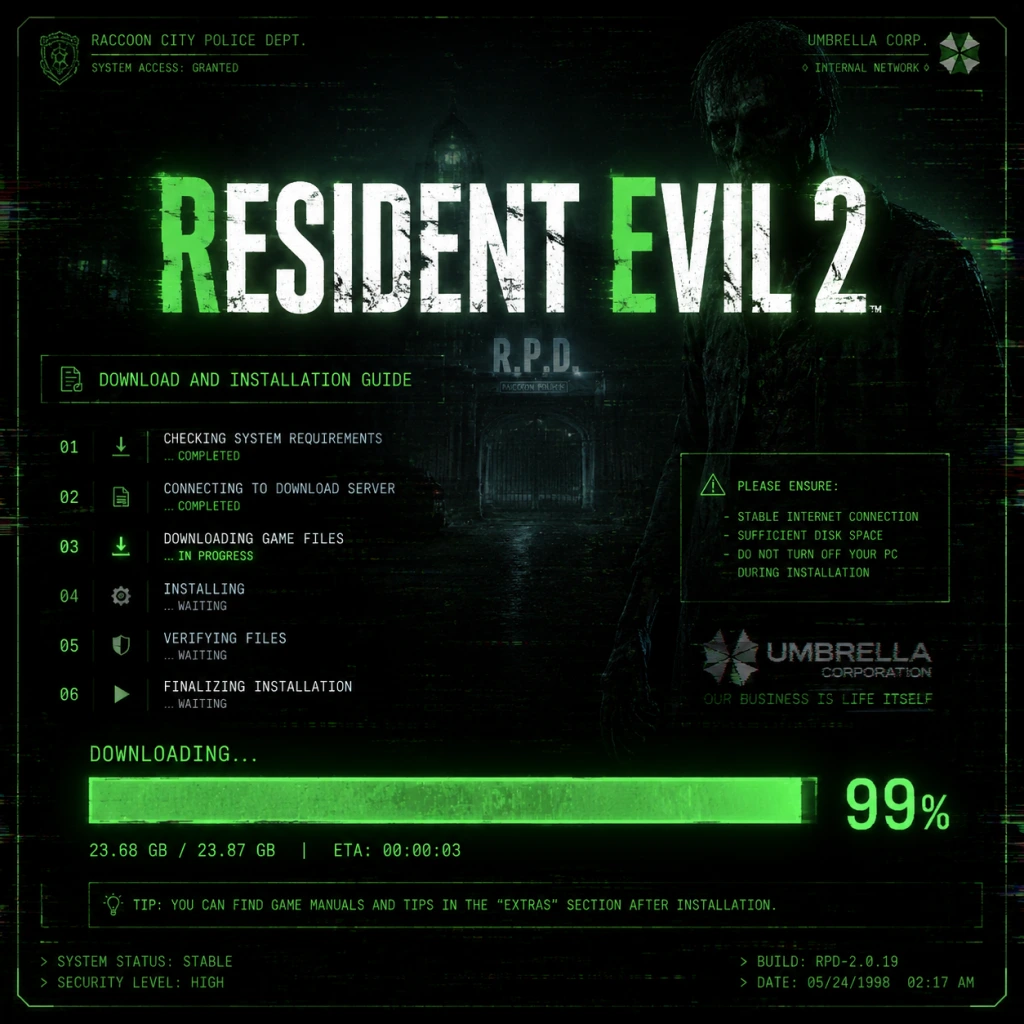
Download & Installation
Resident Evil 2 (2019) Download & Installation Guide
This guide covers legitimate download sources and installation procedures for Resident Evil 2 (the 2019 remake) on all major platforms: PC (Steam, Epic Games Store), PlayStation 4/5, and Xbox One/Series X|S. The game is not available natively on Nintendo Switch or mobile devices (cloud streaming may be possible via Xbox Cloud Gaming or similar services, but not covered here).
---
Platform Availability
| Platform | Digital Store(s) | Disc Support | Notes |
|---|---|---|---|
| PC | Steam, Epic Games Store | No disc (DRM-free version not available) | Requires 64-bit OS; supports controllers |
| PlayStation 4/5 | PlayStation Store (PS4, PS5 backward-compatible) | Yes (PS4 disc; PS5 disc not produced) | PS5 runs via backward compatibility; separate PS5 upgrade available |
| **Xbox One / Series X | S** | Microsoft Store (Xbox One, Series X | S) |
Official Download Sources (Legitimate Only)
- Steam: [store.steampowered.com/app/883710](https://store.steampowered.com/app/883710)
- Epic Games Store: [store.epicgames.com/en-US/p/resident-evil-2](https://store.epicgames.com/en-US/p/resident-evil-2)
- PlayStation Store: Available via PSN (search for "Resident Evil 2")
- Microsoft Store: Available via Xbox Store (search for "Resident Evil 2")
- OS: Windows 7 64-bit (or higher)
- CPU: Intel Core i5-4460 / AMD FX-6300
- RAM: 8 GB
- GPU: NVIDIA GeForce GTX 760 / AMD Radeon R7 260x (2 GB VRAM)
- DirectX: Version 12
- Storage: 26 GB (varies slightly with updates; recommend 30 GB free)
- Sound: DirectX-compatible sound card
- OS: Windows 10 64-bit (or higher)
- CPU: Intel Core i7-3770 / AMD FX-9590 or better
- RAM: 8 GB
- GPU: NVIDIA GeForce GTX 1060 / AMD Radeon RX 480 (3 GB VRAM or more)
- DirectX: Version 12
- Storage: 26 GB (SSD recommended for faster loading)
- Sound: DirectX-compatible sound card
- Language Selection – Choose interface and voice language (some languages require separate download).
- Graphics Settings (PC only): Set resolution, texture quality, shadows, etc. Use recommended automatic detection.
- Brightness Calibration – Adjust to see the logo barely visible.
- Controller Configuration – Supports PlayStation, Xbox, or generic controllers. Keybindings can be changed.
- Frame Rate Options (PC): Unlock or cap (30, 60, 120).
- HDR (if supported): Enable for compatible displays.
---
PC – System Requirements
Store listings (Steam/Epic) list identical requirements.
Minimum Requirements
Recommended Requirements
Note: For ray tracing (PC version update), a more powerful GPU is required (e.g., RTX 2060 or RX 6600).
---
PC Installation – Step-by-Step
Steam
1. Create/Login to Steam Account – If not already, download the Steam client from [store.steampowered.com](https://store.steampowered.com) and create a free account.
2. Purchase the Game – Navigate to the Resident Evil 2 page and complete purchase.
3. Install the Client – Ensure Steam client is installed and logged in.
4. Initiate Download – Go to Library > Resident Evil 2 > Click "Install" or "Download".
5. Choose Install Location – Default is `C:\Program Files (x86)\Steam\steamapps\common`. You can change it.
6. Wait for Download – The game downloads and installs automatically (includes all updates).
7. Launch – Once complete, click "Play".
Epic Games Store
1. Create/Login to Epic Account – Download Epic Games Launcher from [epicgames.com](https://www.epicgames.com) and sign in.
2. Purchase the Game – Search for Resident Evil 2, buy it.
3. Install the Launcher – Ensure Epic Games Launcher is running.
4. Initiate Download – Go to Library > Resident Evil 2 > Click "Install".
5. Choose Install Location – Similar to Steam.
6. Wait for Download – Launcher handles installation.
7. Launch – Click "Launch" from library.
Note: Both stores require a persistent internet connection for initial activation.
---
PlayStation (PS4 / PS5) Installation
Digital Download
1. Sign In to PSN – On your console, sign in with your PlayStation Network account.
2. Go to PlayStation Store – Search for "Resident Evil 2".
3. Purchase & Download – For PS4, select the PS4 version. For PS5, you can also buy the PS4 version (backward-compatible) or look for the PS5 upgrade (available separately or via upgrade).
4. Initiate Download – The game will be added to your library and begin downloading automatically (ensure you have sufficient storage).
5. Install – Once download finishes, the game installs automatically. You may need to confirm installation.
6. Launch – From the home screen or game library.
Disc Installation (PS4)
1. Insert Disc – Insert the PS4 disc into the console (PS4 or PS5).
2. Follow On-Screen Prompts – The console will begin copying data from the disc (may require a download for patches).
3. Complete Installation – After disc copy, any available updates will download and install.
4. Launch – Game will be ready to play.
PS5 Note: The PS4 disc works on PS5 digital edition? Only on disc-based PS5. Digital Edition requires digital purchase.
---
Xbox (One / Series X|S) Installation
Digital Download
1. Sign In to Xbox Live – On your console, sign in with your Microsoft account.
2. Go to Microsoft Store – Search for "Resident Evil 2".
3. Purchase & Download – Choose the version (Xbox One or Xbox Series X|S; Smart Delivery provides the best version).
4. Initiate Download – The game will download and install automatically. You can monitor progress in My Games & Apps.
5. Launch – From the dashboard or My Games & Apps.
Disc Installation (Xbox One)
1. Insert Disc – Insert the Xbox One disc into your console (Xbox One or Series X|S).
2. Install from Disc – The console copies game data from disc. A prompt appears.
3. Download Updates – After initial copy, updates download automatically (requires internet).
4. Launch – Game appears in your library.
Series X|S Note: Disc works on Series X (disc drive), not on Series S (digital only).
---
First Launch Setup
On all platforms, the first launch may present:
Important: On PC, after first launch, check "Graphic Options" for ray tracing (if your GPU supports it) – this is a separate toggle.
---
Common Installation Errors & Fixes
PC
| Error / Issue | Likely Cause | Fix |
|---|---|---|
| "Missing DLL (e.g., MSVCP140.dll)" | Missing Visual C++ Redistributables | Install latest VC++ from Microsoft (`vc_redist.x64.exe`). Steam/Epic may auto-install. |
| "DirectX Error" | DirectX not updated | Download DirectX End-User Runtimes from Microsoft. |
| "Low disk space" | Full drive | Free at least 30 GB; check that install location has space. |
| "Antivirus blocking installation" | False positive | Temporarily disable AV during installation or add exception for the game folder. |
| "Steam/Epic download stuck" | Network or cache | Restart client, clear download cache (Settings > Downloads > Clear Cache). |
| "Game crashes on launch" | Corrupted files or GPU driver | Verify game files (Steam: Right-click > Properties > Local Files > Verify). Update GPU drivers. |
| "Black screen on start" | Fullscreen/display issue | Press Alt+Enter to switch to windowed mode; change settings manually in config files. |
PlayStation
- „Cannot install” error – Insufficient storage or corrupted download. Delete unneeded content, retry download. Rebuild database (Safe Mode) if persistent.
- Disc read error – Clean disc, ensure no scratches. Try another disc to rule out drive issue.
- Update download fails – Check PSN status; restart console; try wired connection.
- „Installation stopped” – Hard drive full or heavy background downloads. Free space, pause other downloads.
- Disc not recognized – Clean disc; check if console is outdated. Update console firmware.
- Game not appearing after install – Go to My Games & Apps > See all > Wait for syncing. Hard restart console.
- Account Requirements: All platforms require a free online account (Steam, Epic, PSN, Xbox Live) to download and play. No subscription needed for single-player, but online features (if any) may require PS Plus or Xbox Live Gold.
- Resident Evil 2 Deluxe Edition – Includes extra costumes and soundtrack swap; installation same as standard, content unlocks automatically.
- Mod Support (PC) – Unofficial mods can be installed via Nexus Mods; always backup original files. Not covered here.
Xbox
---
Post-Install Verification
After installation, perform these checks:
1. Launch the Game – Confirm it loads past logos and main menu.
2. Check for Updates – Ensure the latest patch is installed. On PC, Steam/Epic auto-update; on consoles, check for game updates in your library.
3. Verify Game Files (PC) – Steam: Right-click game > Properties > Local Files > Verify Integrity of Game Files. Epic: Library > click three dots on RE2 > Manage > Verify.
4. Storage Space – Confirm game folder size matches expected (\( \)26 GB on PC; similar on consoles).
5. Run a Benchmark – On PC, use the built-in performance test (Options > Graphics > Performance Test) to ensure stability.
6. Check Achievement/Save Sync – Ensure your respective platform account syncs (cloud saves).
---
Additional Notes
If you encounter any issues not listed, consult the respective platform’s support pages or the game’s official forums.