Download & Installation
Squad: Complete Download & Installation Guide
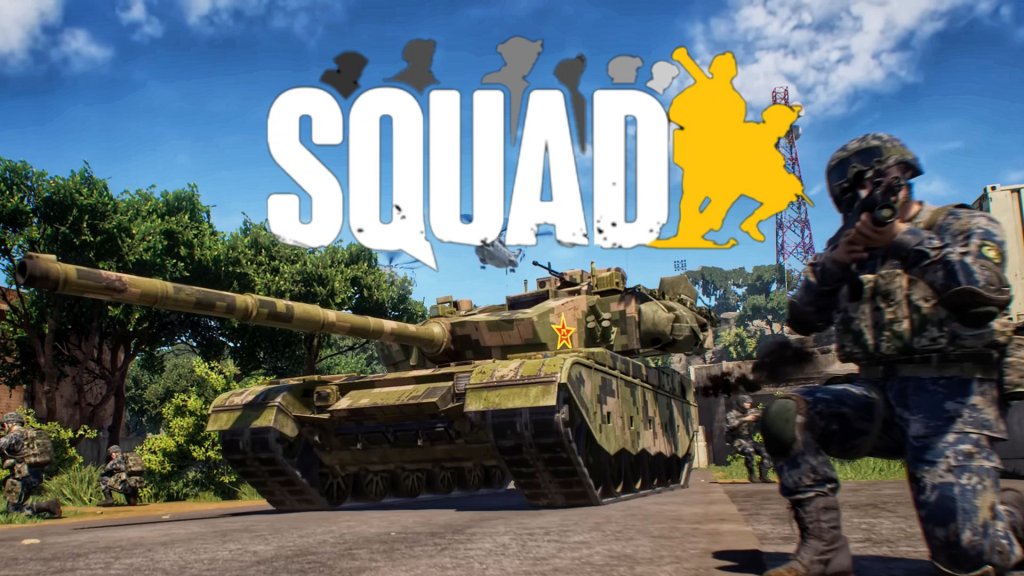
Squad is a realistic, team-based tactical first-person shooter developed by Offworld Industries. It is currently available exclusively on PC (Windows) via Steam and Epic Games Store. There are no console (PlayStation, Xbox, Switch) or mobile versions. This guide covers everything from purchasing to first launch.
---
Official Download Sources (Legitimate Only)
| Platform | Source | URL (not clickable) | Notes |
|---|---|---|---|
| Steam | Steam Store | store.steampowered.com/app/393380 | Primary platform, largest player base |
| Epic Games Store | Epic Games Store | store.epicgames.com/en-US/p/squad | Available, but fewer players; crossplay with Steam not supported |
---
System Requirements
Minimum Requirements
- OS: Windows 10 (64-bit)
- Processor: Intel Core i5-6400 or AMD Ryzen 3 1200
- Memory: 8 GB RAM
- Graphics: NVIDIA GeForce GTX 960 (4GB VRAM) or AMD Radeon R9 380 (4GB VRAM)
- DirectX: Version 12
- Storage: 80 GB available space (SSD strongly recommended)
- Network: Broadband Internet connection
- Sound: DirectX Compatible Audio
- OS: Windows 10/11 (64-bit)
- Processor: Intel Core i7-8700K or AMD Ryzen 5 3600X
- Memory: 16 GB RAM
- Graphics: NVIDIA GeForce GTX 1080 Ti (6GB+ VRAM) or AMD Radeon RX 5700 XT (8GB VRAM)
- DirectX: Version 12
- Storage: 80 GB SSD
- Network: Broadband Internet connection (low latency)
- Sound: DirectX Compatible Audio
- Steam Account: Required to purchase, install, and play via Steam. No additional account needed.
- Epic Games Account: Required for Epic Games Store version.
- No in-game account is mandatory for the base game. However, to use the Squad SDK (modding tools) or access server administration, you may need to register on the Offworld Industries website.
Recommended Requirements
Important: Installing on an HDD will result in very long load times and potential texture streaming issues. An SSD (SATA or NVMe) is highly recommended.
---
Step-by-Step Installation
On Steam
1. Create/Log in to your Steam account. If you don't have one, download the Steam client from [store.steampowered.com](https://store.steampowered.com) and create a free account.
2. Purchase Squad: Go to the Squad store page (search "Squad" or use link) and buy the game. It will be added to your library.
3. Install Steam Client (if not already installed): Download and install the Steam application for Windows.
4. Open Steam Library → Click the Library tab.
5. Find Squad in your game list. Click Install.
6. Choose Installation Location: Select your drive/folder. For best performance, install on an SSD with at least 80GB free.
7. Start Download: Click Next → Finish. The game will download and install automatically.
8. Wait: Download size is approximately 50-60 GB (may increase with updates). Ensure your internet is stable.
9. Launch: Once installation completes, click Play in Steam.
On Epic Games Store
1. Install Epic Games Launcher from [epicgames.com](https://www.epicgames.com). Log in or create an account.
2. Purchase Squad: Visit the Epic Store page for Squad and purchase. It will be added to your library.
3. Open Epic Games Launcher → Go to Library.
4. Find Squad and click Install.
5. Select Installation Location: Choose a folder (preferably on SSD).
6. Start Download: The launcher will download and install.
7. Launch: After installation, click Launch from the library.
Note: Squad does not support cross-platform play between Steam and Epic users. You must play with friends on the same store.
---
Account Requirements
---
First Launch Setup
After installation, follow these steps for optimal first-time experience:
1. Launch the game from your platform (Steam/Epic).
2. EULA Acceptance: Read and accept the End User License Agreement.
3. Graphics Settings: The game will auto-detect settings. Recommended:
- Resolution: Native monitor resolution.
- Graphics Quality: Start with High if your system meets recommended specs; otherwise, Medium. Adjust later based on performance.
- View Distance: At least High (important for spotting enemies).
- Shadows & Effects: Medium to High (FPS dependent).
- AA: TAA or SMAA (good balance).
4. Audio Settings: Ensure proper output device selected. Use Headphones mode for directional audio (critical for immersion).
5. Key Bindings: Default keys are fine. You may rebind voice chat (default V for local, B for squad).
6. Tutorial: Play the Training Range mode to learn vehicle handling, weapons, and communication.
7. Join a Server: Browser for servers with low ping and good population. Avoid full servers (waitlist) for first time.
---
Common Installation Errors & Fixes
| Error / Issue | Cause | Fix |
|---|---|---|
| "Disk Write Error" on Steam | Antivirus blocking write access or disk corruption. | Temporarily disable antivirus, run Steam as admin, or check disk for errors (`chkdsk /f`). |
| "Content File Locked" | Steam file verification issue. | Restart Steam and computer. If persists, verify game files (Steam: right-click Squad → Properties → Local Files → Verify integrity of game files). For Epic: Library → Squad → Settings → Verify. |
| Low FPS / Stuttering | Insufficient RAM, VRAM, or running on HDD. | Reduce graphics settings, close background apps, ensure Windows Game Mode is enabled. Move installation to SSD if on HDD. |
| "Easy Anti-Cheat" errors | Anti-cheat service not installed or blocked. | Uninstall and reinstall Easy Anti-Cheat via `Squad\EasyAntiCheat\EasyAntiCheat_Setup.exe` in game directory. Run as admin. |
| DirectX 12 crash | GPU driver or compatibility issue. | Update GPU drivers. If problem persists, launch game with `-dx11` in launch options (Steam: Properties → General → Launch Options → type `-dx11`). |
| Sound not working | Incorrect audio device or settings. | Check Windows sound settings, ensure game is using correct device. In game settings, try switching output to default. |
| Failed to connect to servers | Firewall blocking game. | Add `Squad.exe` and `SquadLauncher.exe` to firewall exceptions (both public and private). |
| Stuck on loading screen | Corrupted local config or files. | Delete `%localappdata%\Squad` folder (backup saves). Then verify game files. |
Post-Installation Verification
After installation, confirm everything works properly:
1. Check File Integrity: On Steam: Library → right-click Squad → Properties → Local Files → Verify integrity. On Epic: Library → Squad → three dots → Manage → Verify.
2. Launch the game and reach the main menu. If you see the menu with server browser, installation is successful.
3. Test Audio: Go to Settings → Audio and adjust levels. Use headset for best experience.
4. Test Performance: Join a low-population server (e.g., "Training" or empty server) and check FPS. If below 30, lower settings.
5. Update Graphics Drivers: Ensure latest drivers from NVIDIA or AMD.
6. Check updates: The game will auto-update through Steam/Epic. Keep auto-updates enabled.
---
Additional Tips
- Storage Space: The game can grow to over 80 GB with updates. Keep at least 100 GB free for future patches.
- Backup Local Config: Squad settings are stored in `%localappdata%\Squad\Saved\Config\WindowsNoEditor`. You can back up `GameUserSettings.ini` to preserve custom settings.
- Mods: Squad supports mods via Steam Workshop. Subscribe to mods (e.g., "Galactic Contention") before joining modded servers.
- Crossplay: Only between players on the same platform (Steam to Steam, Epic to Epic). No crossplay between stores.
---
Summary
Squad is a PC-only game available on Steam and Epic Games Store. Installation is straightforward, but requires a powerful PC with an SSD, 16GB RAM, and a modern GPU. Follow the platform-specific steps, resolve any errors using the table above, and verify your installation before diving into this intense team-based shooter. For further support, visit the official Squad Discord or Offworld Industries forums.