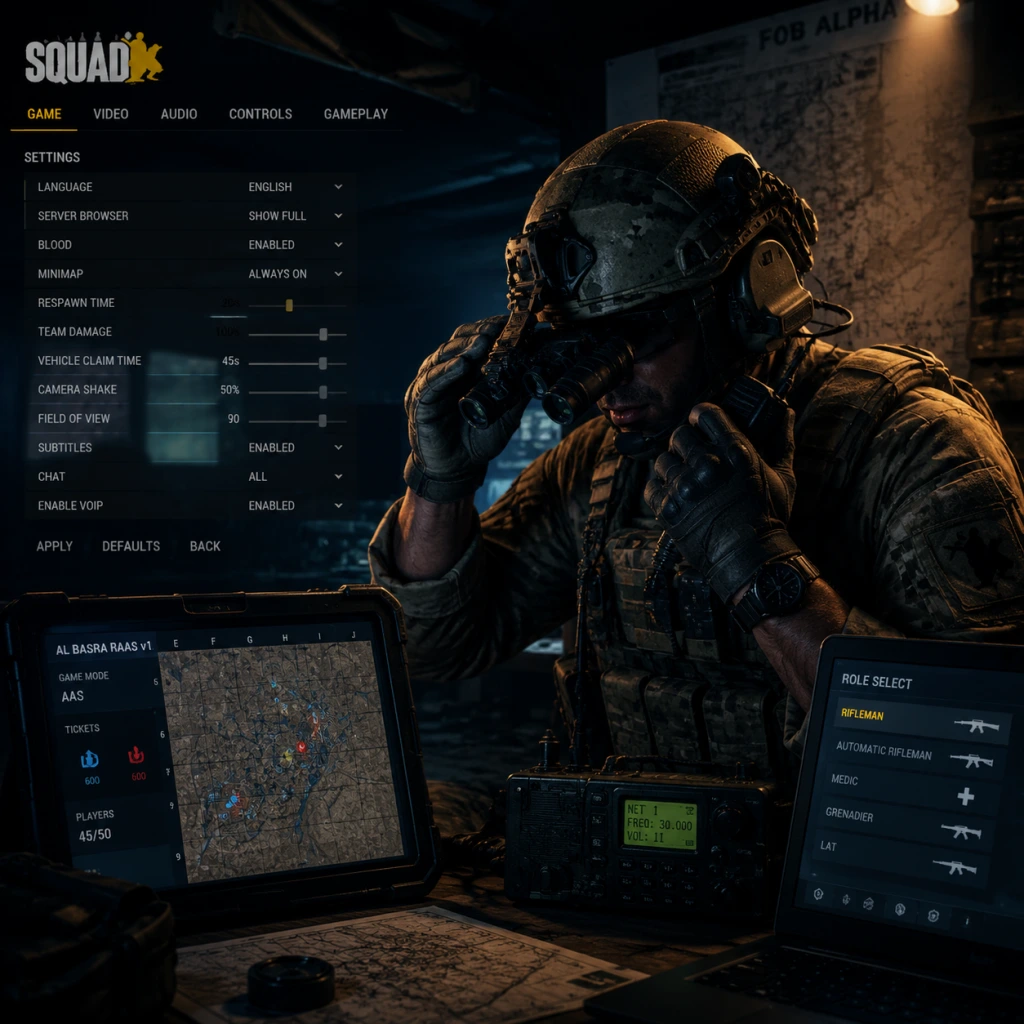
Game Settings
Game Settings Guide for Squad
Squad offers a wide array of settings that can significantly impact your performance, visual quality, and immersion. This guide breaks down each category—Graphics, Audio, Controls, Accessibility, Language, Network, and Gameplay—and provides recommendations for low-end, mid-range, and high-end systems, as well as specific tips to avoid common misconfigurations.
---
Graphics Settings
Squad’s graphics settings are divided into General, Advanced, and Resolution tabs. The game uses Unreal Engine 4, so many settings are similar to other UE4 titles but have specific performance impacts due to the large maps (e.g., 100 players, complex foliage, dynamic shadows).
#### Resolution & Display Mode
- Resolution: Set to your monitor’s native resolution (e.g., 1920x1080, 2560x1440). Lowering resolution can boost FPS significantly but will blur the image.
- Display Mode: Choose Fullscreen for best performance and lowest input latency. Borderless Windowed is useful if you alt‑tab frequently, but it typically adds slight input lag and may reduce FPS.
- VSync: Always OFF. VSync introduces noticeable input lag; use an in-game FPS cap or driver-level frame limit instead.
- Frame Rate Limit: Set to your monitor’s refresh rate (e.g., 60, 144, 240) or slightly above. Uncapped framerate can cause screen tearing and adds unnecessary GPU load.
- Overall Quality: Preset levels scale all sub‑options. For low-end, use Low; mid‑range Medium; high‑end High or Epic. Customize individual settings below the preset.
#### General (Quality Presets)
The preset dropdowns set several sub‑options at once. Start with a baseline:
#### Advanced Settings (Key Performance Drivers)
| Setting | Low-End (Target 30-60 FPS) | Mid-Range (Target 60-90 FPS) | High-End (Target 90+ FPS) | Notes |
|---|---|---|---|---|
| Anti-Aliasing | Low | Medium | High / Epic | TAA is recommended for reducing jagged edges; lower settings reduce blur but increase aliasing. MSAA is heavy on performance. |
| Post-Processing | Low | Medium | High / Epic | Controls bloom, ambient occlusion (SSAO), lens flares. High cost; on low-end leave Low. |
| Shadow Quality | Low | Medium | High / Epic | Shadows are very expensive. Low turns off most dynamic shadows, improving FPS drastically. Mid‑range players can keep Medium. |
| Texture Quality | Low | Medium | High / Epic | Mostly VRAM dependent. Low uses less VRAM but looks blurry. If you have 4+ GB VRAM, set to Medium or High. |
| Effect Quality | Low | Medium | High / Epic | Controls explosions, smoke, and particle detail. Lowering improves visibility in combat. |
| Foliage Quality | Low | Medium | High | Foliage is heavy on CPU/GPU. Low reduces grass and bush density, improving visibility of enemies hiding in cover—this is a competitive advantage. |
| View Distance | Medium | High | Epic | Determines how far objects/players are rendered. Higher values help spotting distant enemies but cost FPS. Medium is a good compromise. |
| Texture Streaming Pool | Medium | High | Ultra | Manages how textures are loaded. Lower values can cause pop‑in; higher values use more VRAM. Set to at least Medium to avoid texture blobs. |
| Motion Blur | OFF | OFF | OFF | Always disable—it reduces clarity and can cause motion sickness. |
| Decal Quality | Low | Medium | High | Controls bullet holes, debris, etc. Minimal performance impact; keep Low if needed. |
| Water Quality | Low | Medium | High | Affects reflections on water. Low is fine for gameplay. |
| Shading Rate (if available) | 1.0 | 1.0 or 0.75 | 1.0 | A newer setting that renders sub‑areas at lower resolution to save performance. 0.75 can give a good FPS boost with minimal quality loss. |
- Resolution Scale: Lowering below 100% (e.g., 80%) sharpens performance loss but blurs image. Use as a last resort.
- Foliage & Shadows: Set both to Low if you struggle with FPS—this dramatically improves visibility and performance. Many competitive players run Low foliage even on high‑end PCs to spot enemies easier.
- Supersampling / TAA: Turn off any unnecessary supersampling. TAA can blur, but it’s required for anti‑aliasing on Epic settings.
- Master Volume: 80-100% (adjust system volume separately to avoid clipping).
- SFX Volume: 90-100%—this includes footsteps and gunshots. Do not lower it.
- Voice Chat Volume: 100%—communication is critical.
- Music Volume: 0% or very low (music is atmospheric but can mask important sounds).
- Ambient Volume: 50-70%—doesn’t affect gameplay as much, but reduces background noise.
- UI Volume: Keep at default.
- Audio Output: Select your correct device (headset preferred).
- Audio Quality: High for better sound separation. Lowering may muffle subtle noises.
- Headphone Mode: ON (if available). This optimizes audio for stereo headphones, improving directional hearing.
- HRTF (Head‑Related Transfer Function): ON if you use headphones. It simulates 3D sound; essential for locating enemies.
- Spatial Sound: Enable Windows Sonic for Headphones (in Windows sound settings) or Dolby Atmos if supported. Squad does not have a built‑in surround mode; Windows Sonic works well.
- Sprint: Left Shift (default). Consider binding to a side mouse button for easier hold.
- Lean Left/Right: Q and E (default). Some players prefer toggle instead of hold—check under “Hold/Toggle” settings.
- Map: M (default). Move to a mouse button (e.g., thumb button) for quick access without lifting your movement fingers.
- Compass: N (default). Very useful for callouts; keep accessible.
- Local Voice Chat (Proximity): B (default). Essential for talking to nearby teammates.
- Squad Voice Chat: V (default). Keep as is.
- Radio (Command) Voice Chat: G (default). Only needed for SL/Commander roles.
- Toggle Inventory / Menu: Tab (default). Do not change.
- Deploy Rally Point: For Squad Leaders only—bind to a convenient key like F5.
- Place Marker / Ping: Middle mouse button (default). Works well.
- Mouse Sensitivity: Start at 5-10 at 800 DPI. Adjust to your comfort; too high causes overshoot, too low hampers turning. Many competitive players use 400-800 DPI with in‑game sens around 5-12.
- Scoped Sensitivity: Set to 1.0 or slightly lower (0.8-0.9) to avoid over‑aiming when zoomed.
- Vehicle Sensitivity: Same as general or slightly lower.
- Invert Mouse: Off.
- Mouse Smoothing: OFF (adds input lag).
- Raw Input: ON (bypasses Windows acceleration).
- Controller Deadzone: Adjust until stick drift disappears.
- Stick Response Curve: Linear or Exponential—personal preference. Linear gives 1:1 movement.
- Toggle Sprint: Some players prefer toggle to avoid holding shift. Enable in “Hold/Toggle” options.
- Toggle Crouch/Prone: Also available; helpful if holding Ctrl hurts your hand.
- HUD Scale: Increase percentage if UI elements are too small (especially text). Default 100%.
- Chat Size: Adjust chat font size and opacity.
- Colorblind Modes: Options for Deuteranopia, Protanopia, Tritanopia. Changes friendly/enemy icons and map colors.
- Subtitles: Enable for voice lines (not crucial).
- Screen Shake: Reduce or disable to prevent motion sickness.
- Field of View (FOV): Set between 90 and 110. Higher FOV improves peripheral vision but may distort visuals and reduce FPS. 90 is a good medium.
- Head Bob: ON by default; many players turn it OFF to reduce disorientation.
- Weapon Bob: Similarly, can be turned OFF.
- Language: Select your preferred language from the dropdown (e.g., English, French, German, Russian, Chinese, etc.).
- Voice Chat Language: Not a setting—voice chat is whatever players speak; no filter.
- Console/UI Text: Changes automatically with language selection.
- Network Quality: High is recommended (uses more bandwidth but reduces packet loss). Medium works on slower connections.
- Server Browser: Set your region to your closest area (e.g., North America, Europe, Oceania). Filter by ping (< 100 ms ideal).
- Enable Steam Networking: ON (default). This uses Steam’s relay for NAT traversal.
- Max Bandwidth: Auto (or set to Unlimited if you have a stable connection).
- Client/Server Tickrate: Not user adjustable—fixed by server.
- Viewmodel Settings: Adjust weapon position (distance, offset). Some players prefer a lowered viewmodel to see more of the screen.
- Crosshair: Can disable, change color, or toggle dot. Keep it visible—it helps with hip‑fire accuracy. Color green is highly visible on most backgrounds.
- Minimap Rotation: OFF (prefer static north) or ON (follows player orientation). Many players prefer static to maintain map orientation.
- Show Kills & Deaths: Toggle on/off in chat. Some prefer to disable kill feed to focus on teamwork.
- Auto-Equip Binoculars: ON—when you press the binocular key, it switches automatically.
- Inventory Management: Drag & drop is enabled by default. You can also right‑click to equip.
- Squad Leader / Commander Features: Only visible when in those roles. Enable “Place Order Markers” and “Request Fire Mission” on an accessible key.
- Preset: Custom (start Low)
- Resolution: 1920x1080 or 1600x900
- Anti-Aliasing: Low (or Off)
- Shadows: Low
- Foliage: Low
- View Distance: Medium
- Textures: Low (if VRAM <4GB) else Medium
- Post-Processing: Low
- Effects: Low
- Motion Blur: Off
- FOV: 90
- Resolution Scale: 100% (lower to 80% if needed for stable 30 FPS)
- Preset: Medium (tweak up)
- Resolution: 1920x1080
- Anti-Aliasing: Medium (TAA)
- Shadows: Medium
- Foliage: Medium (or Low for competitive edge)
- View Distance: High
- Textures: High
- Post-Processing: Medium
- Effects: Medium
- Motion Blur: Off
- FPS Target: 60-90
- Preset: High or Epic (tweak down shadows/foliage if needed)
- Resolution: 2560x1440 or 1920x1080 if chasing 144+ FPS
- Anti-Aliasing: Epic (TAA)
- Shadows: High
- Foliage: High (or Low for competitive play)
- View Distance: Epic
- Textures: Epic (needs 8+ GB VRAM)
- Post-Processing: High
- Effects: High
- Motion Blur: Off
- FPS Target: 144+ (cap at monitor refresh)
---
Audio Settings
Squad relies heavily on positional audio (footsteps, vehicle engines, gunfire direction). Proper audio settings can mean the difference between hearing an enemy flanking or not.
Misconfiguration Warning: Many players leave HRTF off or set audio to “Speakers” while using headphones—this ruins spatial awareness. Always enable Headphone Mode and HRTF.
---
Controls Settings
Squad’s controls are fully rebindable. The defaults are functional, but customizing can improve efficiency.
#### Key Bindings (Recommendations)
#### Sensitivity & Mouse Settings
#### Controller Support
Squad officially supports Xbox and PlayStation controllers. However, the game is heavily keyboard/mouse‑oriented for aiming. Controllers are viable only for casual vehicle driving or if you have no alternative.
#### Deadzone & Response Curve
#### Accessibility for Controls
---
Accessibility Settings
Squad includes several options to assist players with disabilities or specific needs.
Special Attention: FOV and Head Bob are often overlooked. A narrow FOV (60-80) makes it hard to spot enemies, while high FOV slows down pixel accuracy. Start at 90 and adjust.
---
Language Settings
Squad supports multiple languages for menus, HUD, and subtitles.
There’s no language filter for servers; you may encounter other languages in global/team chat. Use the “Mute” function under Scoreboard if needed.
---
Network Settings
Squad runs on dedicated servers with 100 players. Network settings can affect lag and connection quality.
Misconfiguration Warning: Do not enable Network Optimization for Low Bandwidth unless you have a very slow connection (< 1 Mbps). It degrades positional accuracy and can cause rubber‑banding.
VoIP (Voice Over IP): Ensure your microphone is set to your default device in Windows and that “Push to Talk” (PTT) is enabled. Squad uses three separate PTT keys (local, squad, command)—make sure they are bound and not conflicting.
---
Gameplay Settings
These settings affect in‑game behavior, HUD elements, and role customization.
Special Attention: The minimap rotation setting is frequently confused. New players often leave it on rotation, getting lost when the map spins. Turn Static until you are comfortable with navigation.
---
Recommended Optimized Settings by Hardware Level
#### Low-End (e.g., GTX 1050 Ti, 8GB RAM, Quad Core i5)
#### Mid-Range (e.g., GTX 1660 Super / RTX 2060, 16GB RAM, i5-10400)
#### High-End (e.g., RTX 3070/4070, 32GB RAM, i7/i9 or Ryzen 7)
---
Common Pitfalls & Special Attention Points
1. Foliage Quality = Competitive Advantage: In Squad, bushes and grass only render for you at your chosen level. Setting Foliage to Low drastically reduces visual clutter and lets you see prone enemies who are hidden by grass on higher settings. Many skilled players keep foliage Low regardless of their hardware.
2. Motion Blur is Always Bad: It adds latency, reduces clarity, and can cause motion sickness in a game that already has head bob. Turn it Off.
3. Headphone Mode / HRTF: Without them, you cannot accurately judge distance and direction of footsteps or gunfire. Many new players miss this and play at a severe disadvantage.
4. Minimap Rotation: If set to “follow player,” the map spins as you turn, making it nearly impossible to give accurate grid coordinates. Change to Static (North always up) for consistent callouts.
5. VSync & Frame Cap: VSync introduces input lag; use in‑game frame limiter or RTSS to cap FPS just below your monitor’s refresh rate (e.g., 141 for 144Hz).
6. Voice Chat Keys: The game has three separate PTT keys (Local B, Squad V, Radio G). Do not assign them to the same key or you will accidentally broadcast to all channels. Practice which to use when.
7. Network Settings: If you experience lag or rubber‑banding, first check ping and packet loss on the server. Do not toggle bandwidth settings unnecessarily; leave on Auto.
---
Conclusion
Adjusting these settings correctly will dramatically improve your experience in Squad. Start with the hardware-level recommendations above, then fine‑tune based on personal preference and the specific server you play on. Remember: visibility (Low foliage, high view distance) and audio (headphone mode, HRTF) are the two most impactful settings for competitive play. Take a few minutes to set them before jumping into your first match.