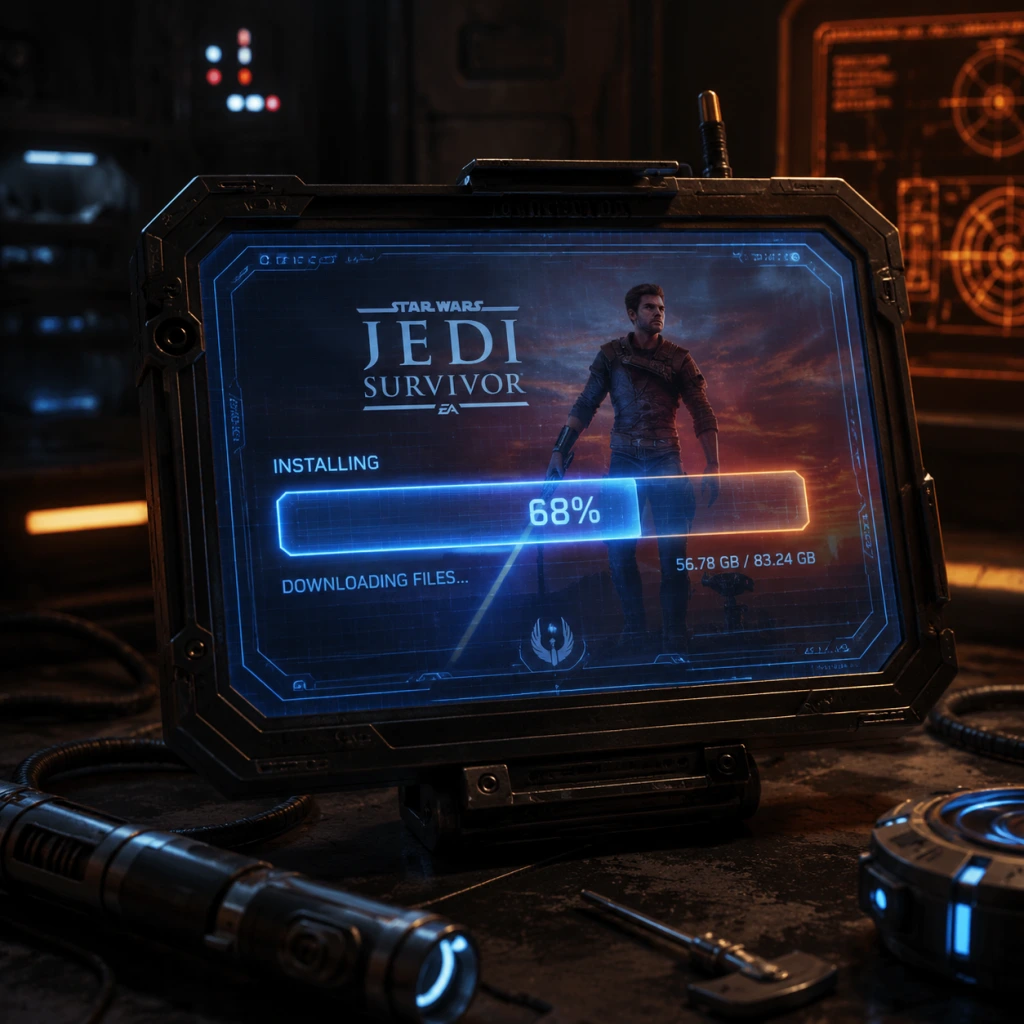
Download & Installation
Star Wars Jedi: Survivor – Download & Installation Guide
This guide covers all official methods to download and install Star Wars Jedi: Survivor on PC (Steam, Epic Games Store), PlayStation 5, and Xbox Series X|S. The game is not available on Nintendo Switch or mobile devices.
---
1. Platforms & Official Sources
| Platform | Official Store | Type |
|---|---|---|
| PC | Steam, Epic Games Store | Digital download |
| PlayStation 5 | PlayStation Store | Digital download (also physical disc) |
| **Xbox Series X | S** | Microsoft Store (Xbox) |
| Nintendo Switch | Not released | N/A |
| Mobile (iOS/Android) | Not released | N/A |
---
2. System Requirements (PC)
#### Minimum Requirements (1080p / 30 FPS / Low settings)
- OS: Windows 10 64-bit (version 20H2 or newer)
- CPU: Intel Core i7-7700 / AMD Ryzen 5 1400
- RAM: 8 GB (dual-channel recommended)
- GPU: NVIDIA GeForce GTX 1060 (6 GB) / AMD Radeon RX 580 (8 GB)
- DirectX: Version 12
- Storage: 155 GB available (SSD required, HDD not supported)
- Internet: Broadband connection (for activation and updates)
- OS: Windows 10 64-bit (version 20H2 or newer) / Windows 11
- CPU: Intel Core i5-11600K / AMD Ryzen 5 5600X
- RAM: 16 GB (dual-channel)
- GPU: NVIDIA GeForce RTX 2070 (8 GB) / AMD Radeon RX 6700 XT (12 GB)
- DirectX: Version 12
- Storage: 155 GB available (NVMe SSD strongly recommended)
- Internet: Broadband connection
- PC (Steam): Steam account with the game purchased or activated.
- PC (Epic Games Store): Epic Games account with the game purchased.
- PlayStation 5: Sony PSN account (free) – the game is tied to the account.
- Xbox Series X|S: Microsoft Xbox account (free) – digital license tied to account.
- All platforms require an internet connection for initial activation and optional updates.
- PC: The game will compile shaders on first launch (may take 5–15 minutes depending on CPU). Do not interrupt this process.
- PS5/Xbox: The game will check for updates and apply any available patches before launch (ensure you are online).
- All platforms: After the first screen, you can adjust graphics (PC) or settings (console). Recommended to set Graphics Mode to Performance (60 FPS) or Quality (30 FPS with higher resolution).
- EA Account linking: On first launch, the game may prompt you to sign in with an EA Account (free) for online features (photo mode, future updates). This is optional but recommended.
- Download size: Approximately 130–150 GB (compressed).
- Installed size: Exactly 155 GB on all platforms.
- Post-install updates: Additional patches may require 10–30 GB of free space temporarily.
- Pre-load option: Steam and Epic allow pre-loading before release; the final installation still requires unpacking.
- Recommendation: Keep at least 170 GB free for safe installation and patching.
#### Recommended Requirements (1440p / 60 FPS / High settings)
> ⚠️ Important: The game requires a DirectX 12 Ultimate compatible GPU and an SSD. Installation on an HDD will cause severe stuttering and long load times.
---
3. Account Requirements
---
4. Step-by-Step Installation
#### 4.1 PC – Steam
1. Install the Steam client from [store.steampowered.com](https://store.steampowered.com) and log in.
2. Purchase Star Wars Jedi: Survivor from the Steam store or redeem a key.
3. Open your Library and find the game.
4. Click Install. Choose a destination folder on an SSD with at least 155 GB free.
5. Wait for the download to complete (Steam will download around 130–150 GB compressed, then unpack).
6. After installation, the game will appear as "Ready to play". Click Play to launch.
#### 4.2 PC – Epic Games Store
1. Install the Epic Games Launcher from [store.epicgames.com](https://store.epicgames.com) and log in.
2. Purchase the game from the Epic Store or redeem a code.
3. Go to your Library and click on Star Wars Jedi: Survivor.
4. Click Install – select an SSD location (minimum 155 GB free).
5. Wait for the download and installation (similar size to Steam).
6. Click Launch to start the game.
#### 4.3 PlayStation 5 (Digital)
1. On your PS5, go to PlayStation Store.
2. Search for Star Wars Jedi: Survivor and purchase/download (or redeem a code from the PS Store).
3. The download will begin automatically. Ensure you have at least 155 GB free on the internal SSD or an M.2 expansion (USB storage cannot be used for PS5 games).
4. Once downloaded, the game tile will appear on your home screen. Press X to launch.
> Note: Physical disc version is also available. Insert the disc, and the console will copy the data to the SSD (still requires full installation).
#### 4.4 Xbox Series X|S (Digital)
1. Press the Xbox button to open the guide, go to Microsoft Store.
2. Search for Star Wars Jedi: Survivor and purchase/download.
3. The game downloads to the internal SSD or an official Seagate expansion card (USB external drives cannot run Series X|S games).
4. You can check download progress in My games & apps > Manage > Queue.
5. Once complete, select the game from your library and press Play.
> Note: Physical disc version is also available. Insert the disc, and the console will install the game data to the SSD.
---
5. First Launch Setup
---
6. Storage Space Details
---
7. Common Installation Errors & Fixes
| Error / Issue | Platform | Cause | Solution |
|---|---|---|---|
| Disk write error / corrupt files | PC | Antivirus interference, fragmented storage, failing drive. | Disable real-time antivirus for the install folder. Run Steam/Epic as administrator. Verify integrity of game files (Steam: Properties > Local Files > Verify; Epic: Settings > Manage > Verify). If continuing, clear download cache (Steam: Settings > Downloads > Clear download cache). |
| Insufficient disk space | All | Only 155 GB free but more required for temporary files. | Free up additional space (30–50 GB), or move other files. On PC, ensure the drive is not nearly full; Windows needs room for virtual memory. |
| Shader compilation crash on launch | PC | Outdated GPU drivers or unstable CPU. | Update GPU drivers (NVIDIA: 536.99 or newer; AMD: 23.7.1 or newer). Install all Windows updates. If still crashing, try launching with `-dx12` or `-skip_intro` in launch options (PC). |
| “Fatal error” or “Unsupported GPU” | PC | DirectX 12 Ultimate missing or incompatible GPU. | The game requires a GPU that supports DirectX 12 Ultimate (feature level 12_2). Check your GPU specs. Update to latest drivers. If persistent, add `-nohdr` to launch options as a workaround. |
| Game won’t install on external HDD | Xbox / PS5 | Console requires internal SSD for current-gen games. | Use the internal storage or an official expansion card (Xbox) or M.2 SSD (PS5). Move game from external to internal via Settings > Storage. |
| EA Account login loop | All | Network issues or corrupted EA app. | PC: Repair EA app installation (Control Panel > Programs > EA app > Repair). Try running EA app as administrator. Console: Restart console and ensure internet is stable. Temporarily disable firewall. |
| Download stuck at 0% or slow | PC | ISP throttling, server congestion, or client bug. | Pause and resume download. Change download region in Steam: Settings > Downloads > Download Region (e.g., switch to a less busy region). Disable VPN. Restart router. |
| “Failed to load assets” after install | All | Corrupted game files or missing patches. | Verify game files (see above). If on console, uninstall and reinstall the game. |
8. Post-Installation Verification
After installation completes, perform these checks to ensure the game is ready:
1. Update check: Launch the game once – automatic update detection will run. Install any patches.
2. Performance test: Play the first 10 minutes of the tutorial area. Monitor FPS, loading times, and any crashes.
3. Save verification: Ensure the auto-save icon appears (saber icon) indicating saves are working. On PC, saves are located in `%USERPROFILE%\\Documents\\My Games\\Star Wars Jedi Survivor\\` (for Steam).
4. Integrity check (PC): Use Steam’s “Verify integrity of game files” or Epic’s “Verify” option even after a successful install – this can catch hidden errors.
5. Achievements/cloud saves: Confirm that cloud saving is enabled (Steam: Library > Properties > General > Cloud saves).
If no errors appear, you are ready to enjoy Star Wars Jedi: Survivor!
---
9. Troubleshooting Resources
- Official support: [EA Help](https://help.ea.com) – search for “Jedi Survivor” for known issues.
- Steam Community Hub: [Star Wars Jedi: Survivor Community](https://steamcommunity.com/app/1774580/discussions/)
- PS5 Support: [PlayStation Support](https://www.playstation.com/support/)
- Xbox Support: [Xbox Support](https://support.xbox.com)
- PCGraphics fixes: Reset the config file (`%LOCALAPPDATA%\\SwGame\\Saved\\Config\\WindowsNoEditor\\GameUserSettings.ini`) if settings are not saving.
---
Last updated: October 2023