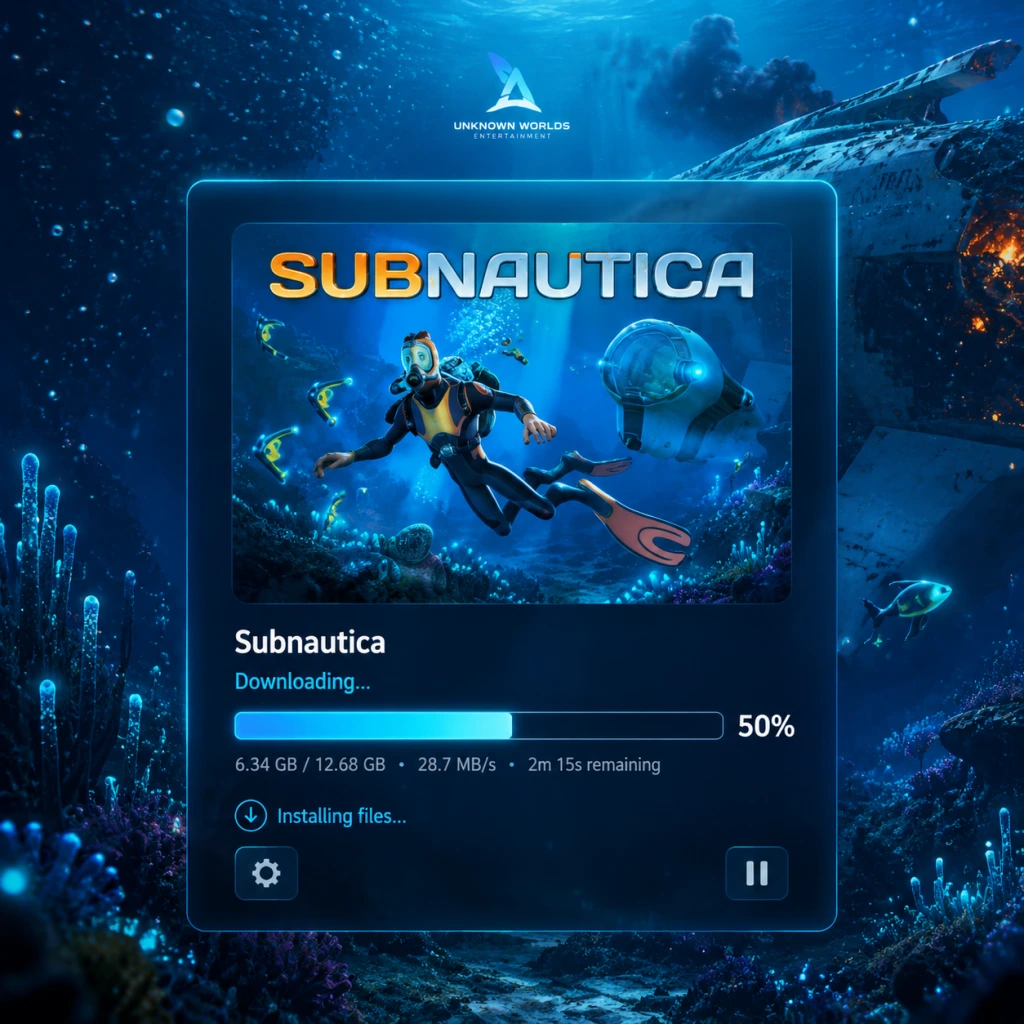
Download & Installation
Subnautica Download & Installation Guide
This guide covers downloading and installing Subnautica (the original 2018 survival game) on all officially supported platforms: PC (Steam, Epic Games Store), PlayStation 4/5, Xbox One/Series X|S, and Nintendo Switch. Mobile versions are not officially available; cloud streaming services like Xbox Cloud Gaming may offer it, but that is beyond the scope of this guide.
---
Platform Availability & Required Accounts
| Platform | Store / Service | Account Required |
|---|---|---|
| PC (Windows) | Steam | Steam account |
| PC (Windows) | Epic Games Store | Epic Games account |
| PlayStation 4 / 5 | PlayStation Store | PlayStation Network account |
| Xbox One / Series X\ | S | Microsoft Store |
| Nintendo Switch | Nintendo eShop | Nintendo Account |
System Requirements (PC)
Minimum
- OS: Windows 7 64-bit
- CPU: Intel Haswell 2-core / 3.2 GHz equivalent
- RAM: 4 GB
- GPU: Intel HD 4600 or equivalent (DX11 capable)
- Storage: 5 GB available space (HDD)
- DirectX: Version 11
- OS: Windows 10 64-bit
- CPU: Intel Core i5 or AMD equivalent
- RAM: 8 GB
- GPU: NVIDIA GeForce GTX 550 Ti or better
- Storage: 10 GB available space (SSD recommended)
- DirectX: Version 11
Recommended
Note: The actual download size is ~3–4 GB; extra space is for saves and future updates. An SSD significantly reduces loading times in the large underwater world.
---
Installation Steps per Platform
1. PC – Steam
1. Launch the Steam client (download from [store.steampowered.com](https://store.steampowered.com) if not installed).
2. Log in to your Steam account.
3. Click the Store tab and search for "Subnautica."
4. Select the game (ensure it’s the original, not "Below Zero").
5. Click Add to Cart then proceed to purchase (or install if already owned).
6. After purchase, click Install from the game’s library page.
7. Choose your install location (default: `C:\Program Files (x86)\Steam\steamapps\common\Subnautica`).
8. Wait for the download and installation to complete.
9. Once finished, click Play.
2. PC – Epic Games Store
1. Download and install the Epic Games Launcher from [epicgames.com](https://www.epicgames.com).
2. Log in to your Epic Games account.
3. Go to the Store tab and search for "Subnautica."
4. Click Get (or Buy if not free).
5. The game will be added to your library. Click Library and find Subnautica.
6. Click the Install button, choose your install directory, and confirm.
7. Wait for the download. The launcher will handle installation automatically.
8. Click Launch when ready.
3. PlayStation 4 / 5
1. Turn on your console and sign in to your PlayStation Network account.
2. Go to the PlayStation Store.
3. Search for “Subnautica.”
4. Select the game (confirm it’s the PS4 version; PS5 runs via backward compatibility).
5. Click Download (or Buy first if not owned).
6. The console will download and install the game automatically.
7. Once complete, you can launch from the home screen or your library.
4. Xbox One / Series X|S
1. Power on your console and sign in to your Xbox / Microsoft account.
2. Open the Microsoft Store (or Store tile).
3. Search for “Subnautica.”
4. Select the game (it will be the Xbox One version, playable on Series X|S via backward compatibility).
5. Click Install (or Buy first).
6. The download and installation will run in the background.
7. Launch from My games & apps or the home screen.
5. Nintendo Switch
1. Turn on your Switch and sign in to your Nintendo Account.
2. Open the Nintendo eShop from the home menu.
3. Search for “Subnautica.”
4. Select the game, then choose Proceed to Purchase (or Download if already purchased).
5. Confirm the download size (~3.3 GB).
6. The game will download and install automatically. You can check progress under the Download status on the home menu.
7. Once done, select the game icon to launch.
---
First Launch Setup
When you first start Subnautica, you may need to:
1. Select language (if prompted).
2. Adjust graphics settings – the game will attempt to auto-detect optimal settings. For PC, you can change them later in Options > Graphics.
3. Mute/disable any unwanted controller or keyboard mappings.
4. Begin a new game – the opening cinematic triggers the survival mode.
5. Save immediately after the first few minutes (the game has no autosave; manually save via the pause menu).
---
Common Installation Errors & Fixes
| Error / Issue | Cause | Fix |
|---|---|---|
| “Missing MSVCP140.dll” | Microsoft Visual C++ Redistributable not installed. | Install the latest VC++ package from Microsoft (both x86 and x64). |
| “Failed to initialize renderer” | Outdated or incompatible graphics drivers. | Update your GPU drivers (NVIDIA, AMD, Intel). |
| “Steam error: Disk write error” | Insufficient permissions or antivirus interference. | Run Steam as administrator; add Steam/Epic to antivirus exclusions. |
| “Corrupted game files” | Interrupted download or malware. | On Steam: right-click Subnautica > Properties > Local Files > Verify integrity of game files. On Epic: click the three dots next to the game > Verify. |
| “Black screen on launch” | Conflict with overlays (Discord, Nvidia), or ini file corruption. | Disable overlays, delete `options.ini` (located in `%appdata%\..\LocalLow\Unknown Worlds\Subnautica`), then restart. |
| “Not enough storage” | Insufficient disk space. | Free up space or install to a different drive. Minimum 5 GB free, but 10 GB recommended. |
| Console: “Installation stopped” | Network issue or corrupt cache. | Restart the console, clear cache (for PS4: safe mode > Rebuild Database; for Xbox: Hold power button until fully off, then unplug 30 sec). |
Post-Installation Verification
To ensure the game is correctly installed and ready to play:
1. Check file integrity (PC only) using the platform’s verify feature (see above).
2. Verify the build version – launch the game and look at the main menu’s bottom-left corner (e.g., `Build 68598`). Compare to the latest on the official Unknown Worlds patch notes.
3. Test basic movement – start a new game, swim around, and open the inventory without crashes.
4. Check save/load functionality – press Escape, select Save, then reload.
5. Update drivers if you experience graphical glitches or low frame rates.
---
Additional Tips
- Back up saves regularly (PC: `%appdata%\..\LocalLow\Unknown Worlds\Subnautica\Subnautica_Data`).
- Disable cloud saves only if you encounter sync conflicts.
- Install on an SSD for faster terrain streaming and fewer pop-in issues.
- Try experimental branch (Steam only) for upcoming fixes: right-click game > Properties > Betas > select `experimental`.
---
Guide last updated: September 2023. Always check the official store pages for the most recent system requirements and patches.