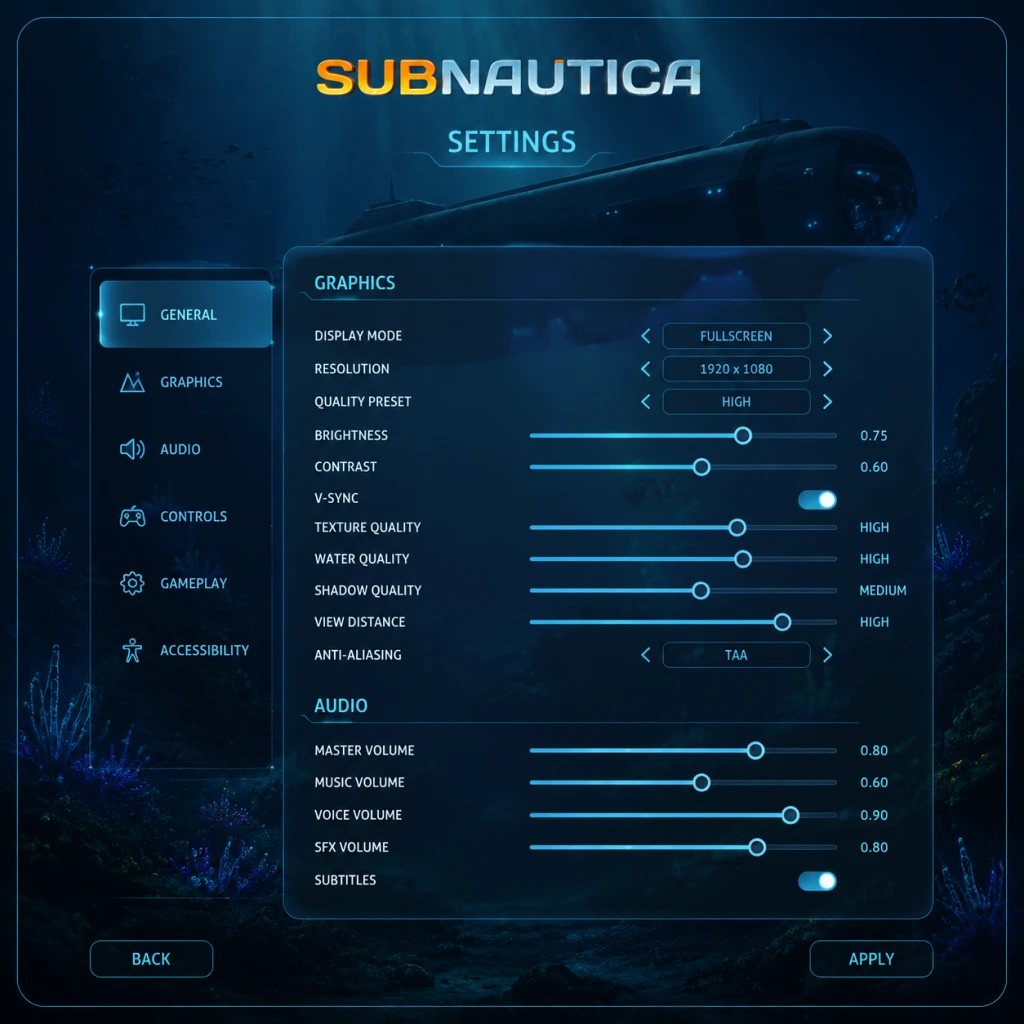
Game Settings
Game Settings Guide
This guide covers every setting in Subnautica, from graphics and audio to controls and gameplay. Adjusting these options correctly can greatly improve performance, visual quality, and accessibility. Below you'll find recommended settings for low-end, mid-range, and high-end PCs, as well as console-specific notes.
---
Graphics Settings
Access: Main Menu → Options → Graphics
#### Display Mode
- Fullscreen: Best performance, least input lag.
- Borderless Windowed: Useful for alt-tabbing; slightly more input lag.
- Windowed: Lower performance; use if troubleshooting.
- Match your monitor's native resolution for clarity.
- For low-end PCs, drop to 720p or 900p if necessary.
- Off: Reduces input lag but may cause screen tearing.
- On: Smooths tearing but can induce stutter if frame rate drops.
- Default: 70. Increases by up to 90 (PC) or 80 (console).
- Higher FOV improves spatial awareness underwater but reduces performance slightly.
- Low / Medium / High / Ultra – adjust global quality.
- Controls sharpness of textures on creatures, flora, and wrecks.
- Low: blurry but saves VRAM (1–2 GB). High: crisp but requires ~4 GB VRAM.
Recommendation: Fullscreen for all hardware levels.
#### Resolution
#### VSync
Recommendation: Off for competitive responsiveness; On if tearing is bothersome. Consider using Adaptive VSync via graphics driver.
#### Field of View (FOV)
Recommendation: 80–85 for a comfortable balance.
#### Quality Presets
Per-setting tweaks for performance (listed below):
##### Texture Quality
Table: VRAM Usage by Texture Quality
| Setting | VRAM Needed |
|---|---|
| Low | ~1.5 GB |
| Medium | ~2.5 GB |
| High | ~4 GB |
| Ultra | ~6+ GB |
##### Shadow Quality
- Affects dynamic shadows from creatures and player light.
- Low: blocky shadows, some flickering. Ultra: soft, detailed shadows.
- Low: simplified water surface (no reflections). Ultra: realistic caustics, full reflections.
- Major performance hog, especially in open biomes (Safe Shallows, Grand Reef).
- Options: Off / FXAA / TAA / SMAA
- FXAA: Fast, blurry edges. TAA: Good quality but small ghosting. SMAA: Sharpest but heavier.
- Adds shadow depth around objects. Slight performance hit.
- Off / Low / High
- Adds glow to bright objects (sun, Aurora bioluminescence). Minimal performance impact.
- Blurs screen during fast movement. Some find it nauseating.
- Blurs distant objects. Can hide pop-in but reduces clarity.
- Low / Medium / High – controls distance fog density.
- Higher fog obscures far scenery, can improve performance.
Performance impact: High on CPU/GPU. For mid-range, set to Medium.
##### Water Quality
Recommendation: Low for low-end; Medium for mid; High/Ultra for high-end. Note: Ultra can cause frame drops in Warper zones.
##### Anti-Aliasing
Recommendation: TAA for most systems; SMAA if you have 6+ GB VRAM and good GPU.
##### Ambient Occlusion
Recommendation: On for visual depth; Low for mid-range.
##### Bloom
Recommendation: On for immersion. Off if you dislike the effect.
##### Motion Blur
Recommendation: Off for clarity and to reduce motion sickness.
##### Depth of Field
Recommendation: Off for better visibility when scanning for resources.
##### Fog
Recommendation: Medium; High if you struggle with pop-in.
#### Recommended Graphics Settings by Hardware Tier
| Hardware Tier | Example GPU | Resolution | Preset | Important Tweaks |
|---|---|---|---|---|
| Low-End | GTX 1050 / RX 560 | 720p / 900p | Low | Water: Low, Shadows: Low, Textures: Low |
| Mid-Range | GTX 1660 / RX 580 | 1080p | Medium | Water: Medium, Shadows: Low, Textures: Medium |
| High-End | RTX 3060 / RX 6600 XT | 1440p | High | Water: High, Shadows: Medium, Textures: High |
| Ultra | RTX 3080 / RX 6800 XT | 4K | Ultra Max | All Ultra, TAA, ambient occlusion on |
---
Audio Settings
Access: Main Menu → Options → Audio
#### Master Volume
- Controls all game sounds. Default 100.
- Adjust to your comfort; note that sudden roars (e.g., Reaper) can be startling.
- Affects ambient/tense music tracks.
- Sound effects: footsteps, tools, creature noises.
- Crucial for survival: Creature roars, warnings (e.g., radiation suit low durability).
- Controls lifepod radio messages and PDAs.
- Ocean ambience, reefback calls, etc. Setting to 0 makes the world eerily quiet.
- Not directly in menu; controlled via SFX volume. Explosions cause temporary ringing. Lower SFX to reduce tinnitus effect.
- Default: 50. Adjust for comfortable camera movement underwater. Higher sensitivity helps quick 180s to evade threats.
- Piloting Seamoth/Prawn with inverted controls is uncommon; most players leave off.
- Console only. Adds immersion (e.g., bumps when hitting terrain).
- Important to rebind:
- Menu binds: Save, Quick Save (F5), Load Quick Save (F9) - consider rebinding to avoid accidental overwrites.
- Not customizable in-game on console. However, on PC you can use Steam Input to remap.
- Toggle on/off. Subtitles include creature sounds and environmental noises.
- Subnautica does not have a dedicated colorblind mode. However, you can adjust UI colors via console commands (not recommended for regular play).
- Workaround: Use your graphics card's color filters (Nvidia Freestyle, AMD Adrenalin) to enhance contrast.
- Not adjustable in vanilla game. On PC, consider using UI scaling mods (Nexus Mods).
- Auto-Walk: Not present in vanilla. Use keybind mods.
- Toggle Sprint? No; hold Shift (PC).
- Subnautica supports: English, French, German, Italian, Spanish, Russian, Polish, Japanese, Korean, Simplified Chinese, Traditional Chinese, Portuguese (Brazil), Turkish.
- Note: Language change affects all text (menus, PDA, subtitles) but NOT voice acting (English only).
- Special Attention: Some translations are machine-translated and may be inaccurate; stick with English for precise crafting recipes.
- Server IP / Port: For custom servers.
- Auto-Connect: Disable for vanilla singleplayer.
- Network Mode: Off by default. Only toggle if you have Nitrox installed.
- Default: On. When you open PDA, game pauses.
- Recommendation: Keep ON for reading scans mid-swim without danger.
- Simulates head movement while swimming.
- On: Immersive but may cause motion sickness.
- Recommendation: OFF if you feel queasy.
- On: Crosshair stays centered (standard FPS). Off: crosshair moves free.
- Recommendation: ON for precision scanning.
- Controls pop-up messages (e.g., "Use Fabricator to craft...").
- Not a setting but a feature: Press F9 (PC) to drop a beacon. Only available in-game.
- You can rename containers by pointing and pressing E (PC). This helps organization.
#### Music Volume
Recommendation: Leave at 100 for full atmosphere.
#### SFX Volume
Recommendation: Keep above 70 so you never miss audio cues.
#### Voice Volume
Recommendation: 100 to catch story hints.
#### Ambient Volume
Recommendation: 100 for immersion.
#### Tinnitus Volume (Hidden Setting?)
---
Controls Settings
Access: Main Menu → Options → Controls
Subnautica supports keyboard/mouse, gamepad (Xbox/PS4), and hybrid. Defaults are sensible but several adjustments improve quality of life.
#### Mouse Sensitivity
Recommendation: 60–70 for PC; 40–50 for console.
#### Invert Y-axis
#### Controller Vibration
Recommendation: On; turn off if it causes hand fatigue.
#### Key Bindings (PC)
- Scan (Default: F) - rebind to mouse thumb button for quicker scanning.
- Open PDA (Default: Tab) - rebind to a side key if you keep hitting it by accident.
- Toggle Headlights (Default: L) - rebind to a thumb mouse button for easy toggling.
Special Attention: The game does not support quick save on hardcore mode; don't rely on F5.
#### Gamepad Button Mapping
---
Accessibility Settings
Access: Main Menu → Options → Accessibility (some settings are under Gameplay or Controls)
#### Subtitles
Recommendation: ON for hearing-impaired players or loud environment.
#### Colorblind Mode
#### Difficulty Mode
Freedom: No hunger/thirst; focus on exploration.
Survival (default): Hunger/thirst/oxygen/health.
Hardcore: Permadeath.
Creative: Unlimited resources, no damage.
Accessibility Note: Choose Freedom if managing O₂ and health is comfortable but hunger/thirst is overwhelming.
#### UI Scale
#### Movement Options
---
Language Settings
Access: Main Menu → Options → Language
---
Network Settings
Access: Main Menu → Options → Network (only relevant if using multiplayer mods like Nitrox Mod).
Important: Subnautica is a singleplayer game. Network settings are vestigial from development tools. Do not change unless you specifically use multiplayer mods.
---
Gameplay Settings
Access: Main Menu → Options → Gameplay (or controls-menu subsets)
#### Auto-Pause on PDA
#### View Bobbing
#### Lock Crosshair to Center
#### Show Tooltips / Hints
Recommendation: Keep ON for first playthrough; turn OFF later to clear screen.
#### Ping System
#### Storage Container Labels
---
Special Attention Points During Setup
1. Water Quality Overrides: Even if you set a preset to Low, some biomes (Lava Castle) have forced high-detail water. Use mods to override if necessary.
2. Save Slot Overwriting: Subnautica saves automatically every 5 minutes (Survival/Hardcore). Do not manually save during critical moments (e.g., entering dangerous cave) to avoid corruption. The game creates backup saves (slot name_Backup.sav).
3. Hardcore Mode Disables Quick Save: F5 and normal saving are absent. Only autosaves occur – and only one save file. If you die, it's gone. Do not experiment with graphic settings mid-game in Hardcore; restart if you need to change.
4. Console Commands Disable Achievements: Opening the debug console (F3, then ~) with any command prevents earning achievements for that session. Restart the game to re-enable.
5. FOV on Consoles: PS4/Xbox One cap FOV at 70. PS4 Pro / Xbox One X can reach 80. PS5/Series X|S allow 90. On last-gen consoles, keep FOV low to maintain stable 30 fps.
6. Anti-Aliasing on Console: Default TAA. On Xbox One S, consider leaving at default; no options menu.
7. Motion Sickness Mitigation: If you feel nauseous, disable View Bobbing, reduce FOV to 70, turn off Motion Blur and Depth of Field, and play in a well-lit room.
8. Audio Cues Are Critical: The Reaper Leviathan roar is bass-heavy; ensure your subwoofer or headphones reproduce low frequencies. Missing this audio cue often leads to sudden deaths.
9. Controller Layout Differences: On PC, an Xbox controller works natively; PS4/5 controllers require Steam Input or third-party programs. Button prompts may show Xbox icons regardless.
10. Graphics Driver Settings:** For Nvidia, set Power Management to "Prefer Maximum Performance"; for AMD, disable "Chill" to avoid input lag. Do not force anisotropic filtering above 4x (game default is 16x though; check in-game).
---
Final Recommendations
Start with the hardware tier table above, then fine-tune based on your experience. If you encounter stutter, first lower Water Quality, then Shadows. For console, the only adjustable graphics option on PS4/Xbox One is difficulty; on newer consoles you can toggle VSync and HDR. Always play with a stable framerate – Subnautica's combat and traversal rely on smooth swimming.
Remember: the game is gorgeous even on Low settings. Prioritize performance over eye candy to fully enjoy the terrifying depths without frustrating frame drops.