Download & Installation
Super Smash Bros. Ultimate Download & Installation Guide
Platform Exclusivity: Super Smash Bros. Ultimate is a Nintendo Switch exclusive title. It is not available on PC (Steam, Epic Games Store), PlayStation, Xbox, or mobile devices. This guide covers only legitimate methods on Nintendo Switch.
---
Official Download Sources
| Source | Method | Notes |
|---|---|---|
| Nintendo eShop (digital) | Purchase and download directly to your Switch | Requires internet connection and Nintendo Account |
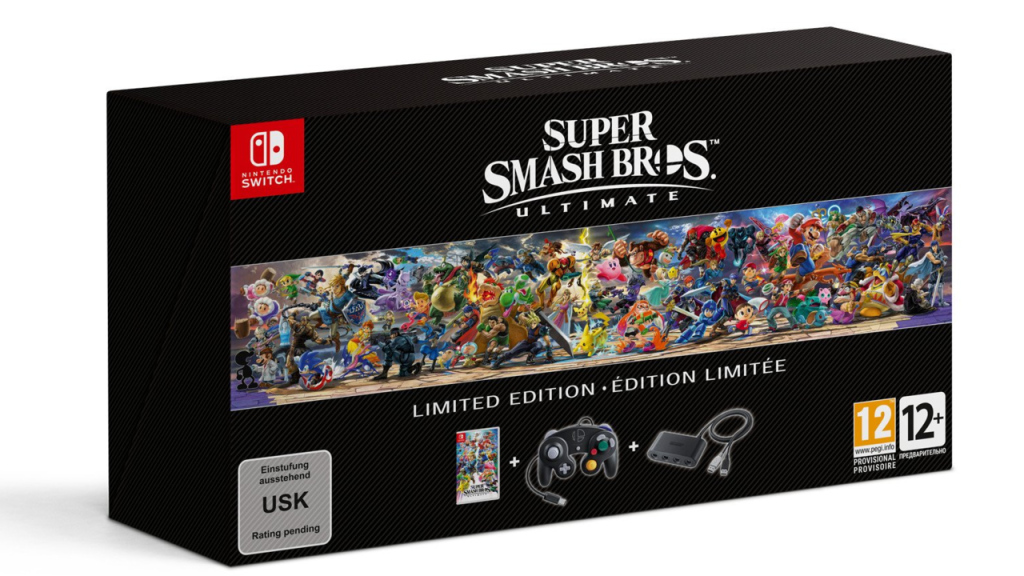
| Physical Game Card (retail) | Insert cartridge into Switch | Does not require download for base game; updates may be needed |
Step-by-Step Installation
#### Digital Purchase & Download (Nintendo eShop)
1. Ensure system requirements:
- Nintendo Switch console (all models: original, OLED, Lite)
- At least 13.8 GB of free internal storage or on a microSD card (game size ~13.6 GB after updates; plus save data)
- Active internet connection
- Nintendo Account (linked to the eShop region)
2. Connect to the internet via Wi-Fi or wired LAN (dock only).
3. Access the Nintendo eShop:
- From the HOME menu, select the eShop icon (orange shopping bag).
- Choose the Nintendo Account you wish to use.
4. Search for Super Smash Bros. Ultimate:
- Use the search bar or browse “New Releases” / “Best Sellers”.
- Select the game’s listing.
5. Purchase:
- Select “Proceed to Purchase”.
- Add funds via credit card, PayPal, eShop gift card, or Nintendo Switch Online vouchers.
- Confirm purchase. The game will be added to your library.
6. Begin download:
- The download will start automatically after purchase.
- Alternatively, go to HOME menu → your user icon → “Redownload” to start or resume.
- Download progress appears on the HOME screen (icon with a download bar).
7. Wait for completion:
- Download speed depends on your internet connection. The full game is about 13.6 GB.
- You can play while downloading only a portion if you choose “Start Software” after the initial required data is downloaded (approx. 6 GB). For full features (all stages, fighters, modes), wait for complete download.
#### Physical Game Card Installation
1. Obtain a genuine Super Smash Bros. Ultimate game card from a retailer.
2. Insert the card into the game card slot on the top of the Switch (standard/original/Lite) or side (OLED docked mode).
3. System will detect the card:
- A game icon will appear on the HOME menu.
- If prompted, download any required updates (size varies; frequently ~3–5 GB cumulative).
4. Install updates:
- Connect to the internet → select the game icon → press + → Software Update → Via the Internet.
- Alternatively, go to System Settings → System → Auto-Update Software to enable automatic downloads.
Important: The game card itself does not require installation of the base game; only updates and DLC need storage space. Ensure you have at least the update size free.
---
System Requirements (Nintendo Switch)
| Requirement | Minimum | Recommended |
|---|---|---|
| Console | Nintendo Switch (all models) | Nintendo Switch (any model) with at least 32 GB internal (or microSD) |
| Storage Space | 13.8 GB free (digital) or update size (physical) | 32 GB internal or 128 GB microSD for DLC + screenshots |
| Internet | Broadband for download/online play | Broadband (5 Mbps+ for smooth online) |
| Account | Nintendo Account (free) | Nintendo Switch Online subscription (for online multiplayer) |
| Controller | Joy-Con (one or pair) | Pro Controller or GameCube Controller (with adapter) |
Account Requirements
- Nintendo Account: Required for eShop purchases, online features, and save data cloud backup (with NSO). Create at [accounts.nintendo.com](https://accounts.nintendo.com) or via the Switch.
- Nintendo Switch Online (NSO): Optional but required for online multiplayer, global leaderboards, and save data cloud. Subscription tiers: Individual ($3.99/mo) or Family ($6.99/mo – up to 8 accounts).
---
First Launch Setup
1. After download/installation, select the game icon on the HOME menu.
2. Title screen appears with “Super Smash Bros. Ultimate” logo.
3. Language/Region:
- The system language is used by default. You can change language in System Settings → System → Language before launching.
4. Update check:
- If connected to the internet, the game may prompt to download the latest update. Accept to ensure compatibility (especially for online play).
5. Splash screens & intro video (can be skipped with + button).
6. Main menu with options: Smash, Games & More, Online, etc.
7. Optional initial settings:
- Controls: Adjust from Smash → Controls (configure button mapping, stick sensitivity, controller order).
- Vibration/HD Rumble: Set in System Settings or in-game under Options.
- amiibo: Tap to the NFC touchpoint (right Joy-Con or Pro Controller) to register.
---
Common Installation Errors & Fixes
| Error | Cause | Solution |
|---|---|---|
| Insufficient storage | Not enough free space for download/update | Delete unnecessary software (archive or delete games) → System Settings → Data Management → Manage Software → select delete or archive. Use microSD (up to 2 TB) formatted as FAT32/exFAT. |
| Corrupted data | Incomplete download or card read error | Go to System Settings → Data Management → Manage Software → Super Smash Bros. Ultimate → Check for Corrupt Data. Re-download or update. For physical cards, clean contacts and reinsert. |
| Error code 2124-3080 | eShop connection/region mismatch | Ensure Nintendo Account region matches eShop region. Try restarting the Switch, checking internet connection, or using a different Wi-Fi network. |
| Error code 2002-2060 | Storage write failure (e.g., damaged microSD) | Remove and reinsert microSD. Format microSD (backup data first) or replace if faulty. |
| Download stuck at 99% | Server timeout or network issue | Pause and resume download from HOME menu. Restart Switch or router if persistent. |
| Physical card not recognized | Dirty or inserted incorrectly | Gently blow into the card slot (if debris) and reinsert card with label facing away from Switch. |
Post-Installation Verification
1. Confirm icon & version:
- From HOME menu, highlight the game icon → press + → Software Information → check Ver. (e.g., Ver. 13.0.1). The latest can be cross-referenced with Nintendo’s support page.
2. Test game launch:
- Select the icon → wait for title screen → press A to enter main menu. No crash or infinite loading.
3. Test gameplay (offline):
- Go to Smash → Smash → Select a stage and fighter → start a match. Game should run smoothly at 60 FPS.
4. Online connectivity:
- If you have NSO, go to Online → Smash → Quickplay and attempt to find a match. Ensure no error codes.
5. Save data check:
- Play a match or access Games & More → Challenges → data should be saved automatically. Check save data in System Settings → Data Management → Save Data Cloud (NSO required) to confirm backups.
6. DLC verification (if owned):
- Go to Games & More → Collection → DLC (Fighters Pass). All purchased fighters should be accessible.
---
Additional Tips
- Storage optimization: Moving the game to microSD can free internal space. Go to System Settings → Data Management → Move Data Between System/MicroSD. microSD class 10 or UHS-I recommended.
- Redownload games: You can redownload Super Smash Bros. Ultimate at any time from the eShop without repurchasing, as long as your Nintendo Account owns it.
- Pre-loading (physical only): Updates can be pre-downloaded by enabling Auto-Update Software in System Settings and leaving the Switch in Sleep Mode with internet.
- Multi-language support: The game includes multiple language options; these are selected based on system language. Manual override is not available in-game.
---
Last updated: 2025. Game version may vary. Always refer to official Nintendo support for the most current information.