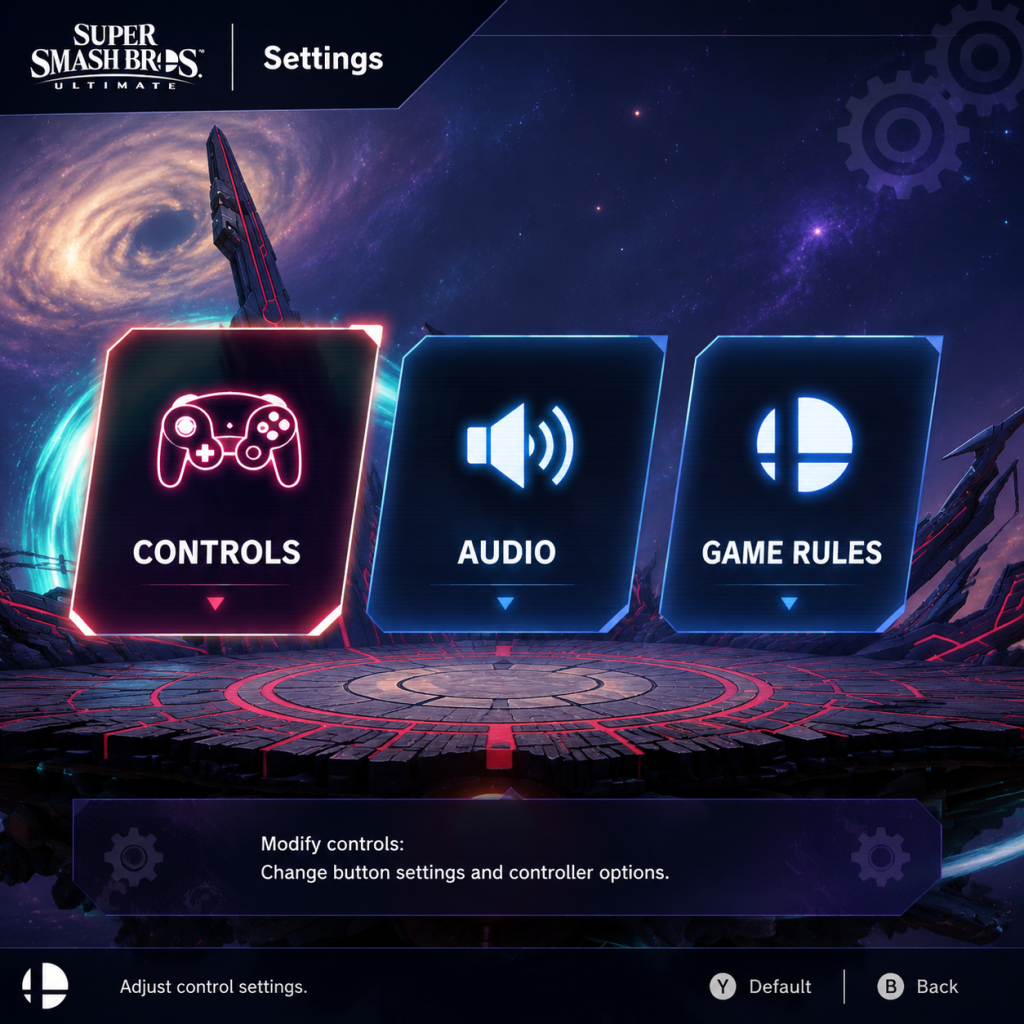
Game Settings
Super Smash Bros. Ultimate Game Settings Guide
Super Smash Bros. Ultimate offers a range of settings to tailor your experience. Because the game runs exclusively on Nintendo Switch, there are no adjustable graphics quality presets (resolution, shadows, anti‑aliasing, etc.) – the game always targets 1080p / 60 FPS in docked mode and 720p / 60 FPS in handheld mode. The settings below focus on audio, controls, accessibility, language, network, and gameplay tweaks.
Graphics & Display
- Screen Size / Border: Adjustable in System Settings (on the Switch Home menu: System Settings → TV Settings → Adjust Screen Size) or in-game via Options → Screen Border (only available if you need to move the display area).
- Brightness: Use the Switch’s system brightness slider; there is no in-game brightness option.
- Performance Notes: Ultimate runs at a locked 60 FPS in both modes. If you experience slowdown (rare outside of chaotic 8‑player matches with certain stages), try playing in handheld mode or using a wired LAN adapter for online play to reduce input lag.
- Master Volume: Sets overall game volume (0–10). Adjust to balance with voice chat or other apps.
- Sound Effects Volume: Controls attacks, hits, and stage sounds.
- Music Volume: Controls background music – useful if you want to focus on sound effects during competitive play.
- Voice Volume: Affects character grunts, victory quotes, and announcer voice.
- Recommended: For competitive play, lower Music Volume to ~3–5 and keep Sound Effects & Voice at 8–10 to hear attack cues and ledge grabs clearly.
- Controller Setup: Supports single Joy‑Con, dual Joy‑Con grip, Pro Controller, GameCube controller (via adapter), and third‑party controllers. Map controls under Controls → Button Mapping.
- Key Toggles:
- Pro Controller / GameCube Specifics:
- Check Before Matches: Always test your control setup in Training Mode to ensure all moves (tilts, smashes, specials, grabs) respond as expected.
- Button Mapping (as above) allows you to remap everything, including making it easier to press multiple buttons with one finger (e.g., set ZL to Jump for one‑handed play).
- Vibration / Rumble: Can be turned off for players sensitive to tactile feedback.
- Colorblind Options: The game provides Color Filters (in Options → Controls → Color Filters) to help distinguish team colors. Choose from Red‑Green, Blue‑Yellow, or Grayscale.
- Controller Sensitivity adjustments (Low/Normal/High) help players who accidentally press buttons or have motor control difficulties.
- Screen Zoom / Border: Already mentioned – adjust if the HUD clipping occurs.
- Text Size: The game’s interface text is fixed but generally readable on TV. If you play handheld and find text too small, try reducing screen resolution via system settings (though not recommended).
- In‑Game Language: Can be changed via Options → Language. Supports multiple languages (English, Japanese, French, German, Spanish, etc.).
- Voice Language: Separate setting for character voices. Can be set to Japanese while menus remain in English – a common preference among fans.
- Note: Changing the language resets certain settings like saved names in tournament mode? No, but it’s safe to switch anytime.
- Preferred Communication Device: In Online → Settings, choose between Wired (LAN adapter) or Wireless (Wi‑Fi). Wired is strongly recommended for stable matches and reduced latency.
- Matchmaking:
- Sever Region: Not manually selectable; the game uses your Switch’s region and connection quality. For best latency, play during off‑peak hours or use a USB‑to‑Ethernet adapter.
- Connection Status: Displayed as bars – if you see less than 3 bars, expect lag. You can abandon a match before it starts by pressing the Home button and closing the software (not ideal but possible).
- Tips:
- Stocks / Timer: Set per match under Rules – not a permanent setting, but you can save custom rulesets for quick access.
- Items: ON/OFF – competitive players always turn items OFF.
- Stage Hazards: ON/OFF – turning off hazards makes stages legal in tournament play.
- Spirits / Custom Fighters: Enable/disable in Rules → Spirits. For standard play, disable unless you intend to use Spirit Battles.
- Handicap: Can be set in rules to give weaker players more damage resistance – rare in competitive settings.
- CPU Level: Adjustable from 1 (very easy) to 9 (max). Level 9 CPUs do not replicate human behavior; they perfect‑shield and read inputs. Train against humans for real improvement.
- Button Mapping Reset: If you mess up controls, press X on the button mapping screen to reset to defaults.
- Stick Drift Compensation: No in‑game setting. If your Joy‑Con drifts, calibrate in System Settings (Controllers and Sensors → Calibrate Control Sticks).
- Headphone Audio: If using wired headphones in handheld mode, you may hear a slight buzz; try turning down the volume or using wireless headphones.
- Screen Capture: The game blocks video recording in certain modes (spirit board, classic mode?). Screen capture (screenshot) is always available by pressing the Capture button.
- Tip: If text is cut off at the edges, lower the border percentage until everything is fully visible.
Audio Settings
Controls
This section is critical – misconfiguring controls can ruin your gameplay.
- Smash Stick: Default is attack; setting to Smash lets you flick the right stick for instant smash attacks – useful but can cause accidental smashes. New players often leave it as Attack for tilts.
- Tilt Stick: If you set right stick to Smash and want easy tilts, you’ll need to manually input tilts with the left stick – this is a common misconfiguration.
- Tap Jump: ON by default. Set to OFF if you frequently jump accidentally when performing up‑tilts or up‑airs. Competitive players almost always disable Tap Jump.
- Sensitivity (Stick): Adjusts the dead zone. Options: Low, Normal, High.
- Low = larger dead zone (less responsive – good for avoiding accidental inputs).
- High = smaller dead zone (very responsive – may cause unintended moves).
- Recommended: Start with Normal. Players with heavy thumbs may prefer Low; speed demons can try High.
- Rumble: ON/OFF. ON provides haptic feedback; turning it OFF can reduce distractions and slightly improve response consistency (some players claim less input lag).
- Amiibo Settings: Under Games & More → Amiibo, you can enable/disable NFC. This does not affect gameplay settings but be aware that scanning an Amiibo while in a match will summon an AI fighter if not turned off.
- GameCube adapter: Requires wired controller support enabled in System Settings. The adapter adds slight input lag compared to wireless Pro Controller – not recommended for high‑level play unless you are used to the GameCube layout.
- Trigger Buttons: GameCube controllers have analog triggers. In Ultimate, Light Shield (partial press) is disabled in competitive rulesets; set your controller’s L/R to Attack or Jump if you don’t use shield in casual play.
Accessibility Settings
Language Settings
Network / Online Settings
- Preferred Rules: You can set your desired ruleset (stock, time, items, stages). The game will try to match you with similar preferences.
- Rematch Preference: Choose “Yes” or “No” to automatically request rematches after a game.
- Battle Arena / Quickplay: Understand the difference – Quickplay uses Global Smash Power (GSP) based on wins/losses; Battle Arenas are custom rooms with no rating impact.
- Use a wired connection.
- Avoid playing on 2.4 GHz Wi‑Fi if possible (5 GHz is better).
- Close other applications and downloads.
- Set your Switch to Airplane Mode and re‑enable only Wi‑Fi/Bluetooth for online play to reduce overhead.
Gameplay Settings (Non‑Controller)
Advanced / Hidden Tips
Optimal Settings Summary
| Setting | Recommendation |
|---|---|
| Tap Jump | OFF (competitive) |
| Right Stick | Attack (for easy tilts) or Smash (if you prefer) – test both |
| Stick Sensitivity | Normal (adjust if you get accidental inputs or miss inputs) |
| Rumble | OFF (for reduced distraction) |
| Audio – Music Vol | 3–5 (leave SFX/voice high) |
| Network | Wired connection, close apps |
| Color Filters | As needed for colorblindness |
| Language | English menus, Japanese voices (optional) |
| Items / Hazards | OFF for serious play |