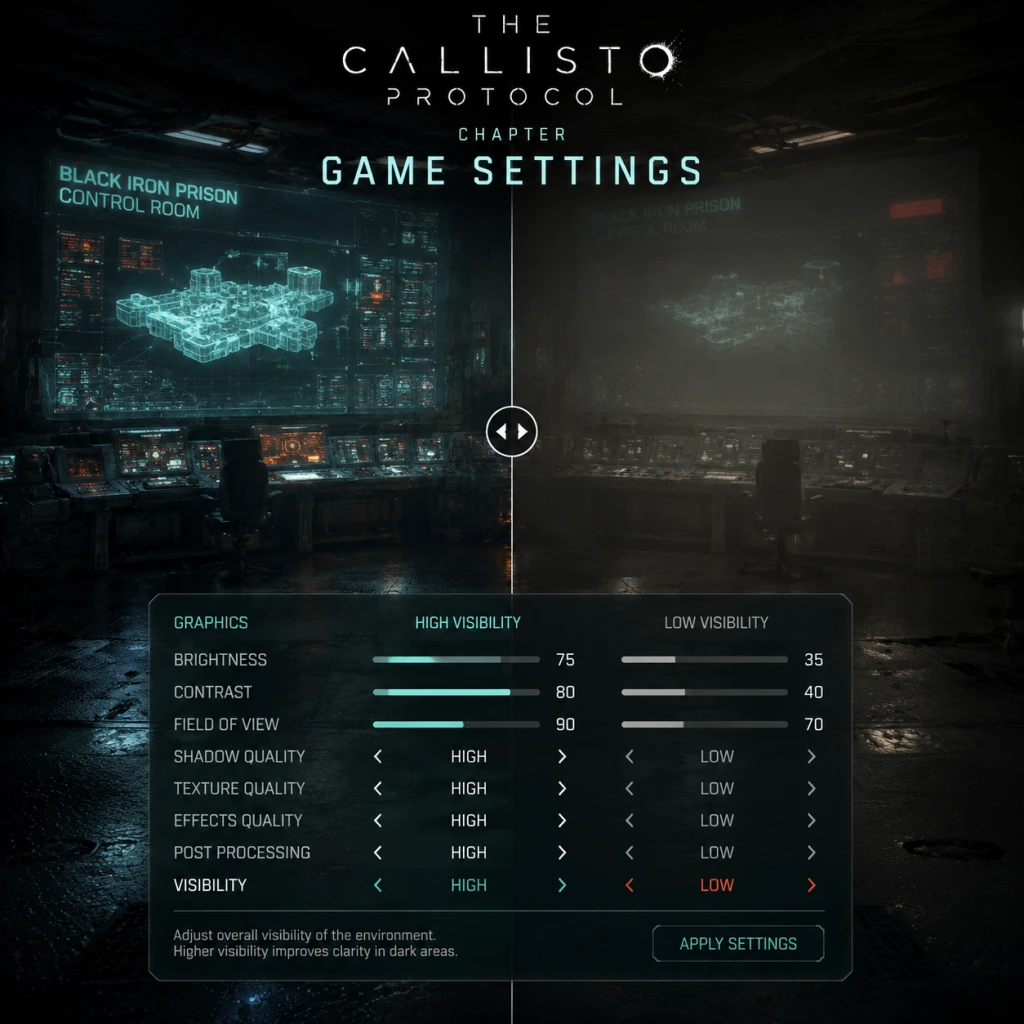
Game Settings
Game Settings Guide for The Callisto Protocol
This section covers every configurable setting in The Callisto Protocol across PC, PlayStation, and Xbox platforms. You can access the Settings menu from the Main Menu or by pausing during gameplay. Use this guide to tailor visuals, controls, and accessibility to your preference and hardware.
1. Graphics Settings
The Callisto Protocol uses the Unreal Engine 4 with aggressive lighting and post-processing. Below are all graphics options, their effects, and recommended configurations for different hardware tiers.
#### Graphics Options Table
| Setting | Options | Impact | Notes |
|---|---|---|---|
| Display Resolution | Native monitor resolutions | Visual clarity | Locked at native for performance, can lower for FPS boost |
| Window Mode | Fullscreen, Borderless Windowed, Windowed | Performance/input lag | Fullscreen offers best performance |
| V-Sync | On, Off, Adaptive | Screen tearing vs. input lag | Off recommended for lower latency (unless tearing bothers you) |
| Frame Rate Limit | 30, 60, 120, Unlimited, Custom | Smoothness | Set to your monitor’s refresh rate; avoid Unlimited if V-Sync is off |
| Graphics Quality Preset | Low, Medium, High, Ultra, Custom | Aggregate quality | Start with a preset, then fine-tune |
| Anti-Aliasing | Off, FXAA, TAA, DLSS (via upscaling) | Edge smoothness | TAA is best quality; DLSS/FSR for performance |
| View Distance | Low, Medium, High, Ultra | Draw distance | High VRAM usage; reduce on <6GB GPUs |
| Texture Quality | Low, Medium, High, Ultra | Surface detail | VRAM heavy; Ultra needs 8GB+ VRAM |
| Shadow Quality | Low, Medium, High, Ultra | Shadow resolution | Medium is a good balance |
| Ambient Occlusion | Off, SSAO, HBAO+ | Depth/lighting | HBAO+ looks best but costly |
| Reflections | Off, Static, Dynamic, Ray Traced | Surface reflections | Ray Traced is very expensive; use Dynamic on mid-range |
| Post-Processing | On, Off | Bloom, vignette, etc. | Off improves visibility in dark areas |
| Motion Blur | Off, Per Object, Full | Motion smearing | Off for clarity; personal preference |
| Depth of Field | Off, On | Background blur | Off reduces blur in combat |
| Film Grain | Off, On | Added noise | Off for cleaner image |
| Lens Flares | Off, On | Light artifacts | Off for less visual clutter |
| Chromatic Aberration | Off, On | Color fringing | Off for sharper image |
| Ray Tracing | Off, On (Reflections, Shadows) | Realistic lighting | Significant performance cost; use only on RTX 3070+ |
| Upscaling Type | Off, DLSS (NVIDIA), FSR (AMD), XeSS (Intel) | Performance boost | DLSS Quality is near-native; FSR Balanced for AMD |
| Upscaling Quality | Quality, Balanced, Performance, Ultra Performance | Fidelity vs. speed | Quality preserves detail; Performance for high framerate |
| NVIDIA Reflex Low Latency | Off, On, On+Boost | Input lag reduction | Enable for responsive controls (PC only) |
Low-End PC (e.g., GTX 1060 6GB, 16GB RAM, SSD)
- Resolution: 1920x1080
- Preset: Low, then manually increase Texture Quality to Medium (if VRAM allows)
- Upscaling: FSR set to Balanced
- Ray Tracing: Off
- V-Sync: Off, Frame Rate Limit to 30 or 60
- Film Grain, Motion Blur, Chromatic Aberration: Off
- Expected FPS: 30-50
- Resolution: 1920x1080 or 2560x1440
- Preset: High, then disable Ray Tracing
- Upscaling: DLSS Quality (if NVIDIA) or FSR Quality (if AMD)
- Shadows: High
- Reflections: Dynamic
- Ambient Occlusion: HBAO+
- NVIDIA Reflex: On
- Expected FPS: 60-80 at 1080p
- Resolution: 2560x1440 or 3440x1440
- Preset: Ultra, then enable Ray Tracing (Reflections only)
- Upscaling: DLSS Quality (or FSR Quality for AMD)
- Shadows: Ultra
- Ambient Occlusion: HBAO+
- Expected FPS: 60-90 with DLSS
- Resolution: 3840x2160
- Preset: All Ultra, Ray Tracing on (Reflections + Shadows)
- Upscaling: DLSS Performance or Balanced
- Frame Rate Limit: 120 (if monitor supports)
- Expected FPS: 60-80 with DLSS Performance
- PS5 / Xbox Series X: 4K upscaled with dynamic resolution, Ray Tracing available (Performance vs Quality mode in display settings). Choose Performance for 60 FPS, Quality for enhanced visuals (30 FPS).
- Xbox Series S: 1080p-1440p, no Ray Tracing. Use Performance mode for smoother play.
- Ray Tracing: On PC, enabling both Reflections and Shadows can cut FPS by 40%. Only enable if you have RTX 3070 or better and are willing to accept ~40-50 FPS at 1440p without upscaling.
- V-Sync: Turning it off reduces input lag but may cause screen tearing. Use NVIDIA Reflex + Frame Rate Limit to cap FPS instead.
- Upscaling Quality: Setting to Performance at 1080p yields a blurry image. Use Balanced or Quality on lower resolutions.
- Motion Blur & Film Grain: Many players disable these for a sharper image, but they are on by default. Experiment in combat areas.
Mid-Range PC (e.g., RTX 2060, RX 5700 XT)
High-End PC (e.g., RTX 3070, RTX 4070)
Ultra Enthusiast (e.g., RTX 4090, 4K)
Consoles
#### Easy to Misconfigure Settings
2. Audio Settings
| Setting | Options | Effect |
|---|---|---|
| Master Volume | 0-100 | Overall sound level |
| Music Volume | 0-100 | Background music |
| SFX Volume | 0-100 | Weapon, enemy, environmental sounds |
| Dialogue Volume | 0-100 | Voice lines (story crucial) |
| Audio Output | Stereo, 5.1, 7.1 | Speaker configuration; use Stereo for headphones |
| Dynamic Range | Low, Medium, High | Loudness compression; Low reduces loud peaks, good for headphones |
| Subtitles | On, Off | Show dialogue text |
| Subtitle Background | Off, Small, Large | Readability improvement |
- Set Audio Output to Stereo for TV/monitor speakers or headphones.
- Use High Dynamic Range for home theater, Low for late-night gaming.
- Keep SFX and Dialogue high – critical for enemy cues and story.
3. Controls Settings
#### Controller (Console & PC)
| Setting | Options | Notes |
|---|---|---|
| Controller Vibration | On, Off | Tactile feedback; off for precision |
| Invert Y-Axis | On, Off | Personal preference |
| Look Sensitivity | 0-100 | Default 50 is sluggish; try 70-80 for quick turns |
| Aim Sensitivity | 0-100 | Affects ADS speed |
| Aim Assist | Off, Partial, Full | Full helps track enemies, but can feel sticky |
| Aim Assist Window Size | Small, Medium, Large | Larger window = easier target acquisition |
| Button Layout | Default, Alternate | Switch interact and melee? Alternate may place dodge on L1 |
| Trigger Deadzone | 0-30 | Higher reduces accidental shots; keep at 5-10 |
| Stick Deadzone | 0-30 | Same; lower for more responsive aim |
| Setting | Options | Notes |
|---|---|---|
| Mouse Sensitivity | 0.0-10.0 | Recommended 3.0-5.0 for precise aiming |
| Mouse Smoothing | On, Off | Off for raw input |
| Invert Mouse | On, Off | |
| Mouse DPI Scaling | On, Off | On uses OS DPI; off uses game sensitivity |
- Aim Assist can be overly aggressive in The Callisto Protocol. If you find the crosshair sticking to enemies when you don’t want it, set to Partial or Off.
- Button Layout reassigns interact and dodge/melee. The Default has dodge on the right thumbstick click (R3), which some find awkward. Alternate moves dodge to L1. Test both.
- Trigger Deadzone on controllers: set to minimal (5) for faster shooting response.
4. Accessibility Settings
The Callisto Protocol includes several options to improve playability:
| Setting | Options | Purpose |
|---|---|---|
| Subtitle Size | Small, Medium, Large | Reading ease |
| Subtitle Background | Off, Small, Large | Contrast against bright backgrounds |
| Colorblind Mode | Off, Protanopia, Deuteranopia, Tritanopia | Adjust UI colors for color vision deficiency |
| Camera Shake | 0-100 | Reduce motion sickness |
| Screen Effects | On, Off | Disable vignette and blood splatter |
| Quick-Time Events (QTEs) | Hold instead of Tap, Auto-Complete | Reduce strain – Auto-Complete is a game-changer for some |
| High Contrast Combat | On, Off | Highlights enemies and lock-on reticle |
| HUD Opacity | 0-100 | Personal preference; lower for immersion |
| Crosshair Type | Circle, Dot, Cross | Visibility |
| Interact Prompt Style | Hold to Interact, Tap to Interact | Choose Hold to avoid accidental actions |
- Auto-Complete QTEs: Enabled in Accessibility → Quick Time Events. This automatically passes all QTEs, great for players with motor impairments or those who dislike sudden prompts.
- Hold vs Tap Interact: Set to Hold to prevent accidentally opening doors or picking up items during combat.
- Text Language: Available on all platforms – choose from supported languages (English, French, Italian, German, Spanish, etc.).
- Voice Language: Separate from text. Some platforms have additional dubs (e.g., Japanese).
- Subtitles: Can be set to a different language than the voiceover (e.g., English audio with French subtitles).
- The Callisto Protocol is single-player only, with no online multiplayer. Network settings are limited to:
- No LAN or networking features except updates and DRM (PC).
5. Language Settings
6. Network Settings
- Data Collection: Opt-in/out for telemetry (affects privacy).
- Cross-Platform Saves: Not available. Saves are per-platform.
Recommendation: Disable data collection if privacy concerns.
7. Gameplay Settings
| Setting | Options | Effect |
|---|---|---|
| Difficulty | Minimum Security, Medium Security, Maximum Security | Enemy damage, aggression, resource availability. Maximum Security unlocks on first completion. |
| Auto-Aim | On, Off | Snaps to nearest enemy when aiming; off for manual aim |
| Weapon Wheel Slowdown | On, Off | Slows time when opening the weapon wheel; off for real-time pressure |
| Heal Shortcut | Tap/Hold | Set to Hold to avoid accidental healing during combat |
| Invert Camera Horizontal | On, Off | Rarely used, but available |
- Start on Medium Security for a balanced challenge.
- Maximum Security is recommended for returning players – enemies are bullet sponges and resources scarce.
- Auto-Aim is useful on Minimum Security but can hinder precision aiming on higher difficulties.
8. Performance Optimization Summary
1. Always start with a Preset (Low/Medium/High/Ultra) and then adjust only the most impactful settings: Ray Tracing, Shadows, Reflections, and Post-Processing.
2. Upscaling is mandatory for mid-range and below; use DLSS if NVIDIA, FSR if AMD. Avoid XeSS unless on Intel Arc.
3. NVIDIA Reflex (PC only) reduces input lag noticeably – enable it.
4. Disable Film Grain, Chromatic Aberration, and Motion Blur for cleaner visuals and slight performance gain.
5. Set Frame Rate Limit to your monitor’s refresh rate to avoid screen tearing without V-Sync.
6. If experiencing stuttering on PC, lower Texture Quality to High or Medium (it’s very VRAM-demanding). Also ensure the game is installed on an SSD.
Quick Reference Table - Best Settings Per Hardware
| Hardware | Preset | Ray Tracing | Upscaling | Target FPS |
|---|---|---|---|---|
| GTX 1050 Ti / 4GB VRAM | Low | Off | FSR Performance | 30-45 |
| GTX 1660 Super | Medium | Off | FSR Balanced | 50-60 |
| RTX 2060 | High | Off | DLSS Quality | 60-70 |
| RTX 3070 | Ultra | Reflections only | DLSS Quality | 60-80 |
| RTX 4080 | Ultra | Reflections + Shadows | DLSS Balanced | 80-100 |
| PS5 / XSX | Quality Mode | Reflections | N/A (dynamic) | 30 |
| PS5 / XSX | Performance Mode | Off | N/A | 60 |
| Xbox Series S | High | Off | N/A (lower res) | 30-60 |
By applying these settings, you’ll be able to enjoy The Callisto Protocol’s terrifying atmosphere without technical hiccups. Always test changes in the first dark corridor of Chapter 1 to gauge performance – that area is demanding due to volumetric lighting.