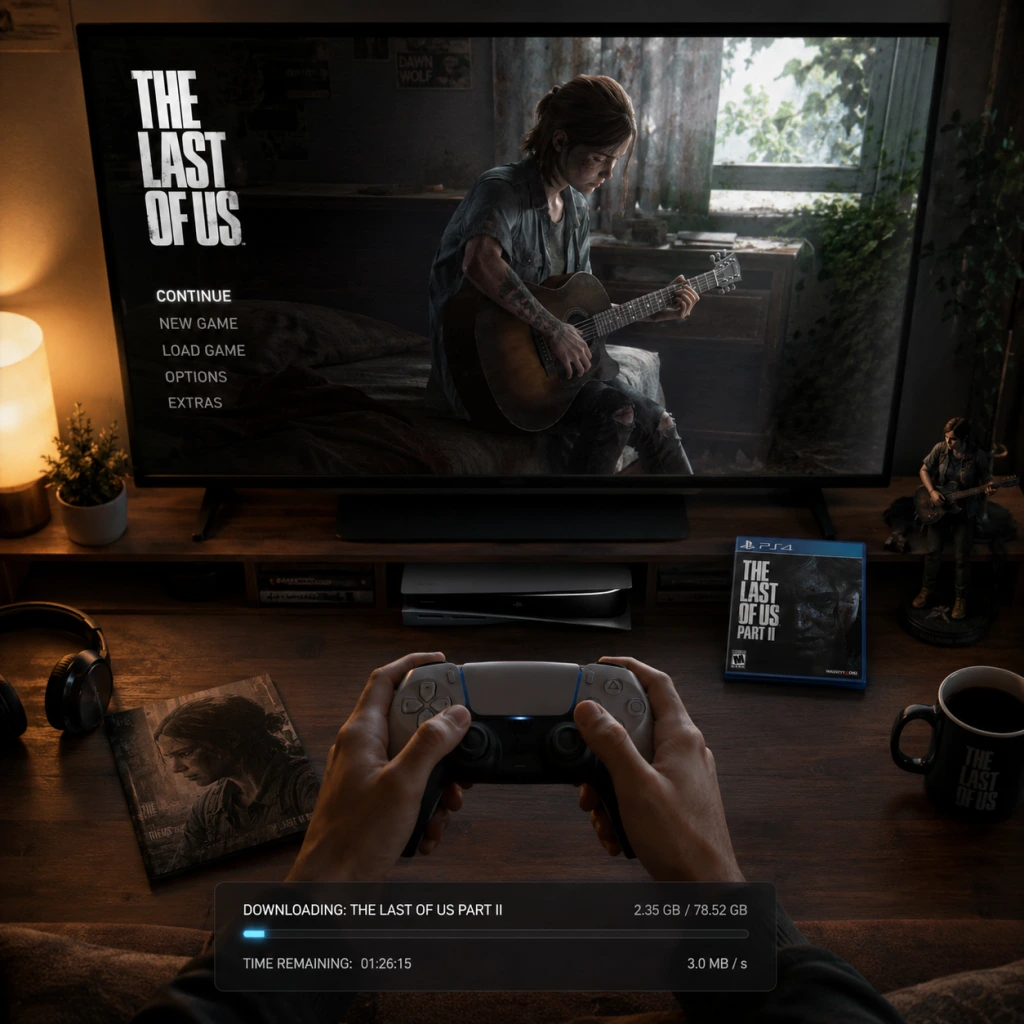
Download & Installation
Overview
The Last of Us is a critically acclaimed action-adventure series developed by Naughty Dog. This guide covers The Last of Us Part I (PS5, PC) and The Last of Us Part II Remastered (PS5). The original PS3 version is no longer sold digitally, but physical discs exist. The game is not available on Xbox, Nintendo Switch, or mobile.
Platform Availability
| Platform | Version | Storefronts |
|---|---|---|
| PS5 | Part I, Part II Remastered | PlayStation Store |
| PS4 | Part I (disc only, digital delisted), Part II | PlayStation Store (Part II only) |
| PC | Part I | Steam, Epic Games Store |
| PS3 | Original (digital delisted, physical only) | N/A |
System Requirements (PC – The Last of Us Part I)
Minimum
- OS: Windows 10 (64-bit, version 1909 or later)
- CPU: AMD Ryzen 5 1500X / Intel Core i7-4770K
- GPU: AMD Radeon RX 470 (4GB) / NVIDIA GeForce GTX 970 (4GB) / Intel Arc A580
- RAM: 16 GB
- Storage: 100 GB SSD (NVMe recommended)
- DirectX: 12
- OS: Windows 10 (64-bit, version 1909 or later)
- CPU: AMD Ryzen 5 3600X / Intel Core i7-8700K
- GPU: AMD Radeon RX 5700 XT (8GB) / NVIDIA GeForce RTX 2070 Super (8GB) / Intel Arc A770
- RAM: 32 GB
- Storage: 100 GB SSD (NVMe)
- DirectX: 12
- PlayStation: Requires a PSN account (free) to download from PlayStation Store and to access online features (leaderboards, photo mode sharing).
- PC: Requires a Steam or Epic Games account. For Steam, must own the game in library; for Epic, account plus ownership. Optionally link PSN account for certain bonuses (e.g., unlocking outfits via PSN).
Recommended
> Note: The PC version requires a large initial shader compilation which takes significant time and resources. SSDs are mandatory to avoid stuttering.
Account Requirements
Step-by-Step Installation
PlayStation 5 / PlayStation 4
1. Purchase: Go to PlayStation Store on console or web. Search for “The Last of Us Part I” or “The Last of Us Part II Remastered”.
2. Download: Select “Download to Console”. Ensure you have enough free space (see storage space below).
3. Installation: Once downloaded (~80–100 GB), the game will install automatically. You can monitor progress in the game library under “Downloaded”.
4. First Launch: The game will install additional patches. After that, you may be prompted to import save data from previous versions (if applicable).
PC (Steam)
1. Install Steam: Download and install the Steam client from [store.steampowered.com](https://store.steampowered.com).
2. Purchase & Download:
- Log in to Steam.
- Go to Library → The Last of Us Part I → Install.
- Choose installation path (ensure enough free space).
- Click “Next” and let Steam download the game files.
3. Shader Compilation: During first launch, the game will compile shaders (may take 20–40 minutes). Do not interrupt.
4. Graphics Settings: On first run, you can adjust graphics presets (Ultra, High, Medium, Low) or use the built-in benchmark to optimize.
5. PSN Linking: Optionally, link your PSN account via the in-game menu to unlock pre-order bonuses or deluxe edition items.
PC (Epic Games Store)
1. Install Epic Games Launcher: Download from [store.epicgames.com](https://store.epicgames.com).
2. Purchase & Download:
- Launch Epic, log in.
- Go to Library → The Last of Us Part I → Install.
- Select install location, click Install.
3. Same shader compilation and first-launch process as Steam.
Storage Space Requirements
| Version | Platform | Download Size | Install Size | Additional (Patches) |
|---|---|---|---|---|
| Part I | PS5 | ~80 GB | ~80 GB | ~5–10 GB |
| Part I | PS4 | ~70 GB | ~70 GB | ~5 GB |
| Part I | PC | ~100 GB | ~100 GB | ~10 GB (high-res textures optional) |
| Part II | PS5 (Remastered) | ~80 GB | ~80 GB | ~5 GB |
| Part II | PS4 | ~70 GB | ~70 GB | ~5 GB |
First Launch Setup
PlayStation
- Update: The console will automatically install the latest patch (e.g., v1.1.0).
- Difficulty: Choose from Very Light, Light, Moderate, Hard, Survivor, or Grounded.
- Accessibility: Full suite available (hearing, vision, motor). Configure before playing.
- HDR: If using HDR TV, enable in system settings + in-game options.
- Graphics Preset: Select a preset based on your hardware. Use the benchmark tool to test performance.
- Upscaling: Options include DLSS (Nvidia), FSR (AMD), XeSS (Intel). Enable if needed.
- Frame Generation: Available on RTX 40-series and RX 7000 series. Use to boost FPS.
- VRAM Usage: Monitor via settings; if you exceed your GPU’s VRAM, lower texture quality.
- Shader Compilation: Let it complete 100% before entering the main menu. Do not alt-tab during compilation.
- Save Sync: Steam Cloud or Epic Cloud saves are enabled by default.
PC
> Tip: For optimal performance on PC, disable “Motion Blur”, “Film Grain”, and “Chromatic Aberration” for a cleaner image.
Common Installation Errors & Fixes
| Error | Platform | Cause | Fix |
|---|---|---|---|
| “Missing MSVCP140.dll” | PC | Missing Visual C++ Redistributables | Install “Visual C++ 2015-2022” from Microsoft. |
| “The file is corrupted” | PC (Steam) | Corrupted download | Verify game files: Steam → Right-click game → Properties → Local Files → Verify integrity. |
| “Shader Compilation Stuck” | PC | Background interference or low RAM | Close all unnecessary apps. Increase page file to 32GB. If stuck forever, restart PC and re-launch. |
| “Out of Video Memory” | PC | VRAM insufficient / texture quality too high | Lower texture quality to Medium or turn off high-res textures. Disable DLSS Frame Generation if using limited VRAM. |
| “Error CE-30005-8” | PS4/PS5 | Corrupted installation file | Delete the game and re-download. Rebuild database (Safe Mode option 3). |
| “Cannot connect to PSN” | PlayStation | Server outage or account issue | Check PSN status. Log out and log back in. |
| “PlayStation Store won’t download” | PlayStation | Insufficient space or license conflict | Free up space. Restore licenses (Settings → Account Management → Restore Licenses). |
| “Steam Cloud sync failed” | PC | Network or conflict | Disable Steam Cloud temporarily (Properties → General → Uncheck “Enable Steam Cloud”). |
| “Kernel32.dll crash” | PC | Outdated Windows/GPU drivers | Update Windows and GPU drivers to latest versions. |
Post-Install Verification
Console
- Check Version: From the game tile, press Options → Information to see version number (should match latest patch).
- Load Save: Quick start a new game; if it loads normally, installation is successful.
- Performance Test: Run through the opening sequence (e.g., Joel’s house). Look for unusual stuttering or crashes.
- Verify Files: On Steam, right-click game → Properties → Local Files → Verify integrity. On Epic, go to Library → click the three dots → Verify.
- Benchmark: Use the in-game benchmark (Options → Graphics → Benchmark). Aim for stable 30+ FPS on your target settings.
- Monitor Temperatures: Use MSI Afterburner or other tools to ensure CPU/GPU temps stay within safe limits.
- First Mission Test: Play through the prologue. If no crashing or major stuttering, install is good.
- Shader Cache: The game will compile shaders again after major GPU driver updates; this is normal.
- Cross-Platform Saves: Not supported (PS5 vs PC).
- PS5 DualSense Features: On PC, haptic feedback and adaptive triggers work only via wired connection and supported games (Part I supports it).
- Disc Versions: If you have a physical PS4/PS5 disc, you must insert it to play. The disc will trigger a large download anyway.
- Mods: The Last of Us Part I does not officially support mods. Unofficial mods exist (e.g., texture packs) but are unsupported.
PC
Additional Notes
Troubleshooting Guide
If you encounter crashes after installation:
1. Update GPU Drivers: Direct from Nvidia/AMD/Intel.
2. Disable Overlays: Disable Steam Overlay, Discord overlay, and MSI Afterburner.
3. Set High Priority: In Task Manager, find TheLastOfUs.exe → Set Priority → High.
4. Disable Xbox Game Bar: Windows settings → Gaming → Game Bar → Off.
5. Run as Administrator: Right-click game executable → Properties → Compatibility → Run as administrator.
For persistent issues, visit the official Naughty Dog support page or the game’s Steam community hub.
---
This guide is up to date as of 2024. Game updates may change some details.