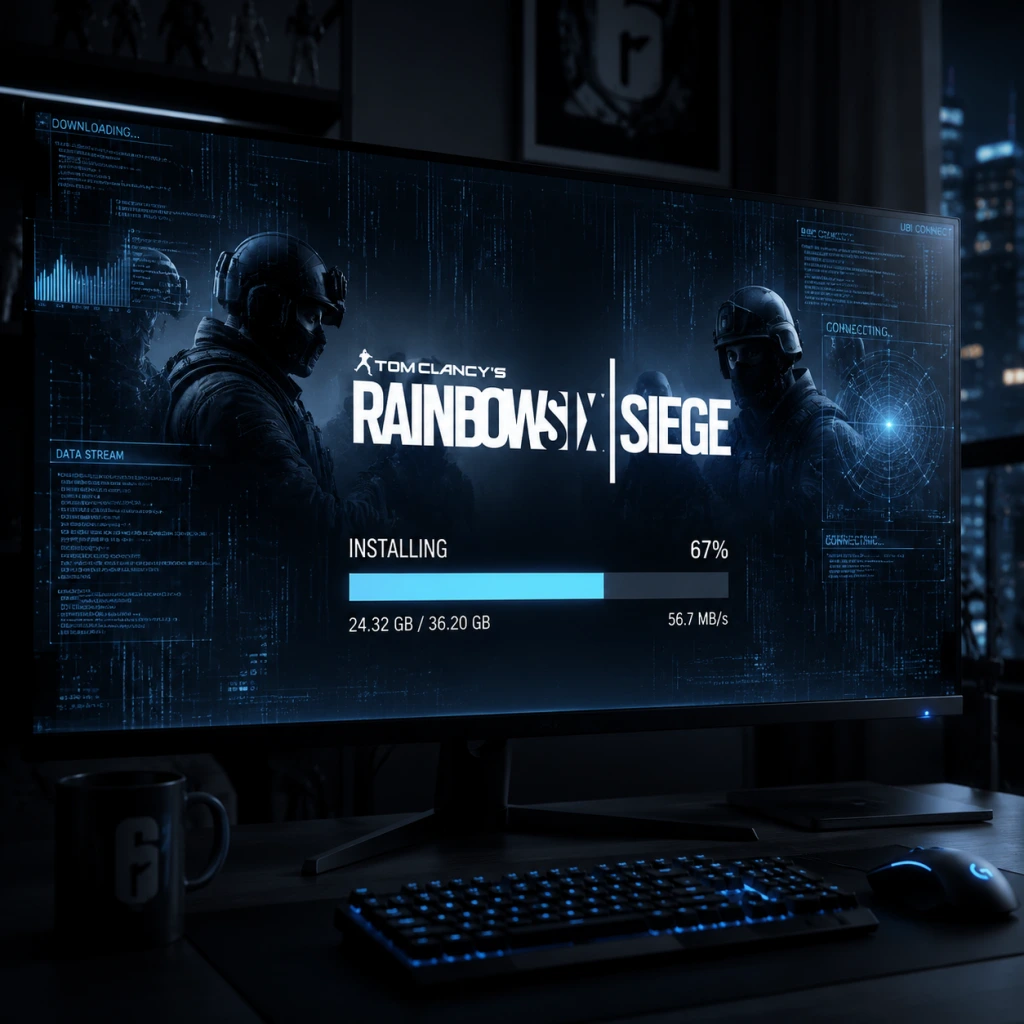
Download & Installation
Download & Installation Guide for Tom Clancy's Rainbow Six Siege
Supported Platforms
- PC: Windows (via Steam, Ubisoft Connect, or Epic Games Store)
- PlayStation 4 & PlayStation 5
- Xbox One, Xbox Series X|S
- Not available on Nintendo Switch or mobile devices.
- Ubisoft Store / Ubisoft Connect (https://store.ubisoft.com)
- Steam (https://store.steampowered.com)
- Epic Games Store (https://store.epicgames.com)
- PlayStation Store (PS4/PS5)
- Microsoft Store (Xbox One/Series X|S)
Official Download Sources (Legitimate Only)
> Important: Always purchase directly from the official stores or authorized retailers. Third‑party key resellers may sell illegitimate or region‑locked keys.
System Requirements (PC)
| Component | Minimum (30 FPS, 720p Low) | Recommended (60+ FPS, 1080p High) |
|---|---|---|
| OS | Windows 7 SP1, Windows 8.1, Windows 10 (64‑bit) | Windows 10 (64‑bit) |
| CPU | Intel Core i3-560 @ 3.3GHz or AMD Phenom II X4 945 | Intel Core i5-2500K @ 3.3GHz or AMD FX-8120 @ 3.1GHz |
| RAM | 6 GB | 8 GB |
| GPU | NVIDIA GeForce GTX 460 or AMD Radeon HD 5870 (DirectX 11) | NVIDIA GeForce GTX 670 / GTX 760 / GTX 960 or AMD Radeon HD 7970 / R9 280x |
| VRAM | 1 GB | 2 GB |
| Storage | 85 GB HDD (SSD recommended) | 85 GB SSD |
| DirectX | Version 11 | Version 11 |
| Network | Broadband internet (6 Mbps+) | Broadband internet (6 Mbps+) |
Storage Space
- PC: ~85 GB on HDD; SSD strongly recommended for faster loading.
- PlayStation: ~70‑80 GB (PS5 requires less due to compression).
- Xbox: ~80‑90 GB (Series X|S optimized with SSD).
- Ubisoft Account: Mandatory on all platforms. Create one at https://account.ubisoft.com.
- Platform Accounts: Steam account (if buying on Steam), Epic Games account (if buying on Epic), PlayStation Network account, or Xbox Live account.
- Subscription (Console): PlayStation Plus (for PS4/PS5 multiplayer) and Xbox Game Pass Core / Ultimate (for Xbox) are required to play online.
- Fix: Manually reinstall Ubisoft Connect from https://ubisoftconnect.com. Run as administrator.
- Delete the folder `%localappdata%\Ubisoft Game Launcher` and reinstall.
- Fix: Pause and resume. Restart your router. Disable VPN/proxy. Switch download server (Ubisoft Connect: Settings → Downloads → Change server; Steam: Settings → Downloads → region).
- Run launchers as administrator.
- Fix: Verify game files.
- Redownload if verification finds issues.
- Fix: Install/update BattlEye manually (found in game folder under `BattleEye`). Run `Install_BattlEye.bat` as admin.
- Whitelist BattlEye and RainbowSix.exe in antivirus/firewall.
- Error code [0x00000011] usually fixed by reinstalling BattlEye.
- Fix: Check server status at https://status.ubisoft.com. Restart launcher and network.
- If using Windows Firewall, allow `RainbowSix.exe` and `UbisoftConnect.exe` inbound/outbound.
- Forward ports: TCP: 443, 80, 13000, 13005, 13200; UDP: 6015, 12000, 14001, 14008, 14020, 14044.
- Fix: Completely close both launchers. Open Ubisoft Connect first, log in, then relaunch the game from your platform’s library. The link should proceed.
- PS4/PS5: Rebuild database (safe mode) or delete and redownload.
- Xbox: Hard reset (hold power button), clear persistent storage (Blu‑ray settings). Ensure game fully installed from “Manage game & add‑ons”.
- SSD recommended: Rainbow Six Siege loads much faster on an SSD – crucial for the drone phase and operator selection.
- Disable overlays: Other overlays (Discord, NVIDIA GeForce Experience) may cause crashes; disable if you encounter issues.
- Background downloads: Pausing any large downloads during play reduces lag.
- Free weekend / trial: The game occasionally has free weekends; progress carries over if you purchase later.
Account Requirements
Step‑by‑Step Installation
#### PC (Ubisoft Connect)
1. Install Ubisoft Connect from https://ubisoftconnect.com.
2. Log in with your Ubisoft account.
3. Navigate to the Store tab, search for Tom Clancy’s Rainbow Six Siege, and purchase or claim (if you have a key).
4. Go to Games → My Games and click Download.
5. Choose installation folder (default: `C:\Program Files (x86)\Ubisoft\Ubisoft Game Launcher\games`). Ensure at least 85 GB free.
6. Wait for download and installation. You can pause/resume.
7. After completion, launch the game from Ubisoft Connect or desktop shortcut.
#### PC (Steam)
1. Install Steam from https://store.steampowered.com.
2. Log in and go to Store → search “Rainbow Six Siege” → purchase or use a product key (Activate a Product… under Games menu).
3. Go to Library → Right‑click Tom Clancy’s Rainbow Six Siege → Manage → Install.
4. Choose install location (Steam libraries).
5. The game will download and then automatically launch the Ubisoft Connect installer (must have). Follow prompts to link your Steam and Ubisoft accounts.
6. Once linked, the game will install via Ubisoft Connect as well (Steam acts as a launcher).
7. Launch through Steam Library.
#### PC (Epic Games Store)
1. Install the Epic Games Launcher from https://www.epicgames.com/store.
2. Log in and search for Rainbow Six Siege, purchase or redeem a code.
3. Go to Library → click Install under the game.
4. Choose install directory.
5. The launcher will download the game and then prompt you to install Ubisoft Connect (if not already).
6. Link your Epic and Ubisoft accounts when prompted.
7. Launch from Epic Games Launcher.
#### PlayStation 4/5
1. Ensure console is connected to the internet and has enough free space.
2. Go to PlayStation Store (via dashboard).
3. Search for Rainbow Six Siege.
4. Select the edition you want (Standard, Deluxe, etc.) and purchase.
5. Click Download to add to your download queue.
6. The console will download and install automatically. You can monitor progress from the home screen.
7. Once installed, launch the game. You will be prompted to sign in to or create a Ubisoft account.
#### Xbox One / Series X|S
1. Ensure Xbox is online and has storage space.
2. Open Microsoft Store (or the “Store” tab).
3. Search for Rainbow Six Siege.
4. Purchase or install via Game Pass if available.
5. Select Install → choose internal or external drive.
6. The download will begin. You can play when ready (a partial install may allow menus but not full gameplay).
7. On first launch, log in with your Xbox Live account and link your Ubisoft account.
First Launch Setup
1. Profile & Ubisoft Connect overlay: The game will request activation of Ubisoft Connect (press F2 or similar). Log in to synchronize progress.
2. Play Tutorial: The first time you play, you’ll be asked to complete the Situations (PvE tutorials). Highly recommended for learning controls.
3. Controller / Keyboard Settings: Adjust sensitivity, button layout (Options → Controls → Controller or Keyboard).
4. Graphics Settings: Go to Options → Graphics. Set display mode (Fullscreen recommended), resolution, and quality presets. Lower settings improve performance.
5. Audio: Select your output device and adjust chat/voice volumes.
6. Account Linking Rewards: Link Twitch, Amazon Prime Gaming, or other services for exclusive skins/operators.
7. Network Test: The game will perform a connection test. If you have strict NAT, configure UPnP or port forwarding (see common errors).
Common Installation Errors & Fixes
#### 1. “Ubisoft Connect failed to install” or “Missing DLL”
#### 2. Download stuck at 0% or slow
#### 3. “The file is corrupt” or “Installation failed”
- Steam: Library → right‑click game → Properties → Local Files → Verify integrity of game files.
- Ubisoft Connect: Games → Rainbow Six Siege → Properties → Verify files.
- Epic: Library → click three dots → Manage → Verify.
#### 4. Anti‑cheat (BattleEye) errors
#### 5. “Unable to connect to Ubisoft servers”
#### 6. Installation hangs after account linking (Steam/Epic)
#### 7. Console installation errors
Post‑Installation Verification
1. Launch the game and wait for the main menu.
2. Check game version: In the menu, bottom‑left corner shows the current seasonal update (e.g., Y9S1).
3. Test multiplayer: Go to Quick Match (Casual) – you should find a match within a few minutes. If stuck in queue, check NAT type (should be Open or Moderate).
4. Check updates: The game will auto‑update. Run the launcher regularly to ensure latest patches.
5. Performance benchmarks: Use in‑game FPS counter (Options → Display → FPS Counter). Aim for stable 60 FPS on your hardware.
6. Graphics stability: Run the “Benchmark” tool from Options → Graphics to test system stability.
Additional Tips
For further support, visit [Ubisoft Help](https://support.ubisoft.com) or the official [Rainbow Six Siege subreddit](https://reddit.com/r/Rainbow6).
---
Guide last updated: 2025‑04 (assume current year as of writing)